
Purpose
This article explains how to deploy the required Practice Protect browser extension using Microsoft Intune.
Prerequisites
-
Microsoft 365 tenant with Global Administrator or Intune Administrator role
-
Intune licensing (e.g. Intune Plan 1, Microsoft 365 E3/E5, or Business Premium). Note: Microsoft Entra ID alone does not include Intune capabilities
-
Devices must be enrolled in Intune
Instructions
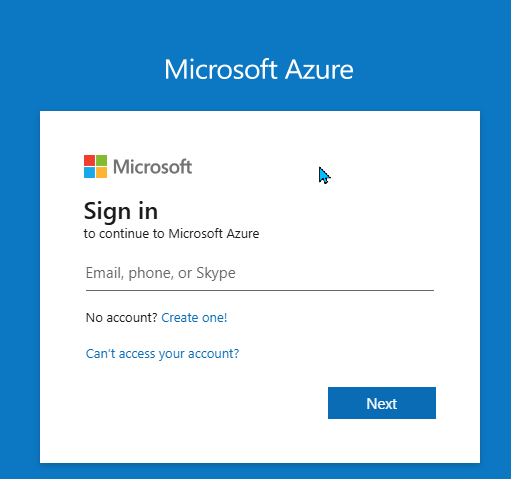
- Sign in to the Microsoft Intune Admin Center
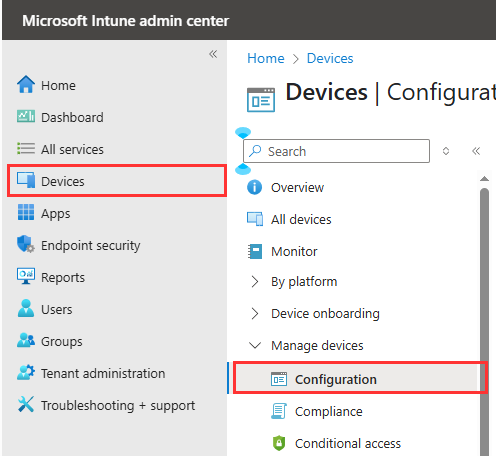
- In the left menu, click on Devices and then click on Configuration under Manage devices
- On the Policy tab, click Create and select New Policy

- Continue with the steps below for each required browser. You’ll need to create a separate policy or profile for every browser you intend to block.
Microsoft Edge
- Configure the following
- For Platform choose Windows 10 and Later
- For Profile Type choose Settings catalog

- Click Create
- Name the Profile to Deploy Practice Protect Plugin Microsoft Edge and click Next.

- In the Configuration settings tab, click Add settings.

- Search for Control which extensions are installed silently
- Choose Microsoft Edge\Extensions
- In the Setting name tick the box for Control which extensions are installed silently
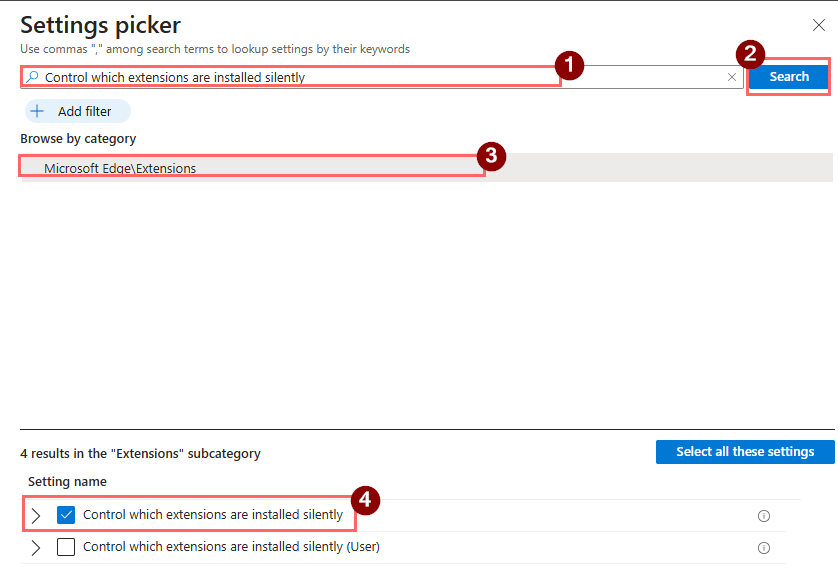
- Enable the switch for Control which extensions are installed silently
- Copy the below Extension/App ID and paste it on the field that will show up.
mblkikdcdlfpljlmgijhccbhiijkhded;https://edge.microsoft.com/extensionwebstorebase/v1/crx

- Click Next.
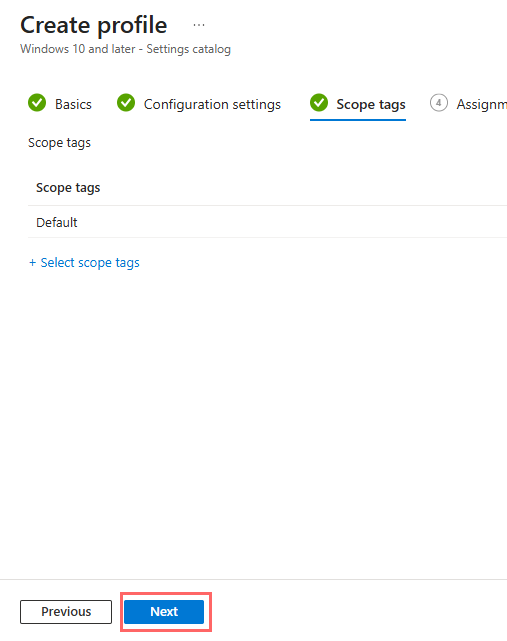
- Leave scope as Default and click Next.
- On the Assignments tab, Click on Add all users and Add all devices. Note: If you don’t want to deploy the policy to all users, select Add groups instead and assign it only to the preferred group.

- Click Next.
- Review the settings to ensure the extension ID and URL are correct.
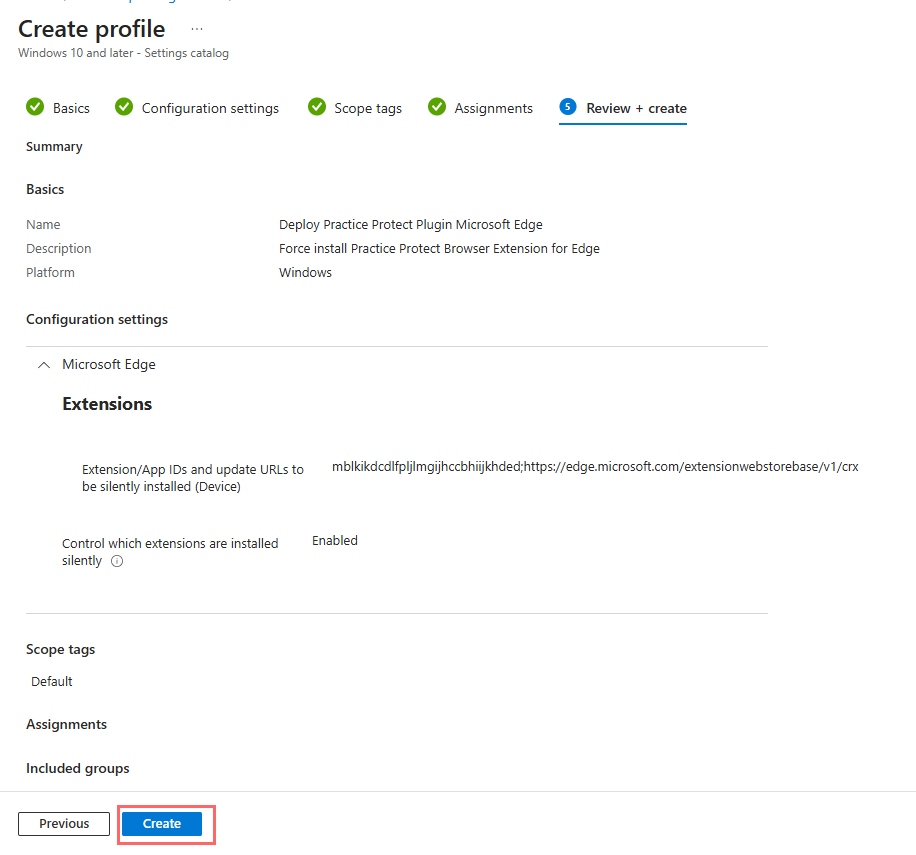
- Click Create
- The policy will be enforced on targeted devices at their next Intune check-in
Google Chrome
- Configure the following
- For Platform choose Windows 10 and Later
- For Profile Type choose Settings catalog

- Name the Profile Deploy Practice Protect Plugin Google Chrome and click Next.

- In the Configuration settings tab, click Add settings.
-
Search for Chrome and select Google Google Chrome Extensions
- Tick the box for Configure the list of force-installed apps and extensions.
- Enable the switch for Configure the list of force-installed apps and extensions
- Copy the below Extension/App ID and paste it on the field that will show up.
jifcoadedkediabkmjbflemiblmnbjfk;https://clients2.google.com/service/update2/crx
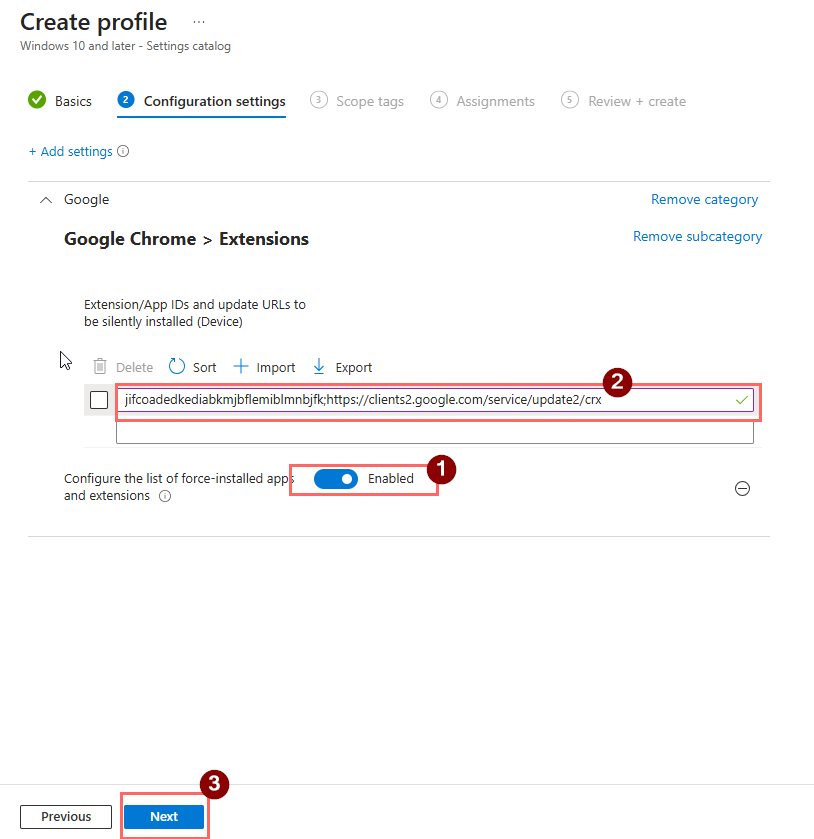
- Leave scope as Default and click Next.

- On the Assignments tab, Click on Add all users and Add all devices.
Note: If you don’t want to deploy the policy to all users, select Add groups and assign it only to the preferred group. - Click Next.
- Review the settings to ensure the extension ID and URL are correct.
- Click Create to deploy the policy.
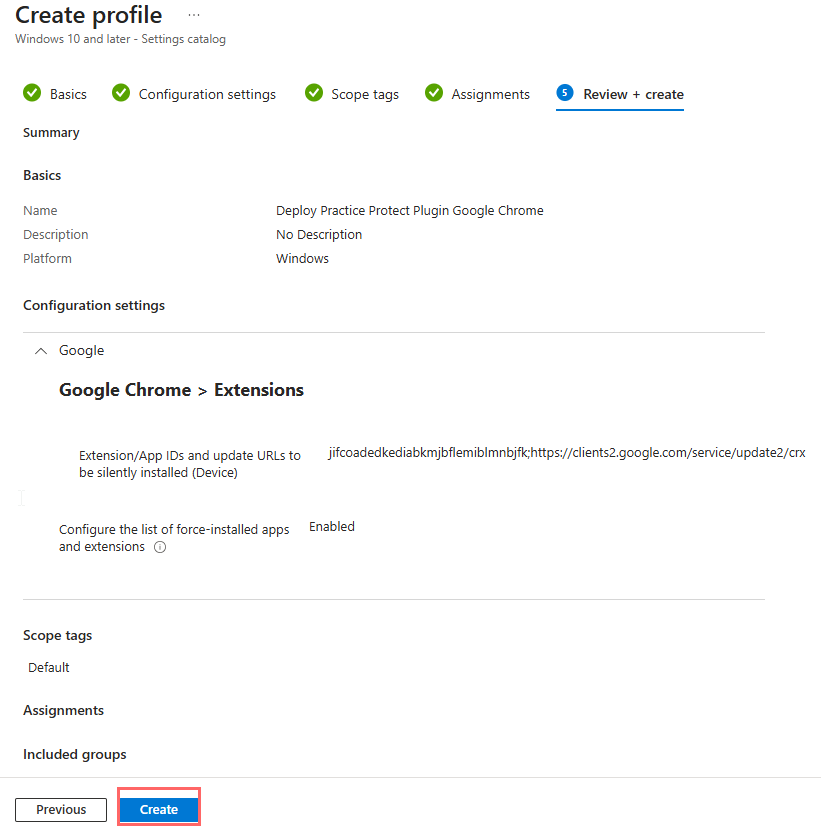
- The policy will be enforced on targeted devices at their next Intune check-in
Mozilla Firefox
- Download updated FireFox ADMX file from https://support.practiceprotect.com/downloads/firefox_updated.admx
- Go back in End Point Manage. Click Create Profile.
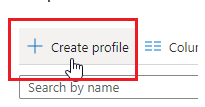
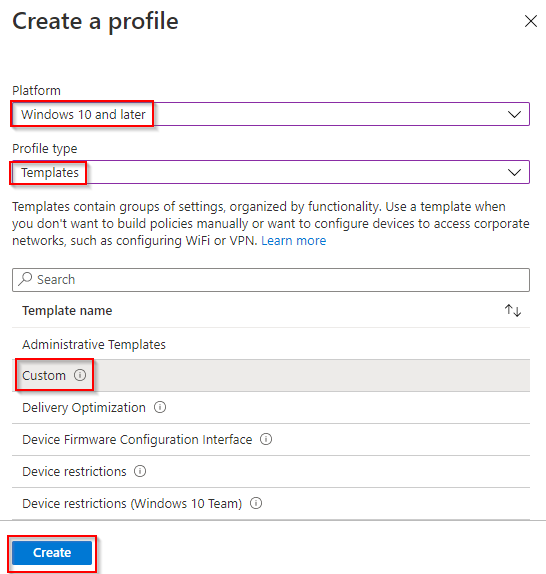
- Configure the following and click Create. Platform “Windows 10 and Later”, Profile Type “Templates”, Template name “Custom”.
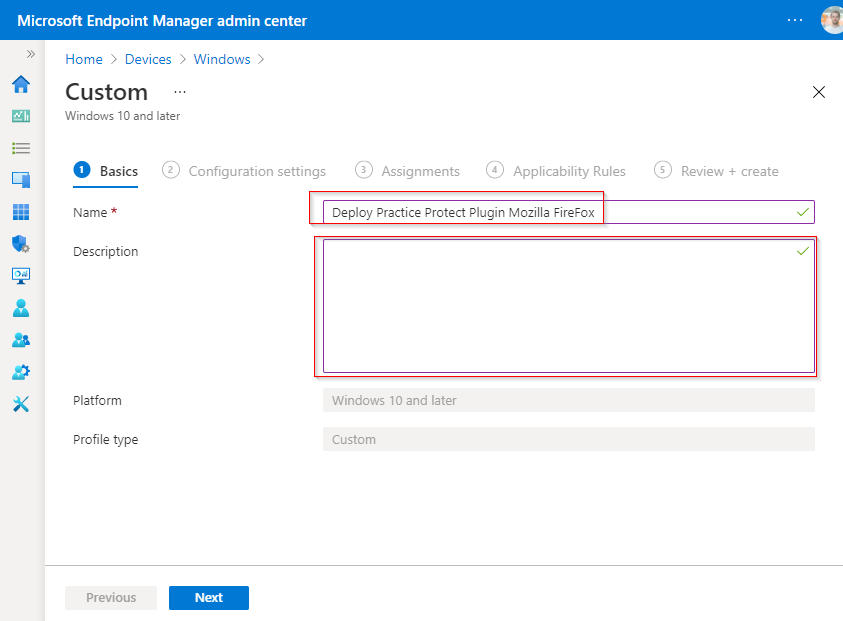
- Fill out fields below and type “Deploy Practice Protect Plugin Mozilla Firefox” in the Name field then click Next
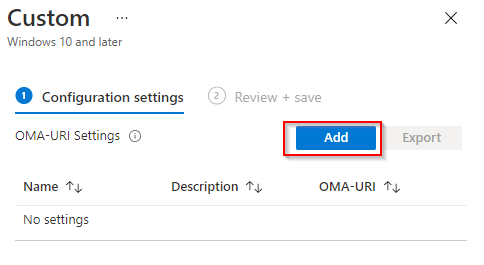
- Click Add to add a new OMA-URI.
- Fill Up all fileds.
- Set Name to “Firefox ADMX”
- “OMA-URI” to “./Device/Vendor/MSFT/Policy/ConfigOperations/ADMXInstall/Firefox/Policy/FirefoxAdmx“
- Copy content from the file firefox_updated.admx to the “Value” field
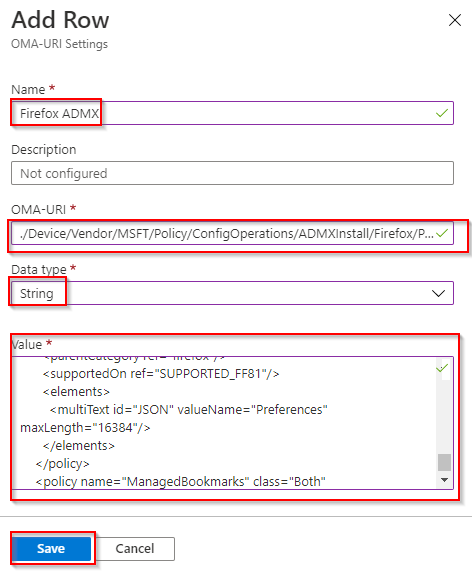 click Save.
- Click Add again.
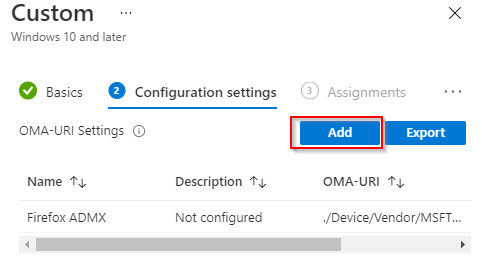
- Fill Up all fileds.
- Set Name to “Extensions_Install“
- OMA-URI to “./Device/Vendor/MSFT/Policy/Config/Firefox~Policy~firefox~Extensions/Extensions_Install“
- Data type “String“
- Value to “<enabled/>
<data id=”Extensions” value=”1https://addons.mozilla.org/firefox/downloads/file/4110179/cyberark_identity_browser-23.5.4.xpi”/>”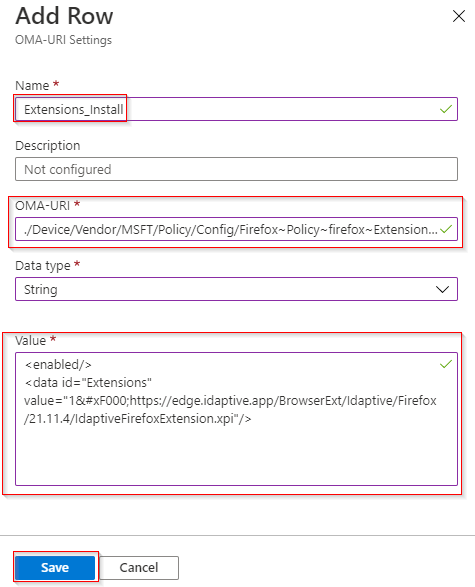 and click Save.
- Click Add again.
- Fill Up all fileds.
- Name = Extensions_Locked
- OMA-URI = “./Device/Vendor/MSFT/Policy/Config/Firefox~Policy~firefox~Extensions/Extensions_Locked“
- Data type to “String“
- Value to “<enabled/>
<data id=”Extensions” value=”1IdaptiveBrowserExtension@idaptive.com”/>”

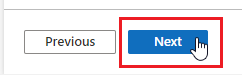
- Click Next.
- Select All Users and All Devices (You may use custom groups as well). Click Next
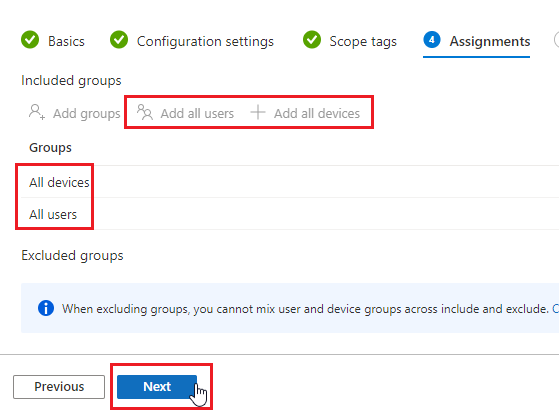
- Confirm the configuration and click Next.

- The policy will now be deployed to devices when they check-in next time.
- In case you are using Intune to disable “Password Manager”, you will need to use “firefox_updated.admx” file from this guide to avoid conflict.