
This guide describes how to install the Practice Protect platform browser extension in Firefox Browser, allowing you to access your portal and launch applications.
- Click here to install the extension from the Firefox Add-ons store. You will be redirected automatically.
- Click Add to Firefox.
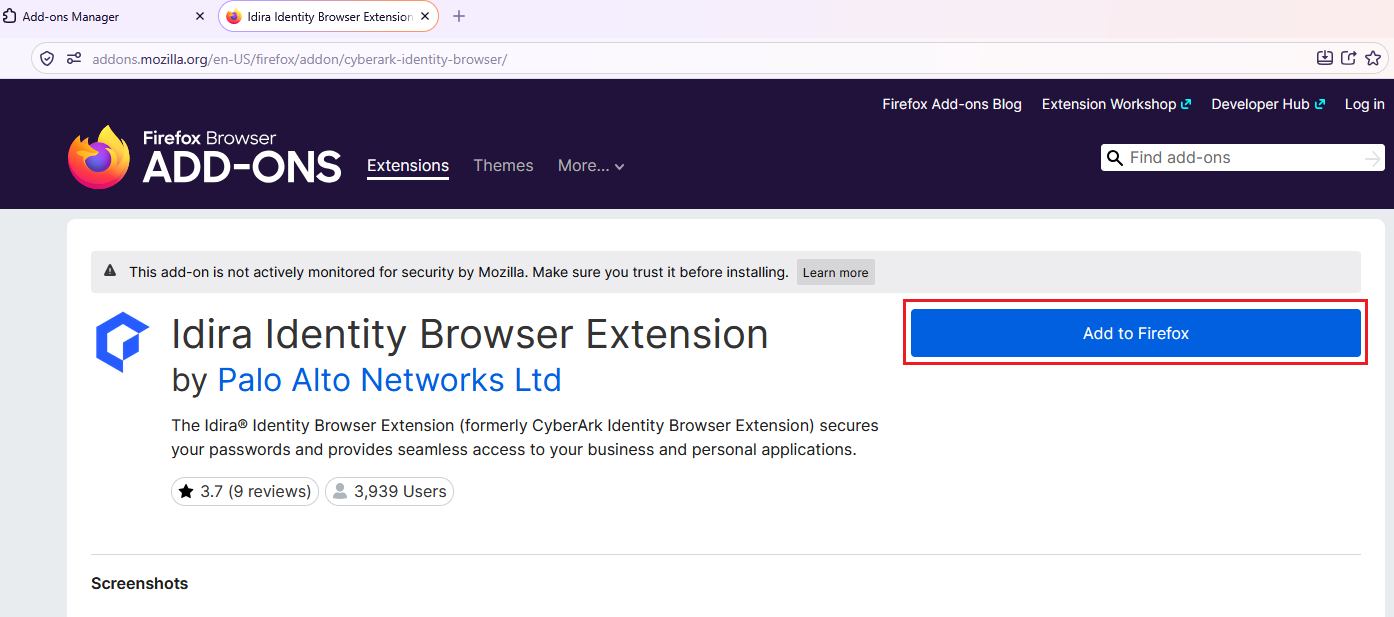
Note: If the Add to Firefox button is greyed out, your browser is managed by your organization’s IT administrator. Please contact your IT team for assistance with installing the extension.
- Click Add to install the extension. Optionally, tick Allow this extension to run in Private Windows if you also want to use it in private browsing mode.
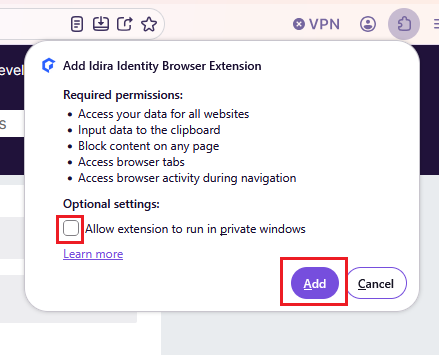
- A notification will appear confirming that the Idira Identity Browser Extension has been added.
- Tick Pin extension to Toolbar, then click OK. This is recommended so the extension is easily accessible whenever you need to sign in to the platform or launch applications.
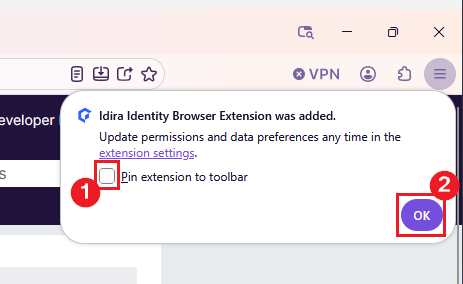
-
In the top-right corner of your browser, click the pinned extension icon, then click Sign In. You will be redirected to the Practice Protect sign-in page.
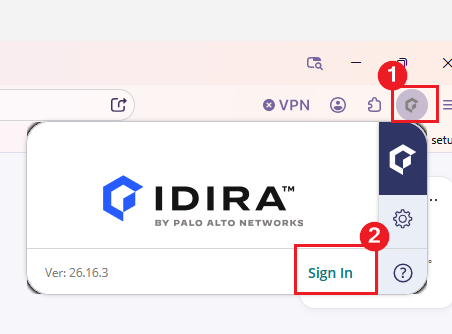
- This will open a new browser tab and redirect you to the default Practice Protect sign-in page.
- Enter your username and click Next.
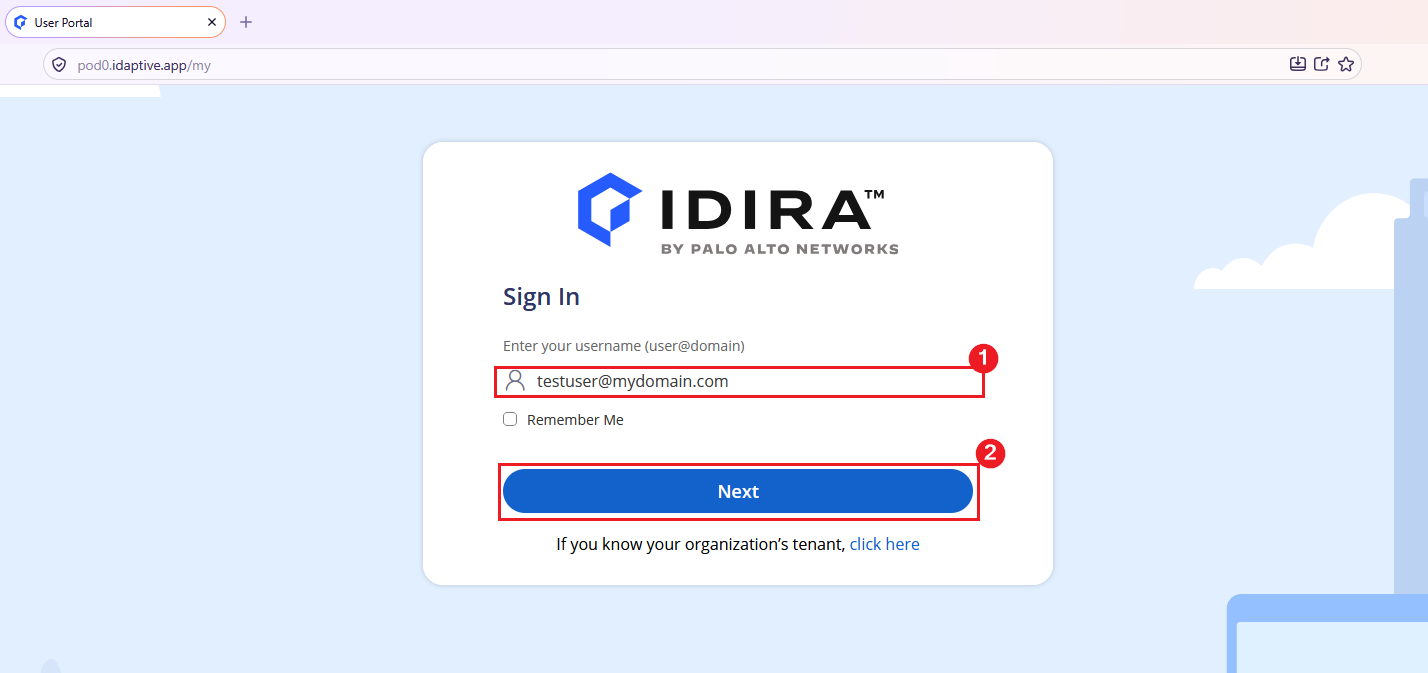
- You will then be redirected to your organisation’s sign-in page. Complete the sign-in process.
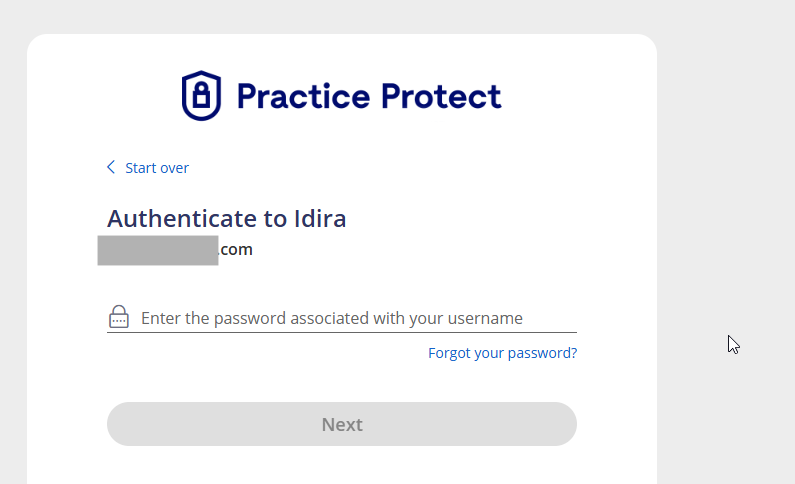
NOTE:
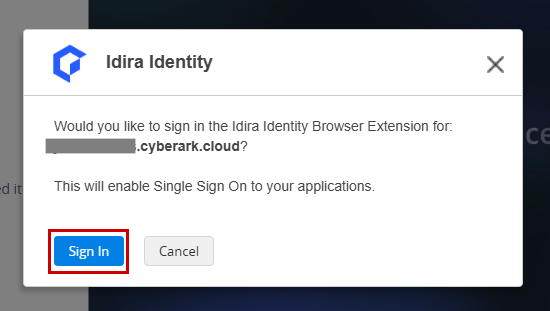
If your organisation uses Microsoft as its identity provider, you will instead be redirected to the Microsoft sign-in page. Complete the sign-in using your Microsoft credentials and follow any MFA prompts. - Once you have successfully signed in, a pop-up will appear asking whether you want to sign in to the Browser Extension for your organisation’s tenant. Click Sign In to complete the process.
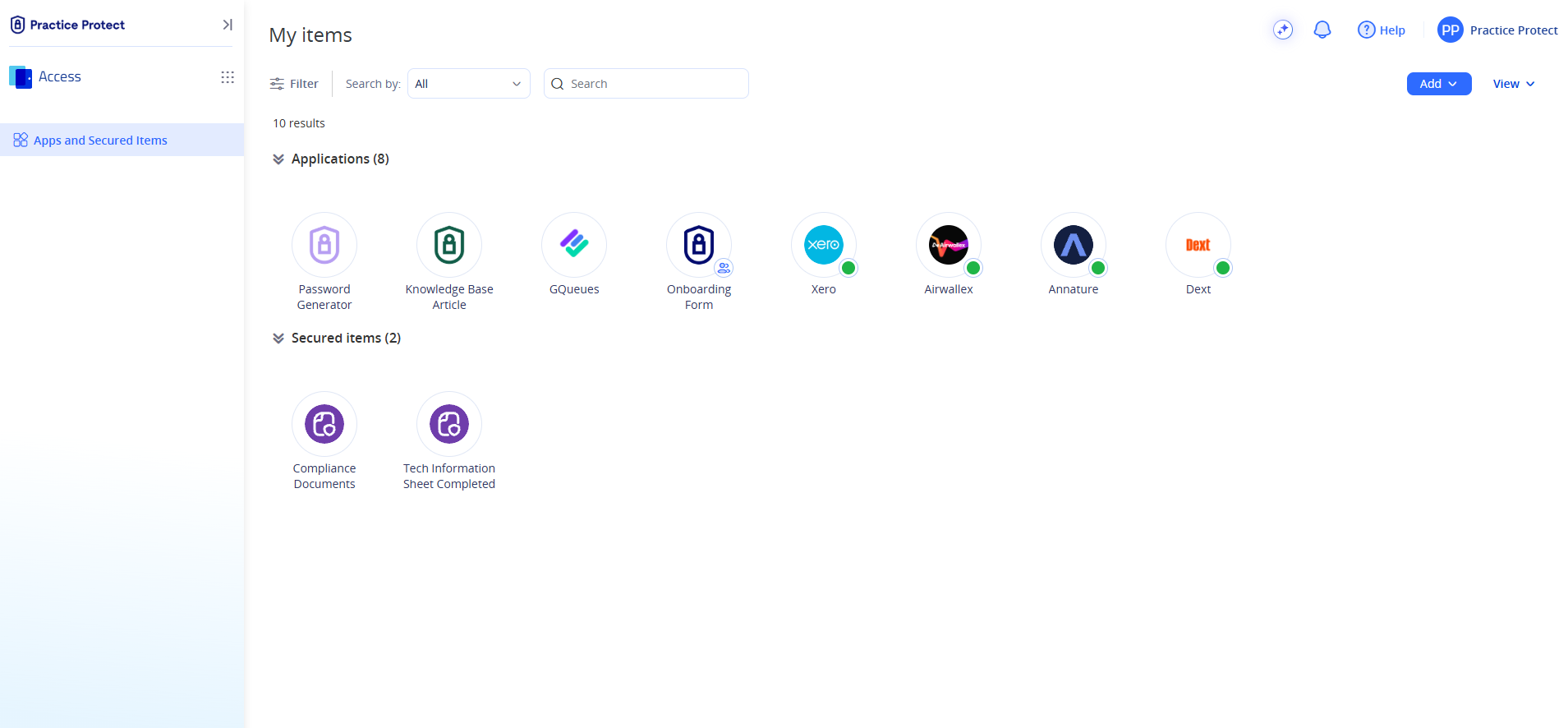
- From the Access Space, launch the application by clicking its icon. The browser extension will automatically populate your username and password, then sign you in. If no credentials have been saved for the application yet, you’ll be prompted to save them during your first sign-in. Once saved, future sign-ins will be completed automatically.
For any issues or questions related to applications or login access to the platform, please do reach on our support page here.