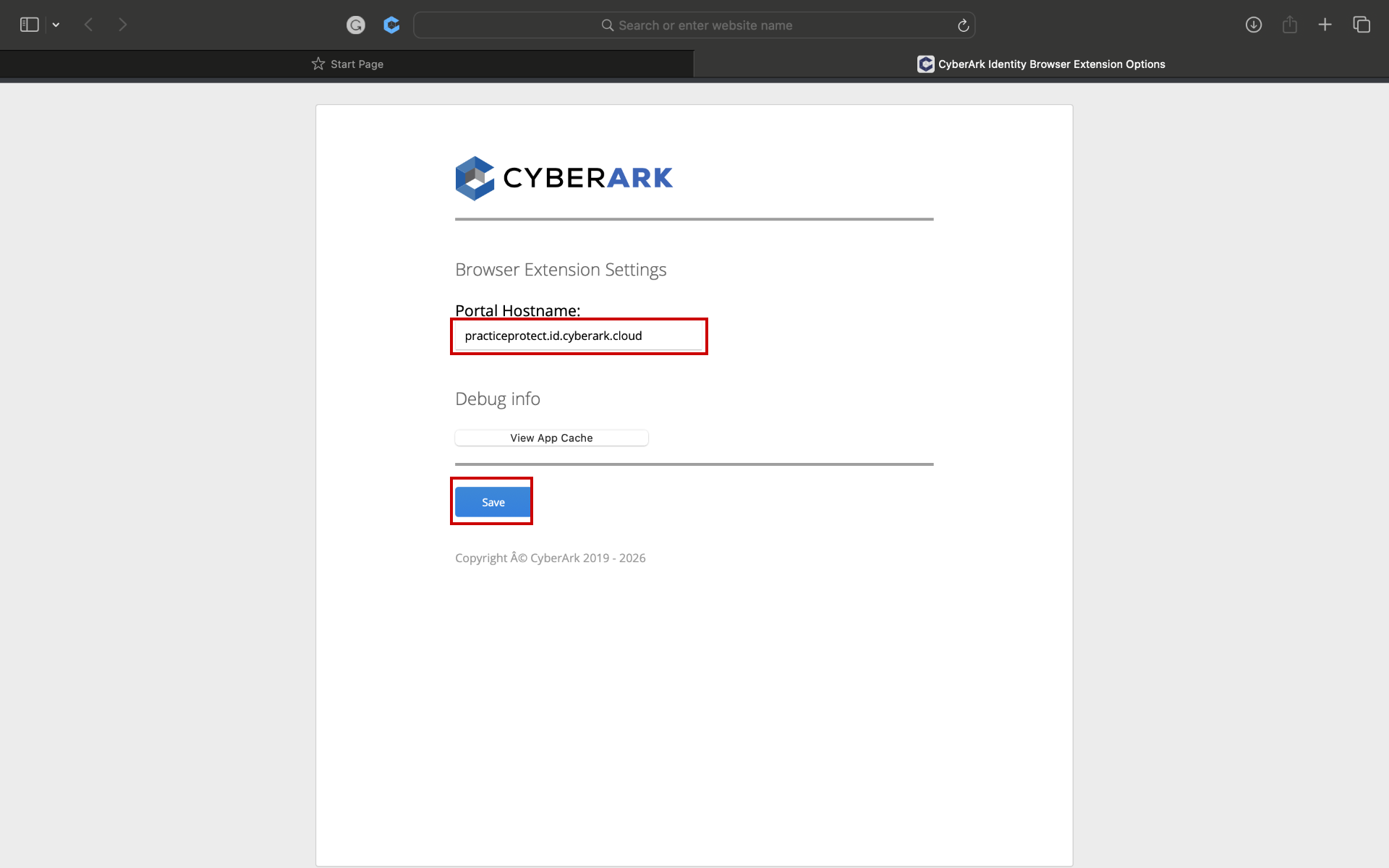
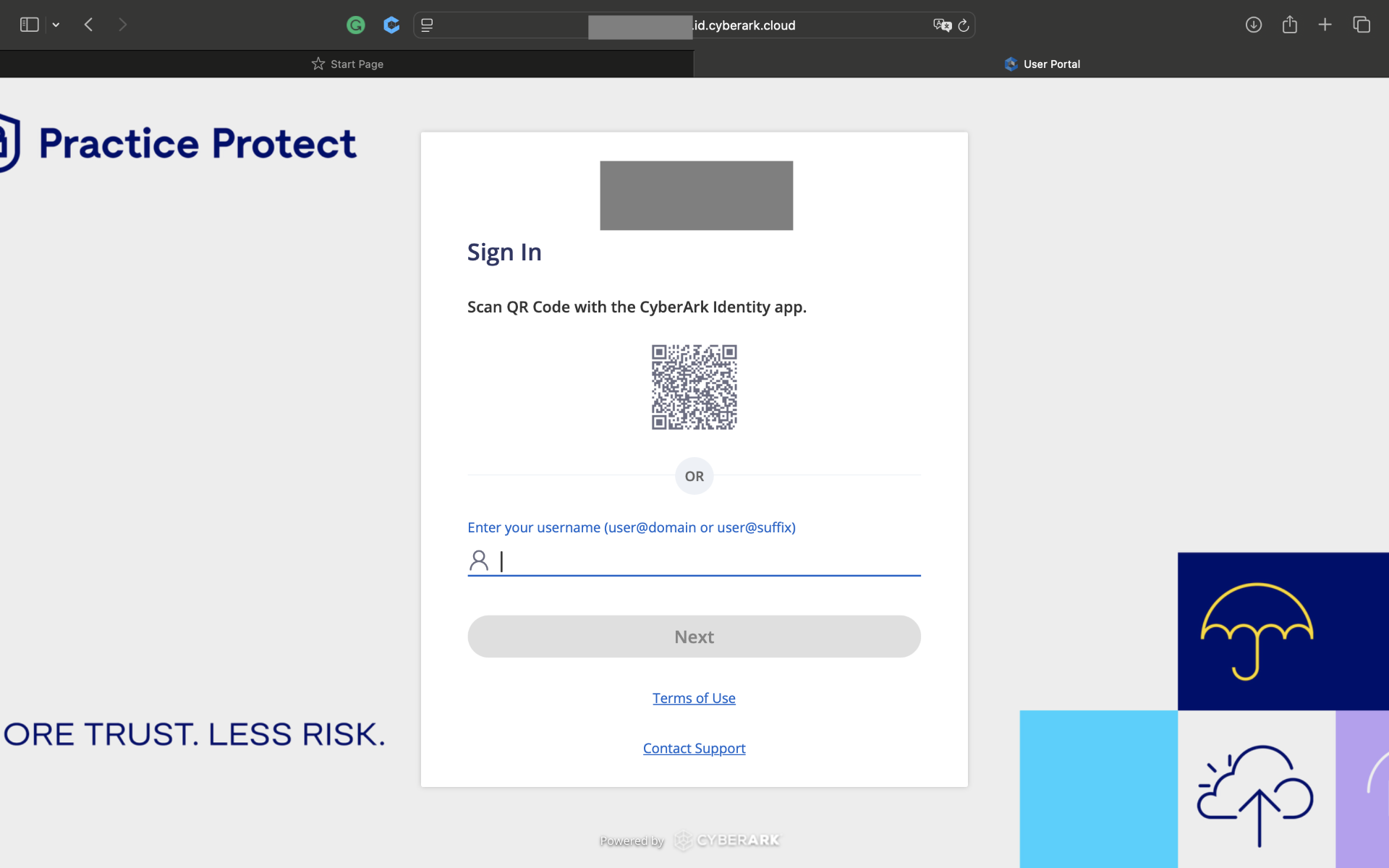
Purpose
This guide explains how to install the Practice Protect browser extension in Safari on Mac devices, enabling access to your Practice Protect portal and allowing you to securely launch cloud applications.
Prerequisites
- An active Apple ID account is required to download and install the application from the App Store.
Instructions
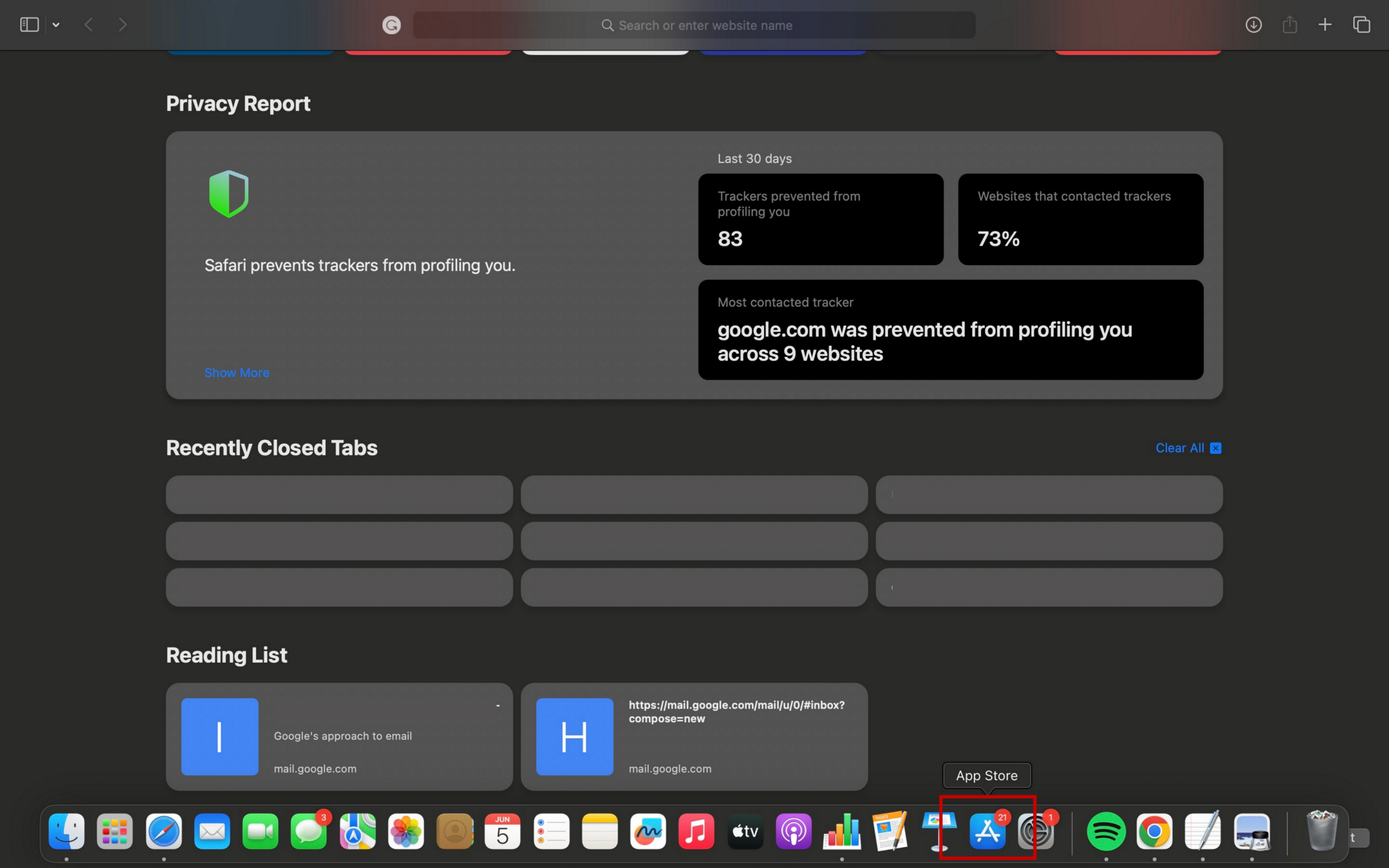
- Go to the App Store.
- Search for CyberArk Identity Extension.
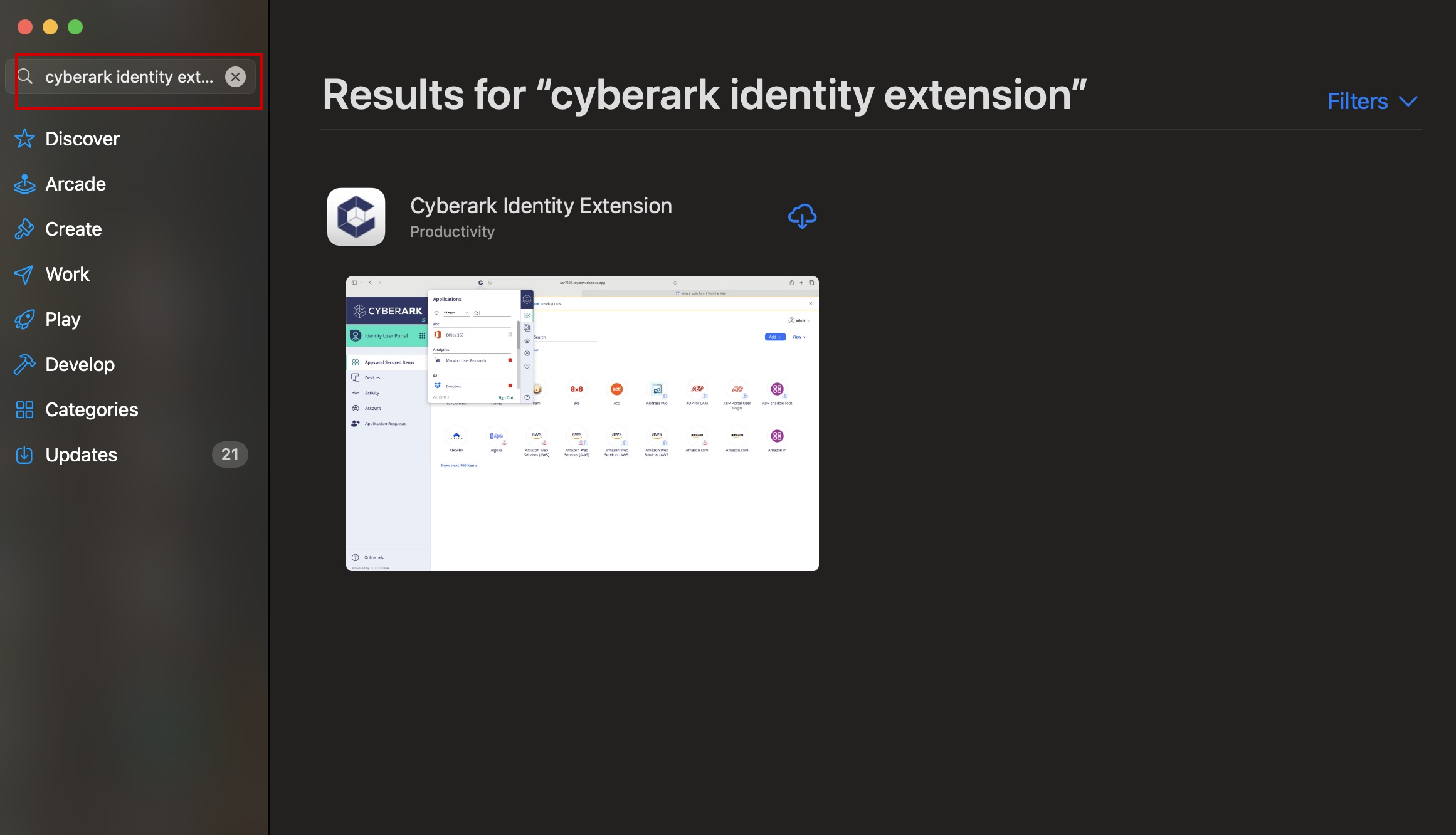
- Click Get to begin the installation. If you have installed the application previously, simply click the cloud download icon instead.
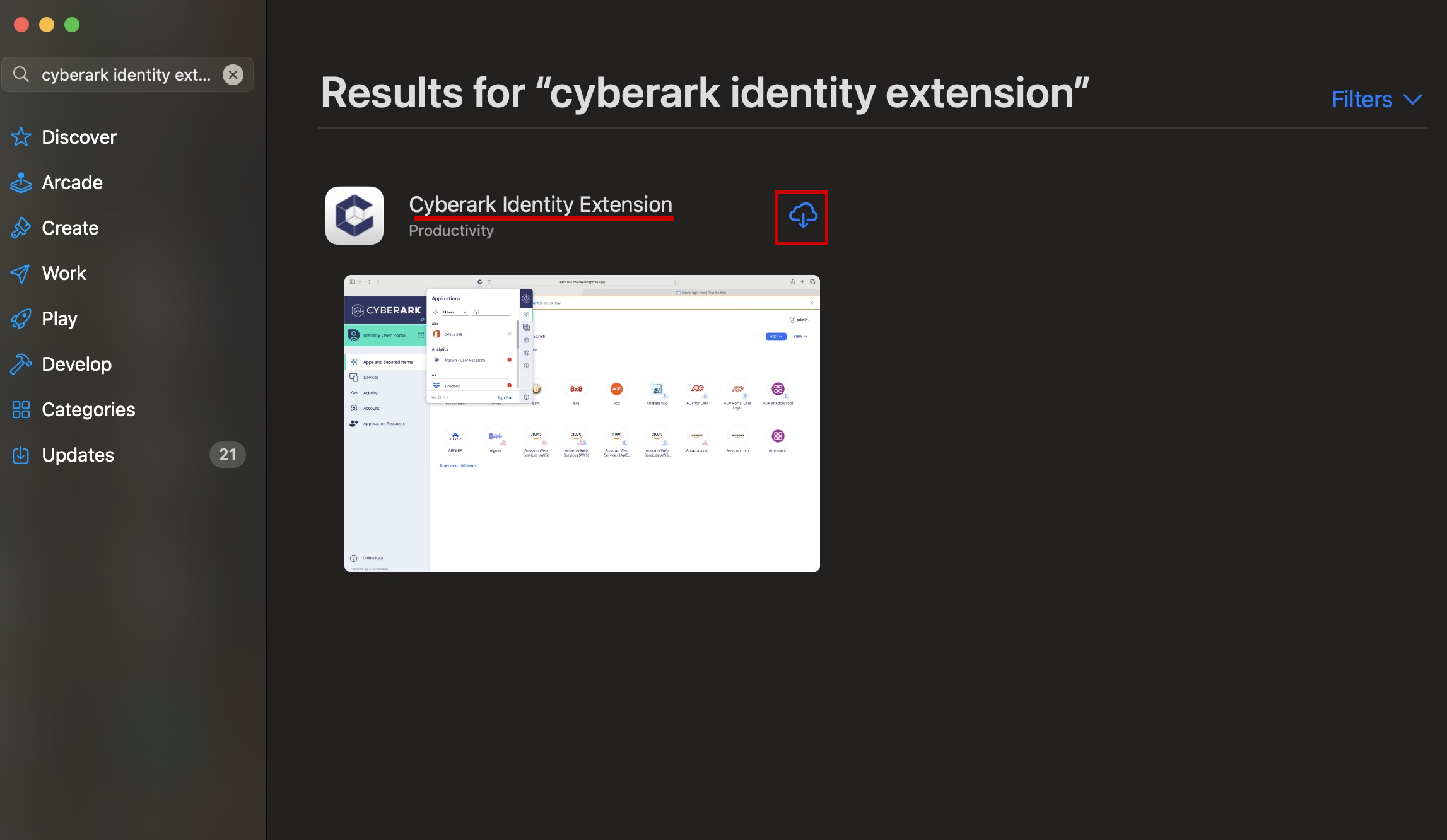
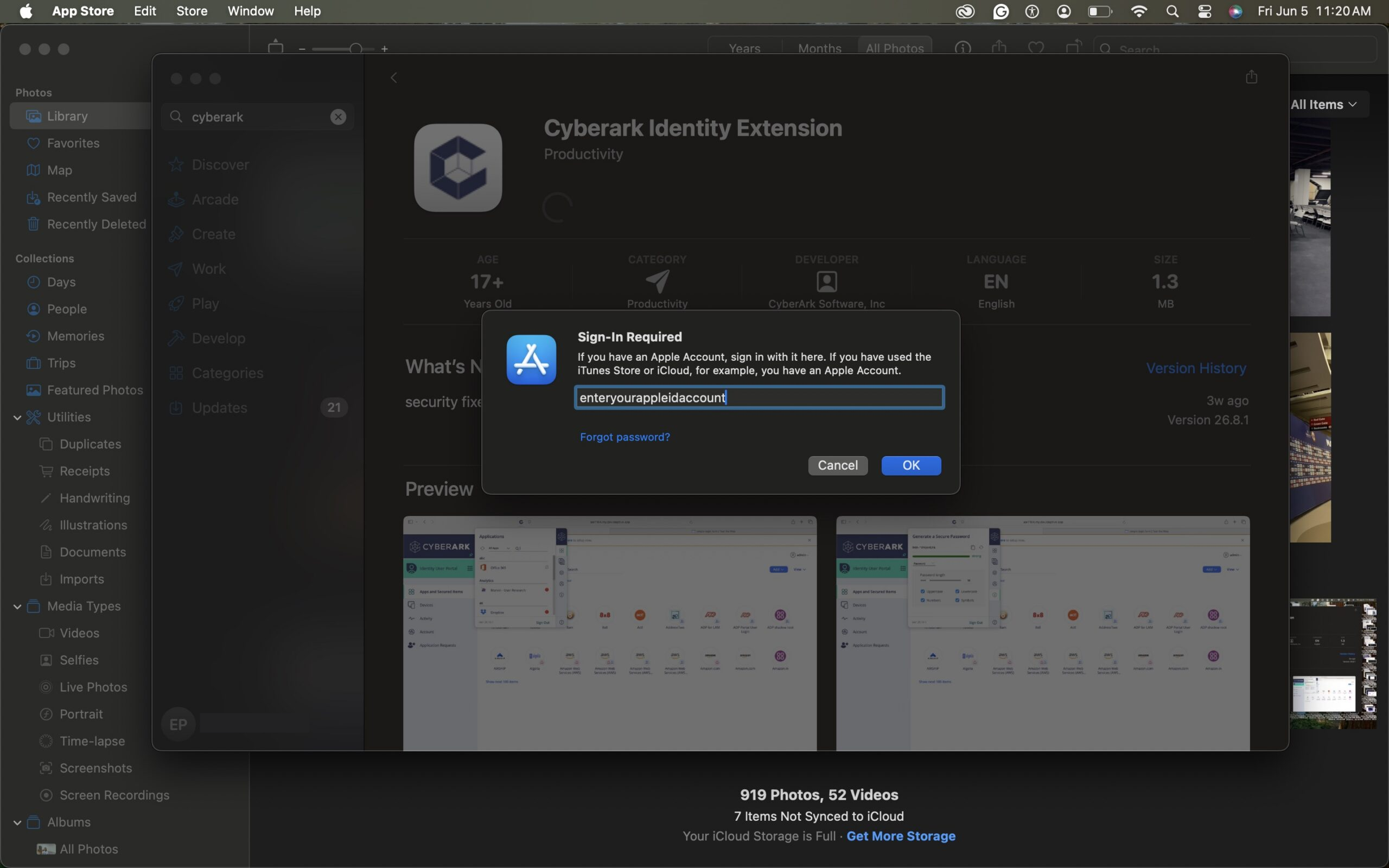
- If additional security is required during the installation, you may be prompted to authenticate using your Apple ID, Face ID, or Touch ID. Complete the authentication when prompted. If no prompt appears, you can proceed to the next step.
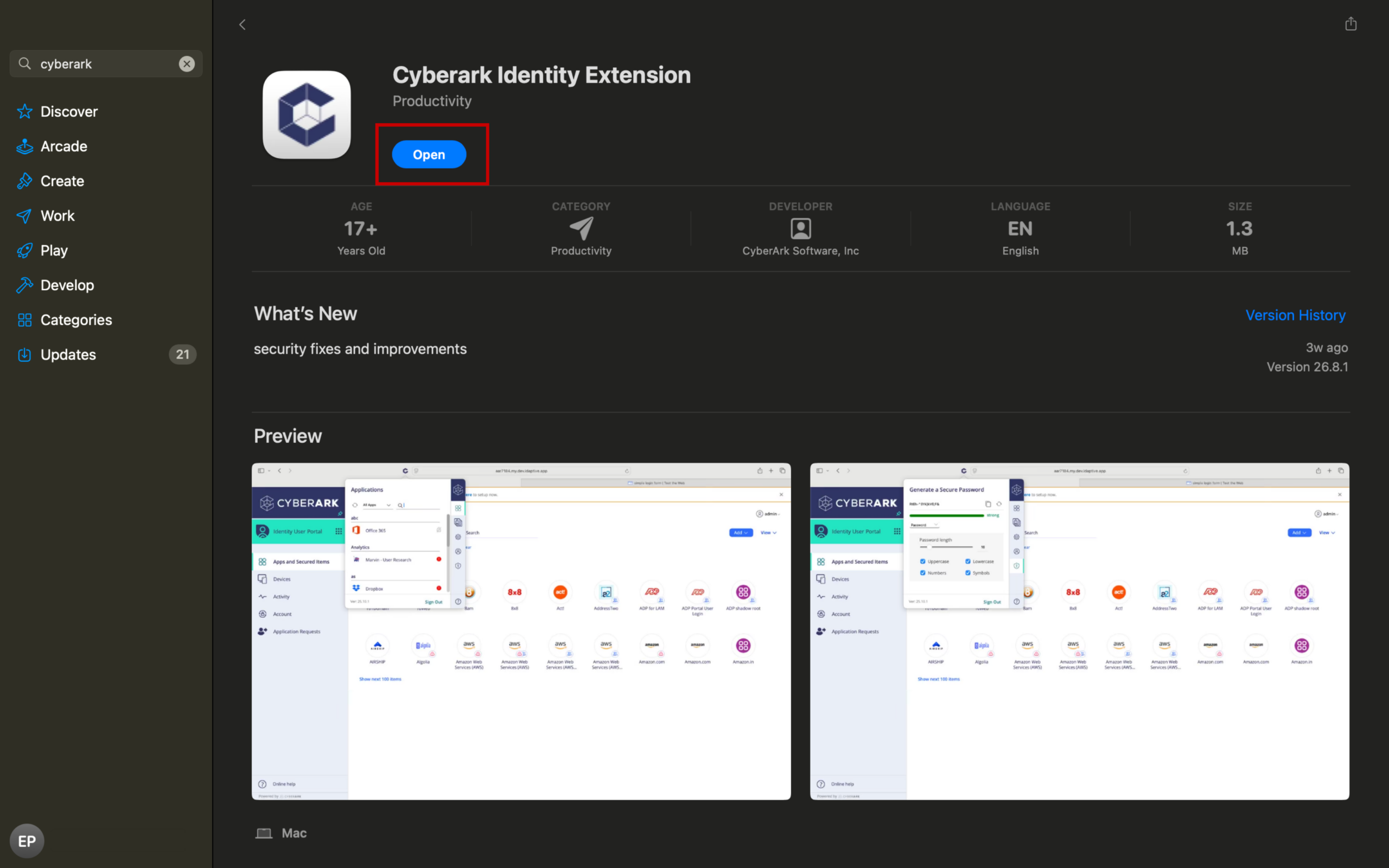
- Once the installation is complete, open the CyberArk Identity Extension app.
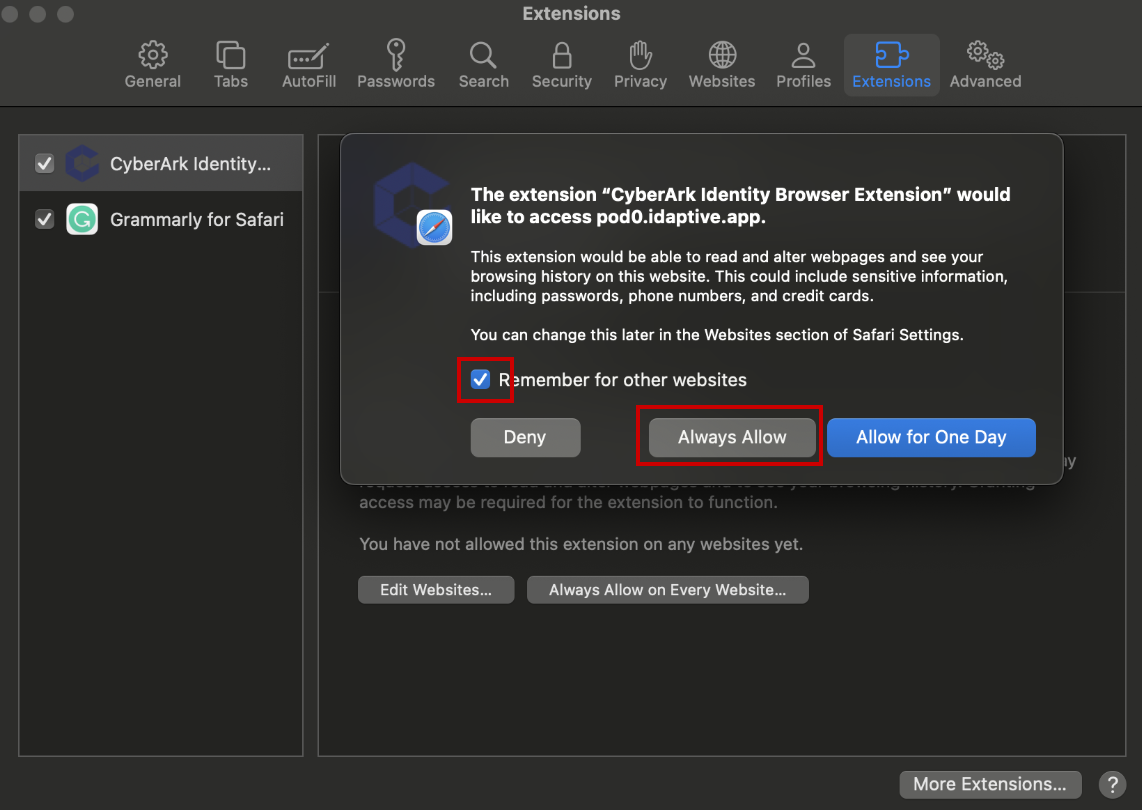
- This will go to the Extension settings where you need to allow CyberArk Identity. Extension. Tick the box for it.
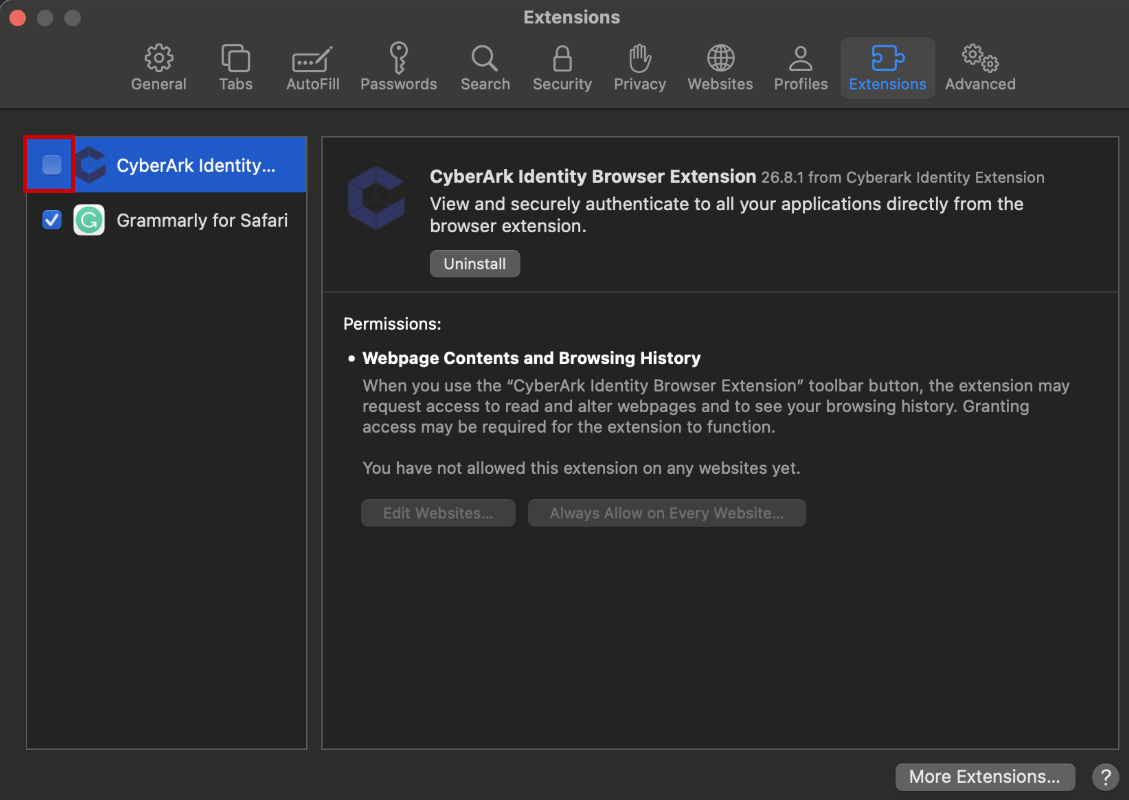
- Choose for Remember for other websites and choose Always Allow.
-
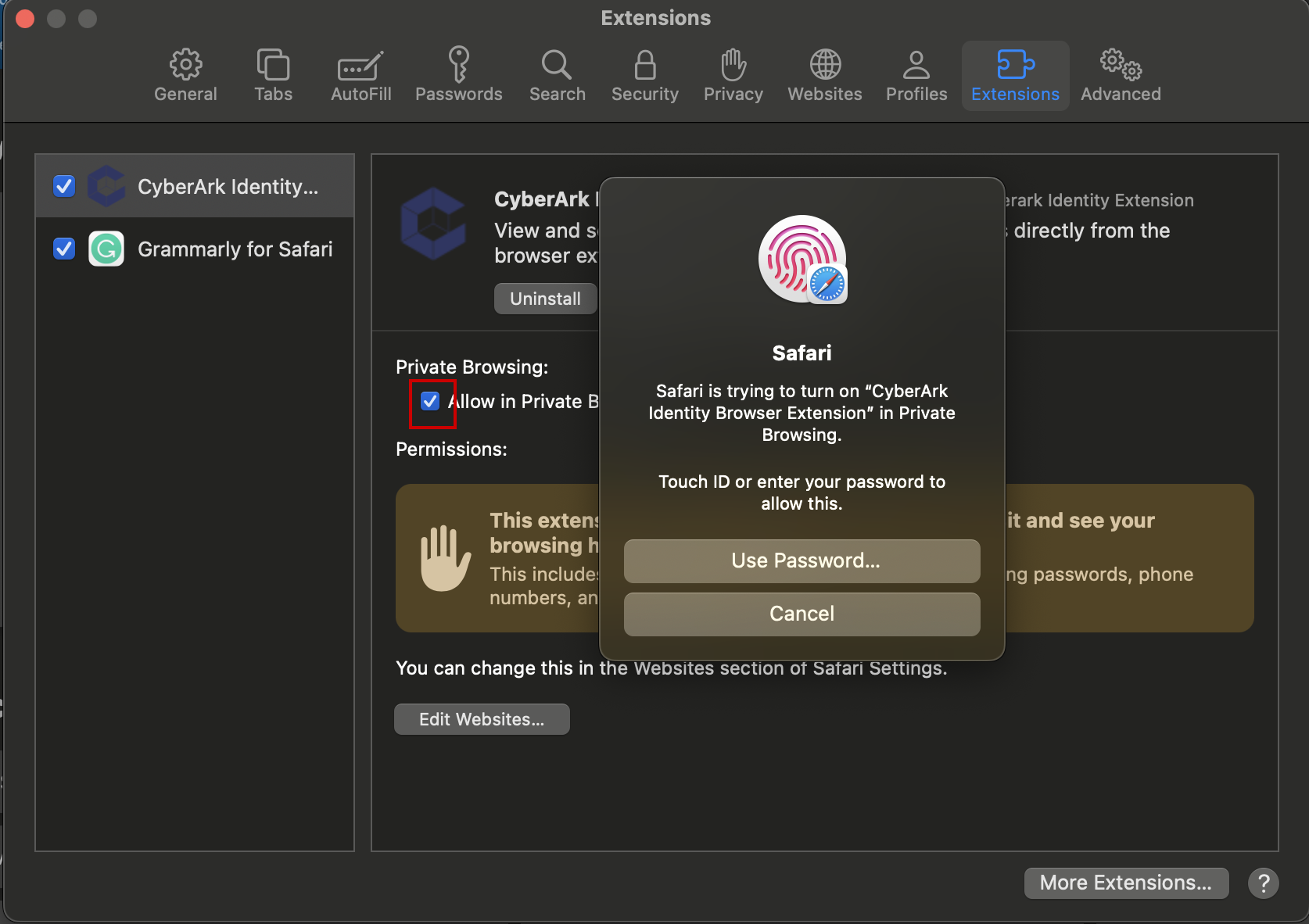
(Optional) If you would like the extension to be available in Private Browsing, enable Allow in Private Browsing by ticking the checkbox. You may be prompted to verify your account before this setting can be enabled.
-
-