
Computer First Time Setup
The below steps will guide you through setting up Windows for the first time and allow our technicians to remote in and continue the setup of your new computer.
Instructions
Windows 10
1. Unbox and set up the computer or laptop (do not connect to Wi-Fi or network cable).
2. Power on the computer.
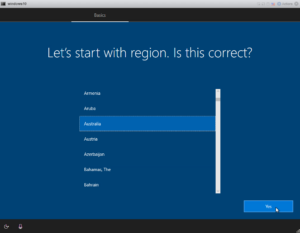
3. Select the relevant country as your region.
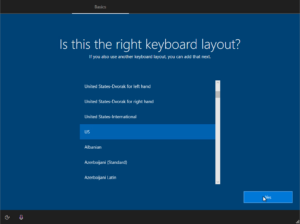
4. Select the relevant keyboard layout.
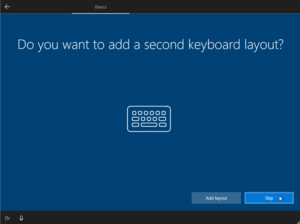
5. Skip adding a second keyboard layout.
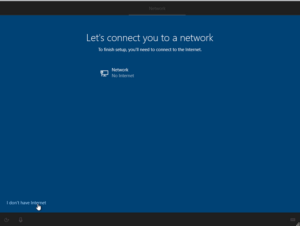
6. Select I don’t have an Internet connection.
Internet will be connected at the end to speed up the process.
7. Continue with limited setup.
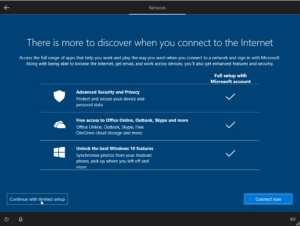
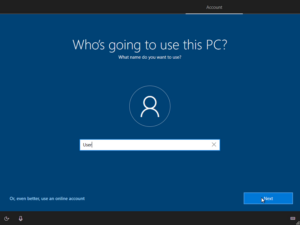
8. Enter a temporary username (e.g., “User”) and leave the password blank, then click Next.
This temporary account will be removed after setup.
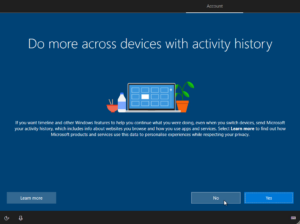
9. Select “No” on the next screen.
10. Select “Decline” on the next screen.
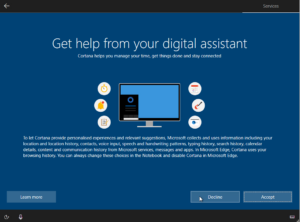
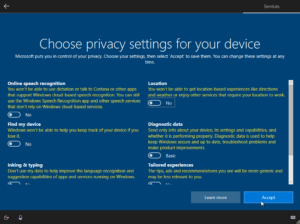
11. Set all options to “No” and click “Accept”.
12. You will now be on the Windows Desktop.
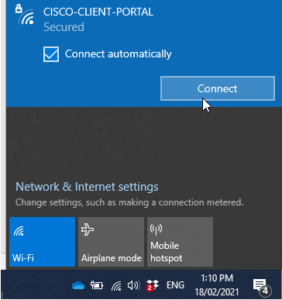
13. Connect to the Internet via Wi-Fi or network cable.
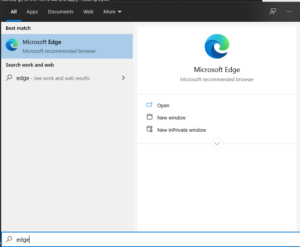
14. Open Edge: click the Windows button, search for Edge, and click the icon.
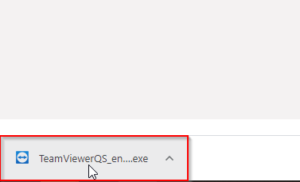
15. In Edge, go to https://get.teamviewer.com/practiceprotect. TeamViewer will download. Once downloaded, double-click and run it. Follow prompts to allow installation.
16. Note the TeamViewer ID and password. Do not close TeamViewer.
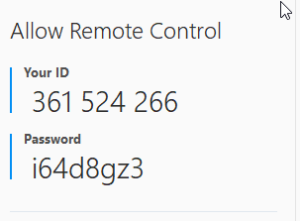
17. Respond to your existing ticket with the TeamViewer ID and password so setup can continue.
2. Power on the computer.
3. Select the relevant country as your region.
4. Select the relevant keyboard layout.
5. Skip adding a second keyboard layout.
6. Select I don’t have an Internet connection.
Internet will be connected at the end to speed up the process.
7. Continue with limited setup.
8. Enter a temporary username (e.g., “User”) and leave the password blank, then click Next.
This temporary account will be removed after setup.
9. Select “No” on the next screen.
10. Select “Decline” on the next screen.
11. Set all options to “No” and click “Accept”.
12. You will now be on the Windows Desktop.
13. Connect to the Internet via Wi-Fi or network cable.
14. Open Edge: click the Windows button, search for Edge, and click the icon.
15. In Edge, go to https://get.teamviewer.com/practiceprotect. TeamViewer will download. Once downloaded, double-click and run it. Follow prompts to allow installation.
16. Note the TeamViewer ID and password. Do not close TeamViewer.
17. Respond to your existing ticket with the TeamViewer ID and password so setup can continue.
Windows 11
1. Unbox and set up the computer or laptop (do not connect to Wi-Fi or network cable).
2. Power on the computer.
3. Select the relevant country as your region (e.g., Australia) and click Yes.
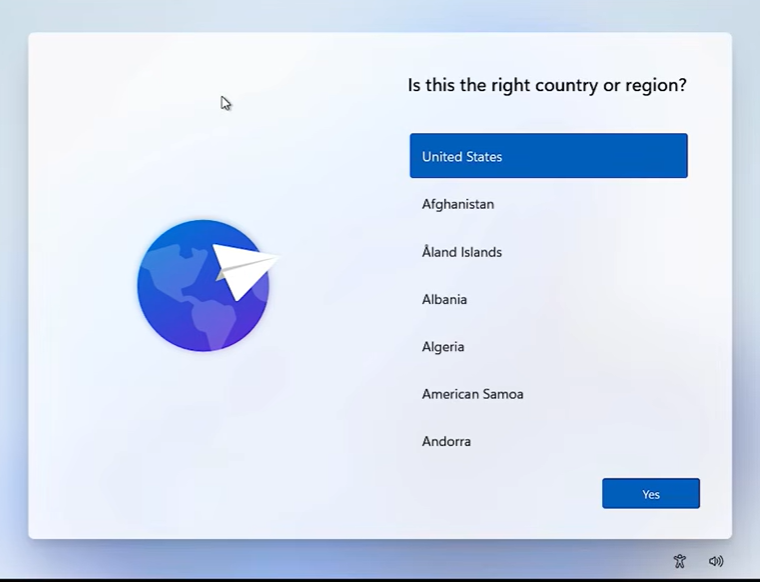
4. Select the relevant keyboard layout (e.g. US).
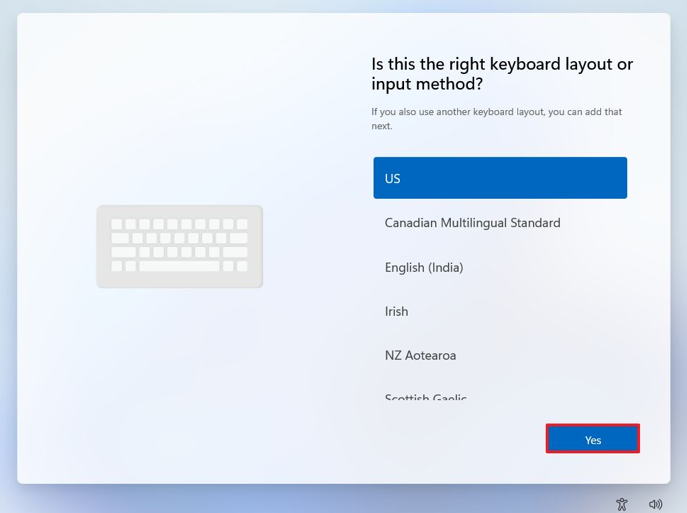
5. Select Skip when asked to add a second keyboard layout.
6. Connect the PC to your Office or Home Wi-Fi, then click Next.
7. Accept the License Agreement.
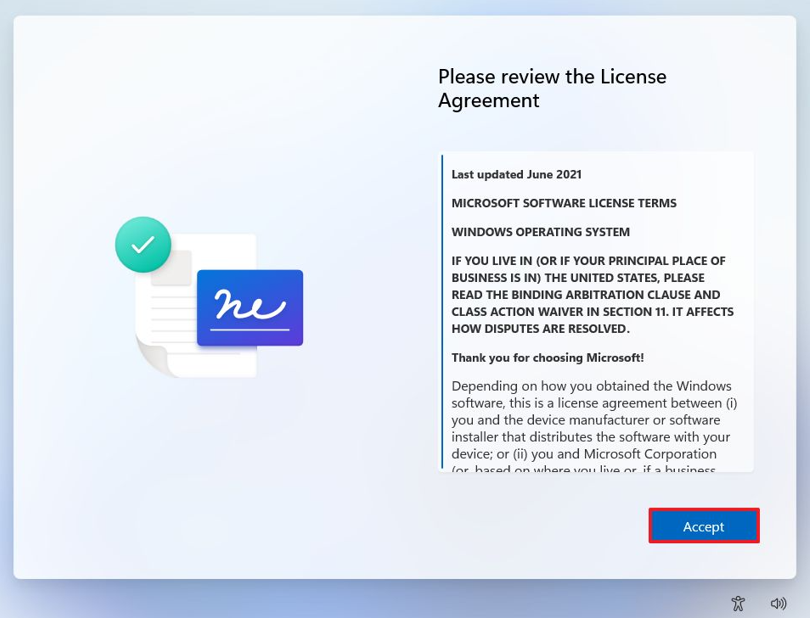
2. Power on the computer.
3. Select the relevant country as your region (e.g., Australia) and click Yes.
4. Select the relevant keyboard layout (e.g. US).
5. Select Skip when asked to add a second keyboard layout.
6. Connect the PC to your Office or Home Wi-Fi, then click Next.
7. Accept the License Agreement.
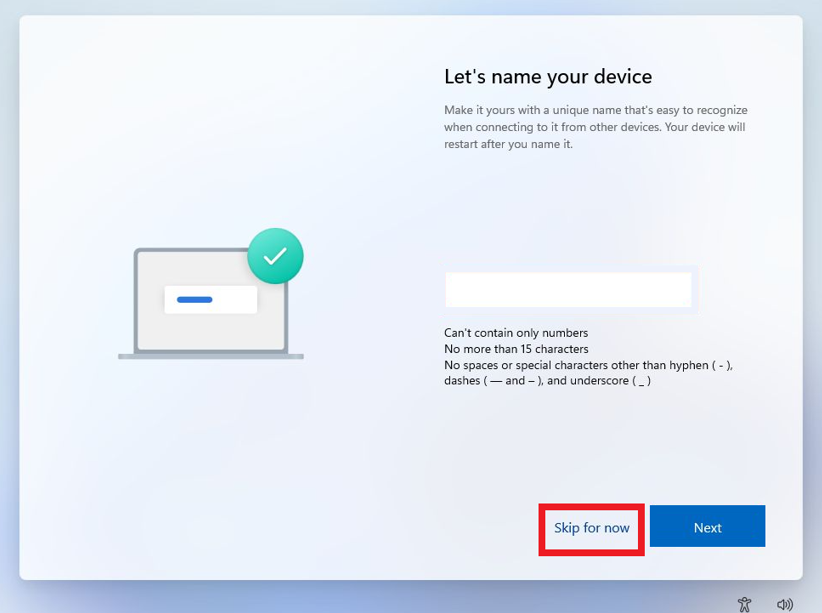
8. You will be prompted to name your device. Click the Skip for now.
9. In the next page, click on Set up for Work or School for now then click on Next.
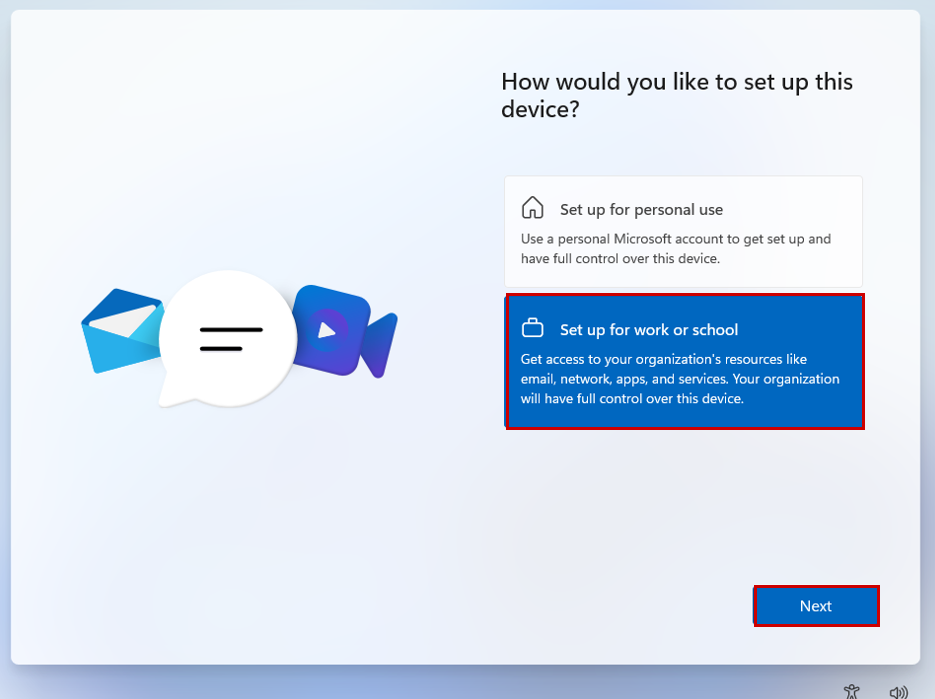
9. In the next page, click on Set up for Work or School for now then click on Next.
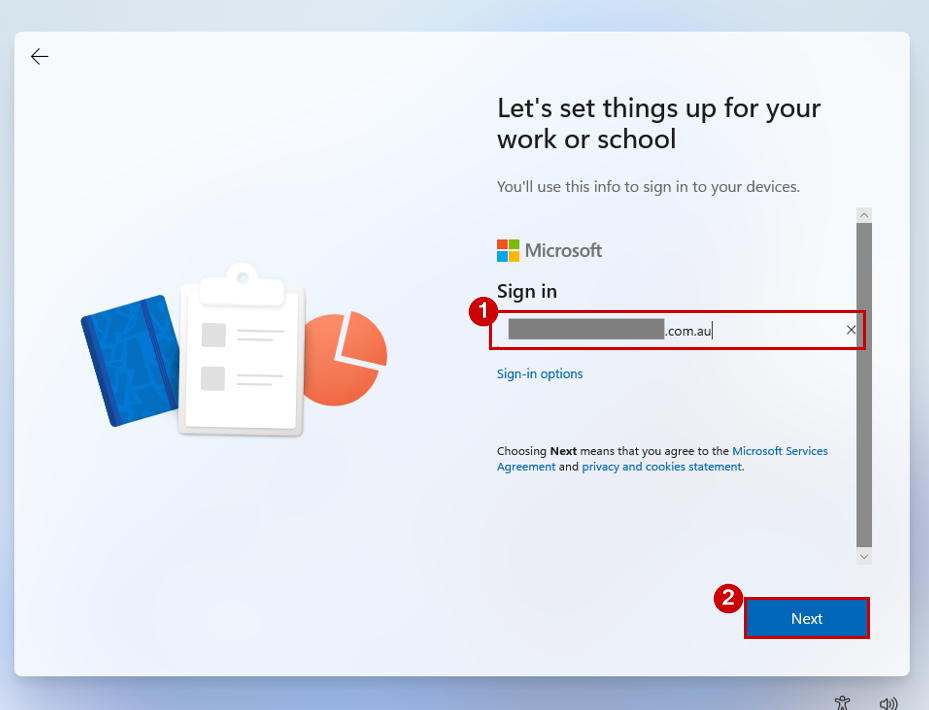
10. On the next screen, enter your Microsoft 365 username and click Next.
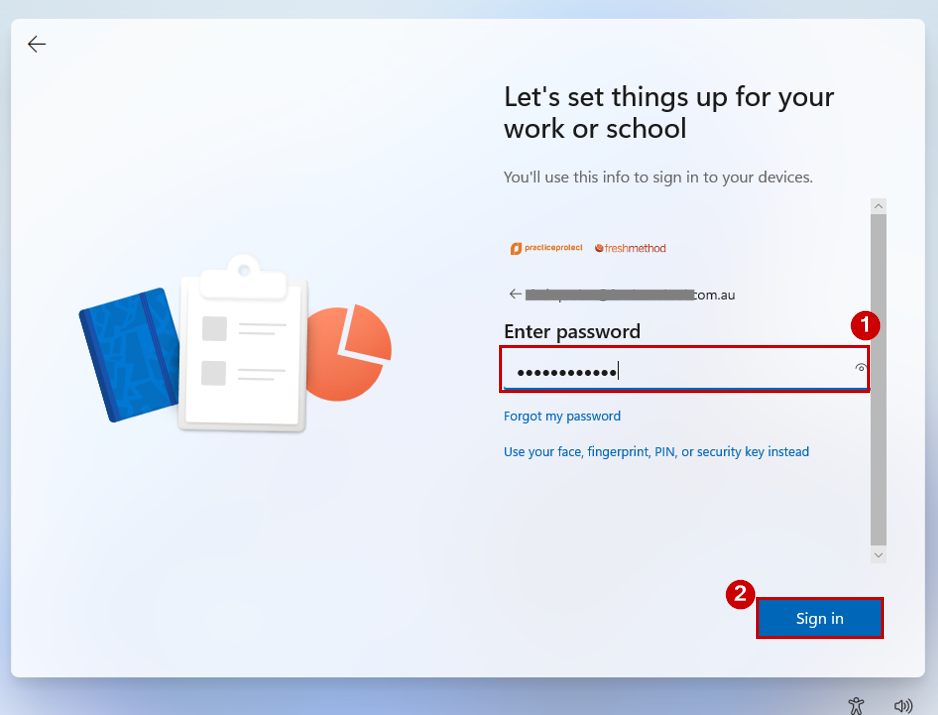
11. Enter your password and click Sign In. If prompted, complete the MFA verification to verify your identity.
IMPORTANT! If you encounter the screen shown below or are unable to proceed past the password step, please contact the Practice Protect Support on 1300 010 114 for assistance.
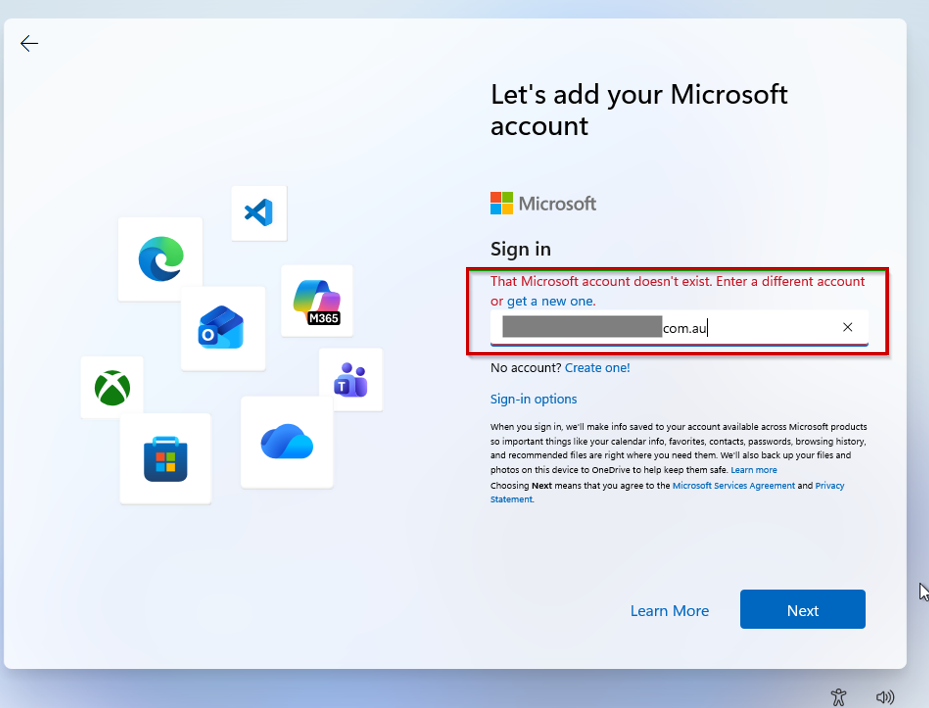
IMPORTANT! If you encounter the screen shown below or are unable to proceed past the password step, please contact the Practice Protect Support on 1300 010 114 for assistance.
12. Please wait while your device is being setup. When the “Privacy Settings” screen appears, click through the Next prompts, then click Accept to continue.
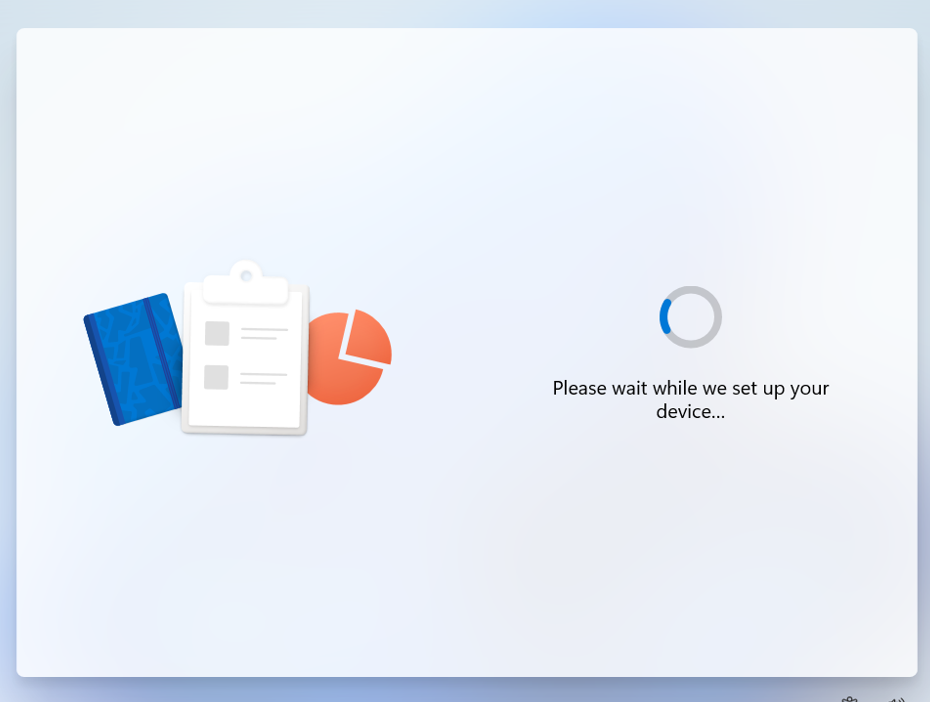
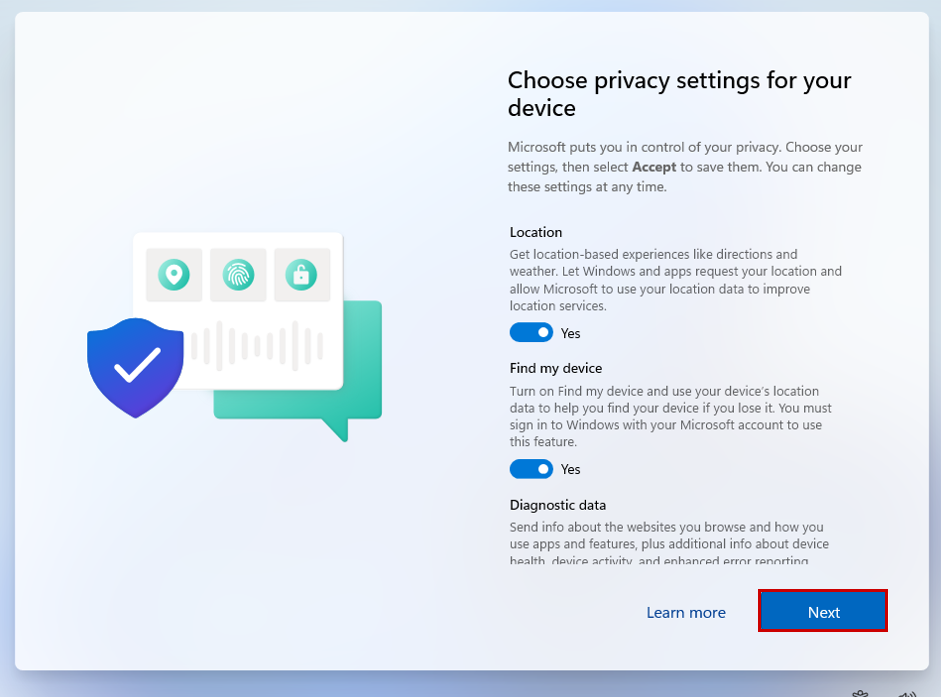
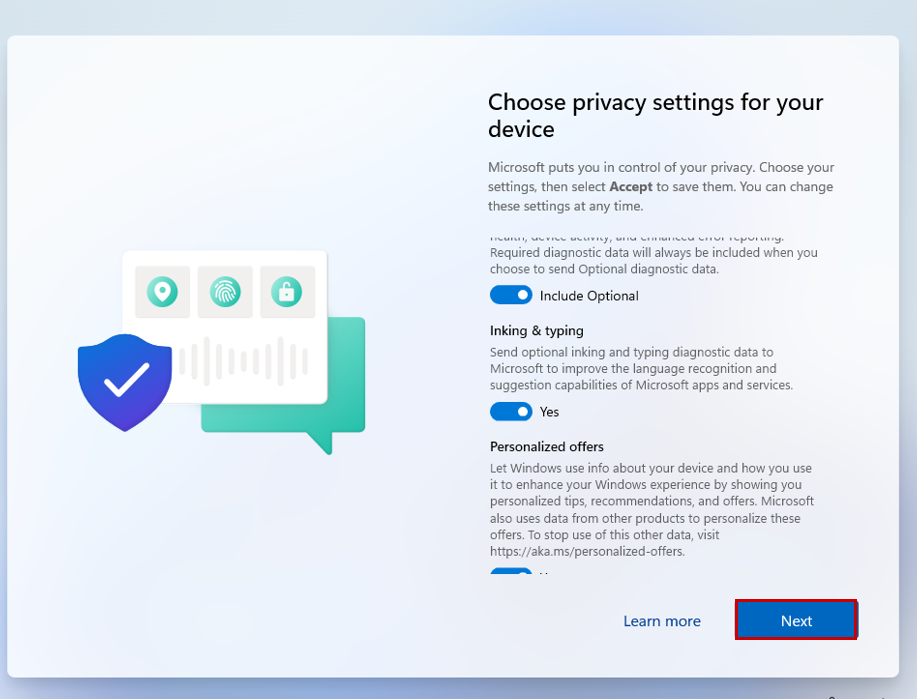
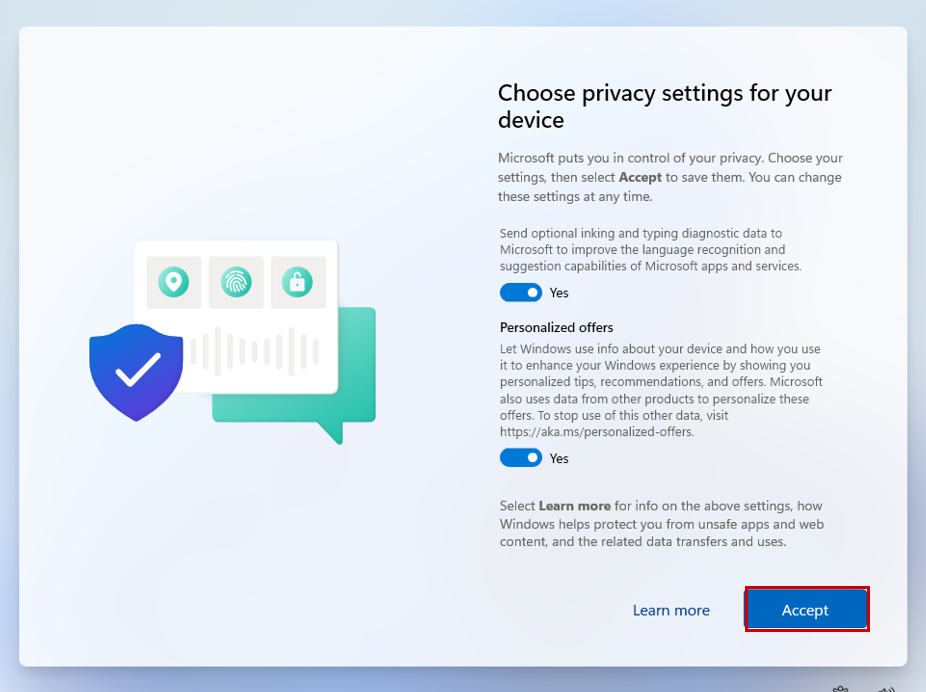
13. You may see screens such as “This might take a few minutes” while Windows process the setup in the background. Please do not turn off your PC during this process.


14. Once completed, Windows will load to the default Windows 11 home screen
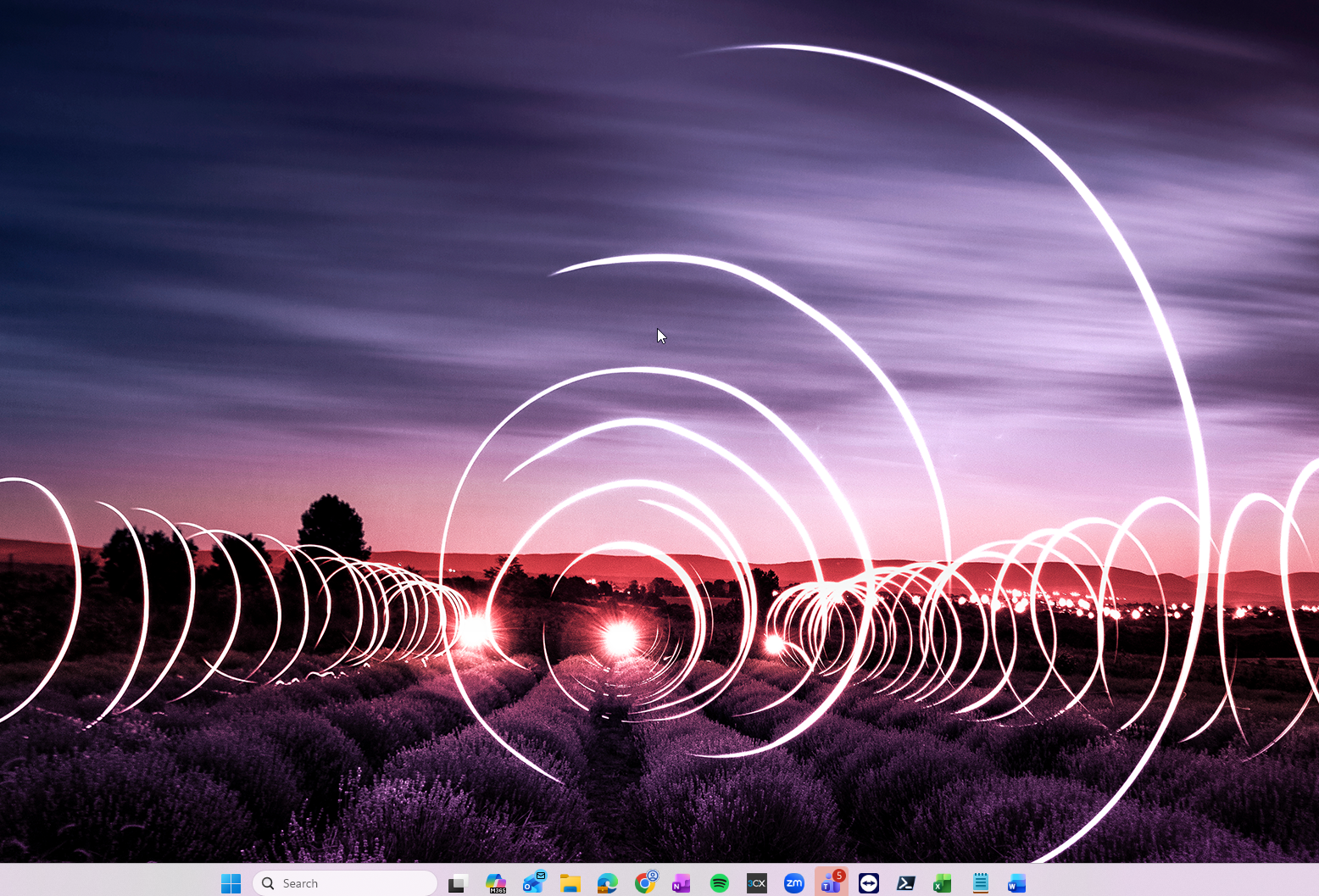
15. Please make sure your device is connected to the Internet by checking the Wi-Fi icon. If you are disconnected, reconnect to your Wi-Fi network or plug in the network cable.
16. Click the Windows button at the bottom center of you screen and search for Edge, then click the icon to open it.
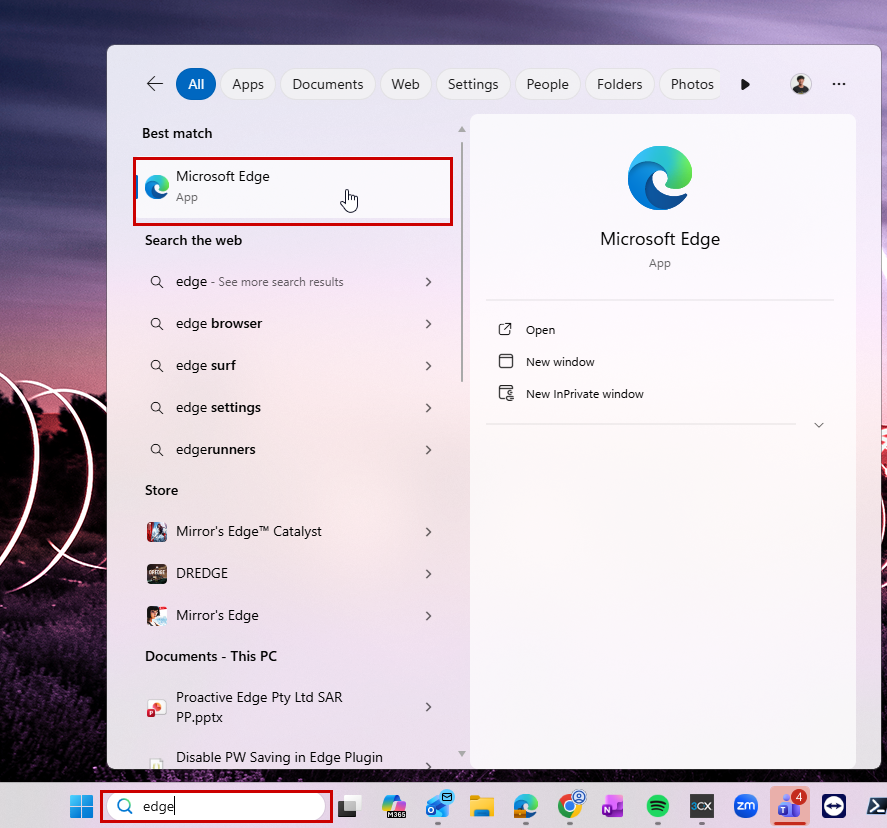
17. In Edge, go to https://get.teamviewer.com/practiceprotect. TeamViewer will download automatically. Once downloaded, double-click and run it. Follow prompts to allow installation.
18. Note the TeamViewer ID and password. Do not close TeamViewer.
19. Respond to your existing ticket with the TeamViewer ID and password so setup can continue.
13. You may see screens such as “This might take a few minutes” while Windows process the setup in the background. Please do not turn off your PC during this process.
14. Once completed, Windows will load to the default Windows 11 home screen
15. Please make sure your device is connected to the Internet by checking the Wi-Fi icon. If you are disconnected, reconnect to your Wi-Fi network or plug in the network cable.
16. Click the Windows button at the bottom center of you screen and search for Edge, then click the icon to open it.
17. In Edge, go to https://get.teamviewer.com/practiceprotect. TeamViewer will download automatically. Once downloaded, double-click and run it. Follow prompts to allow installation.
18. Note the TeamViewer ID and password. Do not close TeamViewer.
19. Respond to your existing ticket with the TeamViewer ID and password so setup can continue.
Need help?
For assistance email support@practiceprotect.com or call:
Phone: 1300 010 114
AU: +61 (2) 9191 9389
US: +1 (415) 992 8245
HK: +852 5808 7483
PH: +63 (2) 218 3614