
Purpose
This guide provides instructions on how to disable the Password Capture function on common Password Managers. Completing these steps will prevent conflicts between Practice Protect & other platforms.
Instructions
Select the relevant password manager from the drop down list below.
1Password
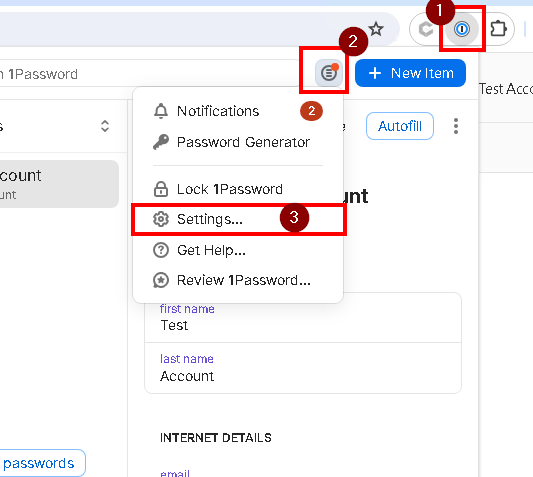
- Go to your browser and click on 1Password browser extension. Choose Menu > Settings.
- On the Autofill & Save, switch off offer to fill and save passwords. This will also turn off other settings.
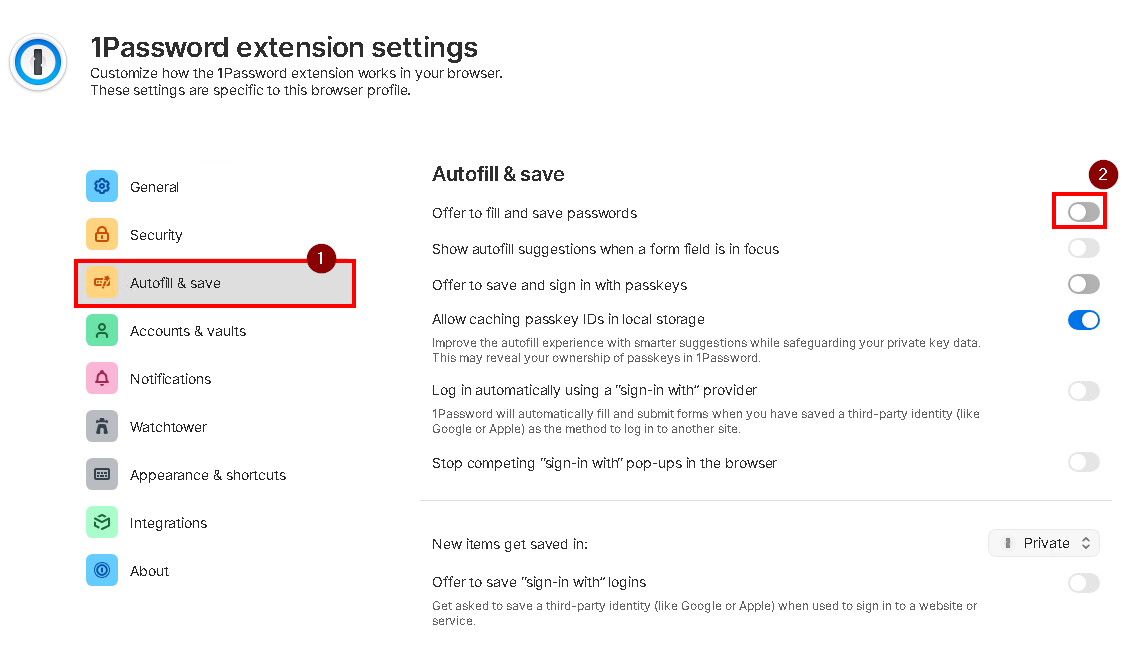
- This will disable the password capture feature for 1Password.
Avira Password Manager
- Open your browser and click on Avira browser extension icon > Settings.
- On General Settings, turn off Offer to save passwords.
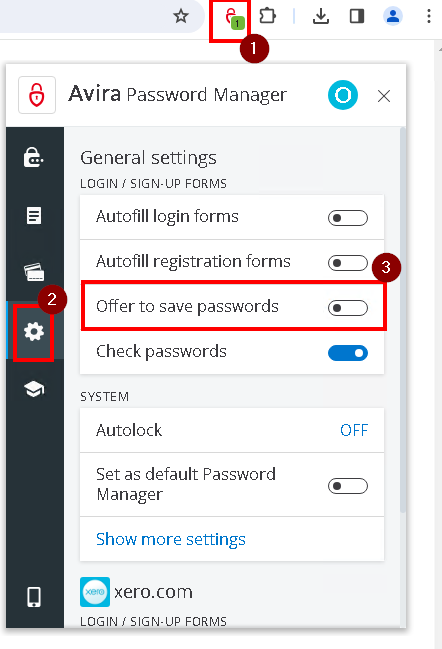
- This will disable the password capture feature for Avira.
Dashlane
- Open your browser and click on Dashlane browser extension icon > Autofill > Global Preferences.
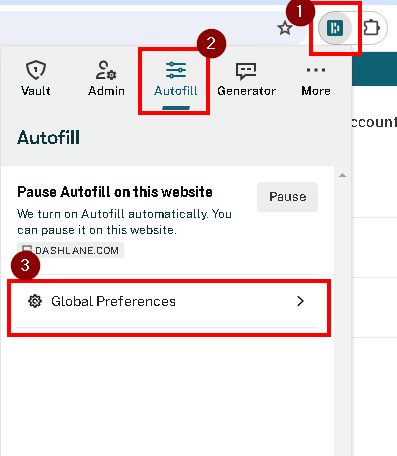
- Switch off Auto-Login and Autofill logins

- This will disable the password capture feature for Dashlane.
Firefox Browser
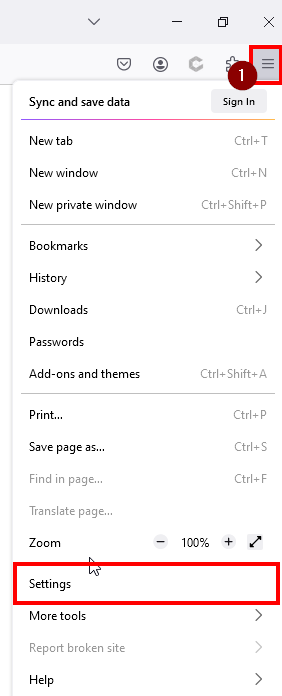
- On Firefox, click the three lines menu > Settings.
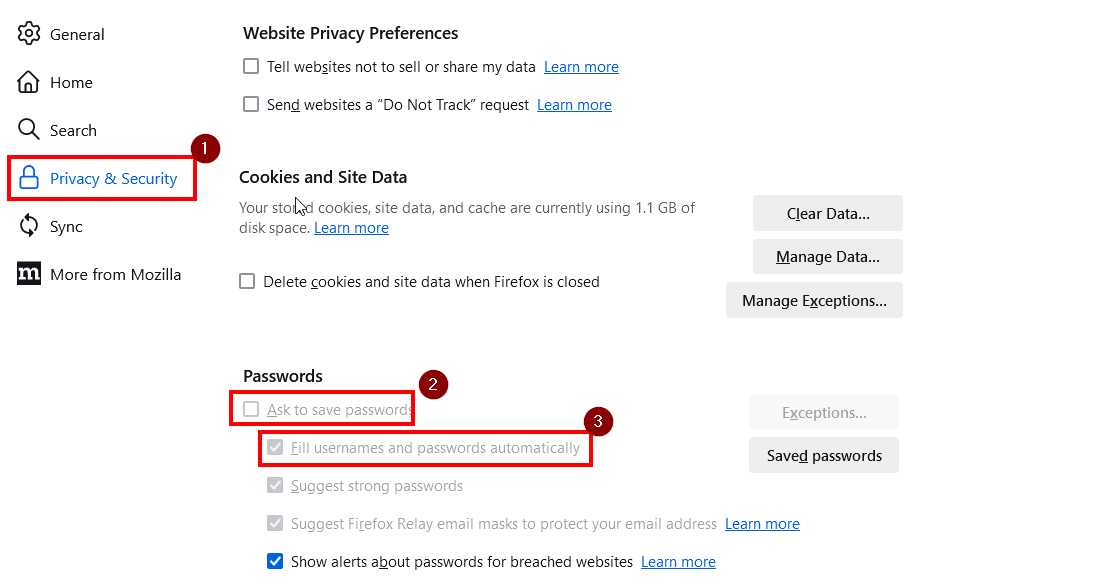
- In Privacy & Security > Passwords, untick Ask to save passwords and Fill usernames and passwords automatically
- This will disable the password capture feature for Firefox Browser.
Google Chrome Password Manager
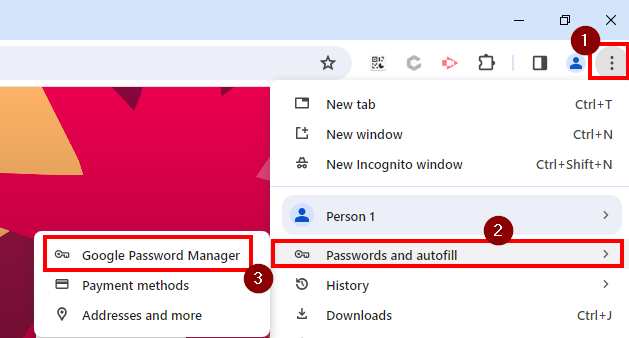
- On Chrome, click the three-dots menu > Passwords and autofill > Google Password Manager.
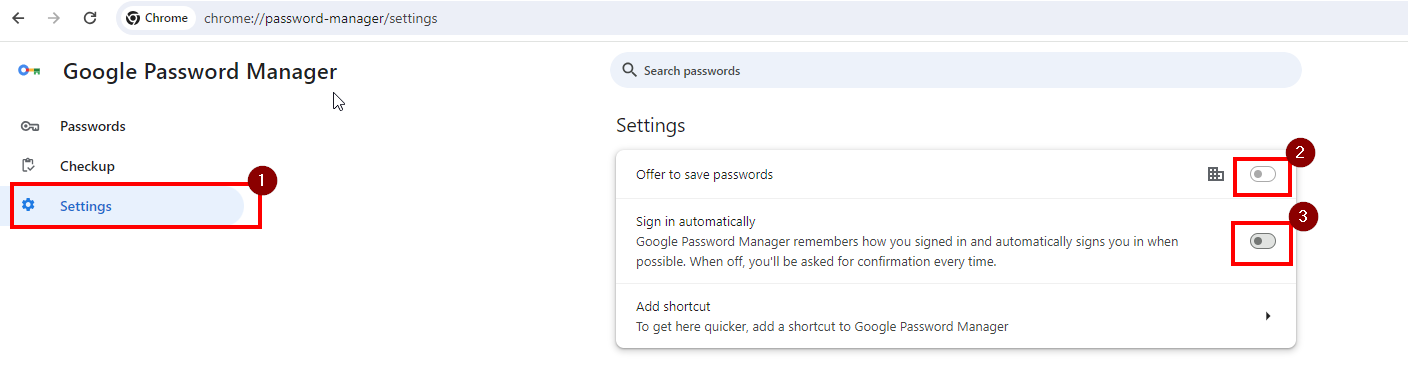
- on Settings, switch off both Offer to save passwords and Sign in automatically. Note: If this cannot be disabled, your browser is being managed by your IT. Please contact them.
- This will disable the password capture feature for Chrome Browser.
Keeper
- Open the browser and click on Keeper browser extension icon > Settings
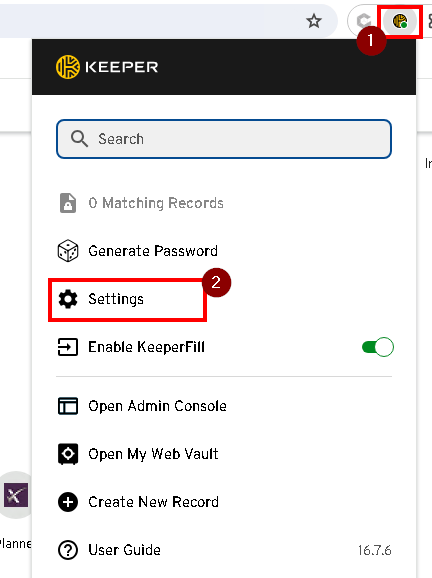
- Click Save Prompt and switch it off
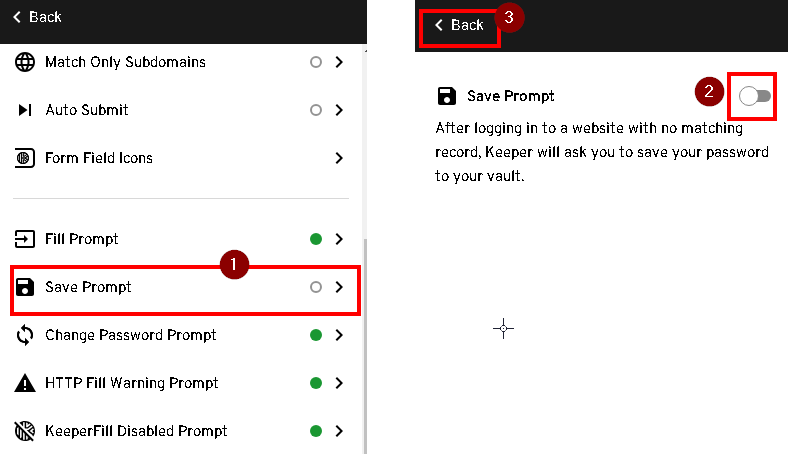
- Return on Settings, click Change Password Prompt and switch if off.
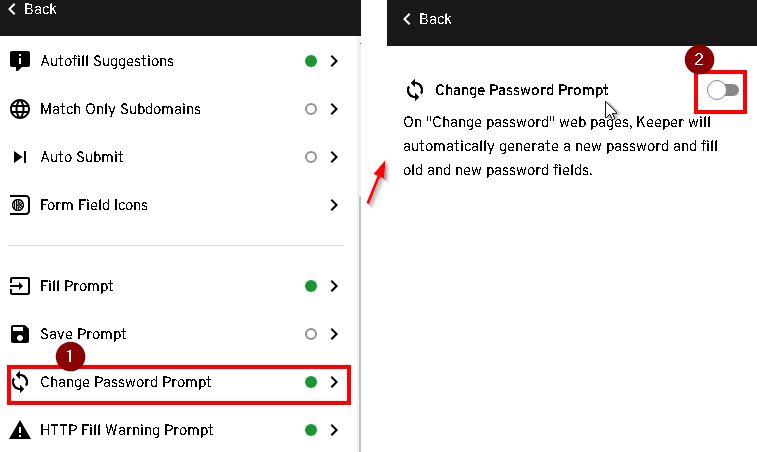
- This will disable the password capture feature for Keeper.
LastPass
- Open the browser and click on LastPass browser extension icon > Account > Extension Settings.
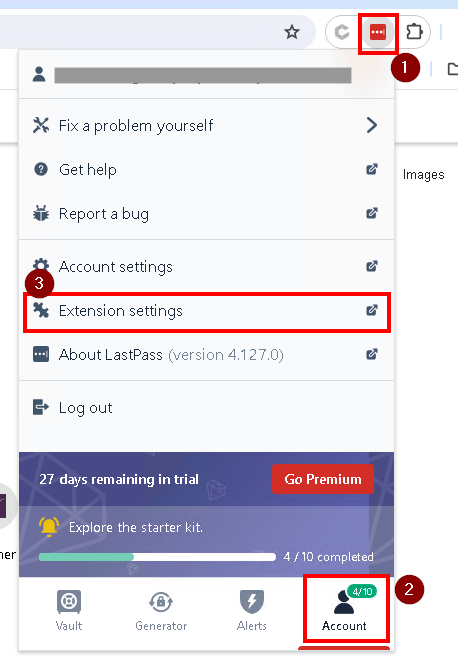
- Go to Notifications then uncheck Show Save Site Notification Bar and Show change password notification bar.
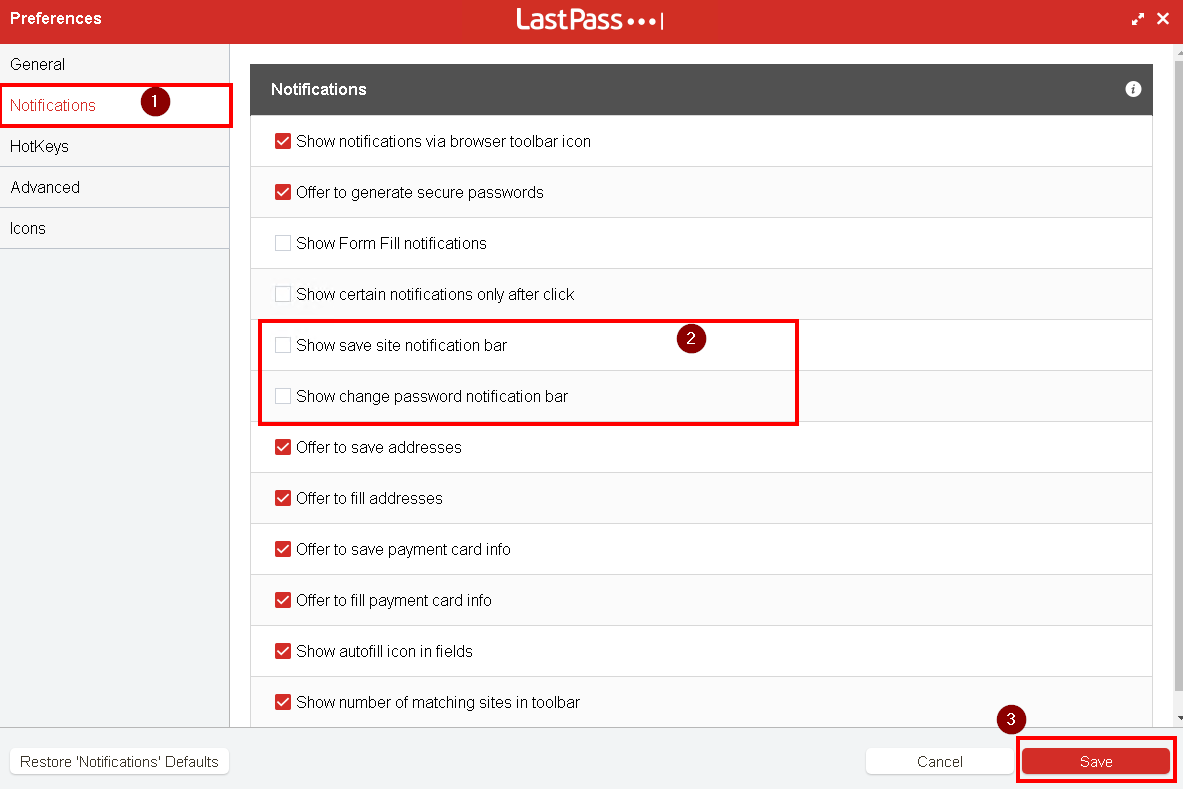
- Click Save.
- This will disable the password capture feature for LastPass.
Microsoft Edge
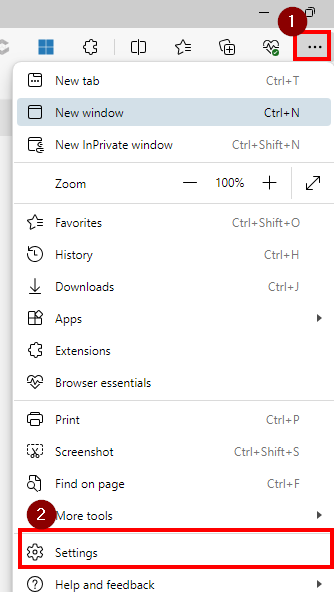
- On the Edge Browser, click on three dots menu > Settings
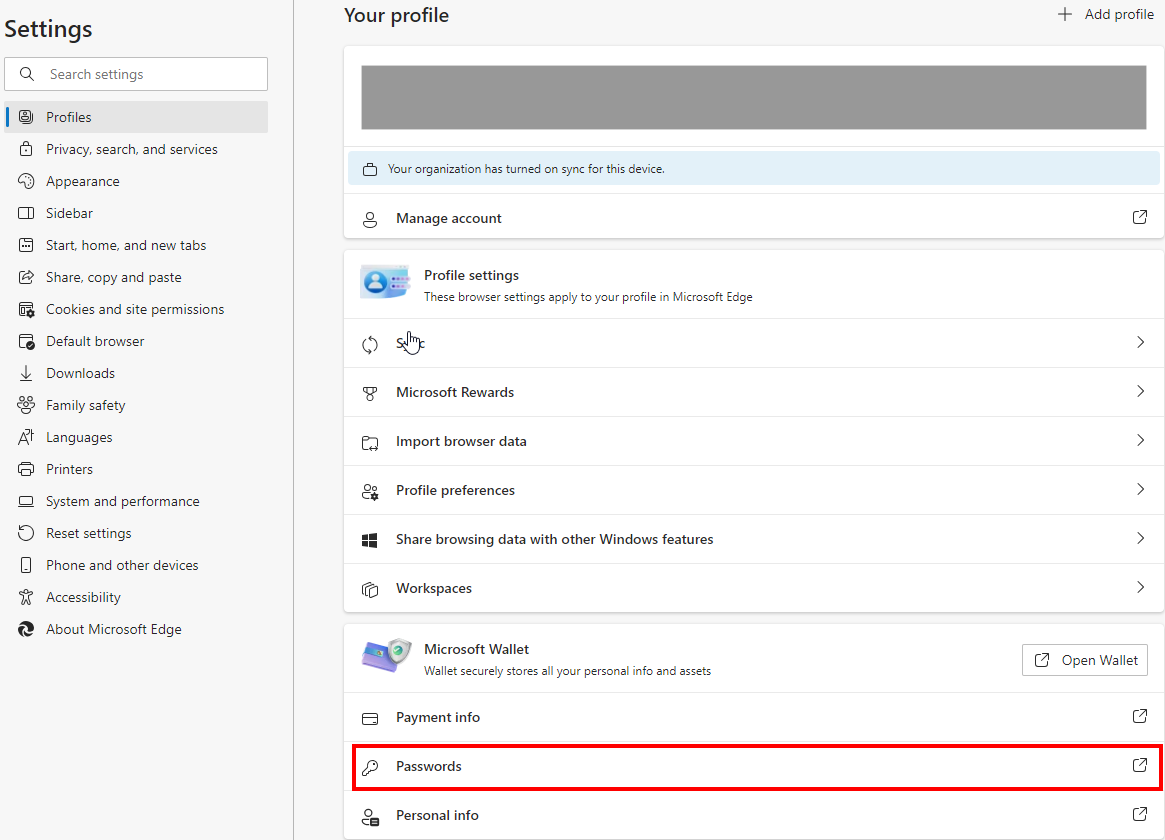
- Under Microsoft Wallet Choose Passwords. This opens up to the passwords settings.
- Go to Settings > Switch off offer to save passwords and autofill passwords and passkeys.
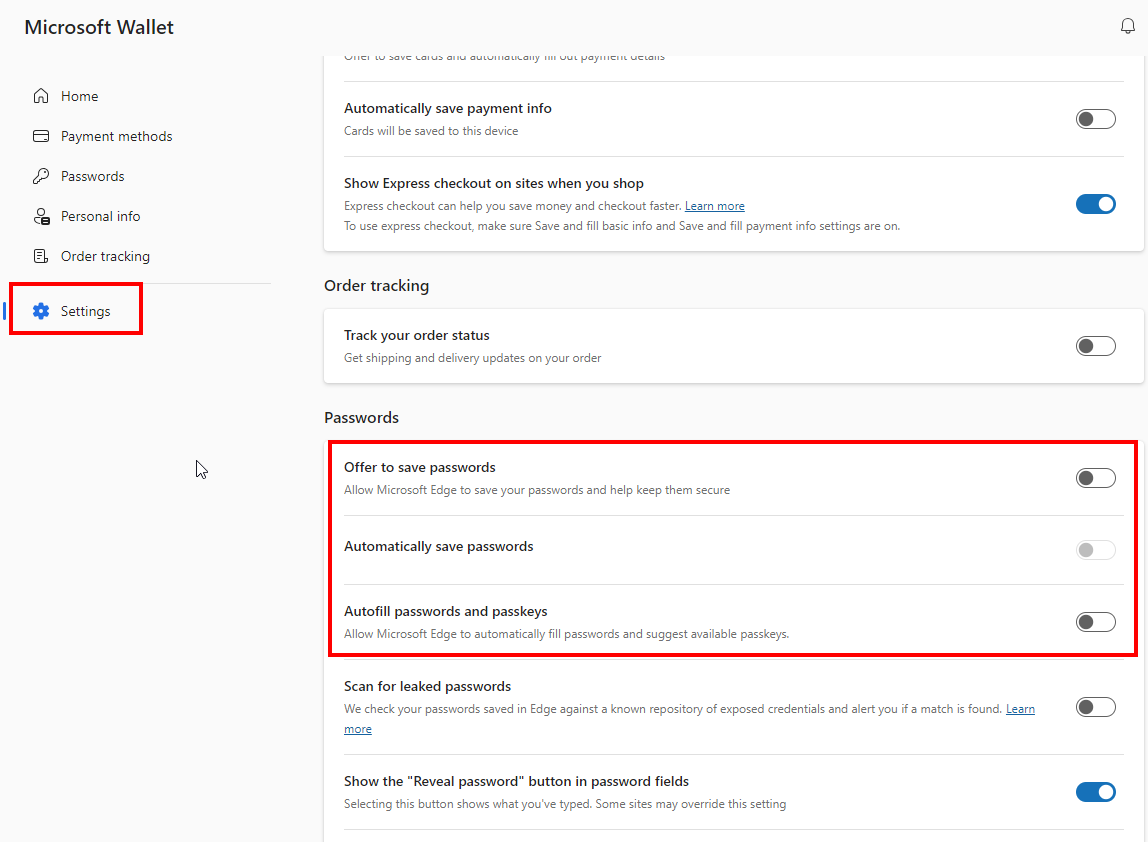
- This will disable the password capture feature for Edge Browser.
Okta
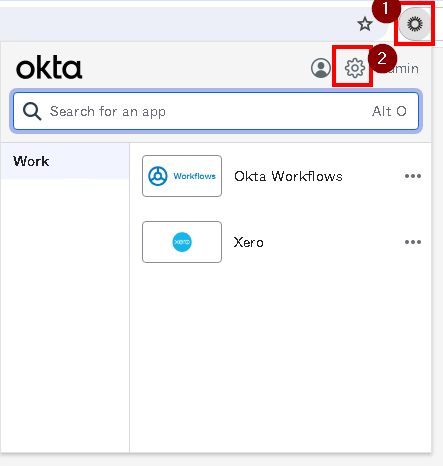
- Open your browser and click on Okta Brower Plugin > click the Gear Settings.
- On Password Management, turn off Prompt to save apps to your Okta dashboard.
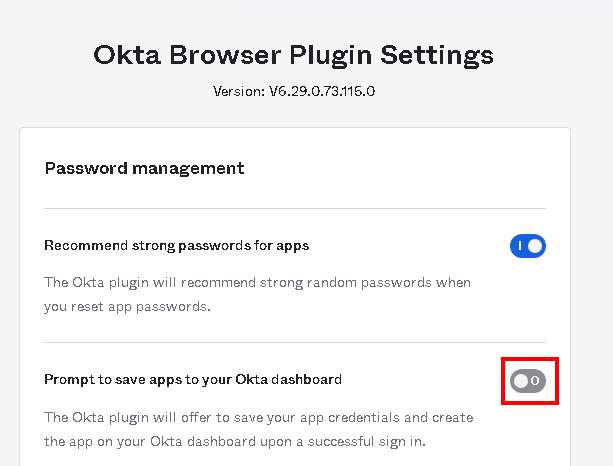 Note: If the option is not available, it is already disabled
 - This will disable the password capture feature for Okta.
Okta (via Admin Console)
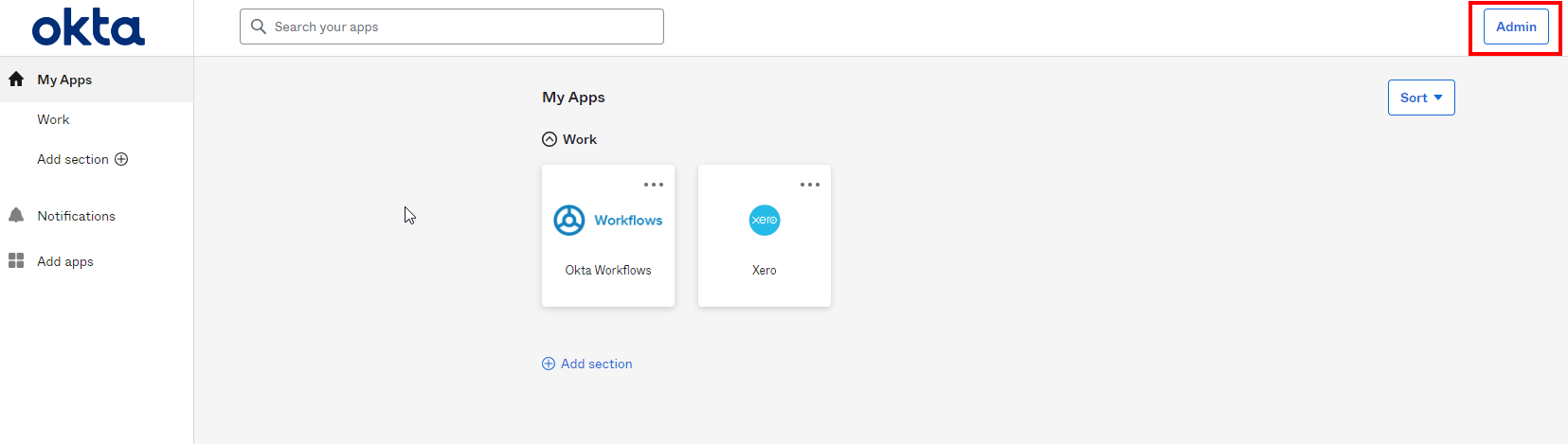
- Login to Okta and click Admin
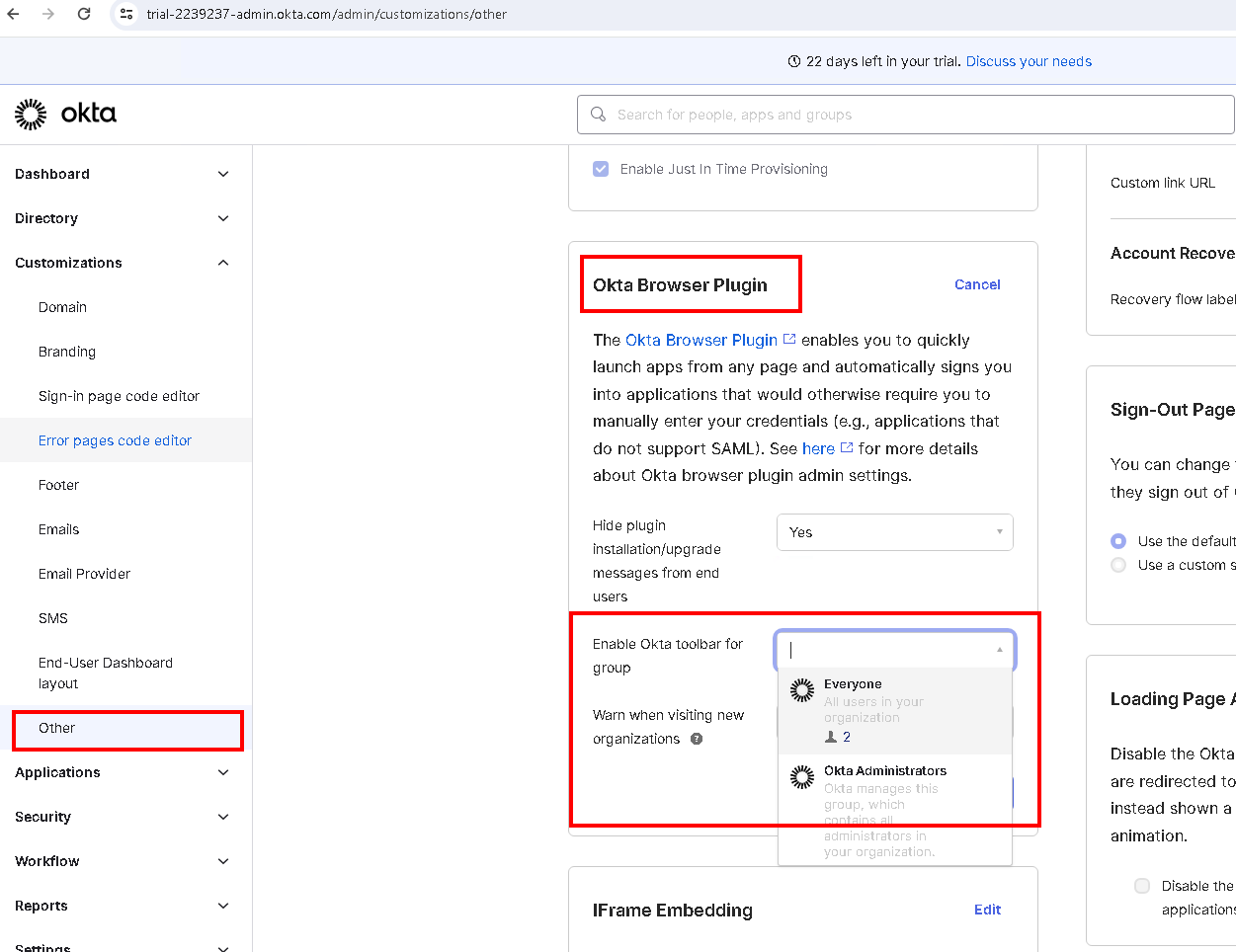
- From Customization, click Other and go to Okta Browser Plugin
- Click Edit. Select the dropdown for Enable Okta toolbar for group.
- By default it is set to Everyone. Disabling password prompt can be done by selecting a different group (Ex. Okta Administrator).
- Click Save.
- This will disable the password capture feature for Okta Admin Console
RoboForm
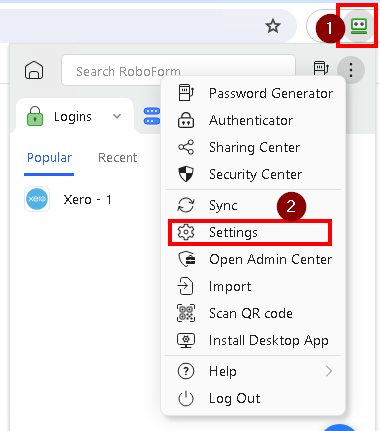
- Open your browser and and click on RoboForm browser extension icon > Settings
- Select AutoSave and tick Do no Offer to AutoSave.
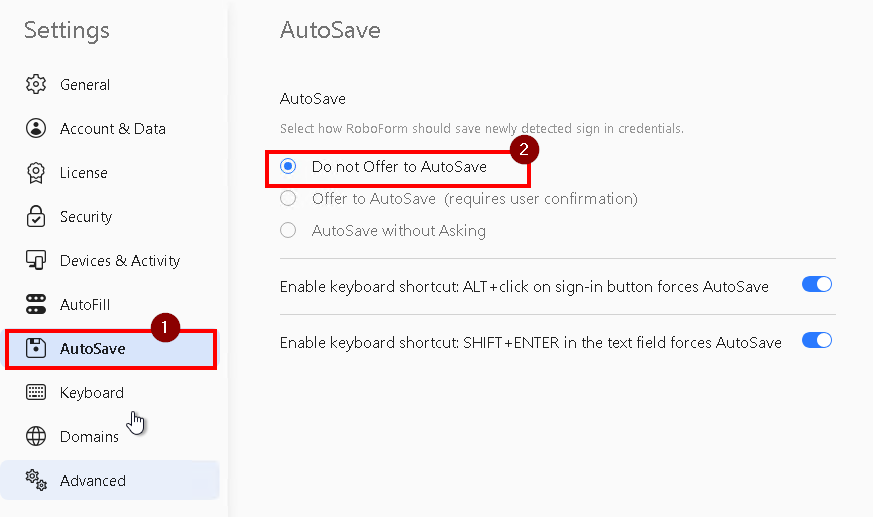
- This will disable the password capture feature for RoboForm