
Purpose
Clockify offers a single sign-on via SAML integration with Practice Protect. This provides a seamless login experience to the Clockify platform using IdP-initiated SSO. Practice Protect can configure this on your behalf. Please send us an email at support@practiceprotect.com.
Prerequisites
- An active Clockify account with Workspace Owner rights for your organization is required to access the SSO settings.
- A Clockify Enterprise plan subscription.
- Administrator access to Practice Protect to configure SSO.
- All staff members’ Clockify usernames must match their corresponding usernames in Practice Protect.
Instructions
-
- Sign in to Practice Protect and switch to the Manage Space.
- In the left-hand menu, expand Inventory > Identities > Roles.
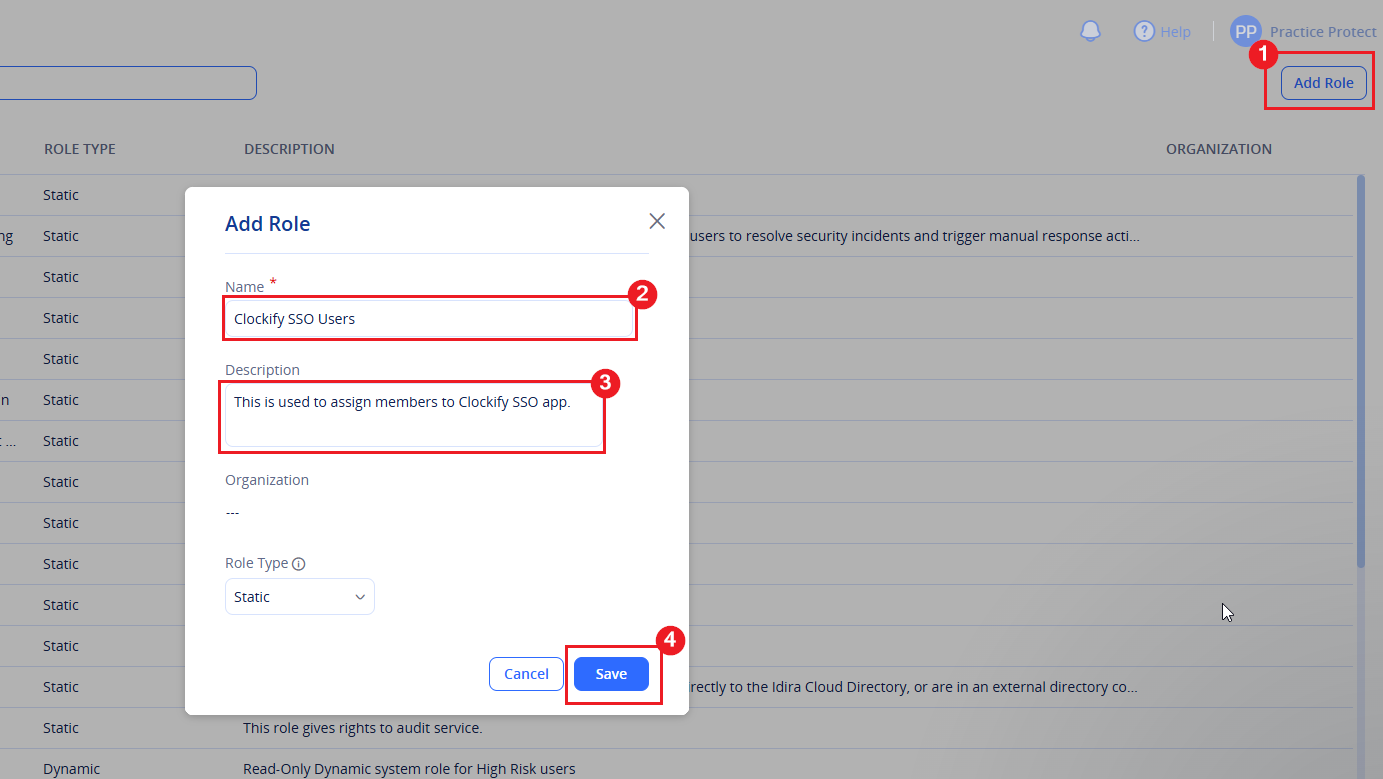
- Click Add Role and configure the following details:
- Name: Clockify SSO Users
- Description: Used to assign users to the Clockify SSO application
- Click Save.
-
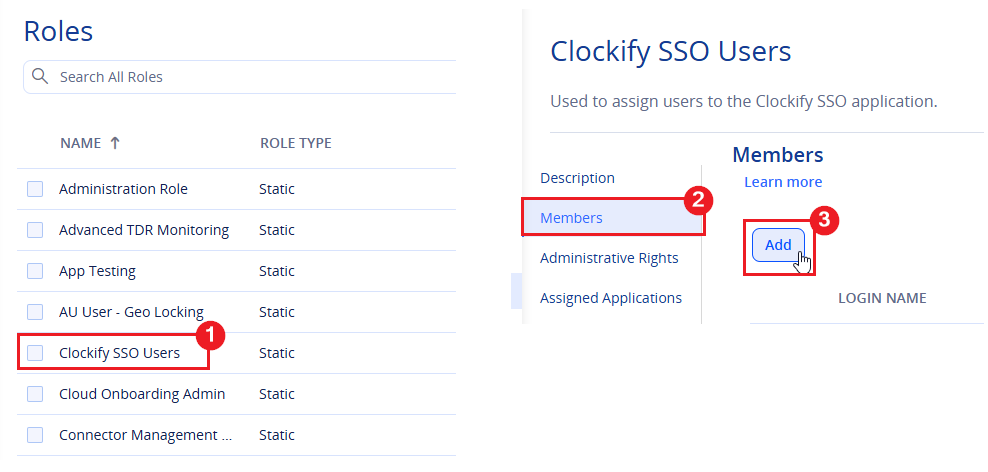
Open the newly created Clockify SSO Users role. Navigate to Members and click Add.
-
Select the users you want to assign to the role, then click Add.
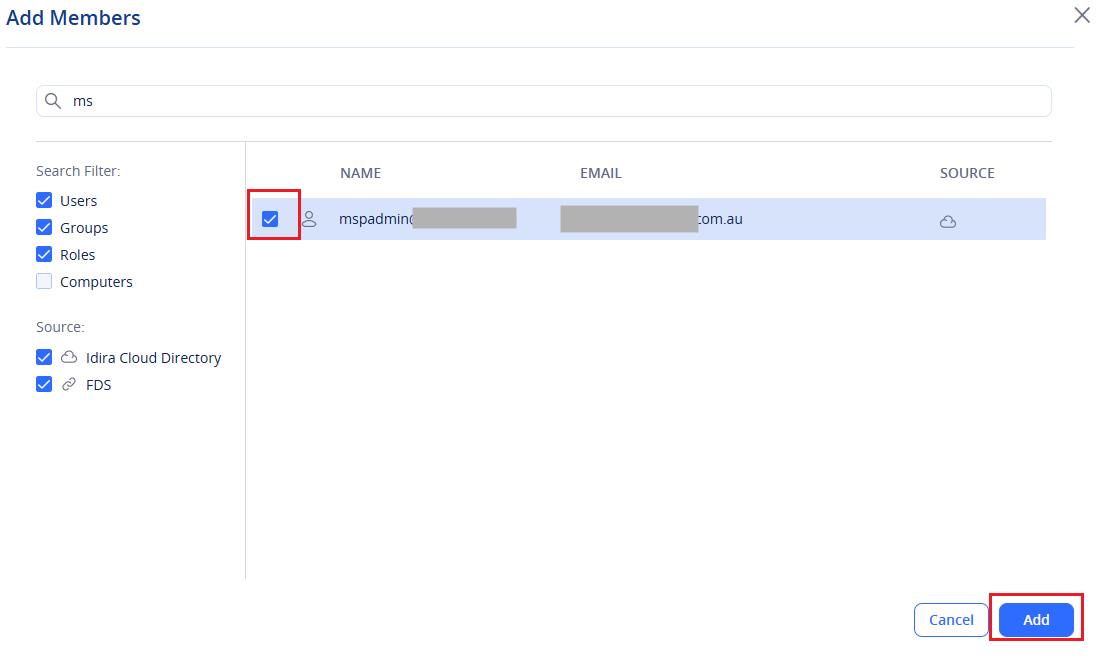
- Click Save in the bottom-right corner to apply the changes.
- Navigate to Targets > Applications.
- Click Add application.

- Select the Custom tab, then click Add under SAML.

- Click Yes to confirm on adding SAML app.

- Once the Application was added notification appears, click Close. The newly added application settings should open automatically. If they do not, navigate to Targets > Applications, locate the application you created, and open it.
- In the app settings, set the following details for the Clockify SAML app
- Name: Clockify
- Description: This is used for SAML Integration. DO NOT DELETE.
- Category: SAML, or select a different category if preferred.
- Logo: Click Browse and upload the Clockify logo. You can use the logo provided below.


- Click Save to apply the changes. Note: If an existing Clockify application is already configured, you can give the new SAML application a different name. Alternatively, rename the existing application to Clockify Old or delete it if it is no longer required.
- Leave the Clockify application open in Practice Protect for now, then open a new browser tab and sign in to Clockify.
-
Click the Menu and select Workspace Settings.

- Go to the Authentication tab.
- Under Subdomain Setup, enter your preferred subdomain in the field. Note: A custom subdomain is required before SSO can be configured for the Clockify workspace. Once the workspace is moved to the subdomain, users will access Clockify through the new subdomain URL.
- Click Create Subdomain,

- Click Create to confirm.

- Once the subdomain has been configured, you can use it to sign in specifically to your Clockify workspace. Note: Creating the subdomain will sign users out of their existing Clockify sessions, and they will need to access the workspace through the new subdomain URL going forward.
- The SSO Configuration option will now be available. Click Add SSO Configuration.

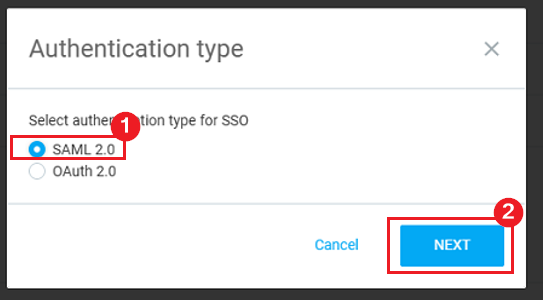
Note: At this stage, users can still sign in to Clockify using their existing email and password. SSO has not yet been enforced. - Select SAML 2.0 as the Authentication Type, then click Next.
- Select Custom SAML2Provider as the IdP Template, then click Next.

- You will be redirected to the SAML 2.0 Authentication page. The required SAML details can be obtained from the Clockify SAML application in Practice Protect.
- Return to the Practice Protect SAML application to retrieve the required values.
- In the Practice Protect SAML application, go to Trust.
- Under Identity Provider Configuration, select Metadata.

- Copy the IdP Entity ID / Issuer from Practice Protect and paste it into the Entity ID field in the Clockify SSO settings.
- Download the Signing Certificate. You will use this later in the configuration.
- Copy the Single Sign-On URL and paste it into the Login URL field.
- Click Copy URL for the Metadata URL and paste it into the Metadata URL field.

- Leave the Logout URL field blank.
- Copy the Reply URL (Assertion Consumer Service URL). You will use this later when configuring the Practice Protect SAML application.
- Under Advanced, click Choose File and select the Signing Certificate downloaded earlier.

IMPORTANT! If the certificate file cannot be uploaded, open the .cer file in Notepad and copy the certificate value. Paste the certificate value into the Certificate field.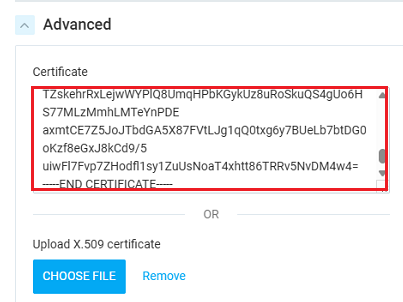
- Before saving the Clockify SSO configuration, return to the Clockify SAML application in Practice Protect.
- Go to Trust, scroll down to the Service Provider Configuration section, select Manual Configuration, and configure the following settings:
- SP Entity ID / Issuer / Audience: Enter your specific Clockify URL. For example: https://yourcompanysubdomain.clockify.me/
- Assertion Consumer Service (ACS) URL: Paste the Reply URL copied from Step 34.
- Same as ACS URL: Ensure this option is selected.
- Sign Response or Assertion: Select Both.

- For Relay State, use the default value below, replacing the URL and organisation name with your own:
{“location”:”https://yourcompanysubdomain.clockify.me”,”organizationName”:”yourcompanysubdomain”}

- Click Save.
- Go to Permissions and assign the Clockify SSO Users role to the application, then click Save.

- Return to the Clockify Admin SSO Configuration page and click Test Configuration.

- Once the configuration test is successful, click Save. You will be returned to Workspace Settings > Authentication, where your current SSO configuration will be displayed.

- SSO is now configured. Test the SSO by clicking the Clockify application in Practice Protect or by accessing your custom Clockify URL.
- Once you have confirmed that SSO is working successfully, go to Workspace Settings > Authentication.
- Turn on the Login with SAML 2.0 toggle and turn off Login with Email to enforce SSO.

-
Once enforced, users will no longer be able to sign in to Clockify using their email and password. They must sign in through Practice Protect or, when accessing Clockify directly, select Continue with SAML 2.0.

- Clockify SSO configuration is now complete.