
Purpose
Dext offers a single sign-on via SAML integration with Practice Protect. This provides a seamless login experience to the Dext platform using IdP-initiated SSO. Practice Protect can configure this on your behalf. Please send us an email at support@practiceprotect.com.
Prerequisites
- An active Dext account with Owner rights for your organization is required to access the SSO settings.
- Admin Access to Practice Protect
- All staff Dext usernames match the usernames in Practice Protect.
Instructions
- Login to Practice Protect and switch to the Admin portal.
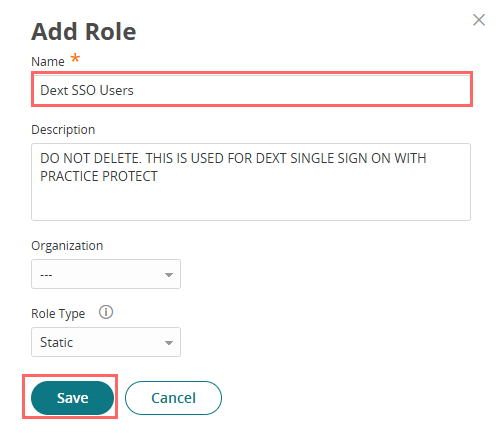
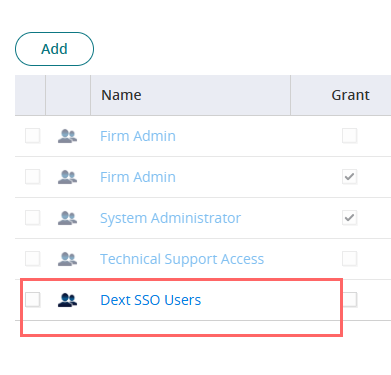
- On Core Services, Click Roles > Add Roles. Create a role and set the name field to Dext SSO Users. Then Save.
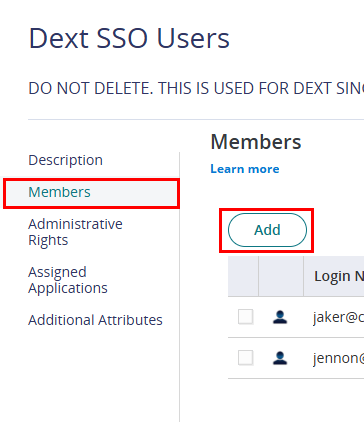
- Within the created role, click on Members > Add. Add each user that should have access to the Dext application, then Save.
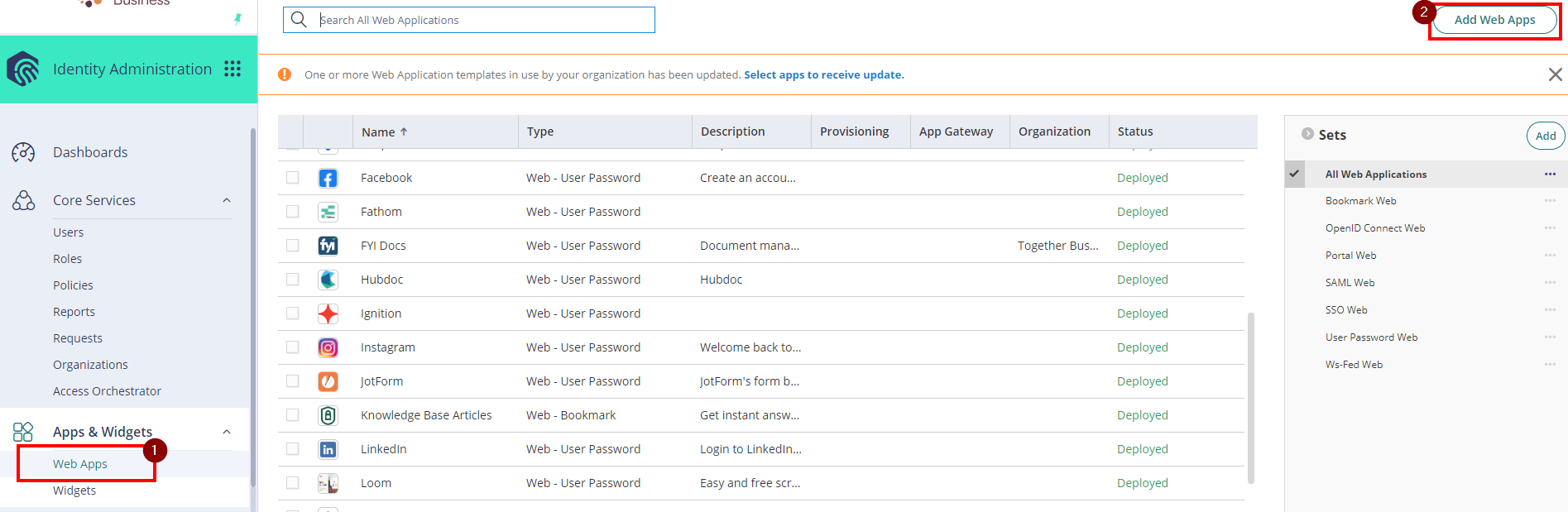
- Select Apps & Widgets then go to the Web Apps section. Click Add Web Apps in the top right corner.
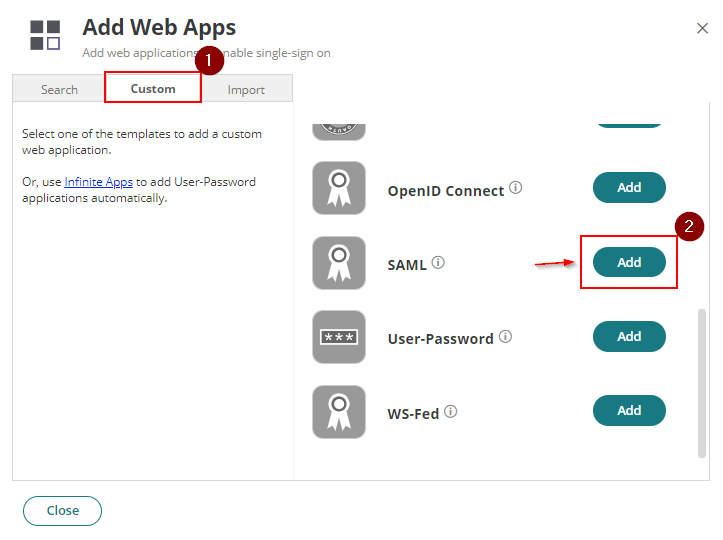
- Select the Custom tab, scroll down, and select add SAML. When prompted, confirm by selecting Yes to add the application.
- Configure the application Name. Optionally, you can also assign a Category and upload a Logo.

- Hit Save.
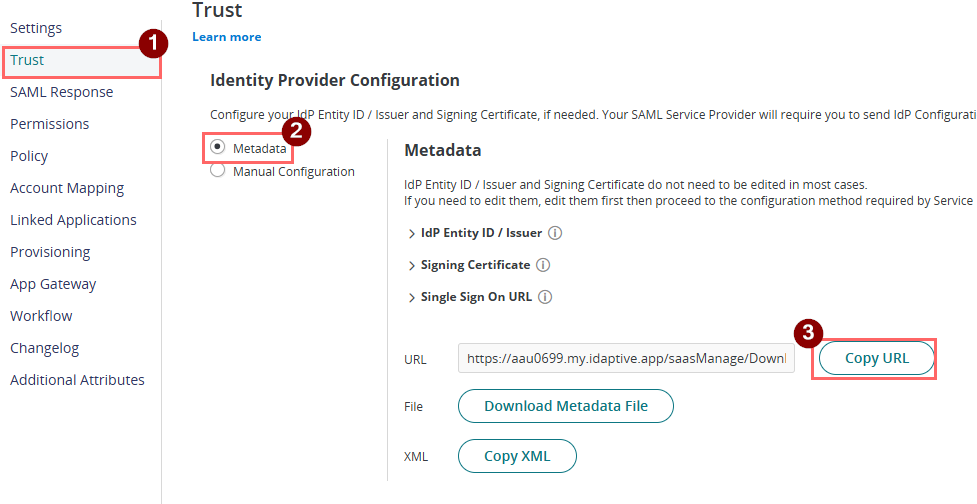
- Go to the Trust page under Identity Provider Configuration and select Metadata. Click Copy URL to copy the Metadata URL, and save this as it will be used in a later step.
- Go to Permissions and add the role you created earlier (e.g. Dext SSO Users) and click Save.
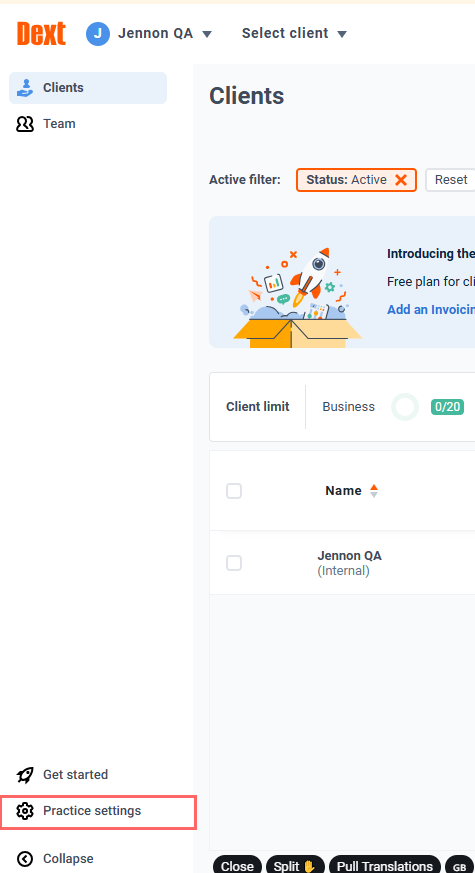
- Sign-in to Dext.
- Click on Practice Settings from the bottom-left menu.
- Go to Practice Profile, copy the CRN and save it as this will be used in a later step.
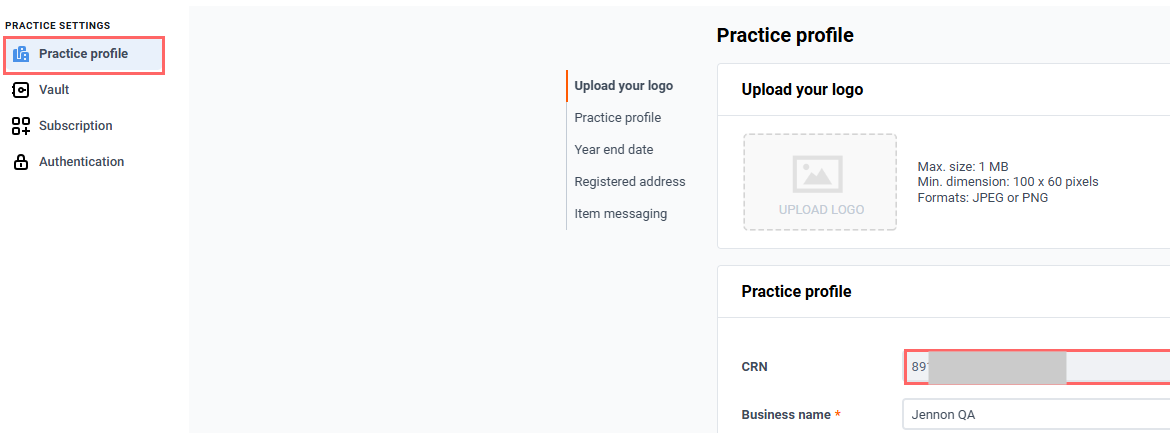
Important: Make sure to use the Practice CRN, not the user’s CRN. -
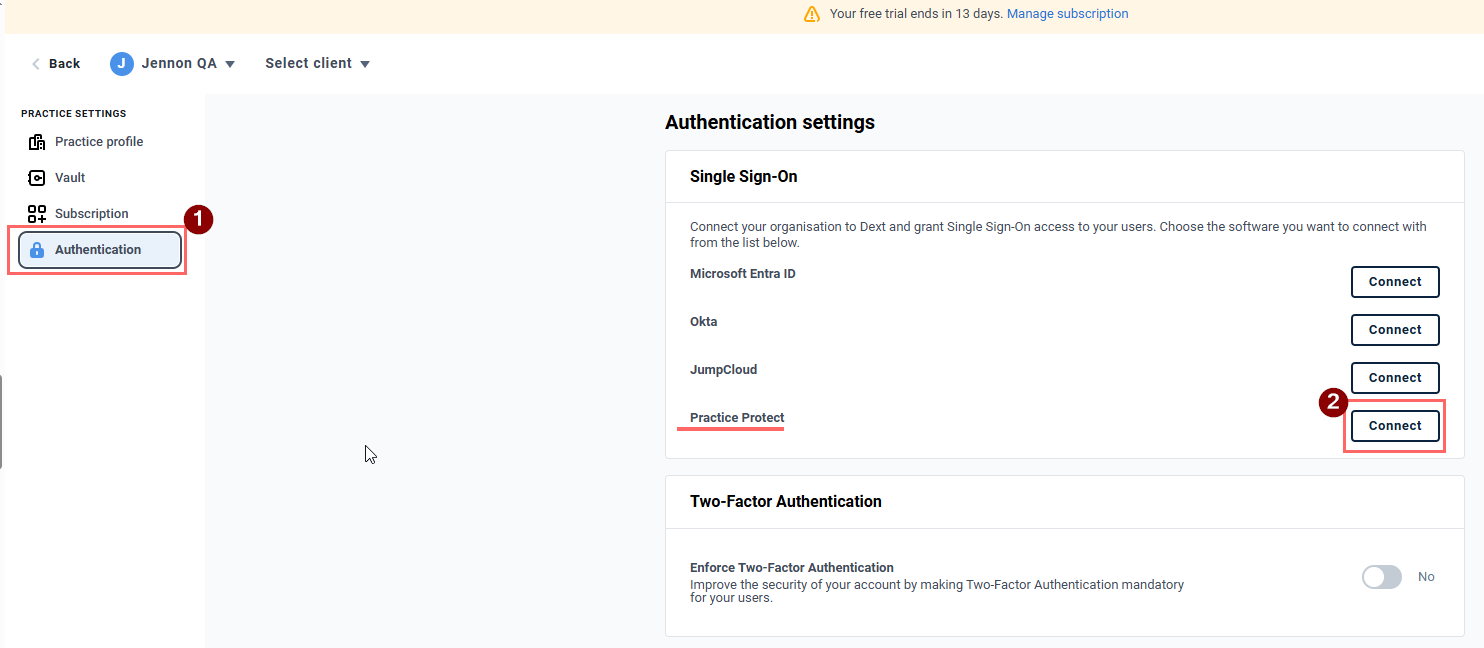
On the left-hand menu, click Authentication.
-
Under Authentication Settings for Single Sign-On, click Connect next to Practice Protect.
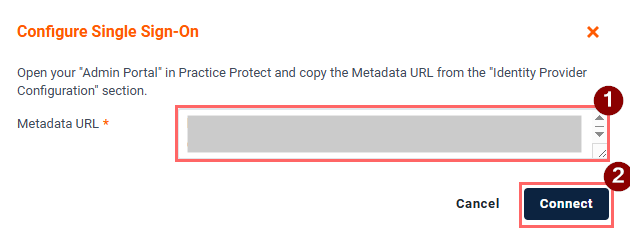
- Paste the Metadata URL you copied from Step 8 into the Metadata URL field, then click Connect.
-
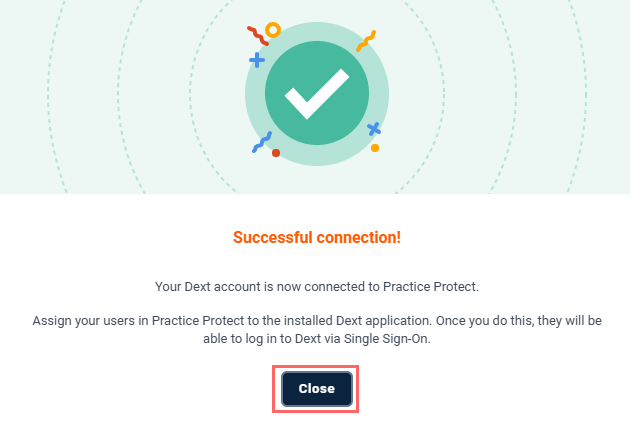
If the connection is successful, a confirmation message will appear.
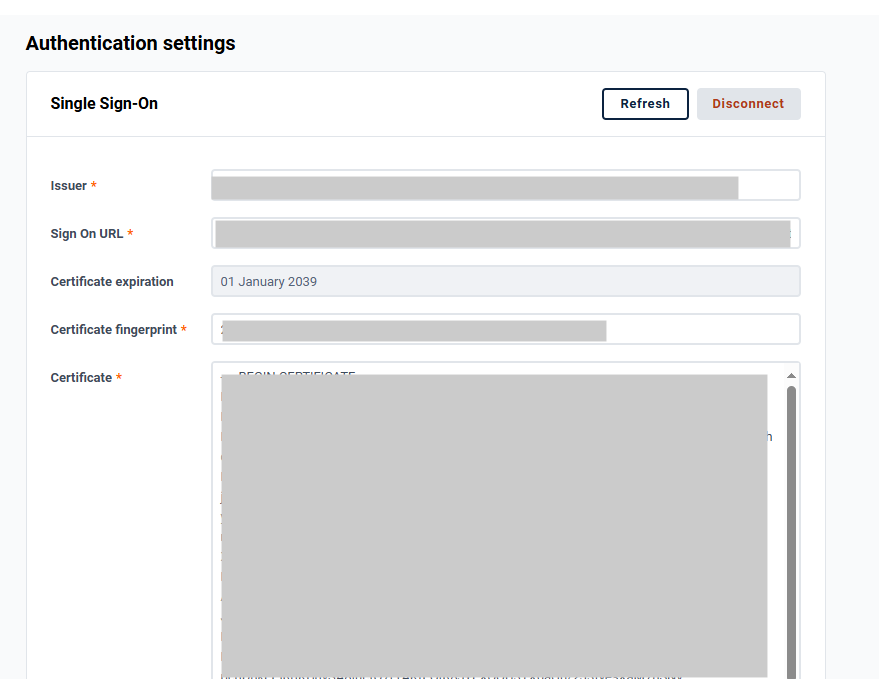
- You should now see the configuration in Dext.
- Return to the Practice Protect Admin Portal > Apps & Widgets > Web Apps, open the Dext app you created earlier.
- Go to the Trust page, navigate to Service Provider Configuration, and select Manual Configuration.
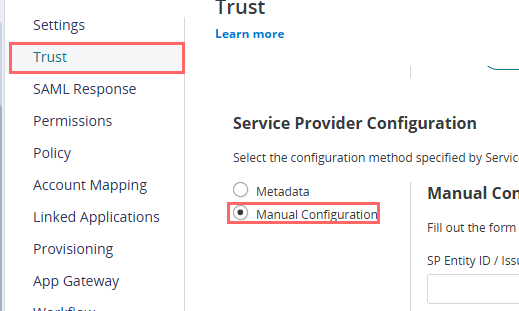
- Set the following configuration details
- SP Entity ID / Issuer / Audience – Paste the CRN that you copied from Step 12.
- Assertion Consumer Service (ACS) URL – Copy and Paste this URL https://app.dext.com/saml/practice-protect/complete
- Recipient – tick the box for Same as ACS URL
- Sign response or Assertion – Select Both
- NameID Format – Choose emailAddress
- Leave all other settings as they are.
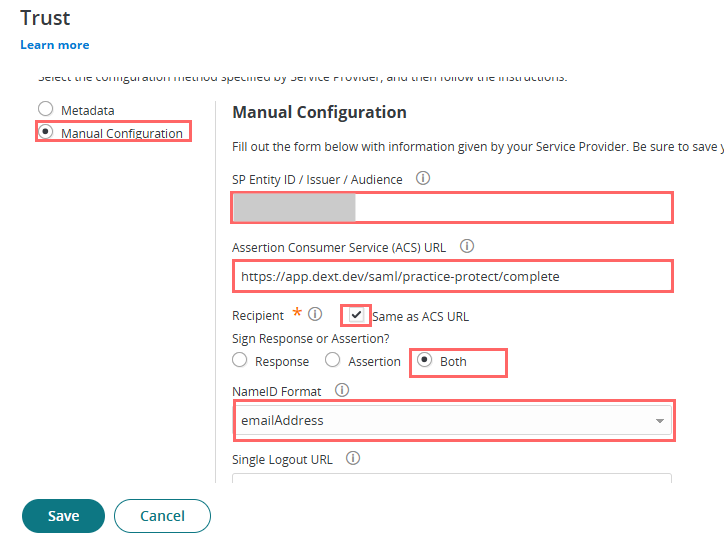
- Click Save.
- Users can now sign into Dext via SSO. Before enforcing SSO, sign-in and confirm the integration works as expected.
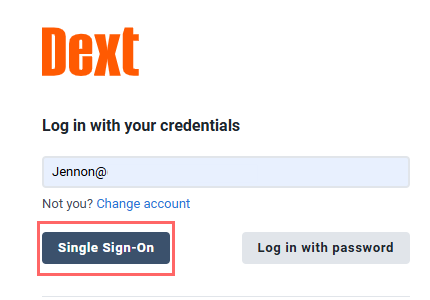
Enforcing Single Sign-On (SSO) in Dext via Practice Protect
-
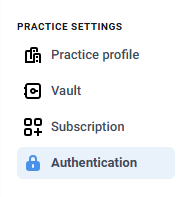
Within Dext open Practice Settings.
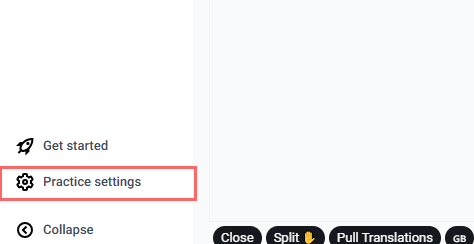
- Go to the Authentication settings.
- Under SSO Authentication Settings, enable Disable log in with password.
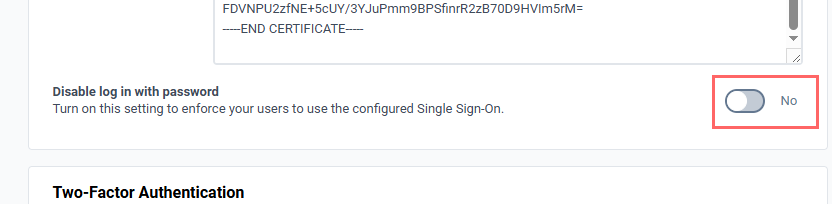
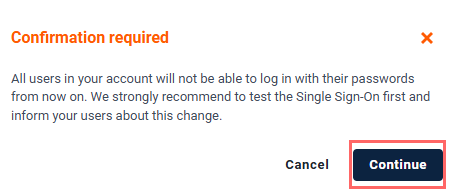
This requires all users to sign in using the configured Single Sign-On. In this case, users will only be able to access Dext through Practice Protect. - Click Continue to confirm.
- The SAML integration is now complete.
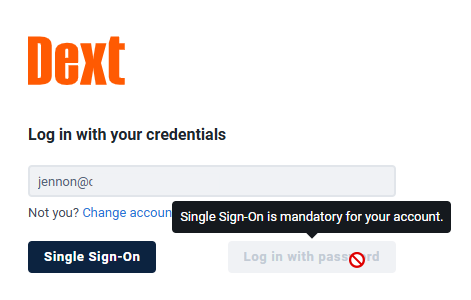
Users can also launch the Dext SSO tile directly from the Practice Protect Portal to access Dext.