
Purpose
Attackers targeting accounts using legacy IMAP/POP/SMTP protocols in order to brute-force the accounts using common variations on usernames and passwords exposed in large credentialed dumps.
For MFA and Practice Protect polices to be effective, legacy authentication needs to be blocked at the Microsoft 365 level. This is because legacy authentication protocols like POP, SMTP, IMAP, and MAPI can’t enforce MFA, making them preferred entry points for adversaries attacking your organization.
The numbers on legacy authentication from an analysis of Microsoft 365 traffic are stark:
- More than 99 percent of password spray attacks use legacy authentication protocols
- More than 97 percent of credential stuffing attacks use legacy authentication
- Microsoft 365 accounts in organizations that have disabled legacy authentication experience 67 percent fewer compromises than those where legacy authentication is enabled
Modern Outlook connections to Microsoft 365 no longer use these protocols. However they are left on my default in Microsoft 365.
Disabling theses protocols and blocking Basic Authentication on your organization’s cloud user accounts is a good measure as well as our recommendation to Federate your Microsoft 365 with Practice Protect. You must take into account any 3rd party applications/devices using SMTP/IMAP to send or access your accounts, as these system may still be using Legacy Protocols and need to be migrated.
Note: For Scan to Email functionality, please refer to this Microsoft guide. We recommend configuring SMTP Relay.
Prerequisites
- Admin Account in Microsoft 365
- Exchange Online PowerShell Module – Install Here
- Confirm whether any users, devices, or third-party applications are using Legacy Authentication. You can follow this guide to verify.
Block Legacy Protocols (POP, IMAP, SMTP) in Microsoft 365
- Open PowerShell, then run the command below to connect to Exchange Online.
Connect-ExchangeOnline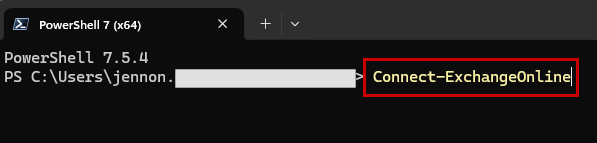
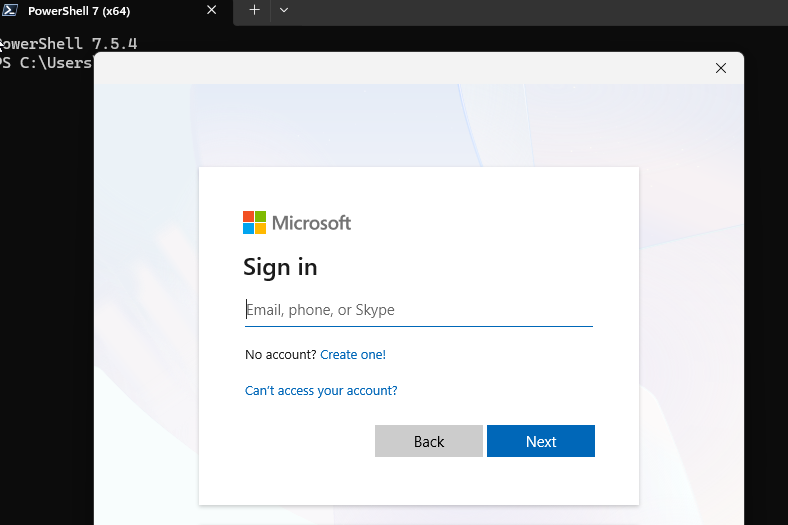
- Sign in to Microsoft 365 using an Administrator account.
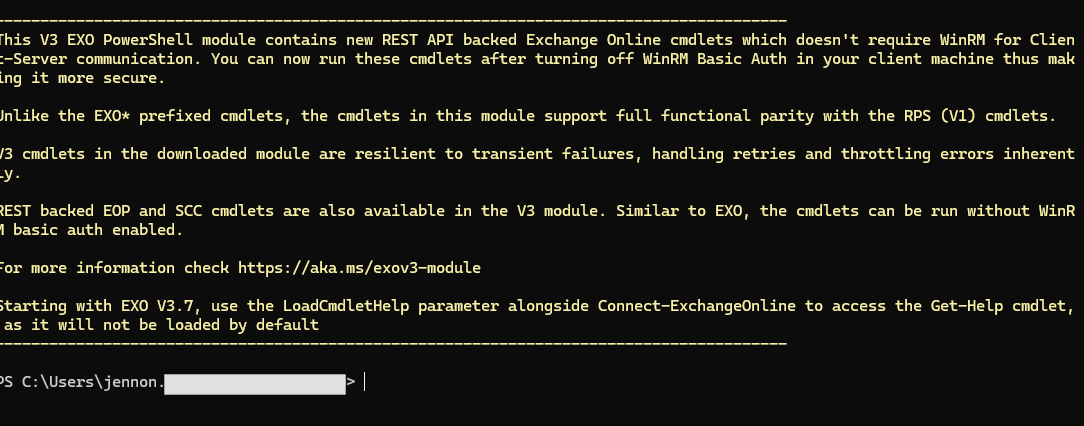
- After signing in and connecting to Exchange Online, you will be prompted to enter the next command.
- Identify all mailboxes with SMTP, IMAP, or POP enabled by running the following command:
Get-CasMailbox
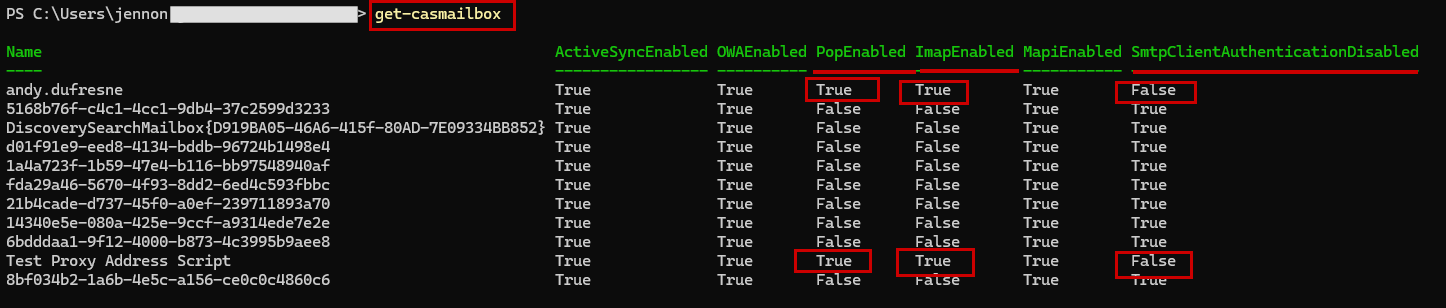
As you can see in the output, some users may still have POP, IMAP, or SMTP client authentication enabled. These protocols are considered legacy and less secure, as they often transmit credentials in plaintext or bypass modern authentication (MFA). For security reasons, we need to ensure that all of these are disabled for all users. - Run the command to disable IMAP, POP, and SMTP client authentication for all mailboxes in the tenant.
Get-CasMailbox | set-CasMailbox -ImapEnabled $false -PopEnabled $false -SmtpClientAuthenticationDisabled $true

Important!
If you encounter a duplicate or multiple entry matches error, it usually means the mailbox identity is not unique. In that case, use the alternative command below:Get-Mailbox –ResultSize Unlimited | ForEach-Object {
Set-CASMailbox –Identity $_.Identity –ImapEnabled $false –PopEnabled $false –SmtpClientAuthenticationDisabled $true
}
If you want to disable legacy protocols for a specific user only, use the command below. Be sure to replace name@domain.com with the actual user’s email address. Otherwise, you can skip this step.
Set-CASMailbox -Identity name@domain.com -ImapEnabled $false -PopEnabled $false -SmtpClientAuthenticationDisabled $true - After disabling, run the following command to verify the changes:
Get-CasMailbox
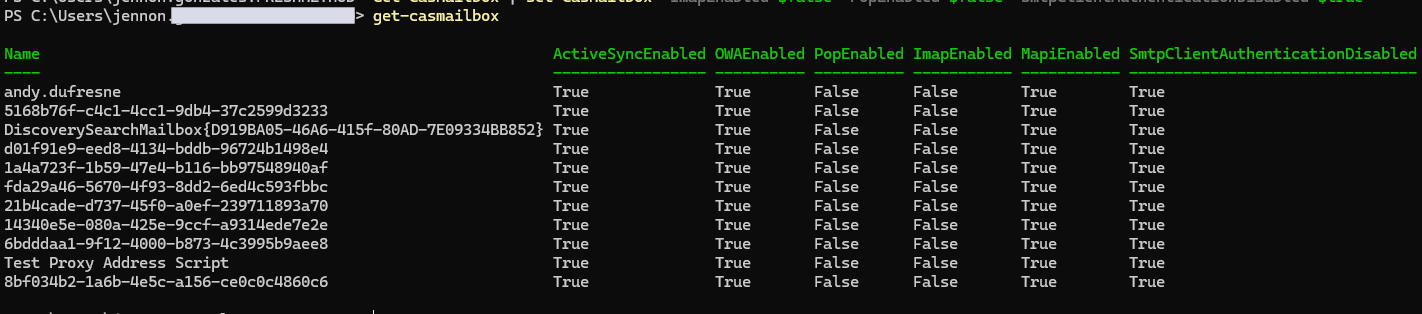
- To maintain security, POP and IMAP must be disabled for all new mailboxes. Run the following command:
Get-CASMailboxPlan | set-CASMailboxPlan -PopEnabled $false -ImapEnabled $false
NOTE: This way, all new mailboxes are secure from the start because POP and IMAP are disabled by default at the mailbox plan level, which sets the default settings for any mailbox created under that plan. SMTP legacy authentication, however, cannot be controlled at the mailbox plan level, so it must be disabled individually for each mailbox to ensure complete protection.
Apply Block Basic Authentication Policy
-
In the same Exchange Online PowerShell session, run the command below to create a new authentication policy:
New-AuthenticationPolicy –Name “Block Basic Authentication”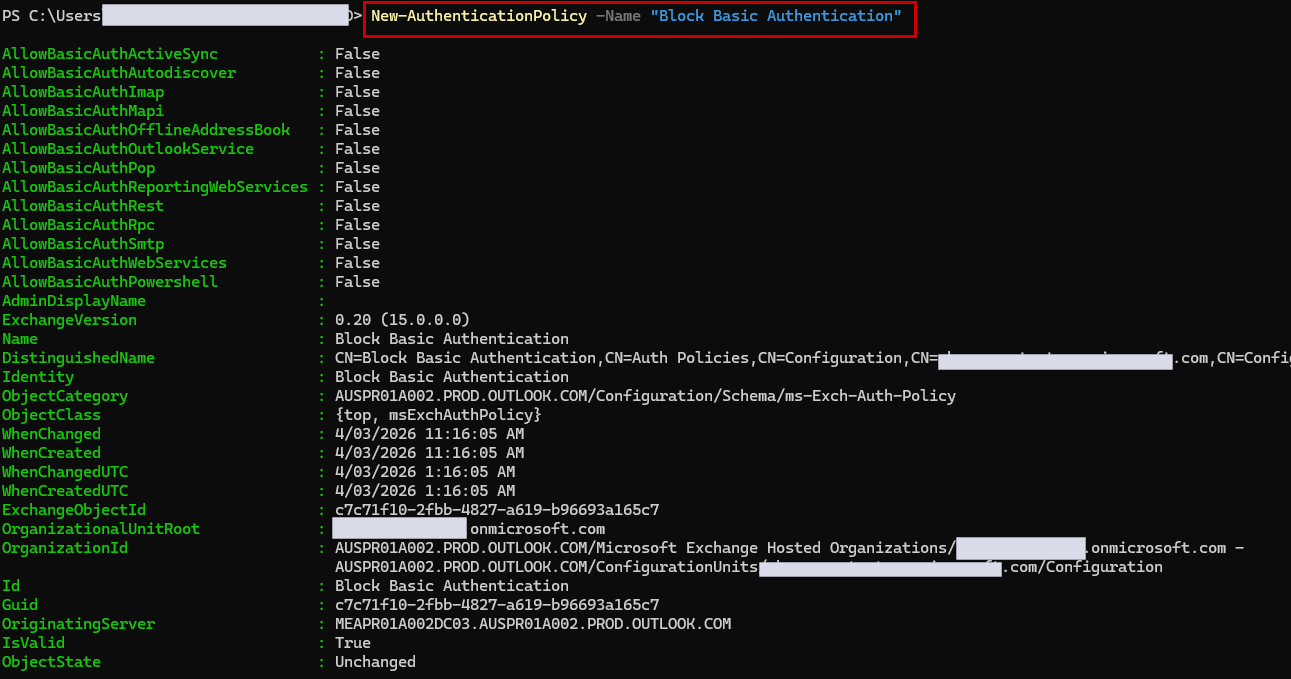 This policy blocks basic authentication at the pre-authentication level, protecting against login attempts via legacy protocols and endpoints.
NOTE: If you get an error that the policy already exists, you can skip this step.

- Run the command below to set the Block Basic Authentication policy as the default for all newly created user accounts, ensuring that Basic Authentication is automatically blocked for any new mailbox:
Set-OrganizationConfig -DefaultAuthenticationPolicy “Block Basic Authentication”
- Run the command below to verify that “Block Basic Authentication” is the default policy for all new user accounts, ensuring any new mailbox automatically blocks Basic Authentication:
Get-OrganizationConfig | Select-Object DefaultAuthenticationPolicy
-
Run the command below to assign the “Block Basic Authentication” policy to all existing user accounts. It may take up to 24 hours to take effect.
Get-User | Set-User -AuthenticationPolicy “Block Basic Authentication” -Confirm:$false
Wait until the command finishes running before proceeding to the next step.
NOTE: If you encounter a duplicate or multiple entry issue when running the previous command, use the following command:$Users = Get-User
ForEach ($User in $Users) {
Set-User –Identity $User.GUID.Guid –AuthenticationPolicy “Block Basic Authentication” –Confirm:$false
}
-
Run the command below to verify that the “Block Basic Authentication” policy has been applied to all current users:
Get-User | Select-Object DisplayName, UserPrincipalName, AuthenticationPolicy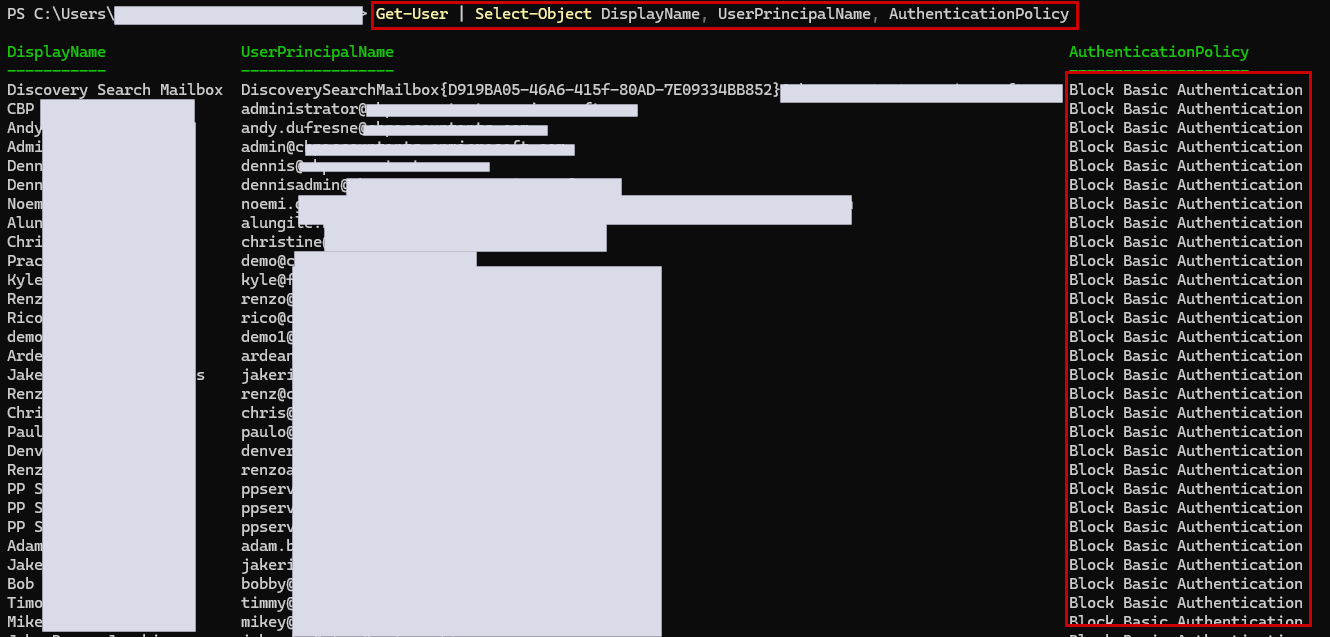
-
Verify if Modern Authentication is enabled by running the following command in PowerShell:
Get-OrganizationConfig | ft name, *OAuth*
Modern Authentication (OAuth) is required for MFA and secure access to Microsoft 365 services. Enabling it ensures clients and users use secure, token-based authentication instead of legacy protocols. -
If the result is False, run the command below to turn it on:
Set-OrganizationConfig -OAuth2ClientProfileEnabled:$true
-
Run the command again to verify that it is now enabled:
Get-OrganizationConfig | ft name, *OAuth*