Purpose
This article provides guidance on setting up an alternative authentication method using a browser-based authenticator for users who are not permitted to use mobile phones as part of company policy.
The browser extension-based authenticator offers a secure, web-based option for completing multi-factor authentication (MFA) without relying on a personal or company-issued mobile device.
This guide outlines how to configure and use the authenticator for:
-
Practice Protect,
-
Microsoft 365, where browser-based authentication methods are permitted by policy,
- Google.
This approach ensures users can remain compliant with organisational security requirements while maintaining secure access to required systems.
Prerequisites
- A supported web browser (Microsoft Edge, Google Chrome, or Mozilla Firefox).
-
The Authenticator browser extension is added to your browser through the links below:
-
Chrome: Get the extension here
-
Edge: Get the extension here
-
Firefox: Get the extension here
NOTE: You can also deploy the Authenticator extension centrally via Microsoft Intune for managed devices. This allows IT administrators to automatically install the extension on users’ browsers without requiring individual action.
-
Instructions
-
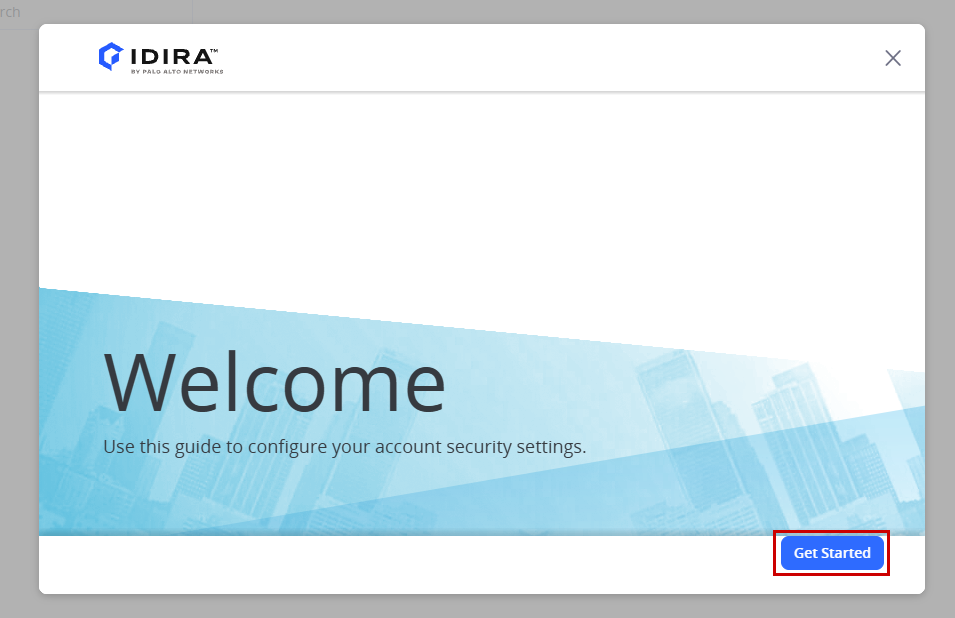
On the next Welcome screen, click Get Started. You will then be prompted to set up your Multi-Factor Authentication (MFA).
The MFA setup options available to you may vary depending on your firm’s Practice Protect configuration. Select the instructions below that match the MFA method displayed on your screen.
- Setup your mobile phone number, then click Save.
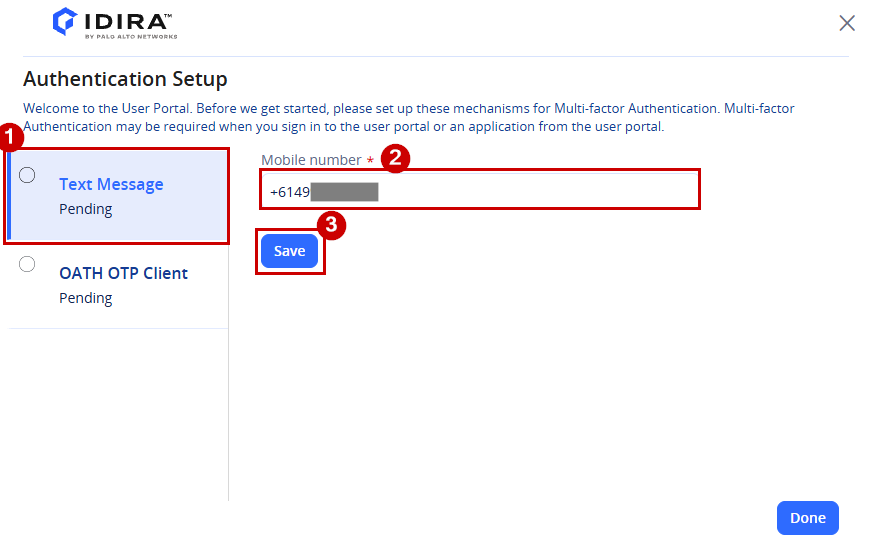
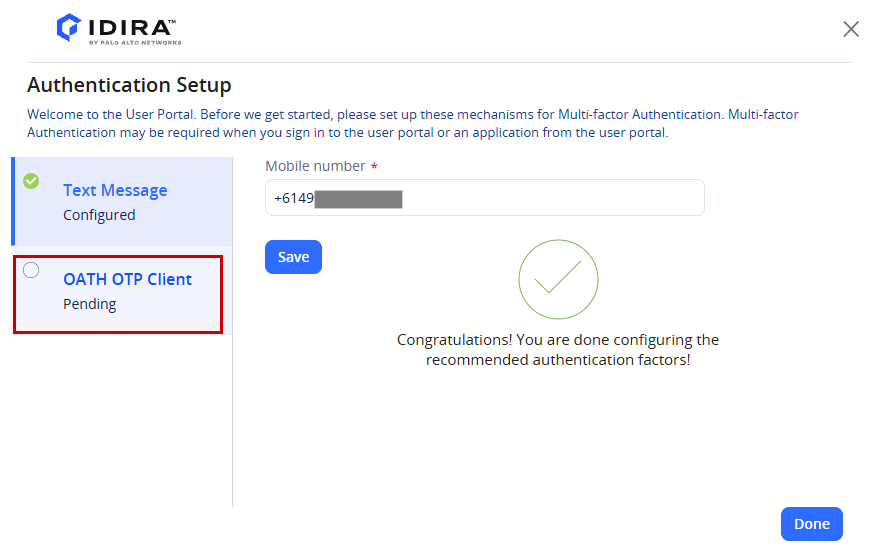
Important: Enter your phone number in full international format (for example, +614XXXXXXXX). This number will be saved to your account and can be used to receive SMS verification codes when signing in to Practice Protect Access Space. - Once complete, you will see the message, “Congratulations! You are done configuring the recommended authentication factors!” Click OATH OTP Client to continue.
-
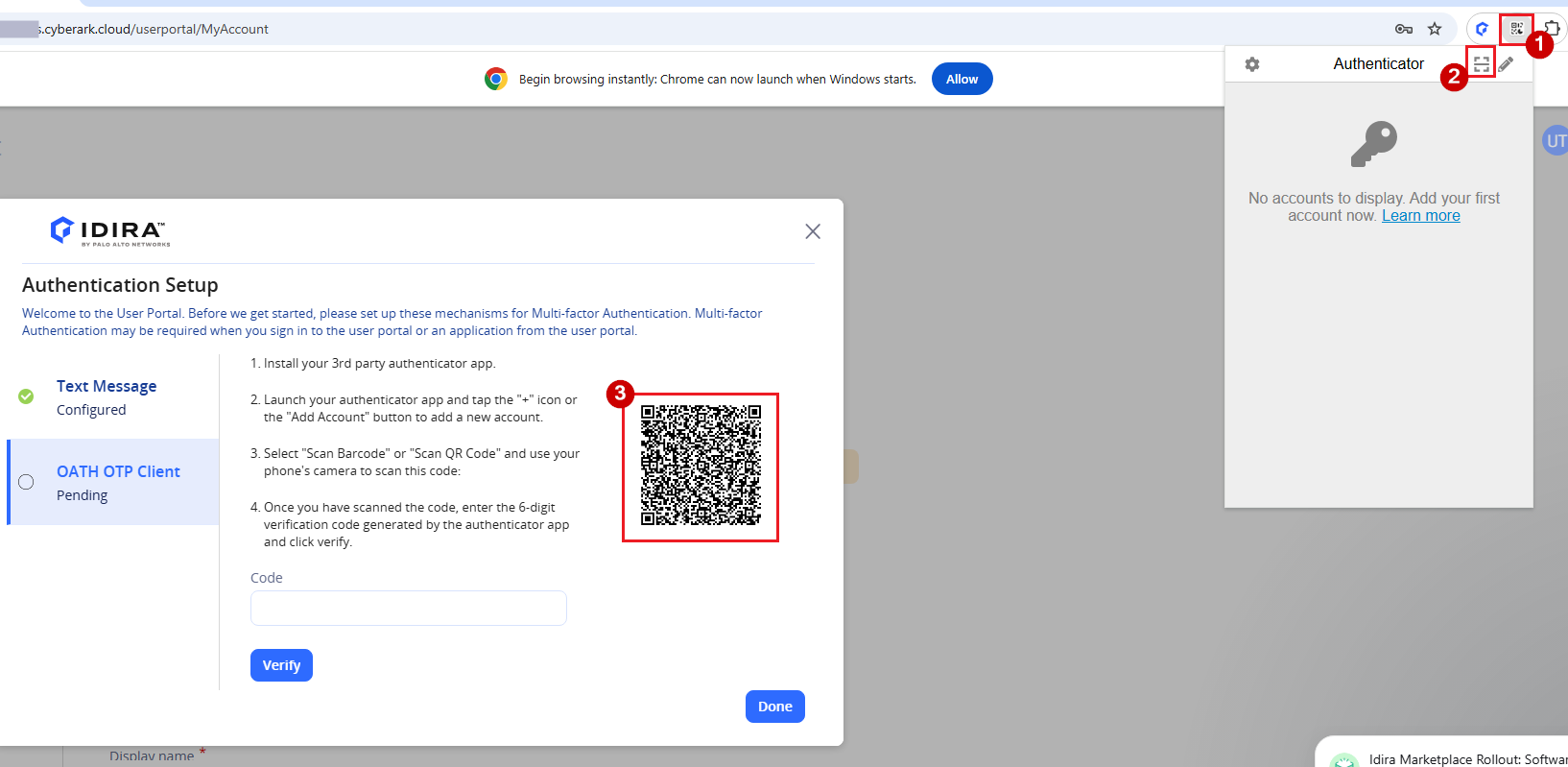
You will see a QR code and an input field for the verification code. Open your web-based authenticator app, tap the Scan QR icon, and scan the QR code displayed on the screen.
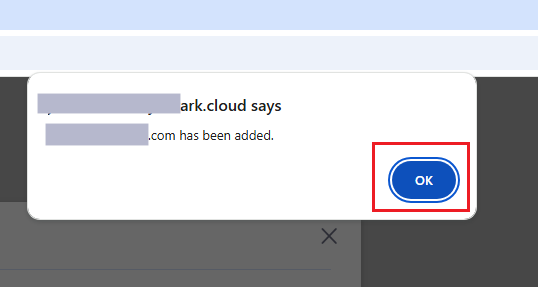
- You will receive a confirmation message once the code is successfully captured. Hit OK.
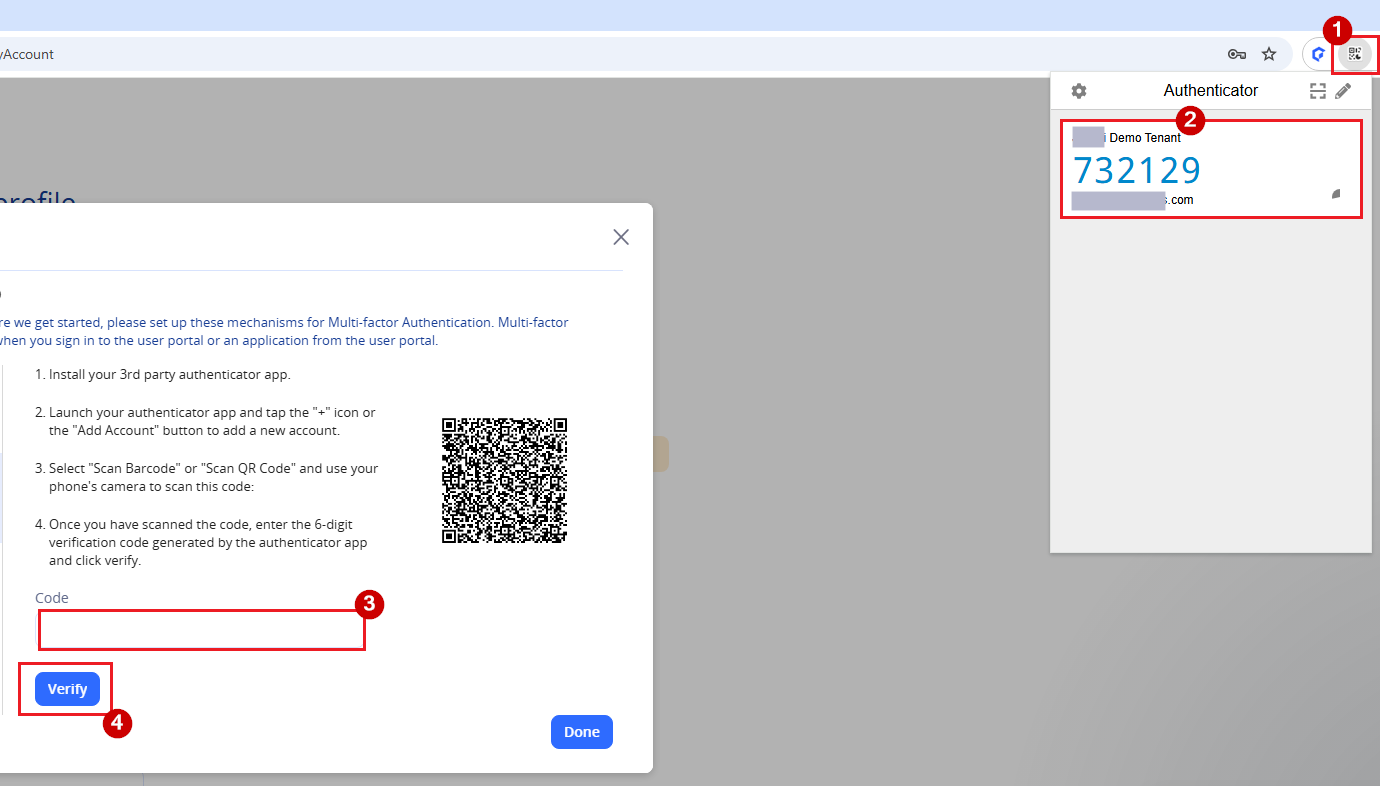
- Open web based authenticator app again, copy the code, paste it into the text field, and click Verify.
-
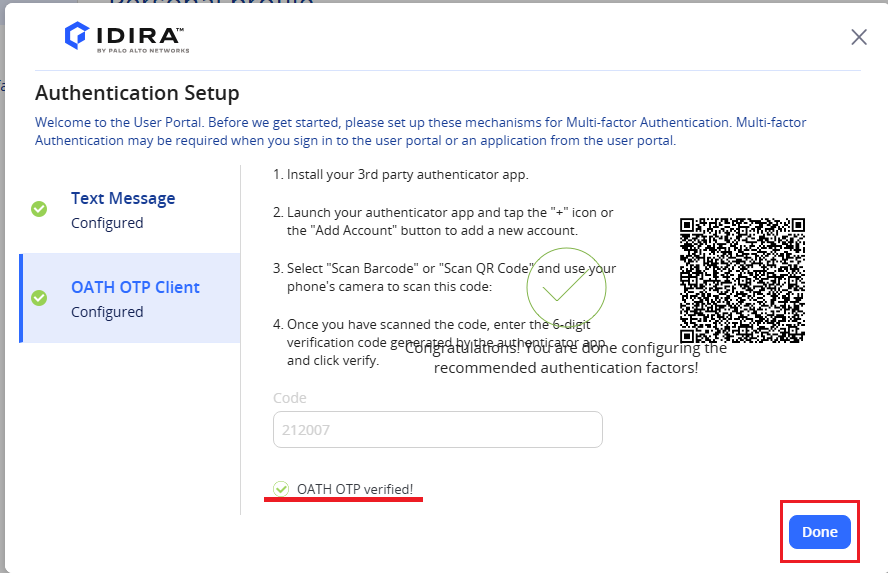
Once the code is entered and successfully verified, you will see a confirmation message stating OATH OTP verified. Click Done.
-
You can now use the web-based authenticator when signing in with MFA. Please note that if you previously set up OATH OTP on your phone, this configuration will replace it and the phone-based OTP will no longer be usable
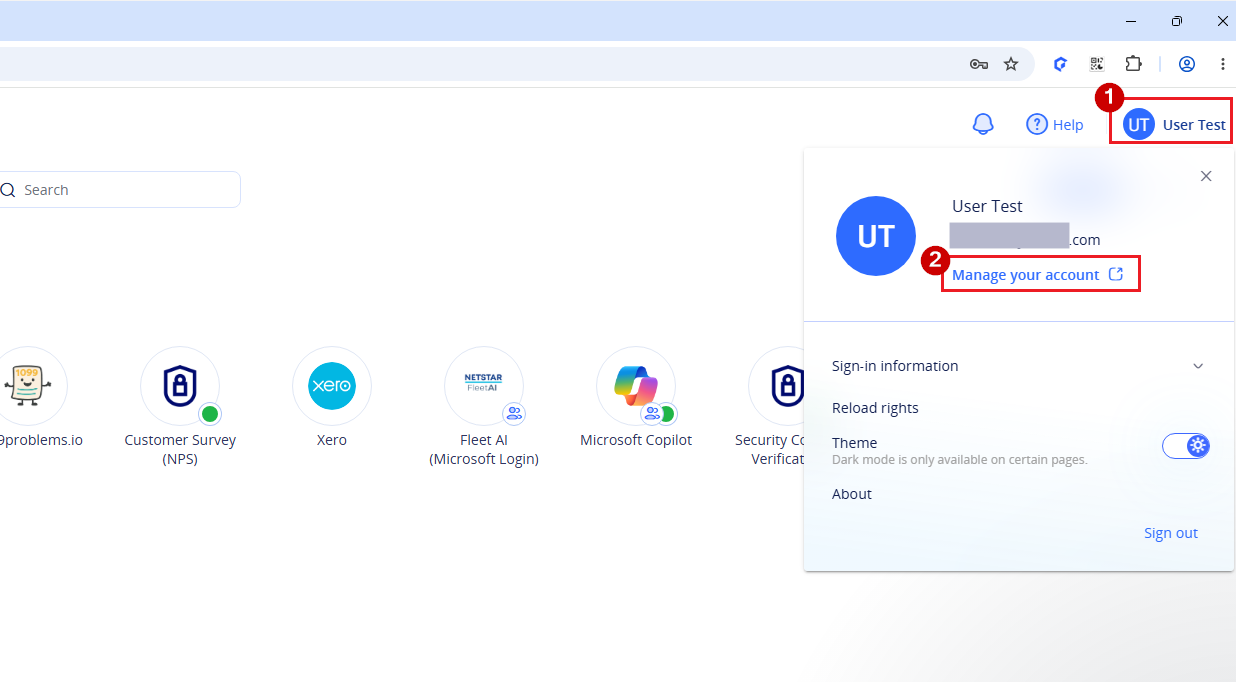
- In Access Space, click your profile icon in the top-right corner, then select Manage your account.
- Click Show QR Code next to OATH OTP Client under Authentication Factors.
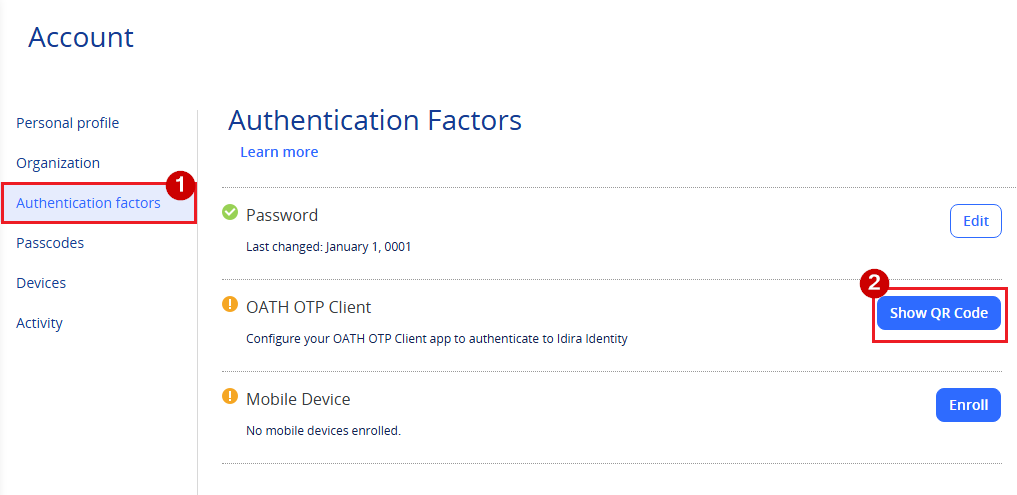
- A pop-up window will appear displaying the QR code and an input field where you need to enter the verification code.
- Open your web-based authenticator app, tap the Scan QR icon, and scan the QR code displayed on the screen.
- You will receive a confirmation message once the code is successfully captured. Hit OK
- Open web based authenticator app again, copy the code, paste it into the text field, and click Verify.
-
Once the code is entered and successfully verified, you will see a confirmation message stating OATH OTP verified. Click Done.
-
You can now use the web-based authenticator when signing in with MFA. Please note that if you previously set up OATH OTP on your phone, this configuration will replace it and the phone-based OTP will no longer be usable
- Visit the MFA setup page and sign in using your Microsoft login
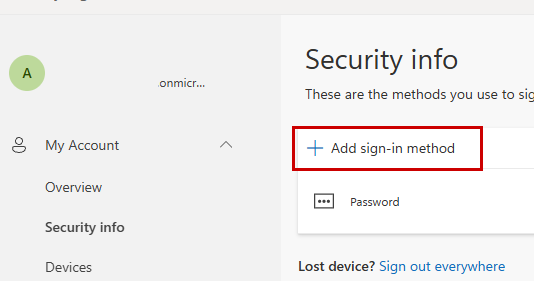
- In Security info, click Add sign-in method
- Choose Microsoft Authenticator
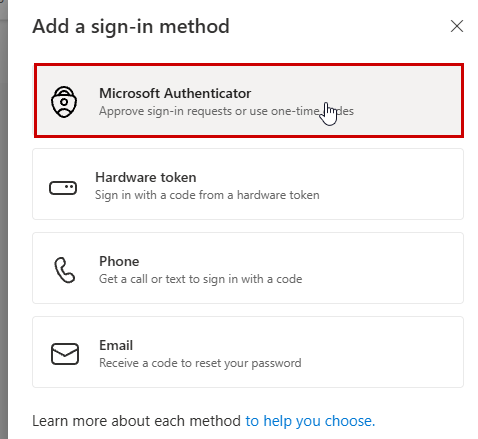
- Click on Set up a different authentication app.
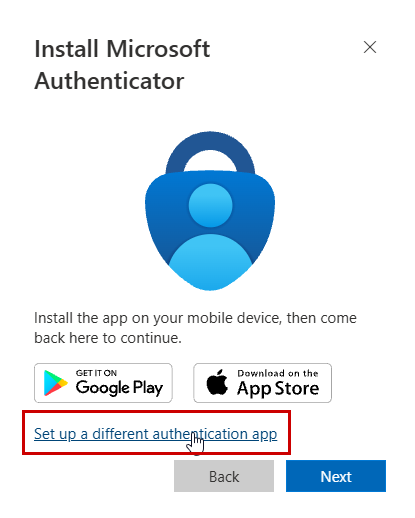
Note: If you are setting up MFA in Microsoft 365 and do not see an option to add or configure a different authentication app, this likely means that your organization does not allow the use of browser-based authenticators. In this case, please contact your IT department for guidance on approved authentication methods. - Click Next.
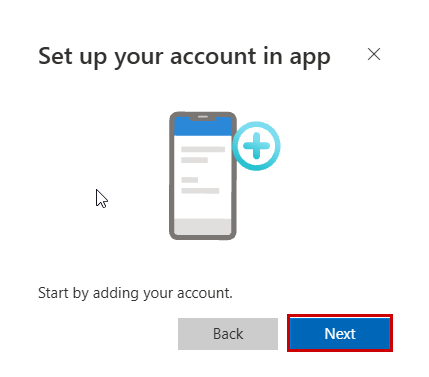
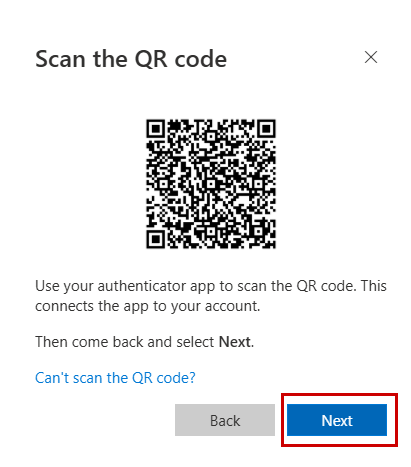
- A QR code will appear on the screen. Open your Authenticator in the browser and click Scan QR Code to add your account.
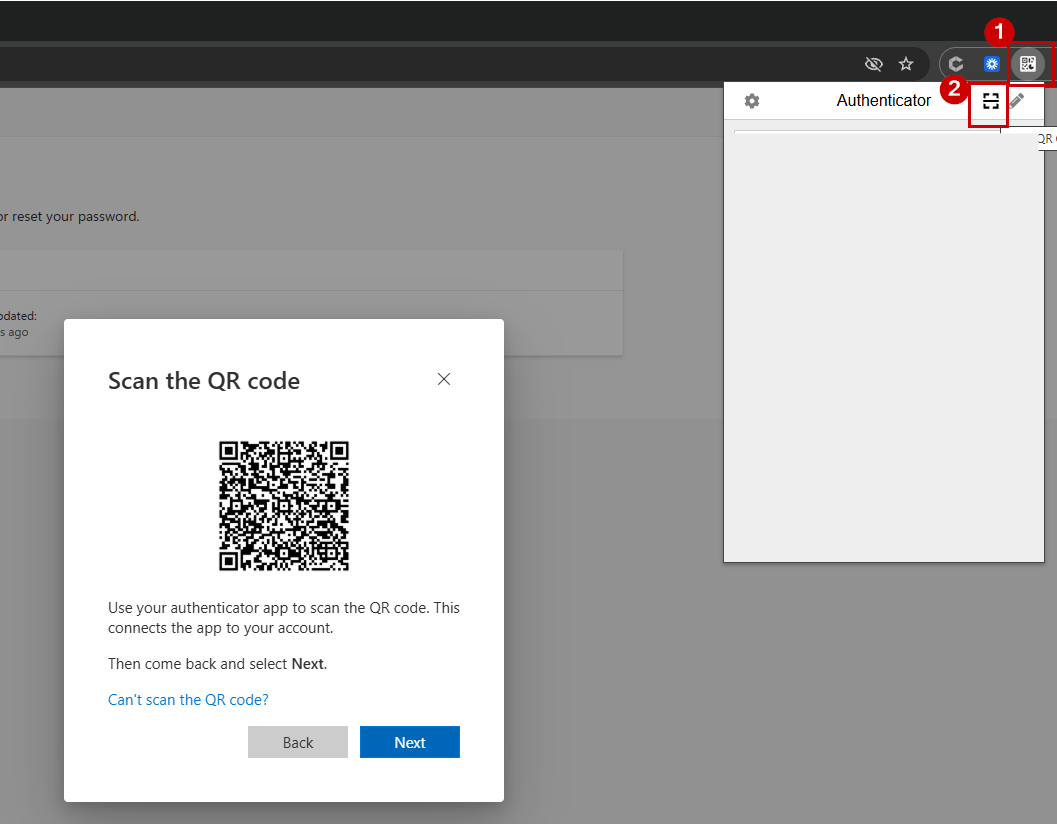
- Scan the QR code displayed on your screen using your Authenticator.
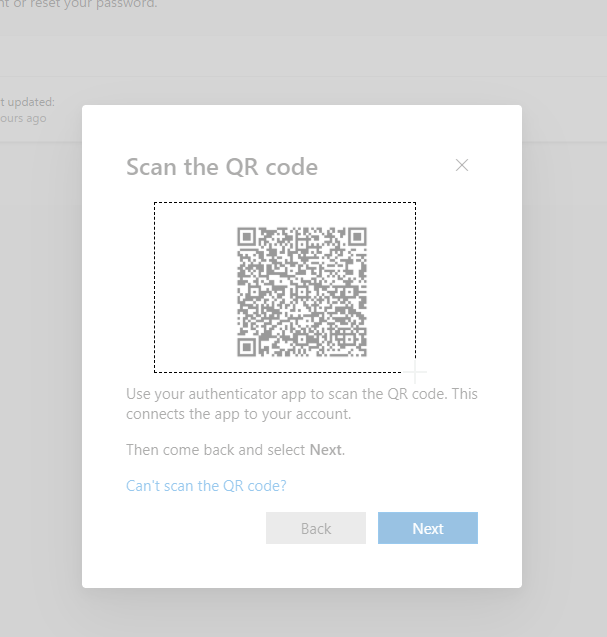
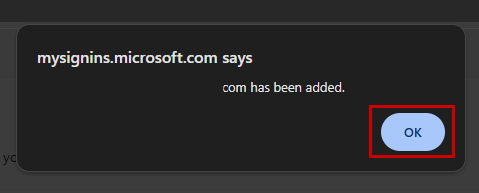
- Once successful, a pop-up message will confirm that the account has been added. Click OK
- Click Next.
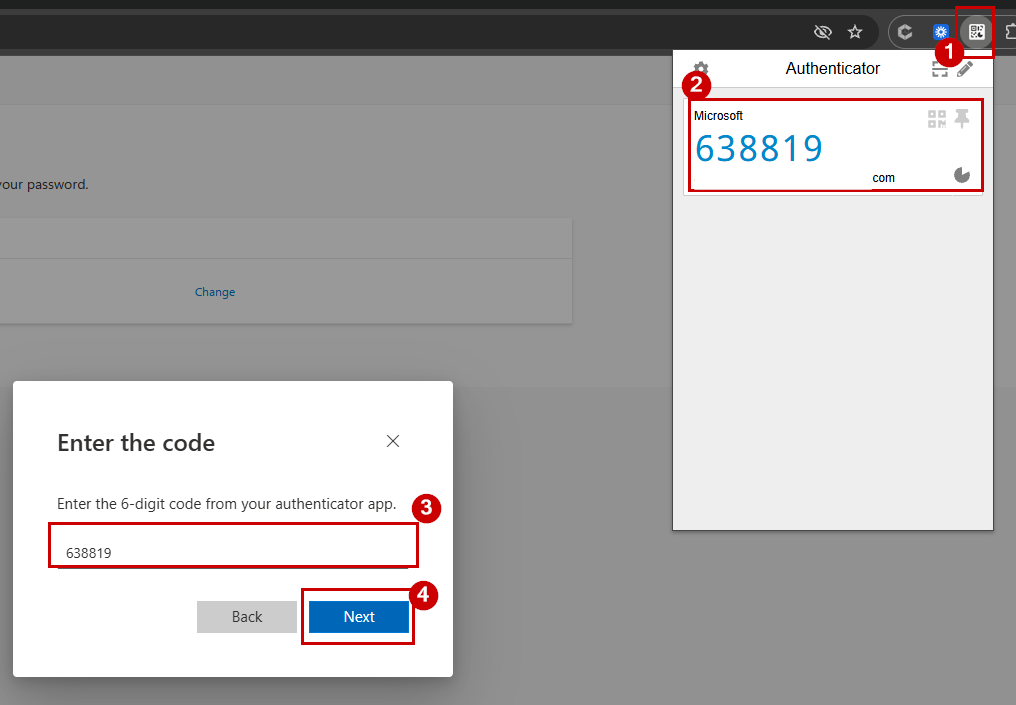
- You will be asked to enter the 6-digit code from your Authenticator. Open your Authenticator, copy the code, paste it into the text field, and click Next.
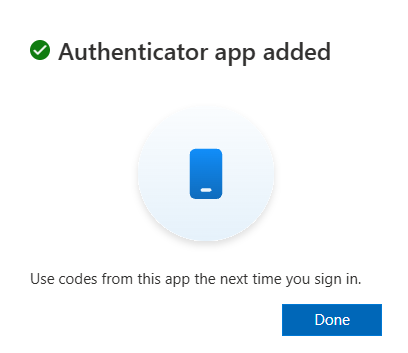
- After verification, a pop-up will confirm that your Authenticator app has been added. Click Done. You can now use this app to complete MFA when signing in to Microsoft 365.
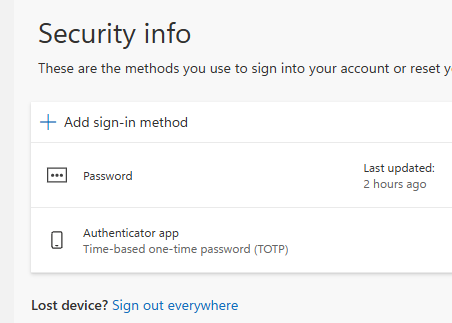
Note: If you want to use a mobile Authenticator in the future, it won’t automatically sync with your browser app. You’ll need to export your account from the browser Authenticator and import it into the mobile app.
- Sign in to your Google Account. (i.e., Gmail)
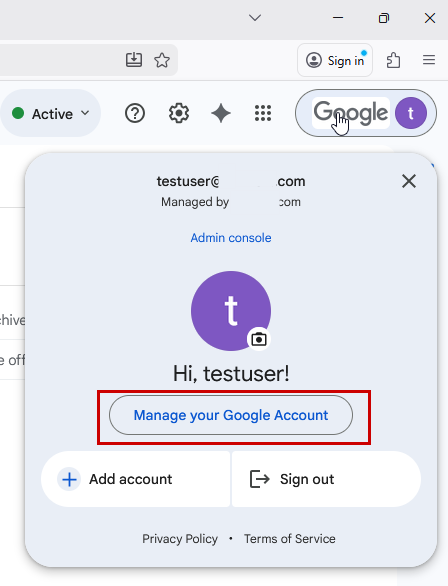
- Click on your profile icon in the top right corner, then select Manage your Google Account. This will open a new tab in your browser.
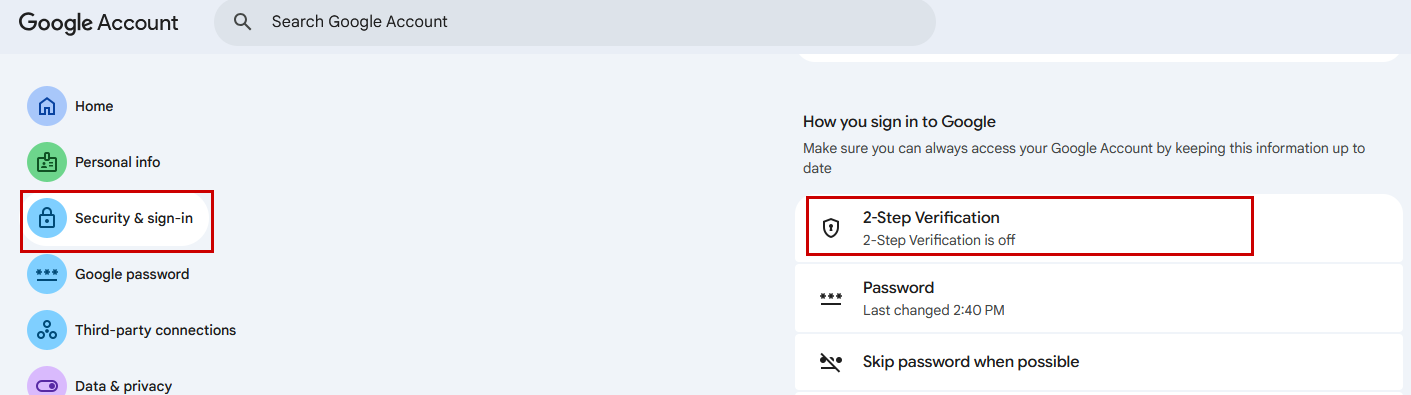
- Click on 2-Step Verification under Security & sign-in. NOTE: If you can’t see this option, it means 2-Step Verification is not enabled for your firm. Please contact your IT team for assistance.
-
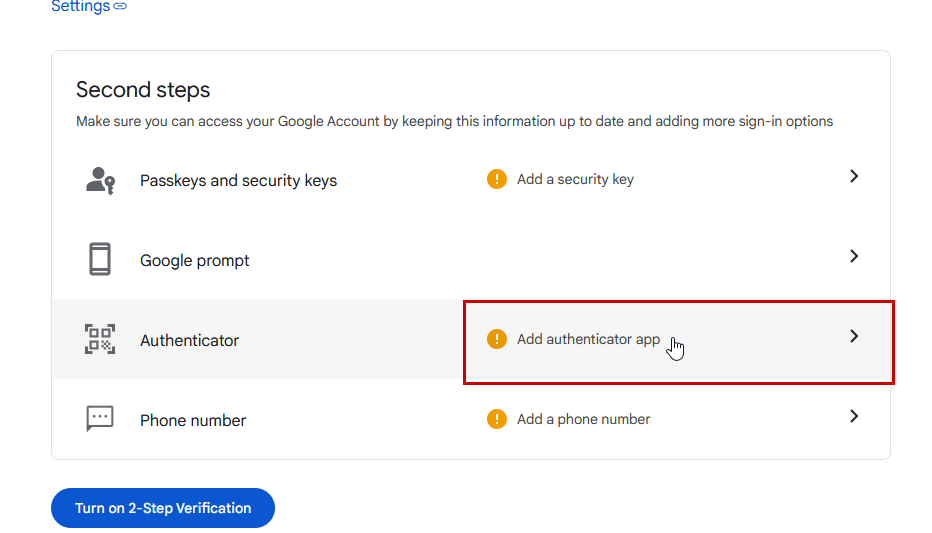
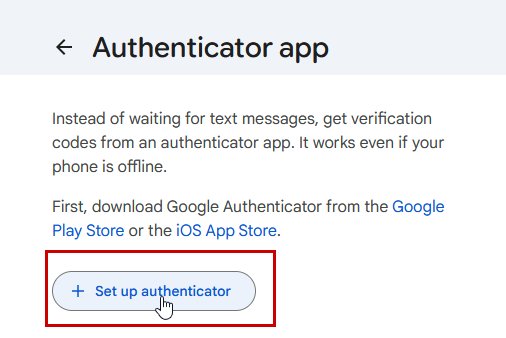
- Click + Setup up authenticator
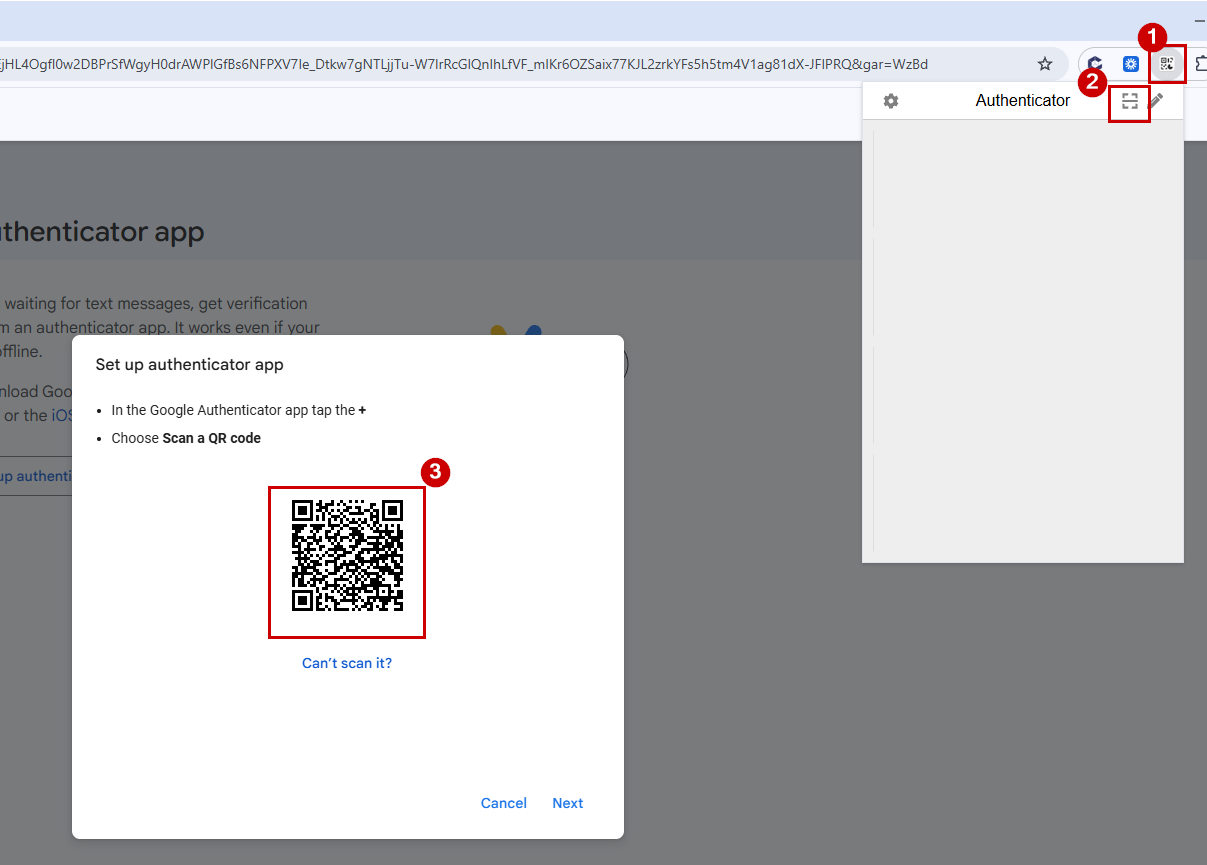
- A pop-up window will appear displaying the QR code. Open your web-based authenticator app, tap the Scan QR icon, and scan the QR code displayed on the screen.
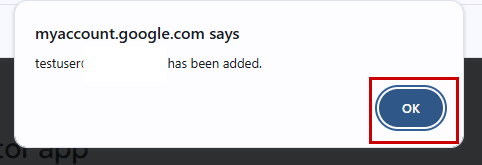
- You will receive a confirmation message once the code is successfully captured. Hit OK
- Click Next.
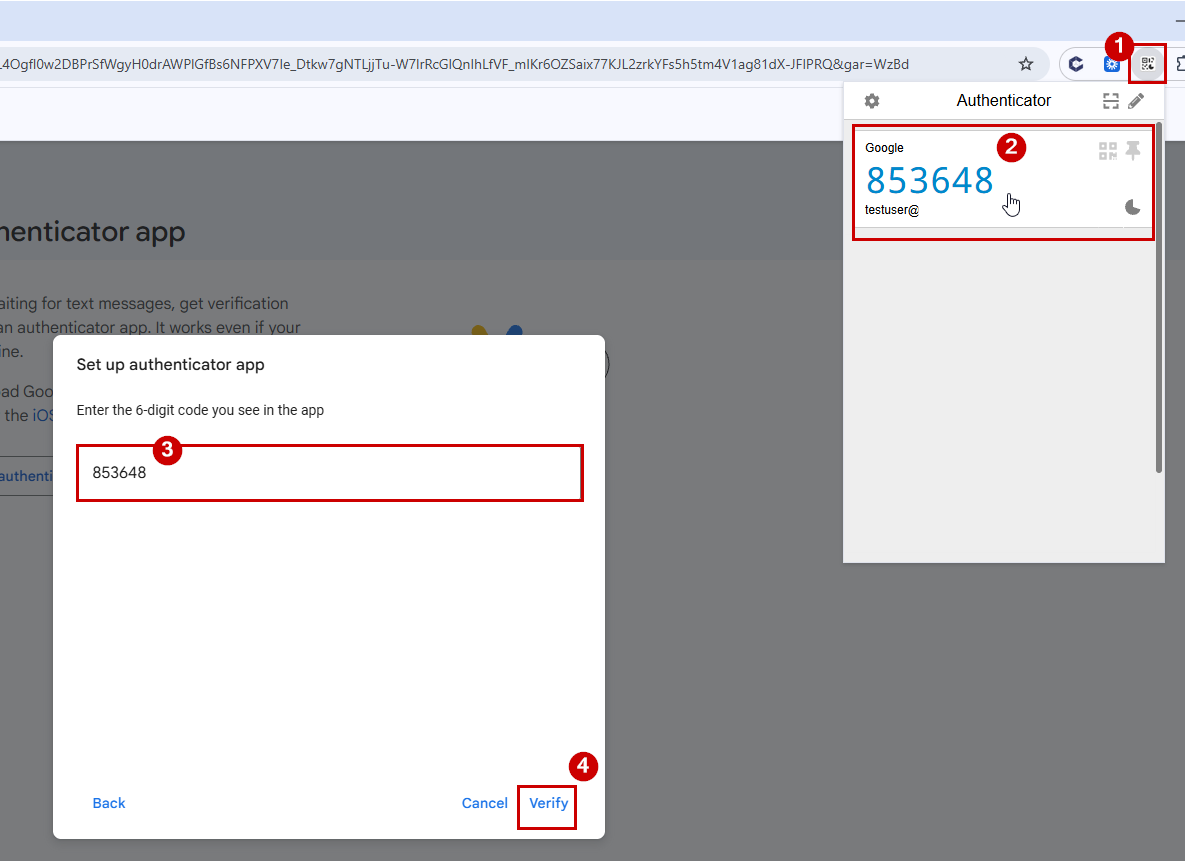
- You will be asked to enter the 6-digit code from your Authenticator. Open your Authenticator, copy the code, paste it into the text field, and click Verify.
- After verification, a pop-up will confirm that your Authenticator app has been setup.
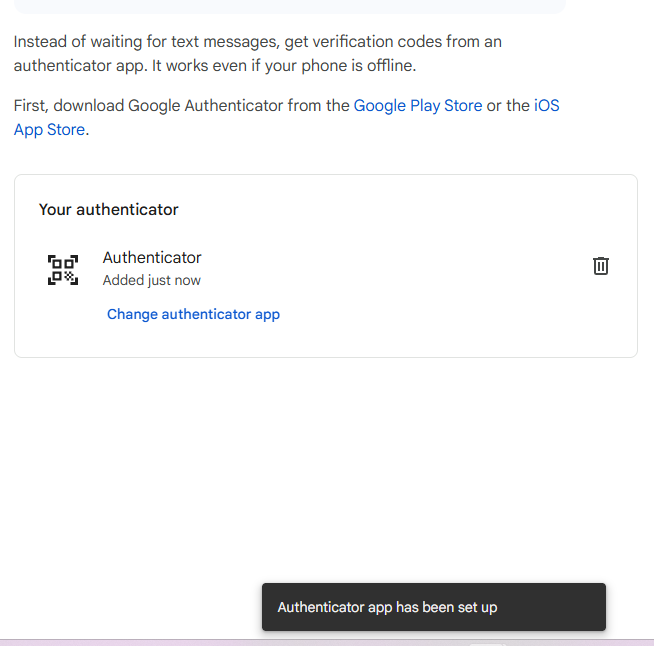
- On the same page, click Turn on.
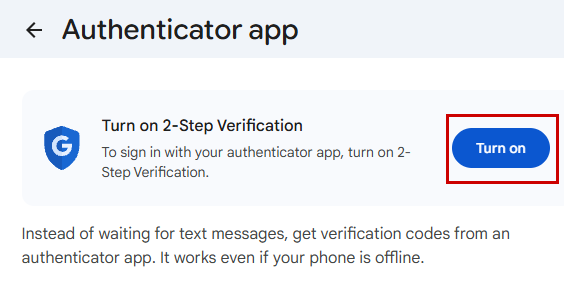
- You’ll see that the Authenticator have a checked icon and that it is now added.
- Click on Turn on 2-Step Verification.
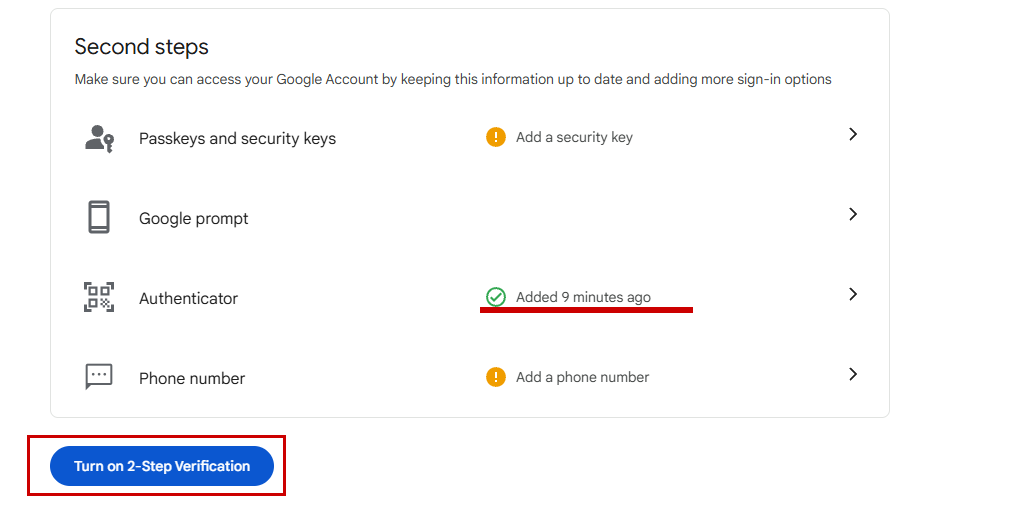
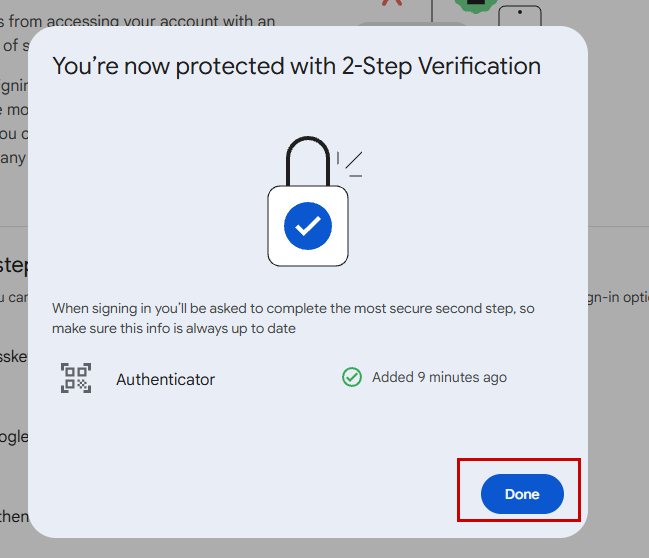
- A pop-up will appear confirming that you are now protected with 2-Step Verification. You can now use the web-based authenticator to sign in to your Google account. Click Done to close.