
The Compromised Password feature in Practice Protect helps detect passwords or passphrases that may have been exposed from a data leak. Detection does not necessarily mean the account is compromised, rather the current password has been seen in a data leak. This often occurs for simple or re-used passwords. Enabling this feature protects your applications and secured items by alerting users to unsafe credentials and guiding them to update them promptly.
Key Functionality:
-
Notify a user when they are using or attempt to save a password that may be at risk.
-
Prevents users from saving passwords that are flagged as compromised or weak.
-
Blocks automatic sign-ins, autofill, and sharing for affected applications or secured items until the password is updated.
-
Provides visibility into apps or items that may be insecure, helping users proactively secure their accounts.
What happens when a password is detected as weak or compromised?
If Password Insights has been enabled, a red alert icon appears on the application or Secured Item. Details regarding how to enable/disable this feature can be found at the bottom of this article.
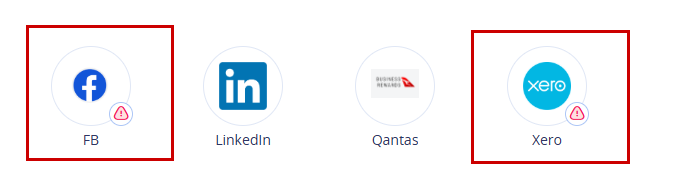
Users are prompted to review or update the password.
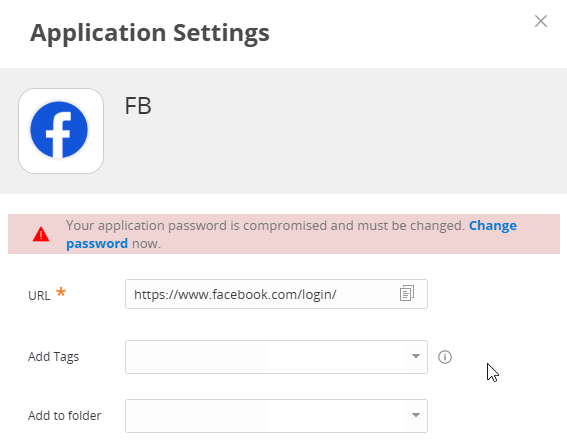
Why are some of my applications greyed out?
If your Practice Protect portal has been configured to block the launching of applications with compromised passwords, the affected application will be greyed out and cannot be launched. Details regarding how to enable this setting can be found at the bottom of the guide.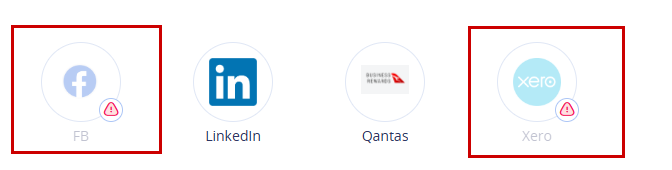
What do I do when an application is blocked or compromised?
-
For Password Admins: Reset the application password, generate a strong new password using a password generator, and and update the password in Practice Protect by following this guide . Alternatively, you can also contact Practice Protect support for assistance.
-
For Regular Users: Contact your password admin or Practice Protect support so they can review and assist on updating the password.
Important!
For applications where you are not the account holder (for example, your client’s logins), reach out to the client and ask if they can set up a stronger password. Once they have done so, update it in Practice Protect.
Configuring Compromised Password Detection
Prerequisites
- Requires Practice Protect Admin Account Access
Instructions
-
Sign in to Practice Protect and switch to Admin Portal

-
Go to Settings > Users > Workforce Password Management > Password Insights Settings.
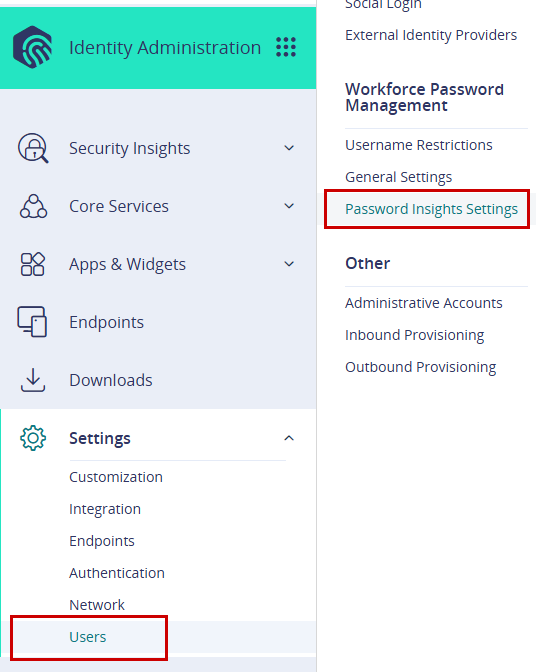
-
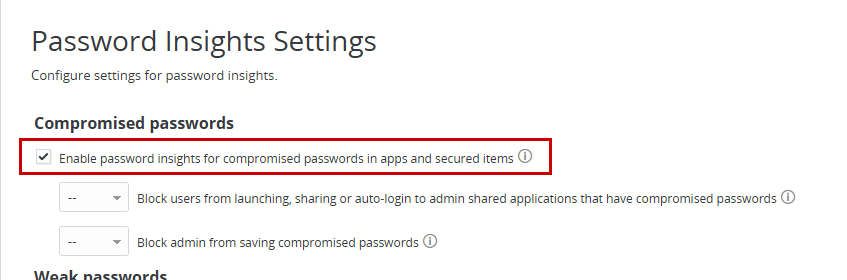
Tick the box to Enable password insights for compromised passwords in apps and secured items.
-
Click Save.
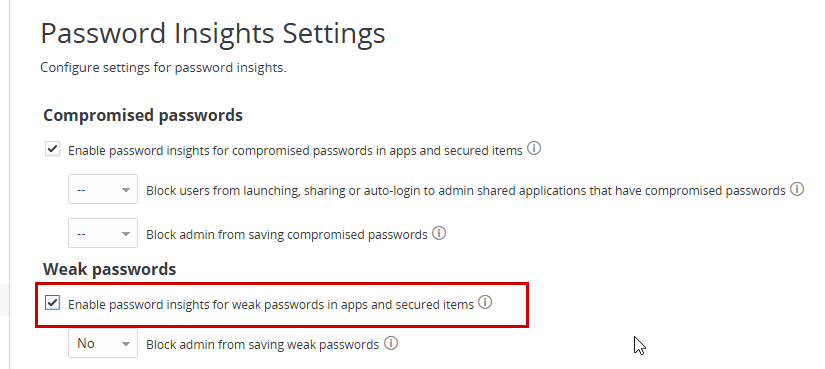
- You can also enable password insights for weak passwords in apps and secured items.
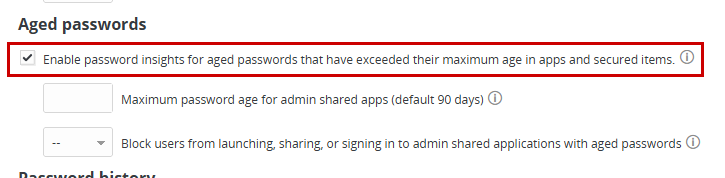
- Additionally, enable password insights for passwords that have exceeded their maximum age in apps and secured items.
Note: If you turn password insights options (Compromised, Weak, Aged) on or off in the Identity Administration portal, the changes may not show right away in the User Portal filters, even after logging out and back in. If this happens, clear your browser cache and refresh the page to see the updated options.
This setting applies specifically to applications and secured items that are shared by administrators with other users. These are typically centrally managed credentials used across multiple users or teams. When enabled, it prevents users from launching, sharing, or using auto-login for any admin-shared applications that have compromised, weak, or aged passwords. It also prevents administrators from saving passwords that do not meet the required security standards for these shared items. This ensures that insecure credentials do not impact multiple users within the organisation.
Before following the guide below, ensure that Compromised, Weak, or Aged Password Detection is enabled at the beginning of the process.
-
Sign in to Practice Protect and switch to Admin Portal
-
Go to Settings > Users > Workforce Password Management > Password Insights Settings.
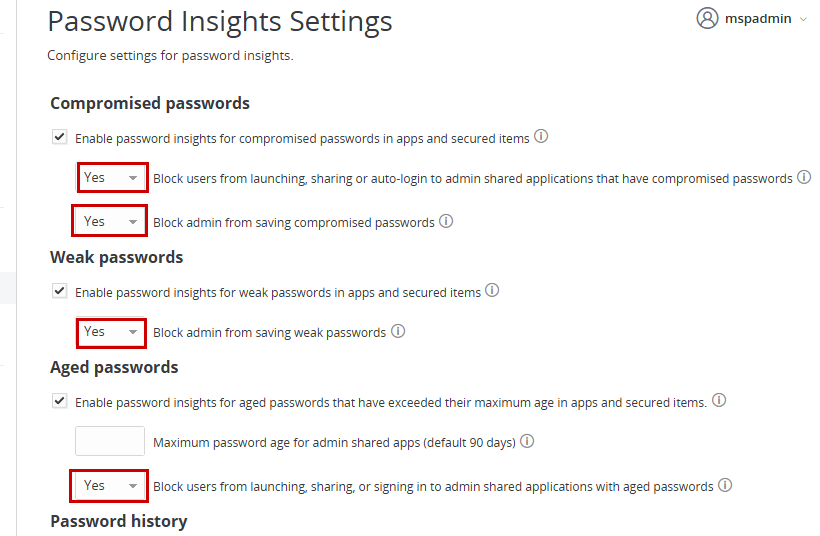
- In the Password Insights Settings, configure the following options to Yes (adjust based on your organisation’s security preferences):
-
- Compromised passwords
- Yes – Block users from launching, sharing, or using auto-login for admin-shared applications with compromised passwords
- Yes – Block admins from saving compromised passwords
- Weak passwords
- Yes – Block admins from saving weak passwords
- Aged passwords
- Yes – Block users from launching, sharing, or signing in to admin-shared applications with aged passwords
- Yes – Block users from launching, sharing, or signing in to admin-shared applications with aged passwords
- Compromised passwords
-
- Click Save.
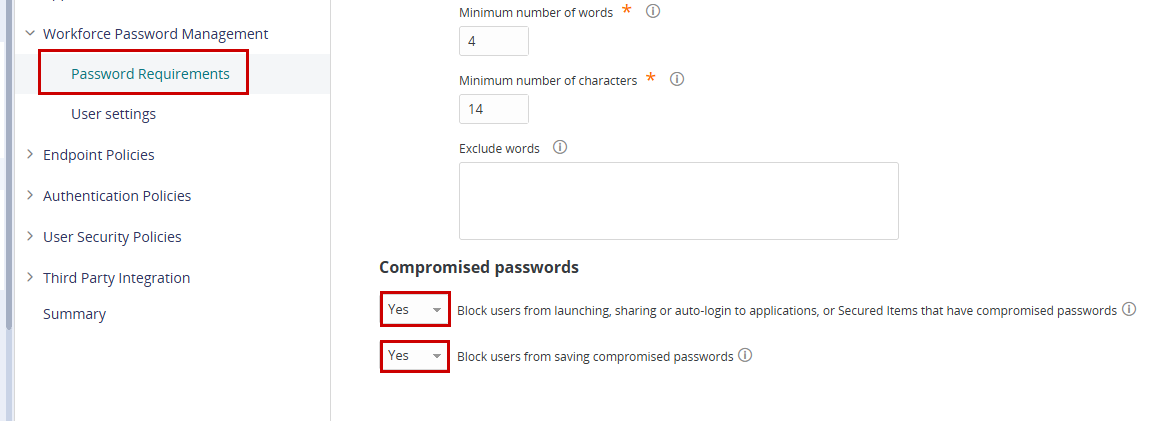
This setting applies at the policy level and affects all users and all stored credentials that are not classified as admin-shared. When enabled, it prevents users from saving compromised passwords and restricts access to any applications or secured items that use them. This ensures that individually managed credentials meet minimum security requirements and reduces the risk associated with exposed passwords, while admin-shared credentials are governed separately by the admin-shared password controls.
-
Sign in to Practice Protect and switch to Admin Portal
-
Navigate to Core Services > Policies, then select the policy you want to update. Example: To apply changes to all users, you can use the Default Policy.
-
Go to Workforce Password Management > Password Requirements.
-
Select Yes for any of the options you want to enforce:
-
Block users from launching, sharing, or auto-login to applications or secured items with compromised passwords
-
Block users from saving compromised passwords
-
-
Click Save to apply the policy.