
Purpose
This guide explains how to create a service account in a Google Workspace Business tenant (formerly known as G Suite) with Super Admin privileges, without incurring additional account licensing costs.
Once the service account has been created, provide the required account details to the Practice Protect Onboarding team upon request so they can proceed with configuring and applying the necessary security settings for Google Workspace.
Prerequisites
-
A Google Workspace account with Super Admin privileges.
Instructions
-
Sign in to the Google Admin Console using your Google Workspace Super Admin account.
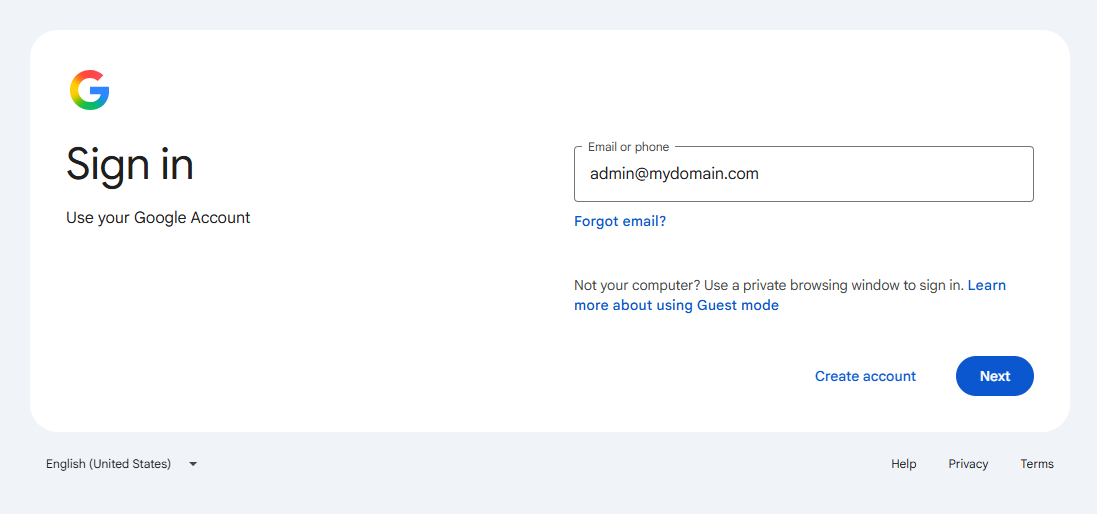
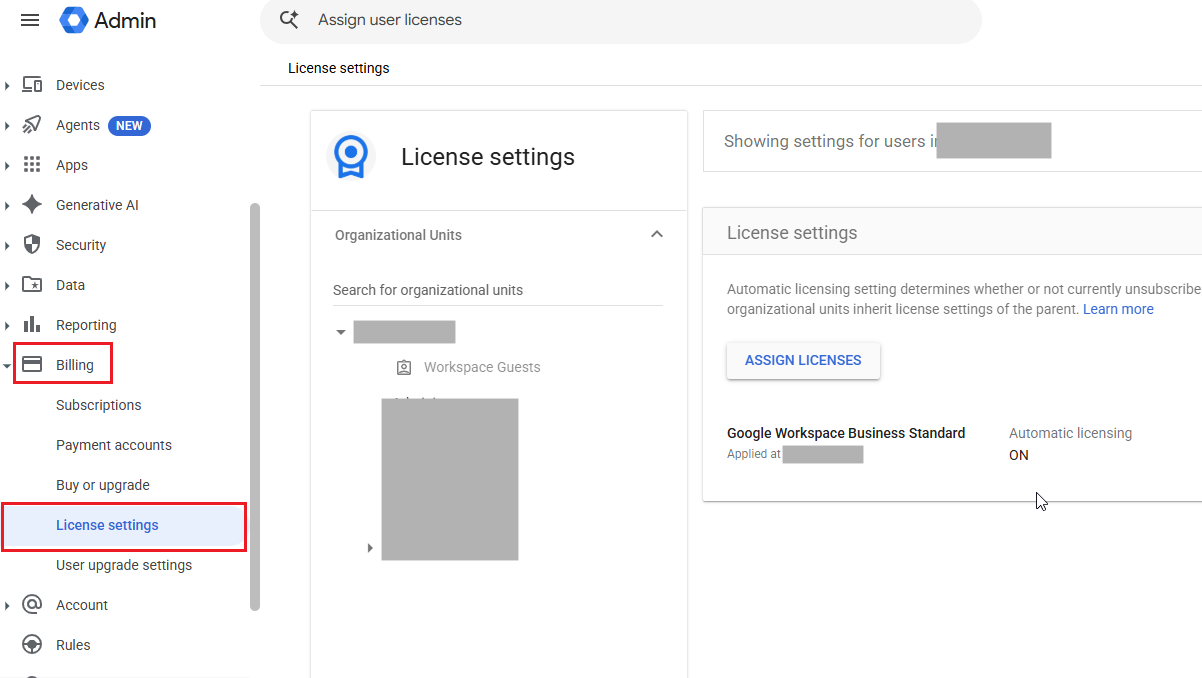
- In the left-hand menu, go to Billing > License settings.
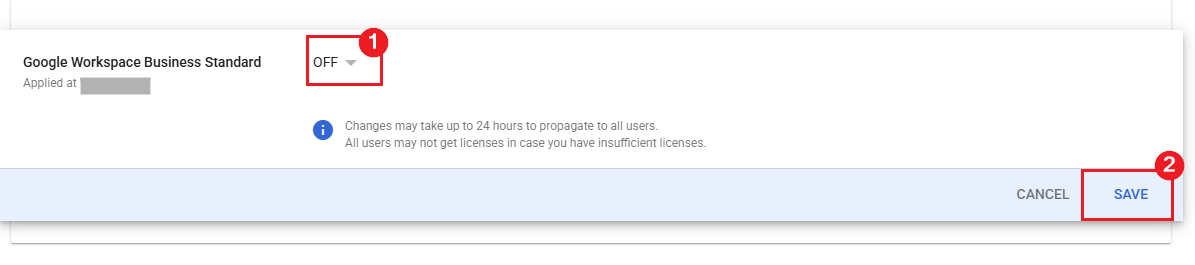
- Turn Automatic licensing to Off. This prevents newly created users from automatically being assigned a paid license under your existing Google Workspace subscription, helping you create a Super Admin service account without incurring additional licensing costs.
Note: Once you have completed all the steps and created the service account, you can turn Automatic licensing back On if required by your standard process. - Click Save to apply the changes.
- Once automatic licensing is confirmed to be Off, go to Buy or upgrade.
-
Under categories, select Cloud Identity. Click Get Started under Cloud Identity Free.
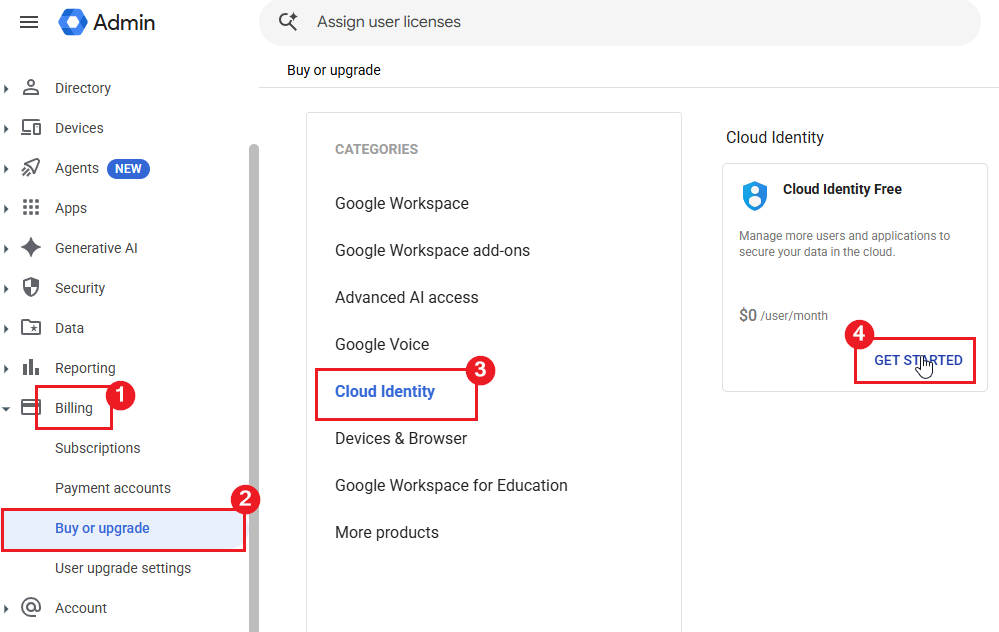
If the interface looks different, look for Cloud Identity Free under Google Cloud Management and click Explore.Important!! If Cloud Identity Free is not available, your Google Workspace subscription may be managed by a reseller. Contact your reseller to request assistance with obtaining Cloud Identity Free.
If the free license is unavailable, the alternative is to create the service account and assign the cheapest available paid license, such as Business Starter. Please note that this will incur an additional licensing cost.
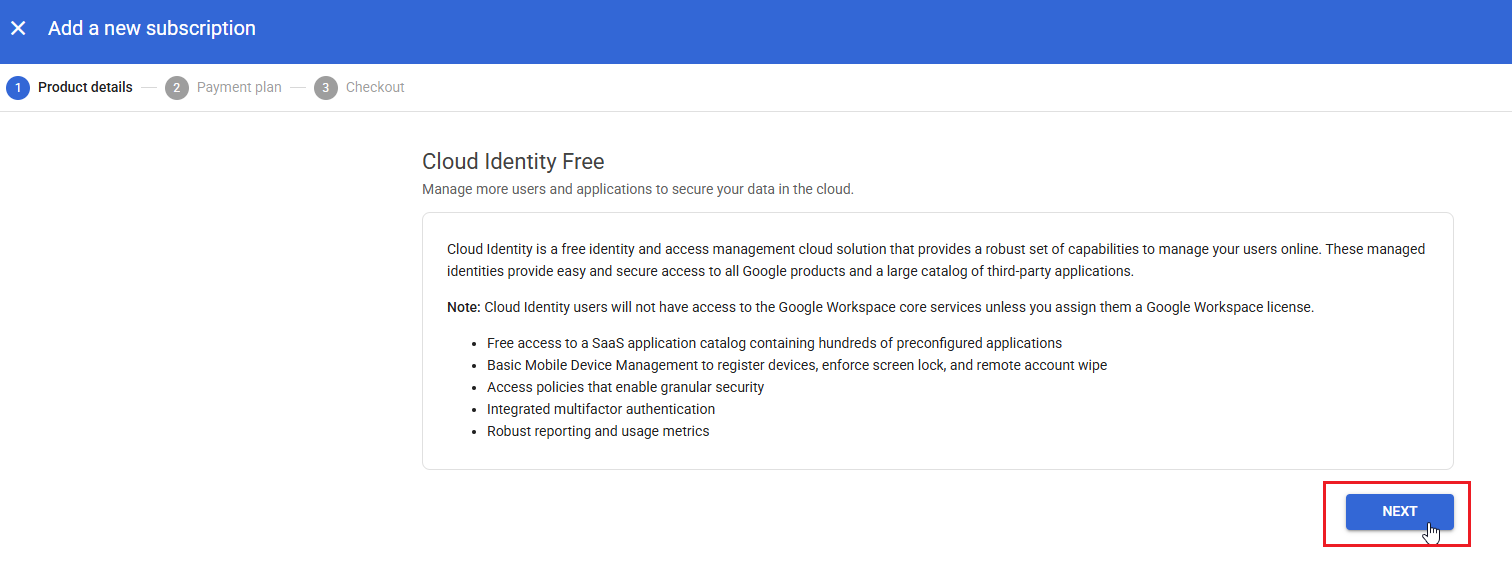
- On the product details page, click Next to continue.
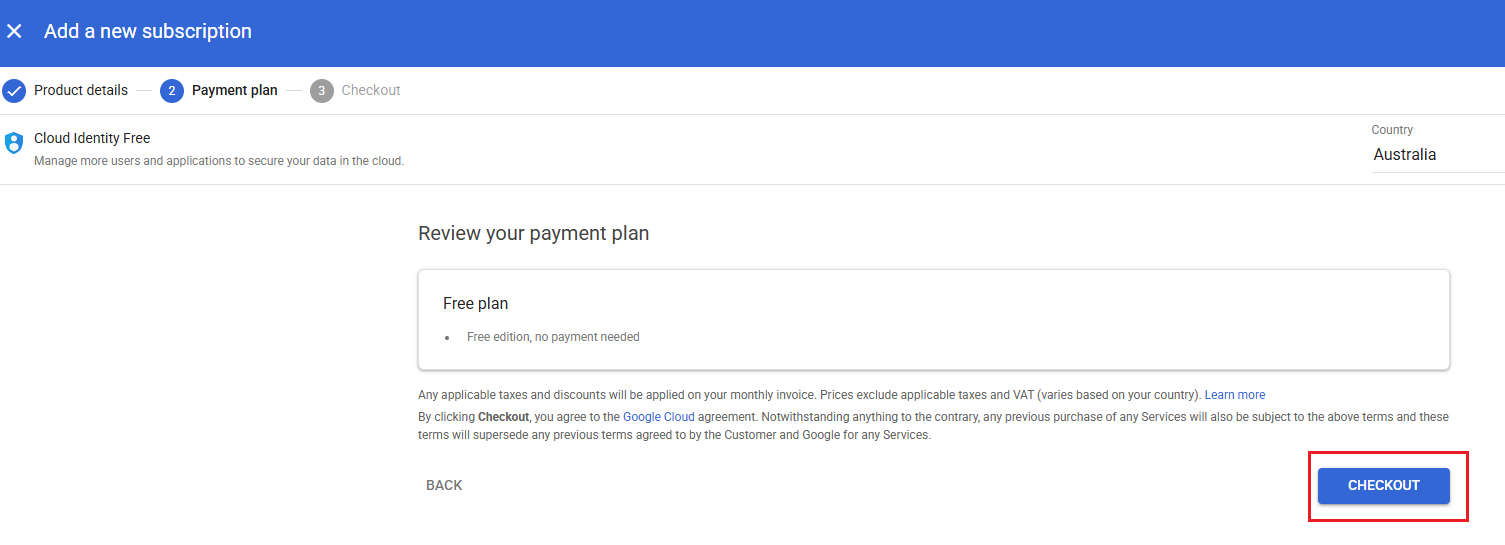
- Click Checkout.
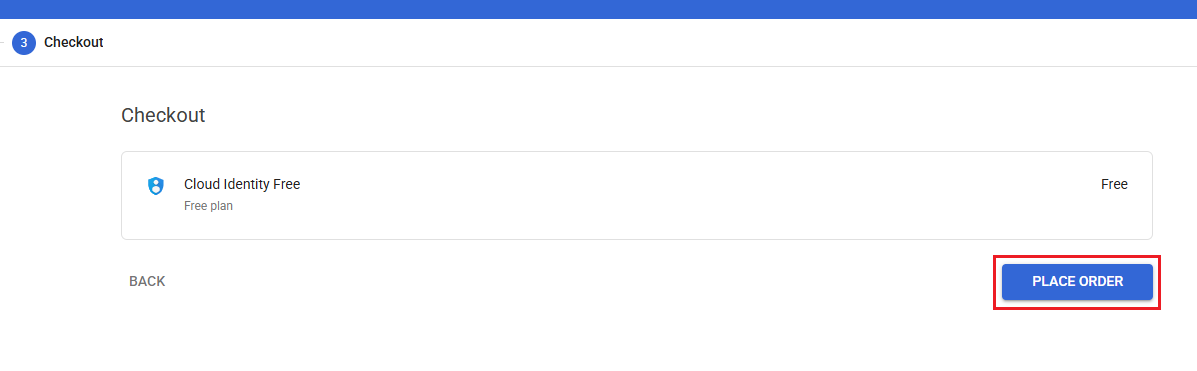
- Click Place Order.
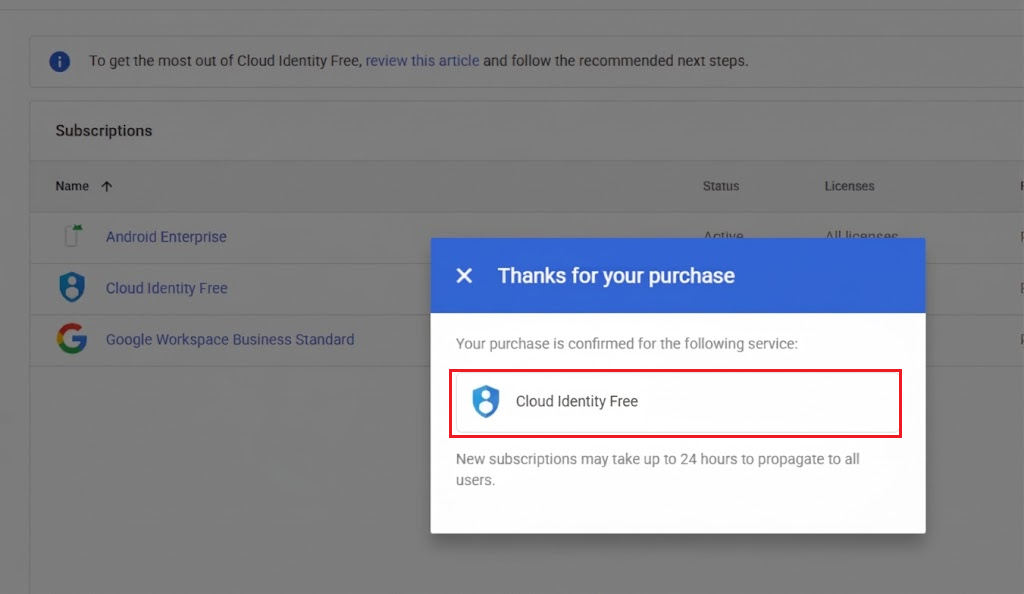
- A confirmation message will appear indicating that Cloud Identity Free is now available. Click Close to dismiss the message.
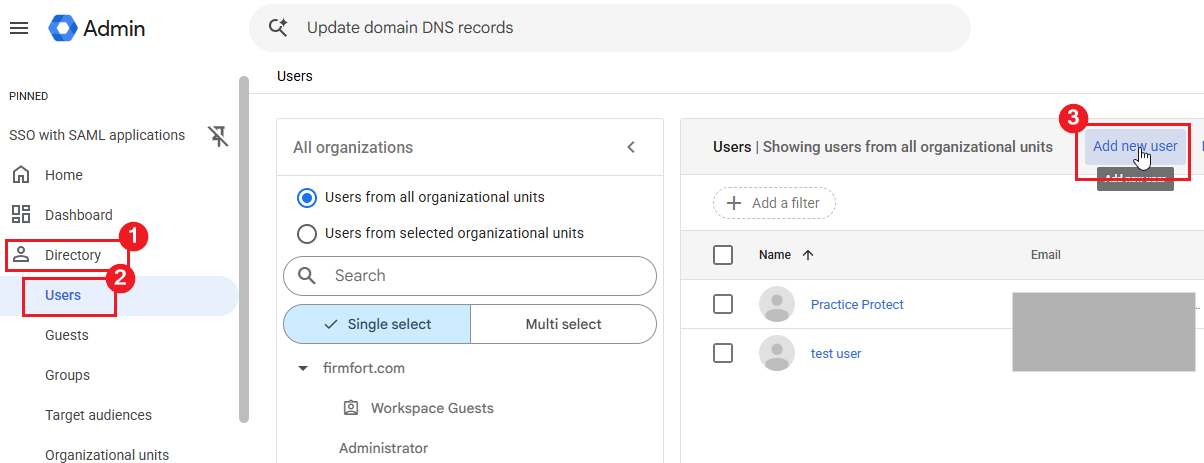
- Let’s now create the service account. In the left-hand menu, go to Directory > Users.
- Click Add new user.
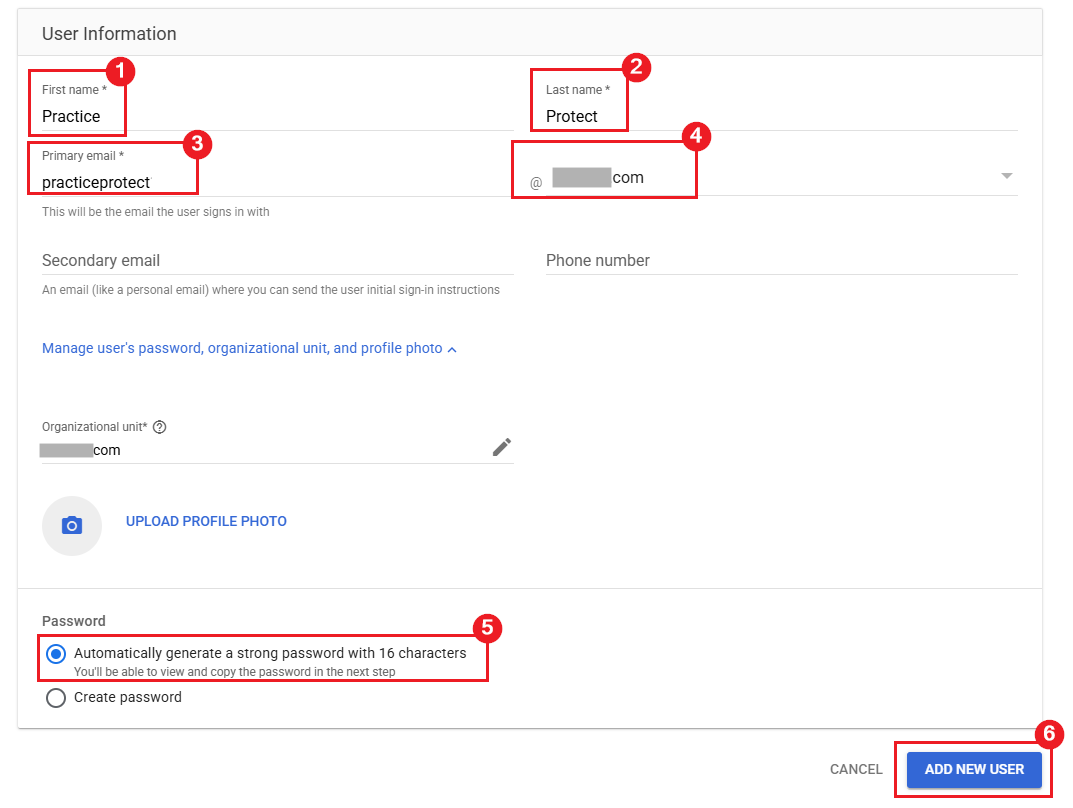
- On the Add new user page, enter the following details:
- First name: Practice
- Last name: Protect
- Primary email: practiceprotect@selectyourdomain.com
- Click Manage user’s password, organizational unit, and profile photo to expand the additional settings.
- Under Password, select Automatically generate a strong password with 16 characters, then click Add New User.
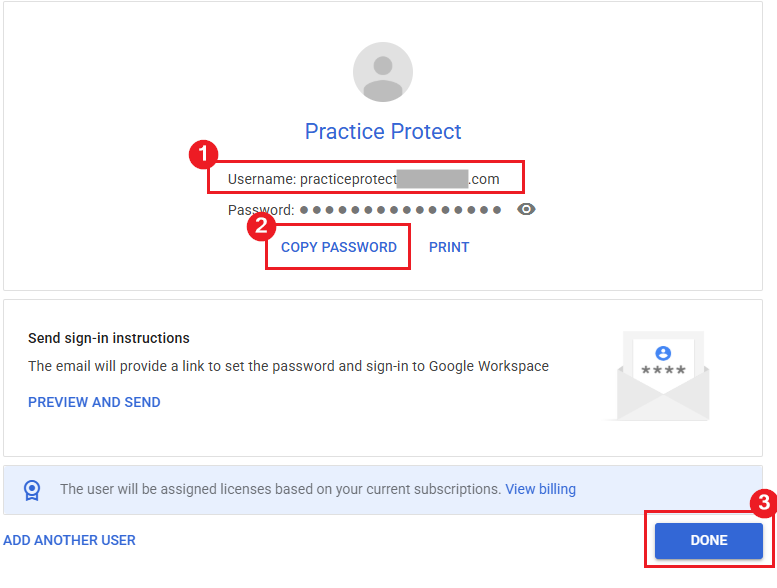
- The new user has now been created. Copy the username and generated password, and keep them secure for the next steps. Click Done to finish.
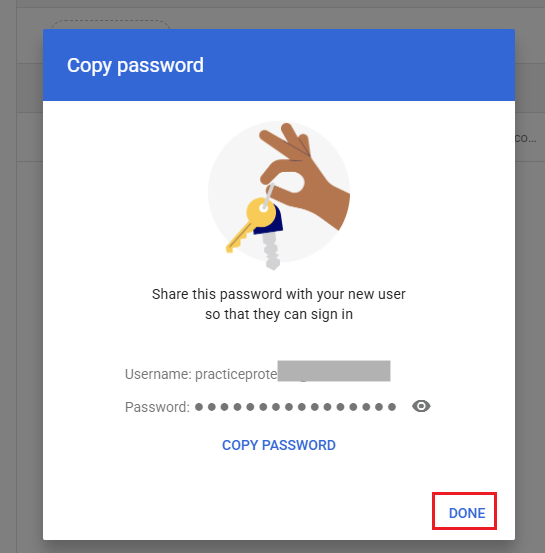
- Click Done again if the user details shows up
-
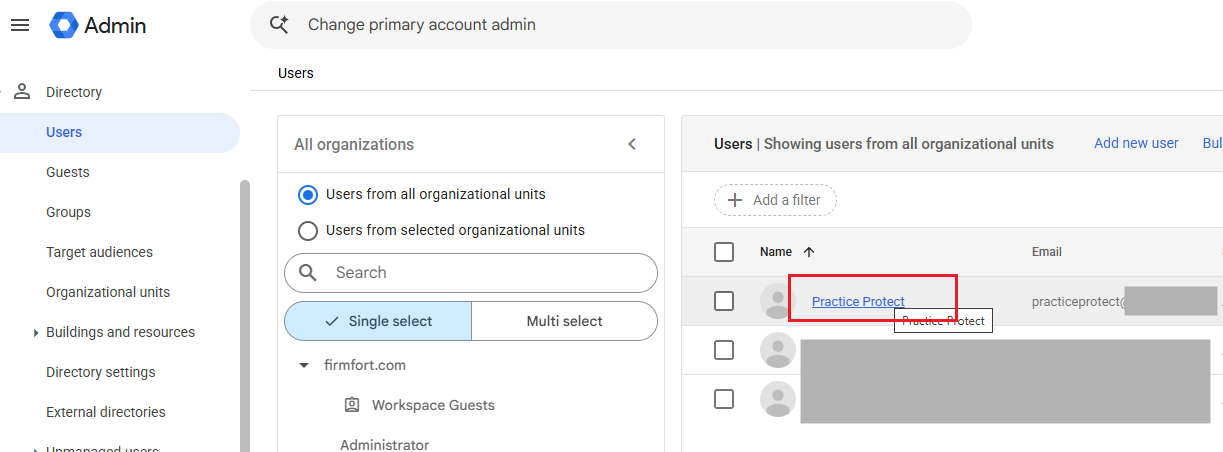
Return to the Users list and click the newly created user (e.g., Practice Protect).
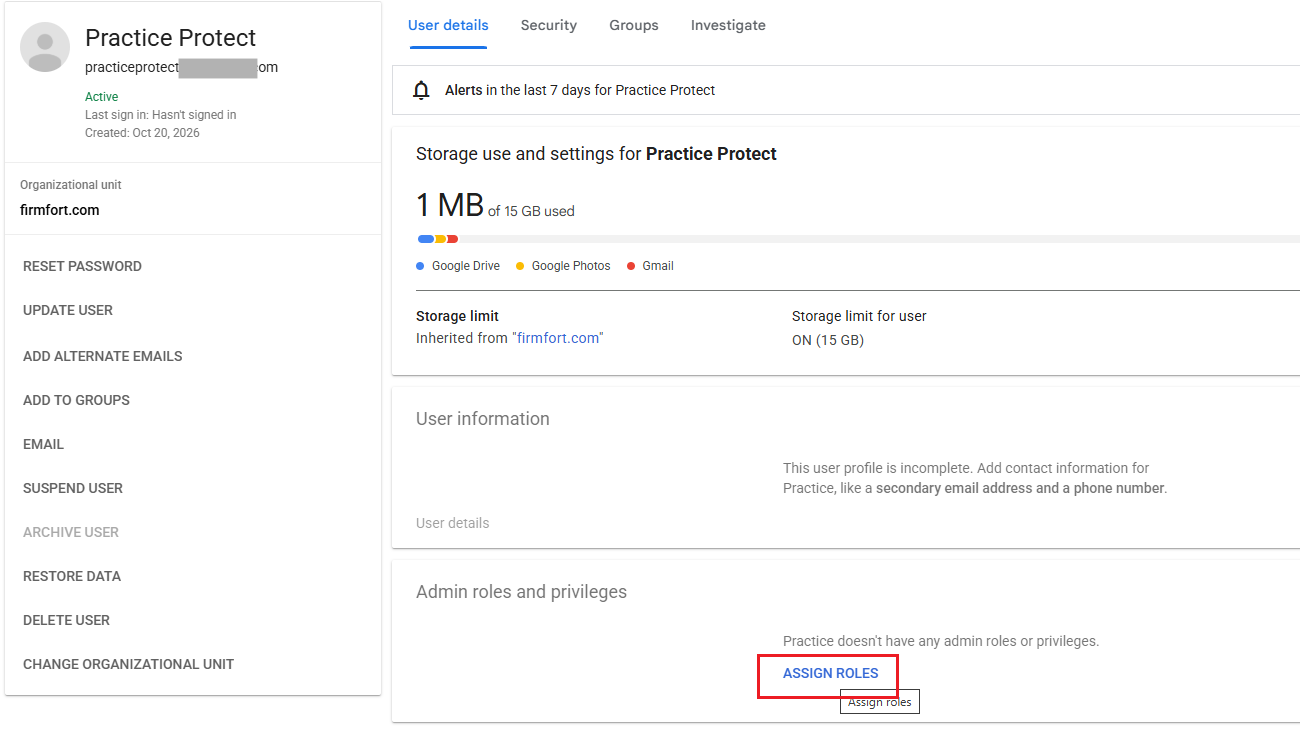
- In the user details page, scroll down to Admin roles and privileges, then click Assign roles.
-
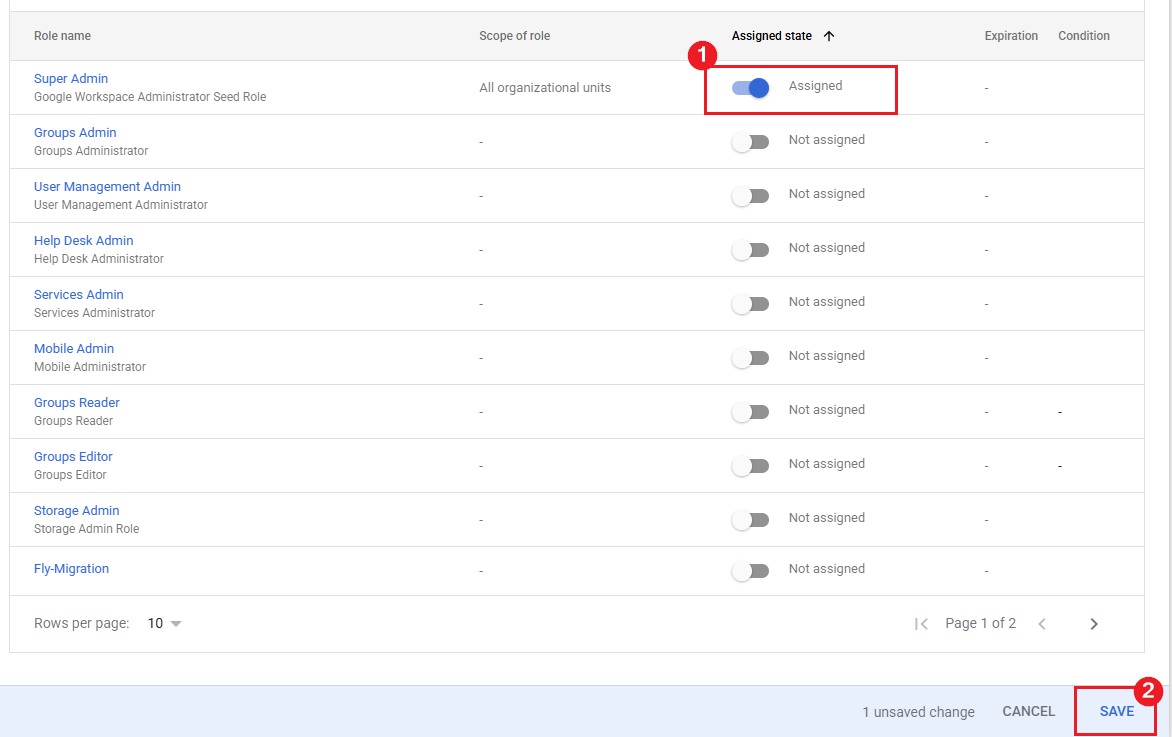
Under Assigned state, enable the switch for Super Admin.
-
Click Save to grant the service account Super Admin privileges for Google Workspace.
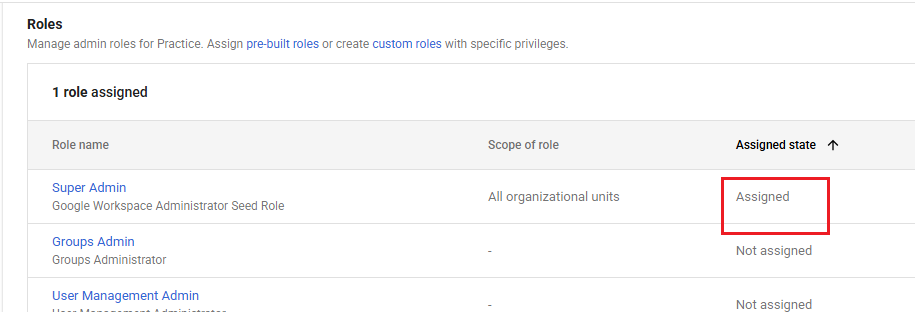
- Confirm that the Super Admin role is assigned to the newly created service account.
- Return to the Practice Protect user details page and scroll down to Licenses.
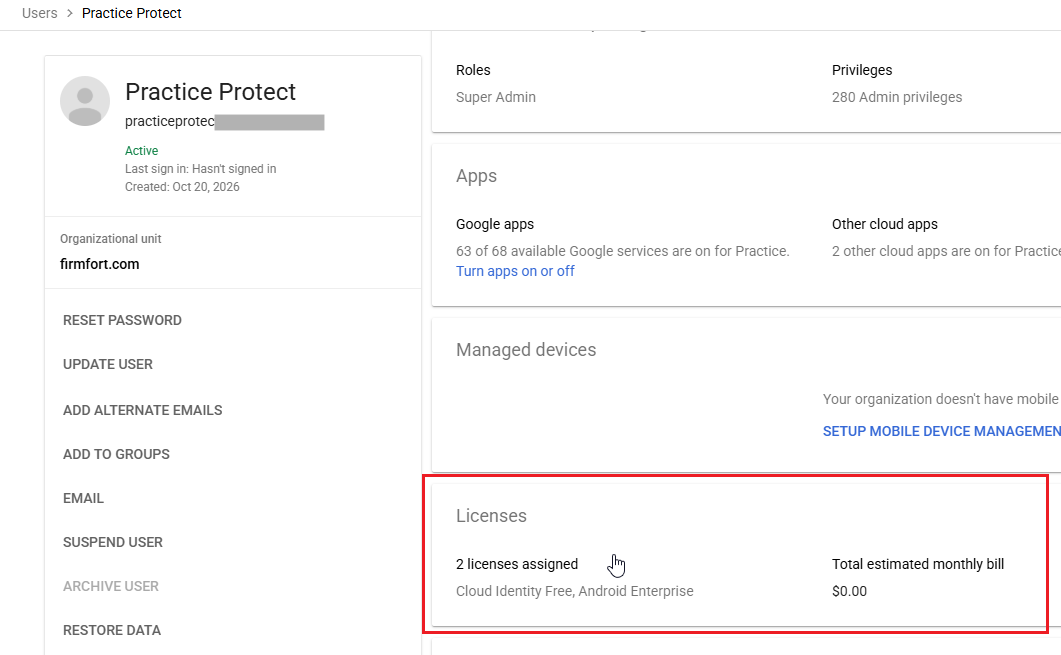
- Confirm that the account is assigned only to Cloud Identity Free and does not have a paid Google Workspace license, such as Business Starter, Business Standard, or Enterprise.
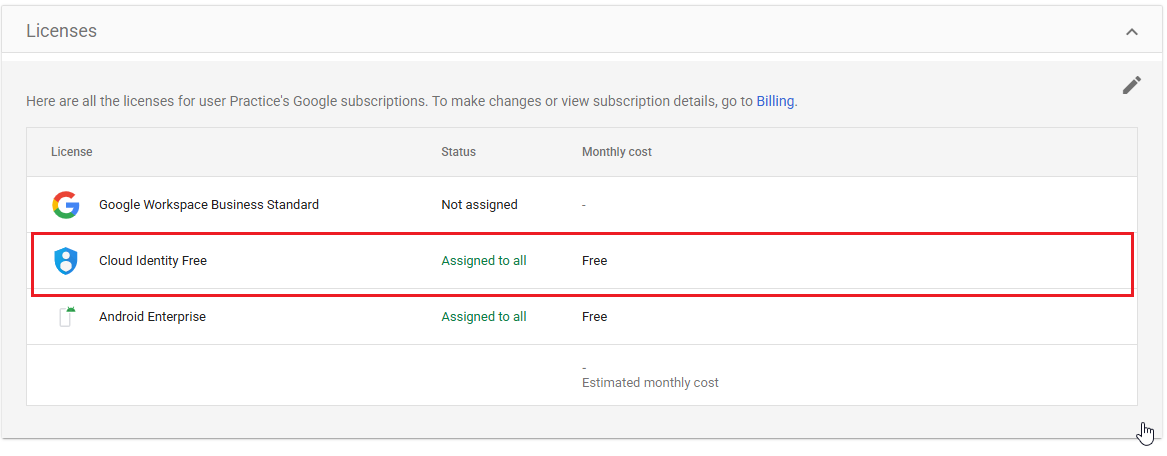
Note: If a paid Google Workspace license is still assigned, click the pencil icon in the top-right corner to edit the license assignments. Unassign the paid license and click Save.
-
This completes the creation of the Google Workspace service account for Practice Protect.
If you are currently onboarding with Practice Protect, notify the Onboarding team that the service account has been created and that the username and password are ready to be shared.
For security reasons, we do not recommend sharing credentials via email. Please contact the Practice Protect team to arrange a secure method of sharing the credentials, such as SMS, a Secured Note, or a secure link. Alternatively, if you are attending an onboarding meeting, the team can assist you with securely sharing the credentials during the meeting.