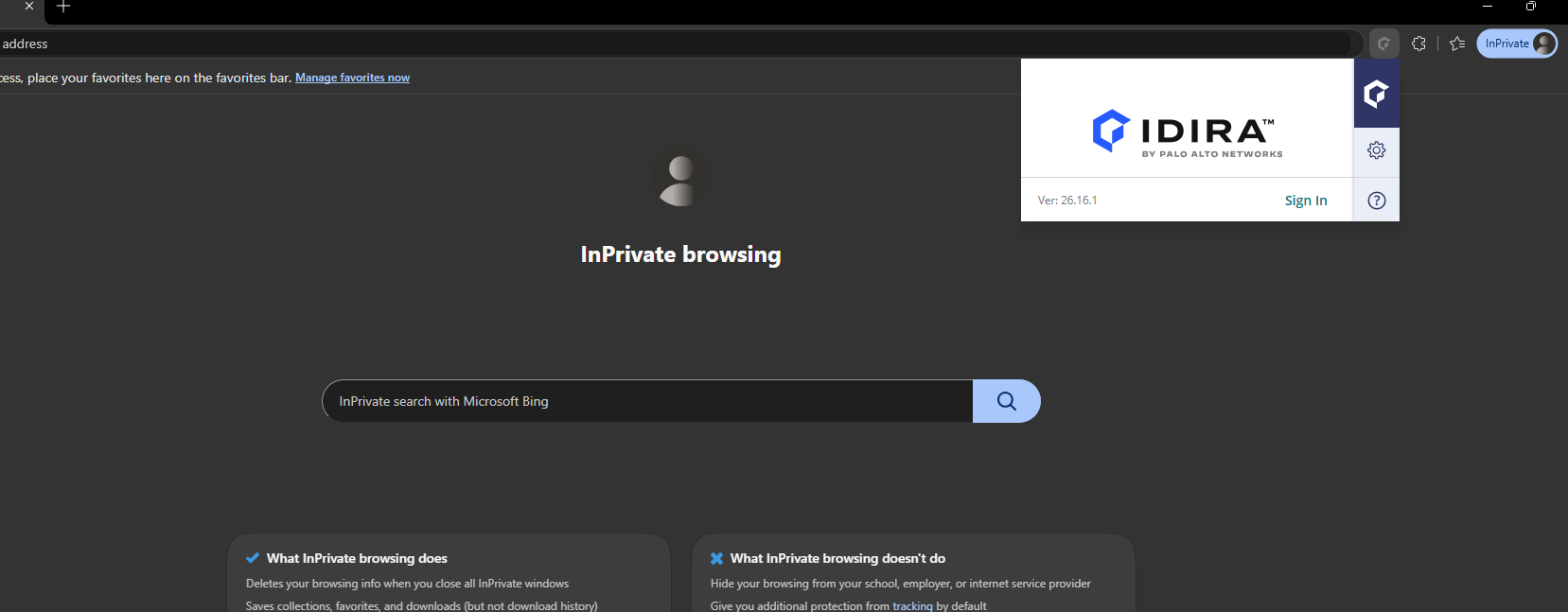
Purpose
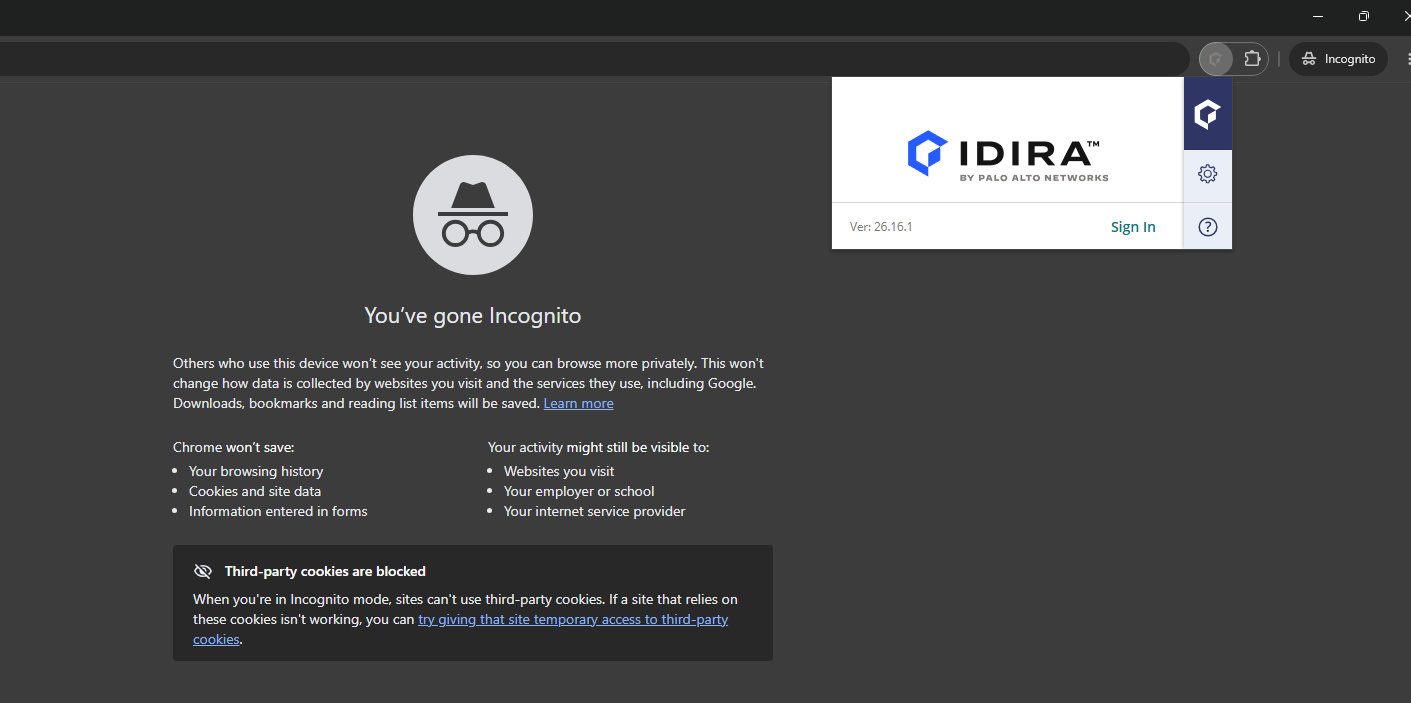
To access Practice Protect and launch applications in an Incognito or Private Browsing window, you must allow the Idira Identity Browser Extension to run in private browsing mode.
The steps vary depending on your browser. Follow the instructions below for Google Chrome, Mozilla Firefox, or Microsoft Edge.
Prerequisites
-
Idira Identity Browser Extension installed in your browser.
-
Permission to modify browser extension settings.
Instructions
-
Open Google Chrome.
-
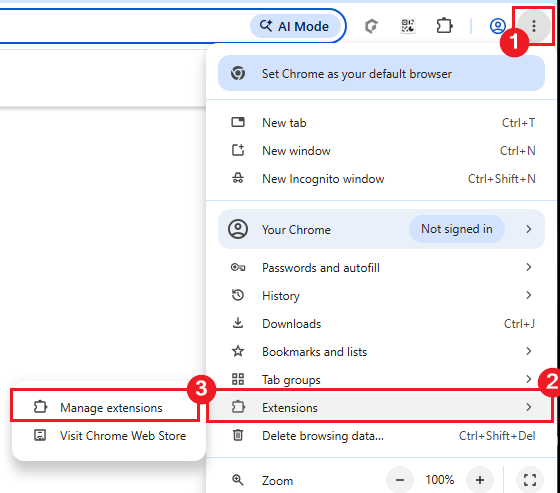
Click the three-vertical dots menu in the upper-right corner of the browser. Hover over Extensions, then select Manage extensions from the submenu.
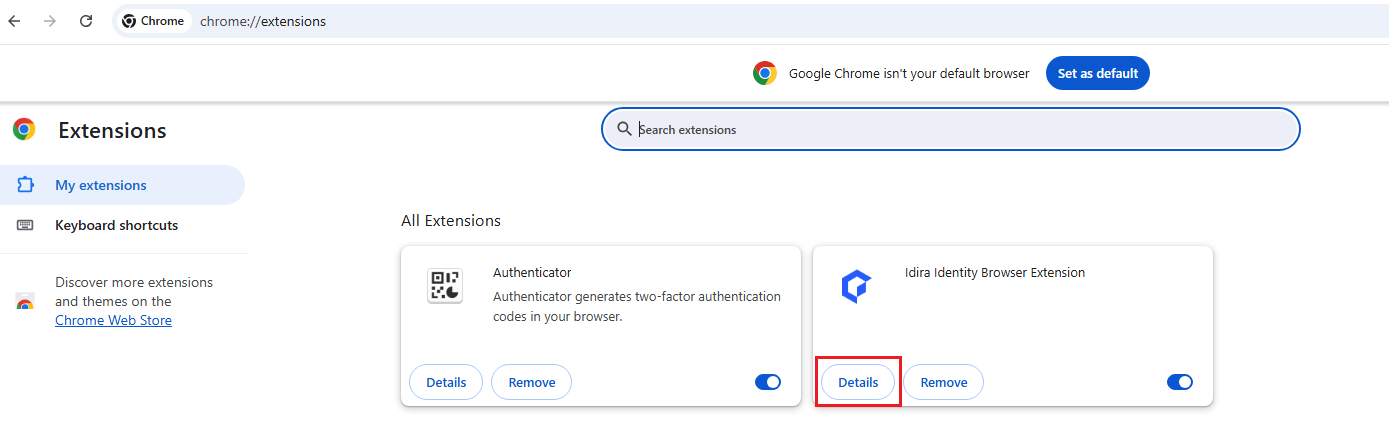
- On the Extensions page, locate Idira Identity Browser Extension and click Details.
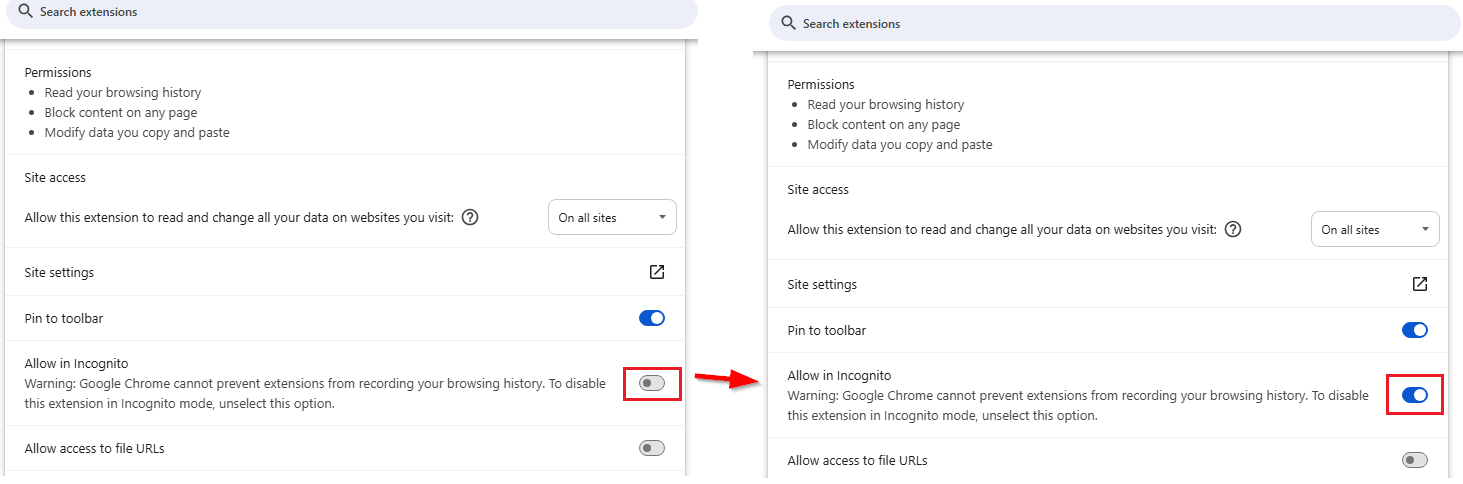
- This will open the extension’s settings page. Scroll down and toggle on Allow in Incognito to enable the extension in Incognito mode.
- You can now sign in to Practice Protect and launch applications using an Incognito or Private Browsing window.
-
Open Mozilla Firefox.
-
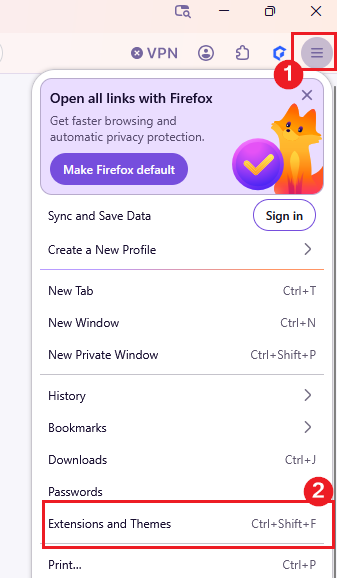
Click the three horizontal lines (menu) in the upper-right corner, then select Extensions and Themes.
-
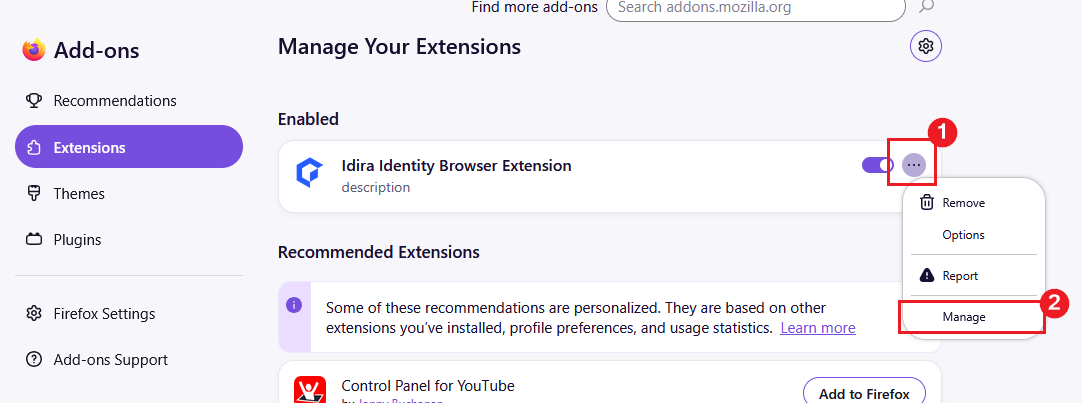
On the Extensions page, locate Idira Identity Browser Extension. Click the three-dot menu next to it and select Manage to open the extension’s settings page.
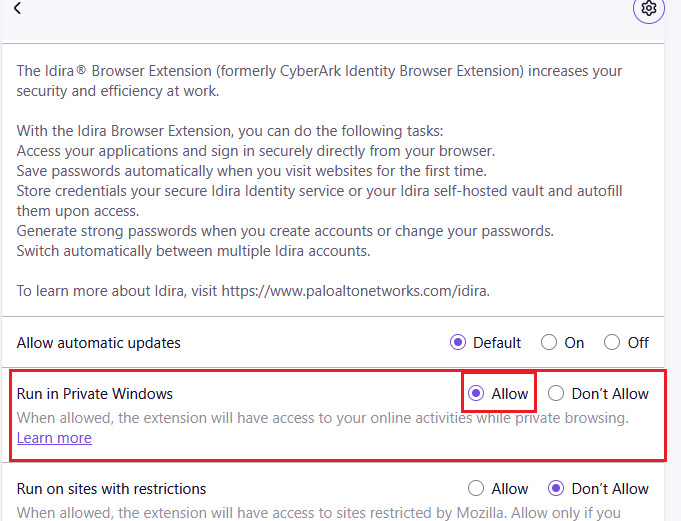
- Locate Run in Private Windows and change the setting from Don’t Allow to Allow to enable the extension in Private Browsing mode.
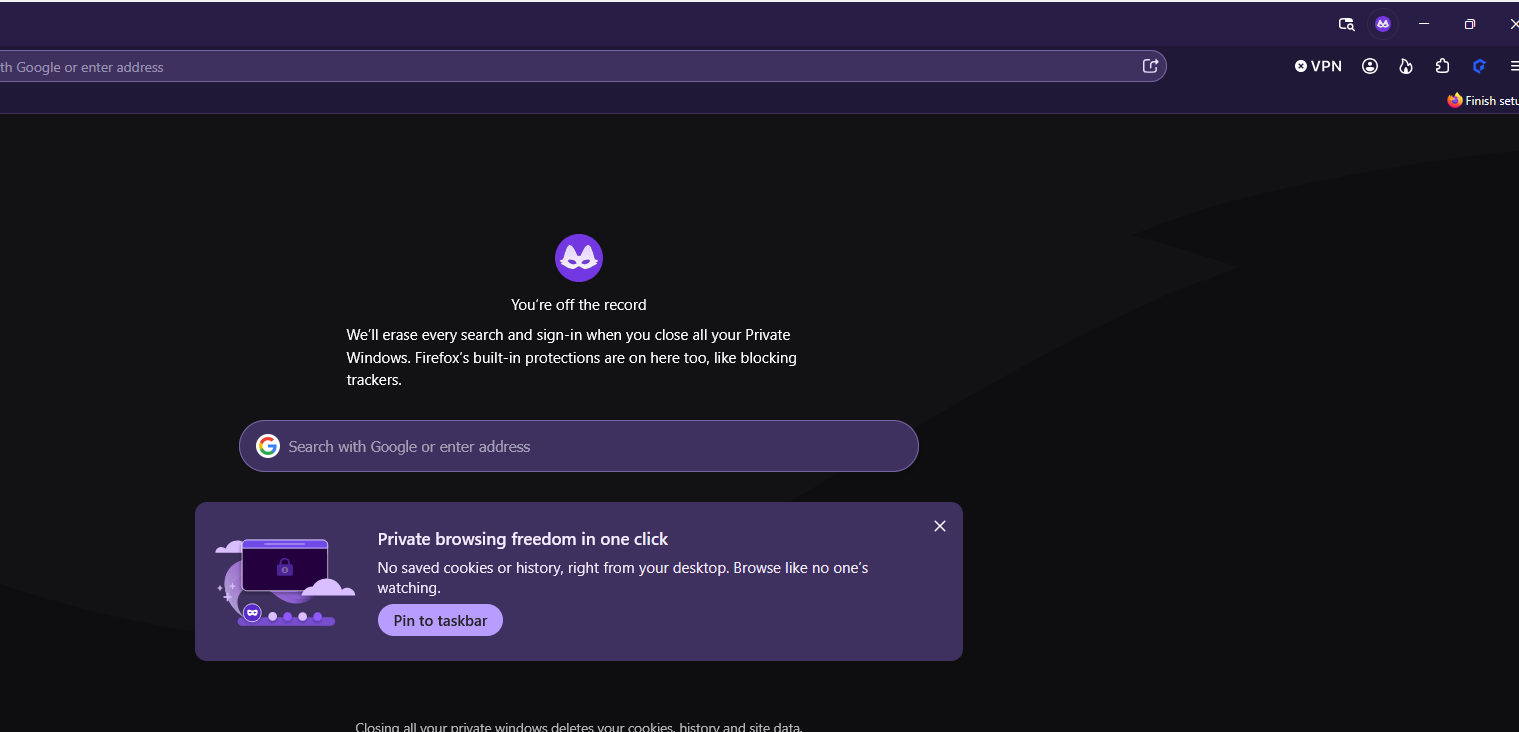
- You can now sign in to Practice Protect and launch applications using a Private Window.
-
Open Microsoft Edge.
-
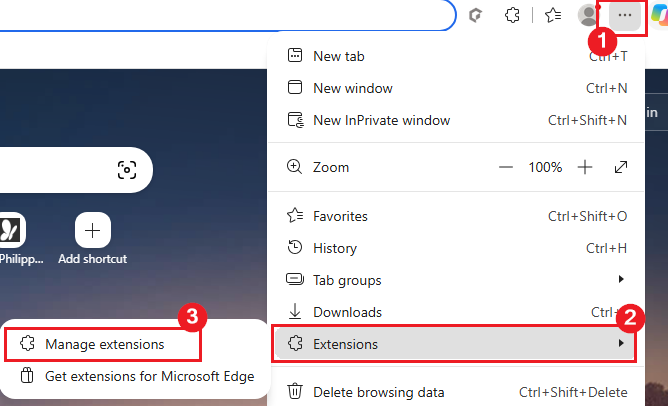
Click the three-dots menu in the upper-right corner of the browser. Hover over Extensions, then select Manage extensions from the submenu.
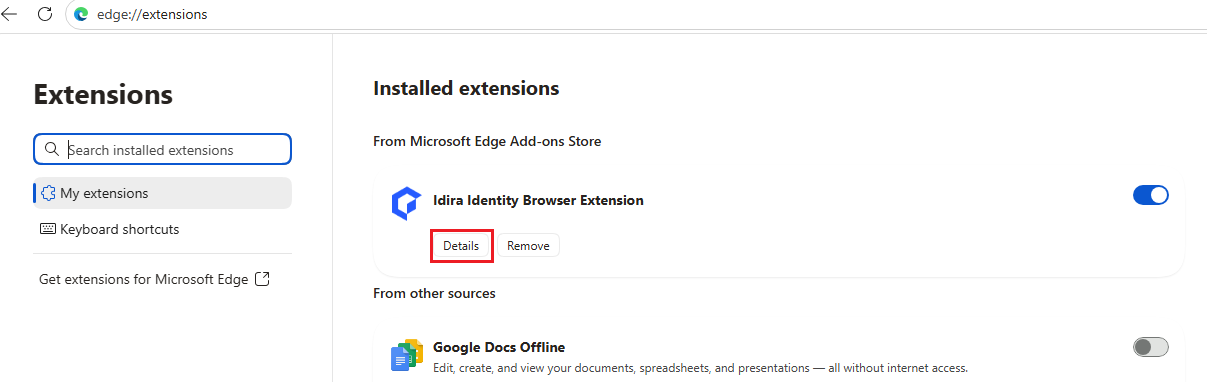
- On the Extensions page, locate Idira Identity Browser Extension and click Details.
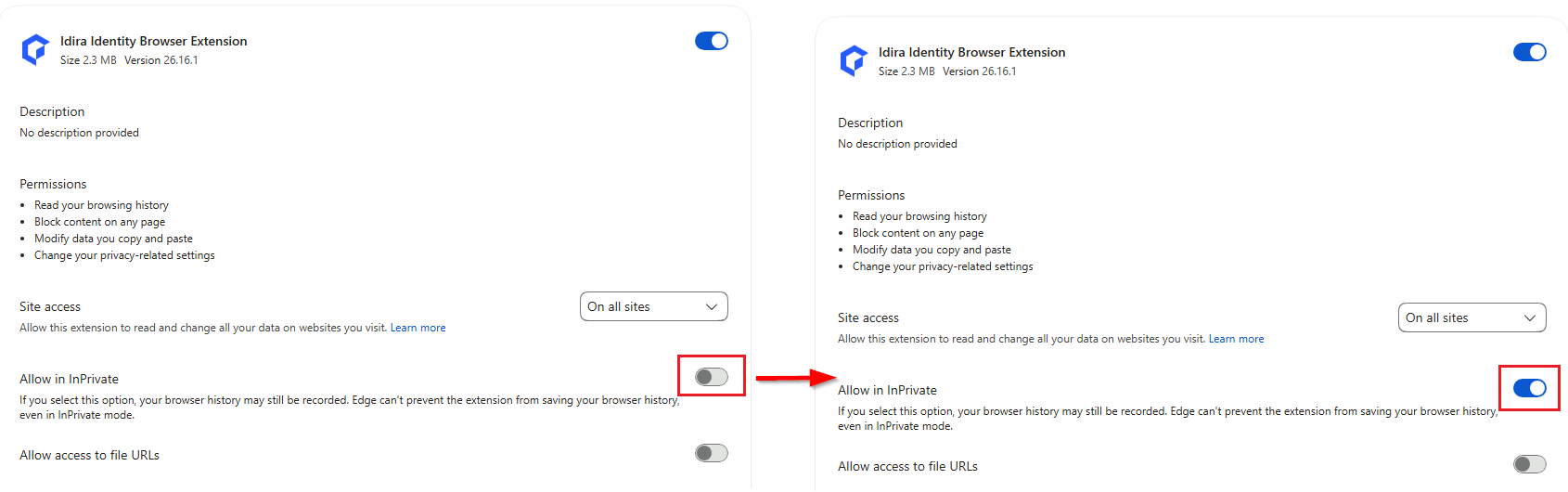
- This will open the extension’s settings page. Toggle on Allow in InPrivate to enable the extension in InPrivate browsing mode.
- You can now sign in to Practice Protect and launch applications using a InPrivate Window.