Purpose
Practice Protect requires a service account to be created in your Microsoft/Office 365 email system for a smoother onboarding process. This allows the onboarding team to access and set up customized email redirection rules (mail transport) for the password reset process and email integration.
Video Tutorial
Prerequisites
- Administrator Access to your Microsoft 365 Account (Needed to create Service Account – i.e., practiceprotect@mydomain.onmicrosoft.com)
- Microsoft 365 Role to be assigned to the Service Account
- Global Administrator (For API Configuration, Mail Transport Rule, and Email Integration) or Exchange Administrator (If it is for Mail Transport Rule Only)
- Microsoft license is not required
Instructions (create account)
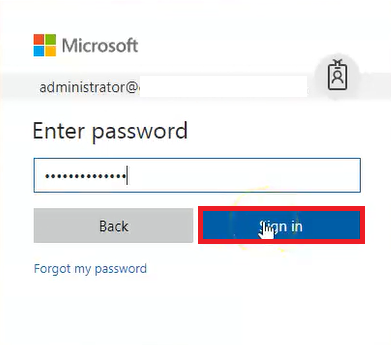
- Sign in to the Microsoft 365 portal using the Administrator Account.
2. On the left menu, click Admin to go to the Admin Centre.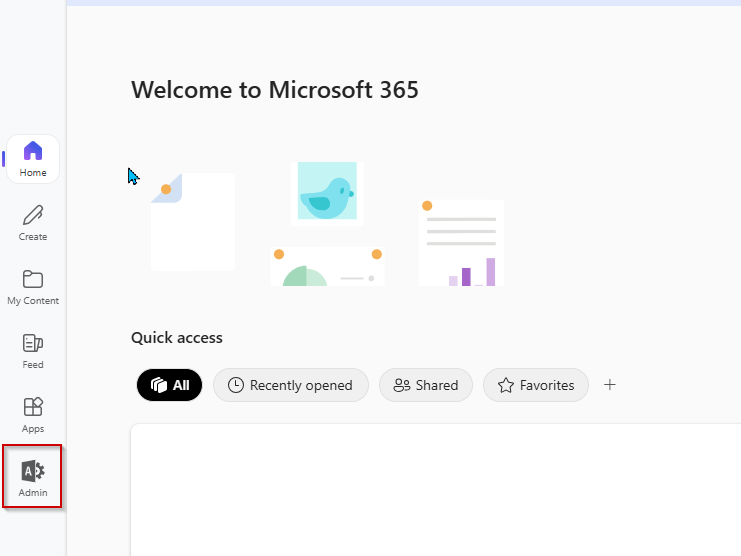
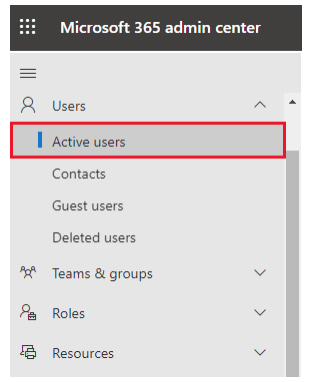
3. From the Admin Center, click on Users > Active Users.
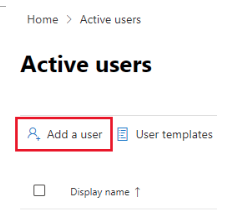
4. Choose Add a user on the top menu
Create a user with the following details:
First name: Practice
Last Name: Protect
Username: practiceprotect
Domain: (make sure this is your onmicrosoft.com domain)
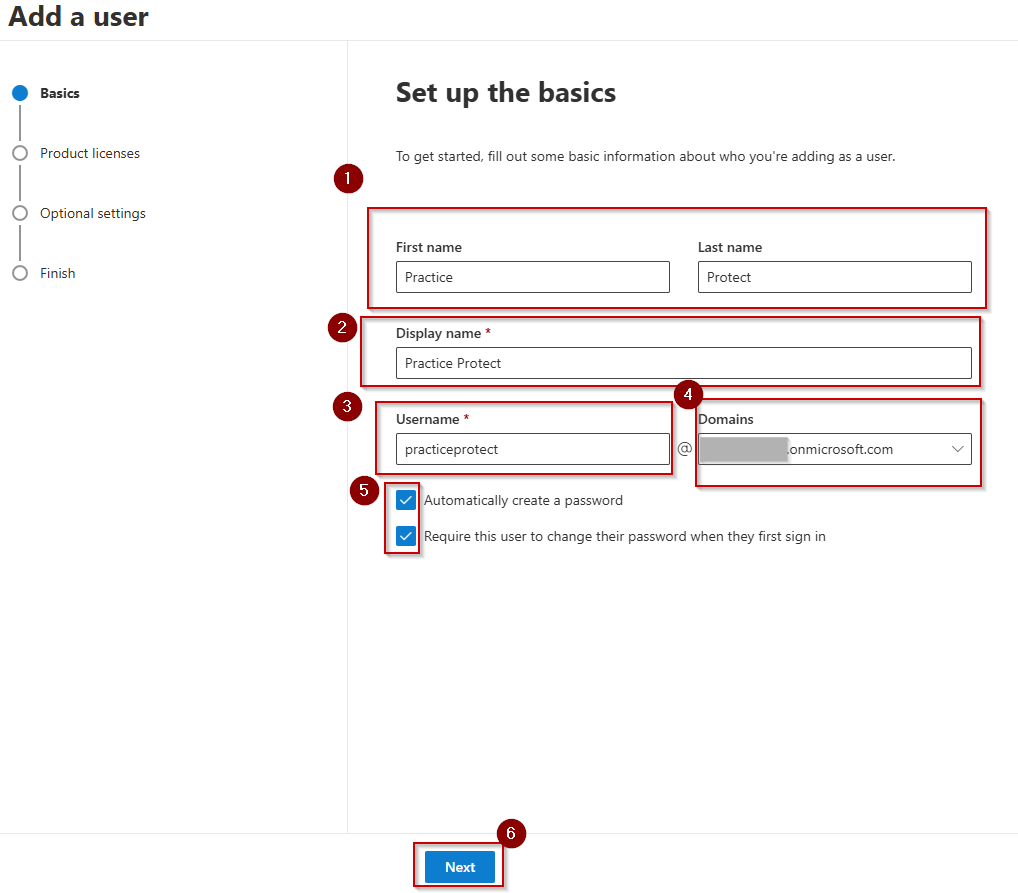
5. Tick Automatically create a password, Require the user to change their password when they first sign in and hit Next
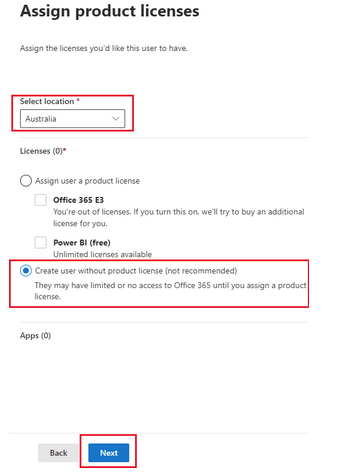
6. On Assign Product Licenses, select the desired location (depending on your country, for example, Australia). Then, select Create User without product license and hit Next.
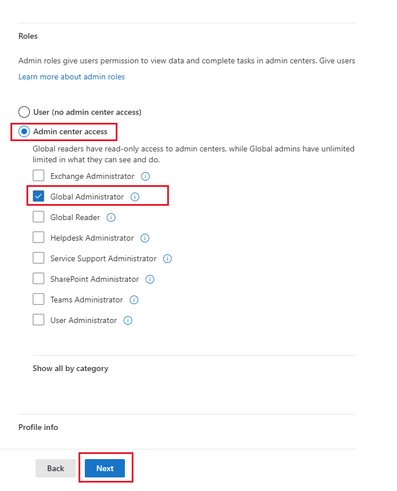
7. On the Optional settings, select Roles (user:no administration access) dropdown. Choose Admin Center access and select Global Administrator. Skip the Profile Info part and click Next.
If your onboarding is only for setting up mail redirection rules for app reset or password reset, select Exchange Admin instead.
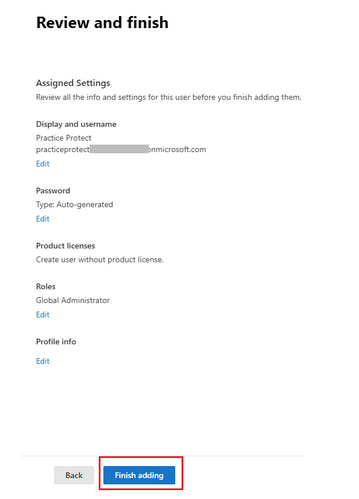
8. Review the service account that you created. Upon confirming all that information is correct, click finish adding.
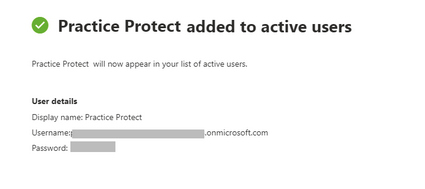
9.The service account has been successfully created. Copy the user details carefully, including the username and password, and keep them secure.
 10. If you are currently onboarding with Practice Protect, notify the Onboarding team that the service account has been created and that the credentials are ready to be shared.
For security reasons, we do not recommend sharing credentials via email. Please contact the Practice Protect team to arrange a secure method of sharing the credentials, such as SMS, a Secured Note, or a secure link. Alternatively, if you are attending an onboarding meeting, the team can assist you with securely sharing the credentials during the meeting.
11. After sharing the credentials, confirm that the Onboarding team has received them successfully.
Instructions (remove account)
Do not remove this account if being used for Office 365 Federation with Practice Protect.
- Sign in to the Microsoft 365 portal using the Administrator Account.
2. On the left menu, click Admin to go to the Admin Centre.
3. Click on Users > Active Users.
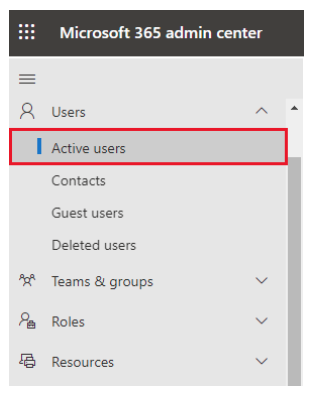
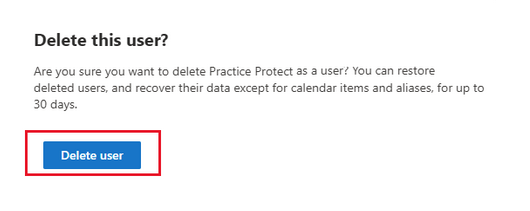
4. Select the checkbox beside the Practice Protect service account. Then click Delete user. A new pop-up window on the right side will show up for confirmation.
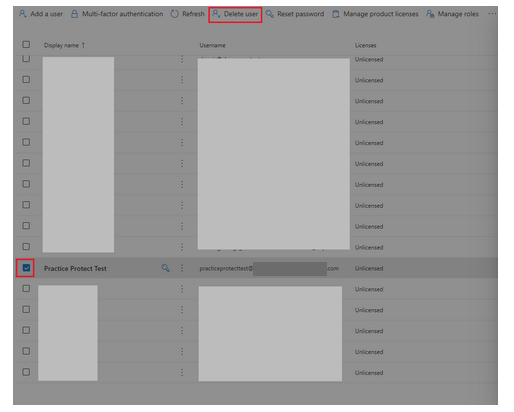
5. Confirm the correct account and click Delete User.
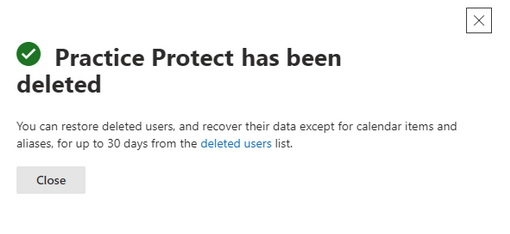
6. The account has now been deleted.