
Purpose
This guide explains how to add and remove users or groups assigned to a role in Practice Protect.
If Practice Protect is connected to Microsoft Entra ID using the Legacy Method, or uses Active Directory/LDAP for user authentication, you can also assign or remove directory users and groups from a role. Practice Protect retrieves the available users and groups from the connected directory, allowing you to manage their role assignments.
Important: Removing a user or group from a role only removes their assignment to that role in Practice Protect. It does not delete the user or group from the connected directory. However, removing the assignment may affect the user’s application access or any policies associated with the role.
Prerequisite
-
Administrator access to Practice Protect
Instructions
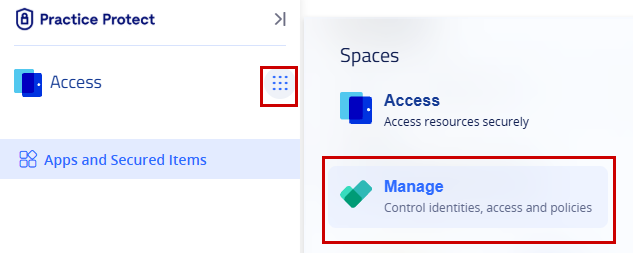
- Log in to Practice Protect and switch to Manage Space.
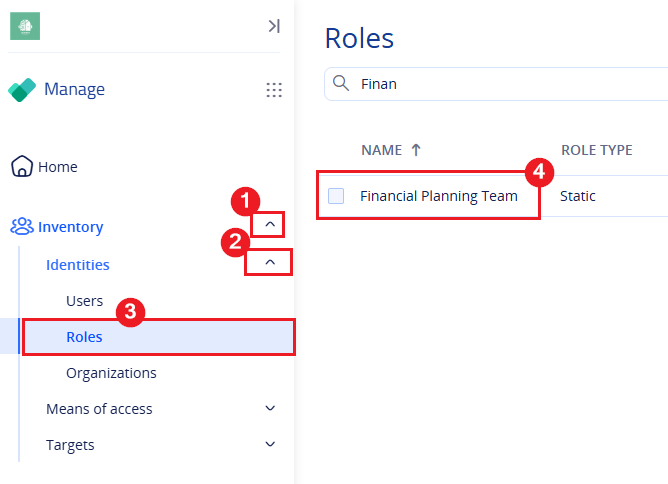
- In the navigation menu, expand Inventory > Identities > Roles to view the available roles.
- Select a role. (ex. Financial Planning Team)
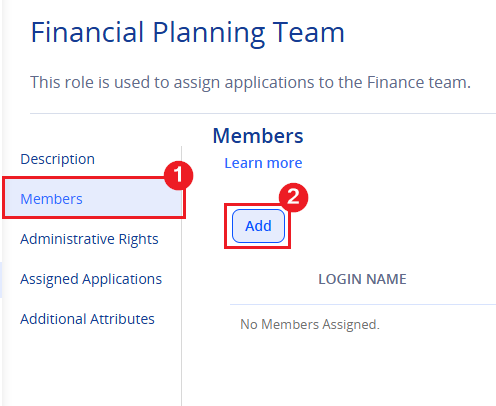
- Click Members.
- Click Add. A pop-up window will appear.
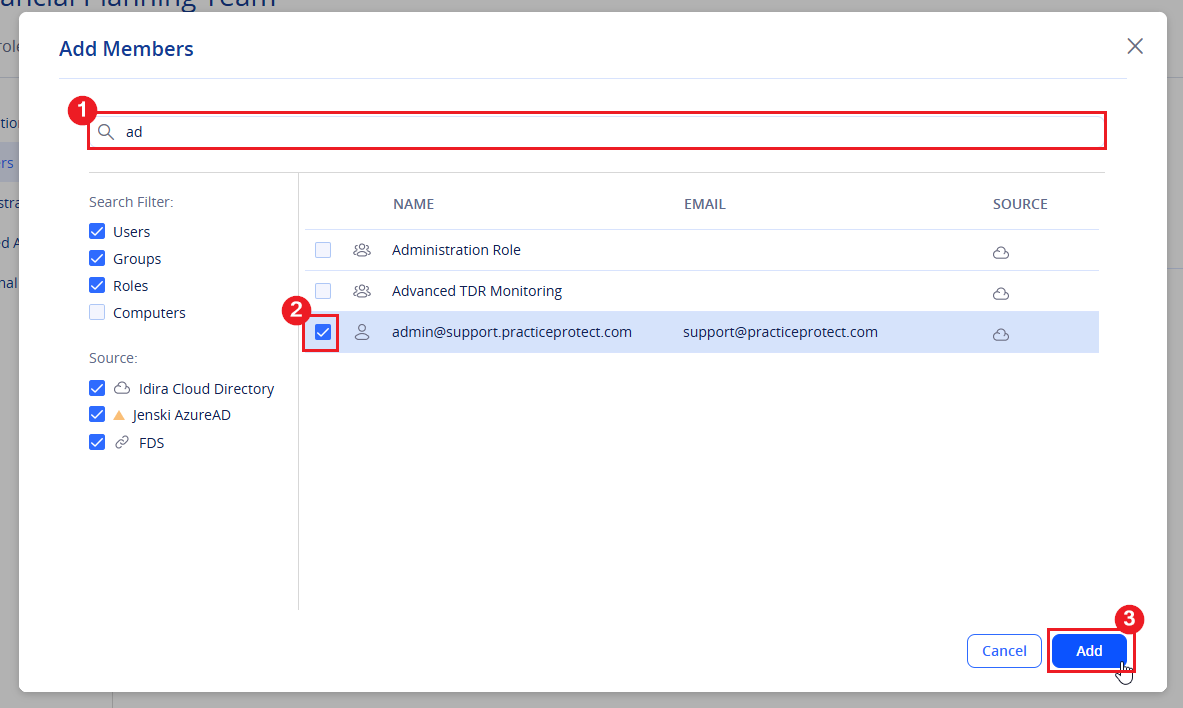
- Search for the existing user or group you want to add, then select the checkbox next to their name.
- Click Add to add the selected user or group. Repeat the process for each additional user or group you want to add.
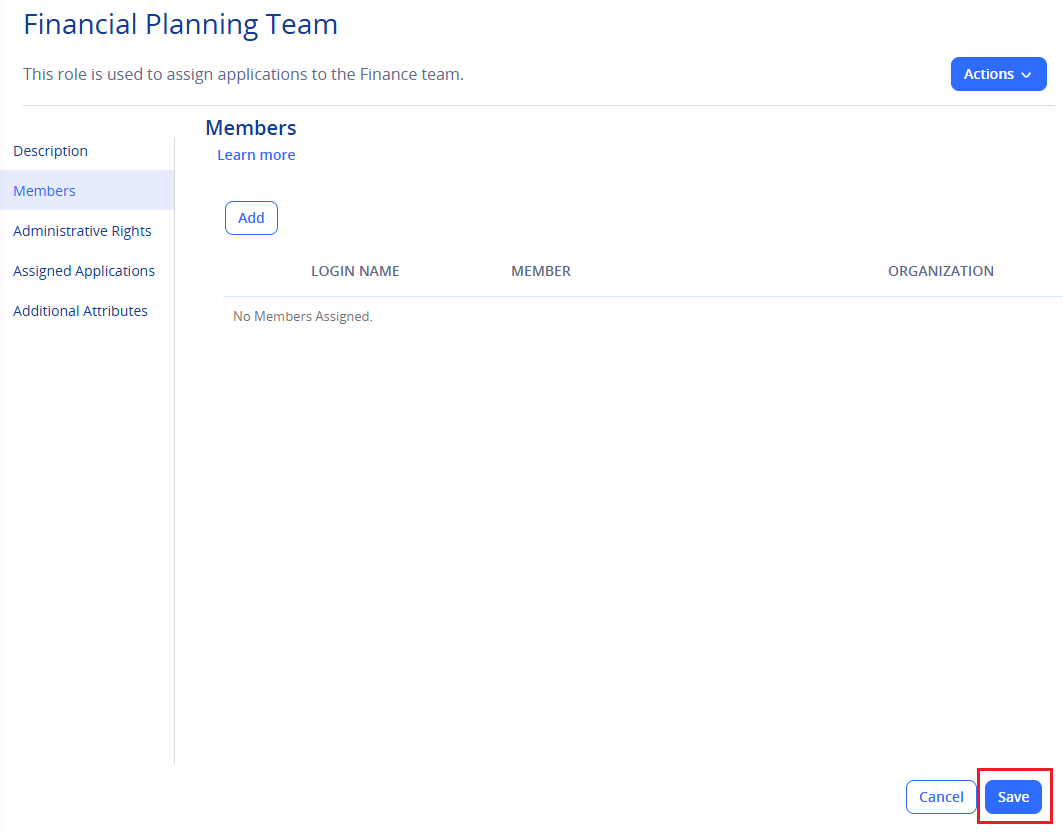
- Click Save in the bottom-right corner to save your changes.
-
This completes the process of adding members to a role.
- Log in to Practice Protect and switch to Manage Space.
- In the navigation menu, expand Inventory > Identities > Roles to view the available roles.
- Select a role. (ex. Financial Planning Team)
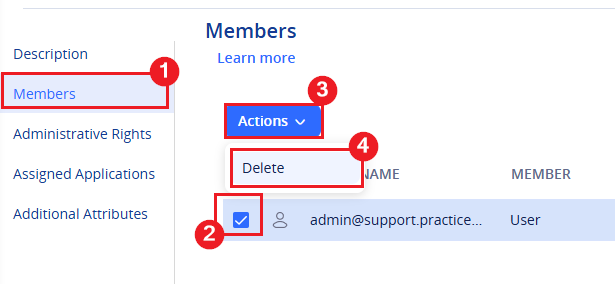
- Select the checkbox next to the user or group you want to remove. You can select multiple users or groups at once.
- Once selected, an Actions dropdown will appear at the top of the page. Click Actions.
- Select Delete.
- Click Save in the bottom-right corner to apply your changes.
- This completes the process of removing members from a role.