
Purpose
Secured Password allows users to securely store and manage credentials used to access non-web applications and systems, such as virtual machines, on-premises applications, local applications, SQL databases, and servers. It provides controlled access to stored passwords, helping protect sensitive authentication information and ensuring that credentials are accessible only to authorized users.
Instructions
- Sign in to Practice Protect. You will be automatically directed to Access Space, where you can launch your available cloud apps or view secured items.
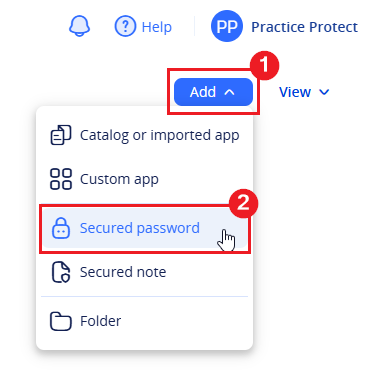
- In the top-right corner, click Add. From the dropdown menu, select Secured Password.
- Complete the Name, Username, and Password fields. Optionally, add a Description.
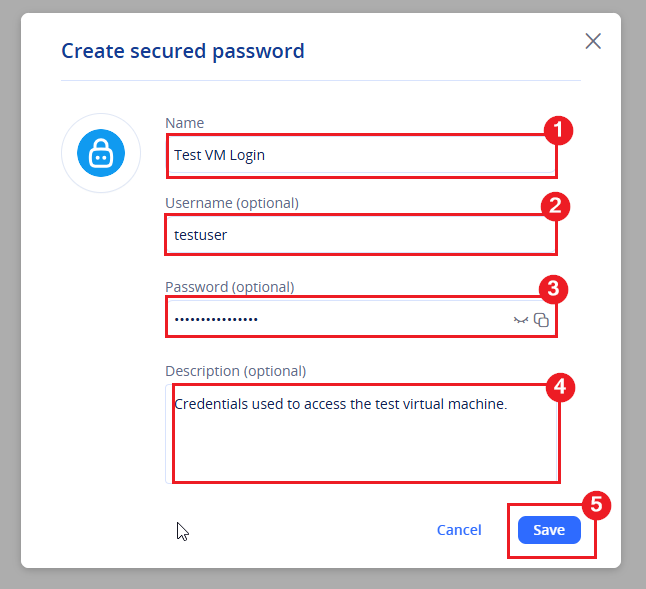
- Click Save.
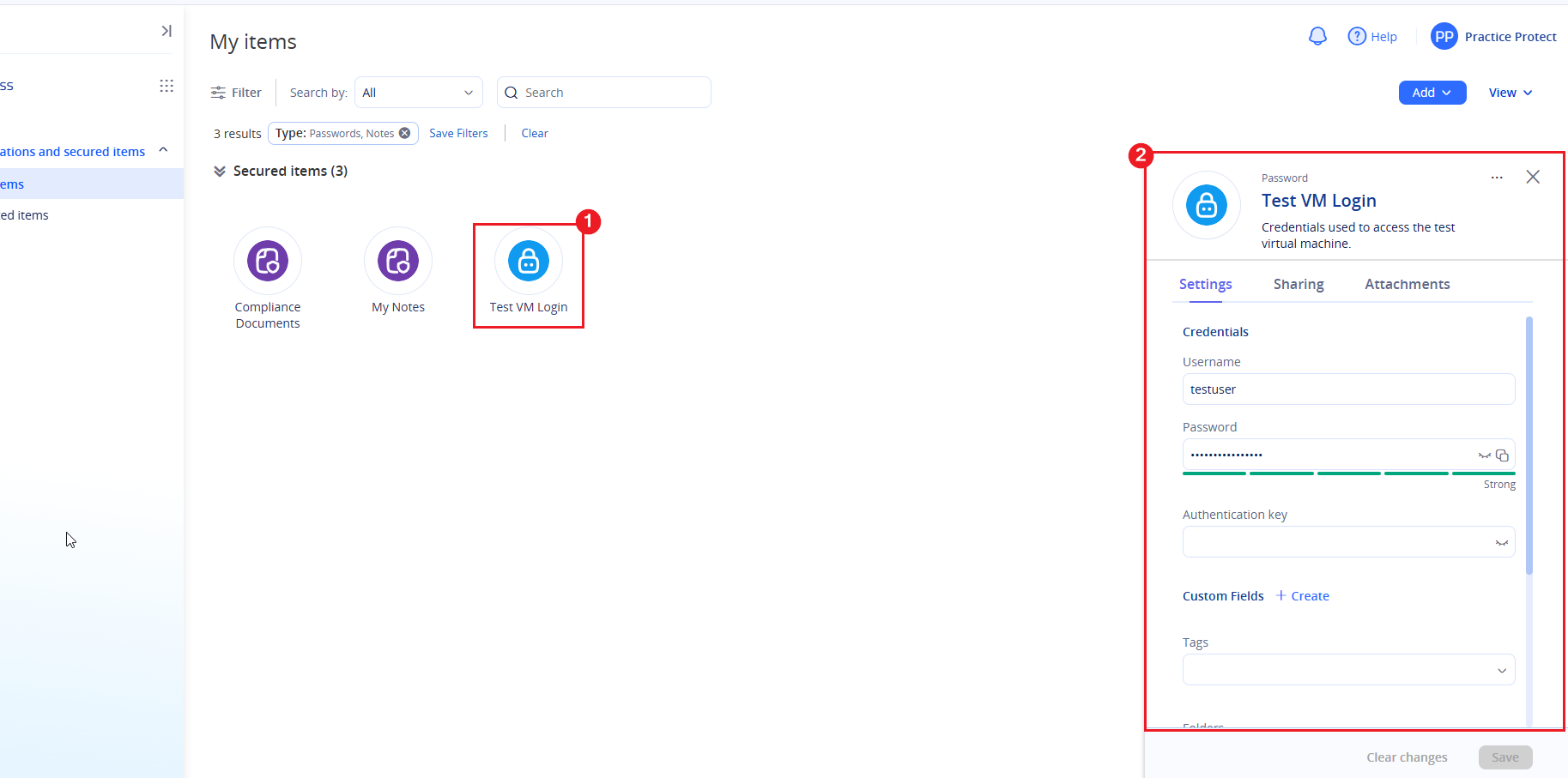
- Your newly created Secured Password is now added to your Access Space. To view the note, simply click on it.
Notes:
If you wish to share the secured password with your team members, follow this sharing guide.Secured Items & Passwords are stored in the account they are created in. In the event the user account hosting the items is deleted all items are deleted, even if items are shared with other accounts.
Copy Secured Password via Browser Extension
You can copy either a username or password directly through the Browser Extension. This is useful when you want to access and copy the information without returning to the Practice Protect platform.
- Click the Browser Extension in the top-right corner of your browser, then click the Secure Items icon.
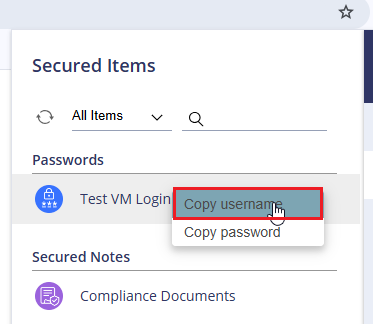
- Select the Secured Password Item from which you want to copy, then click the menu icon.
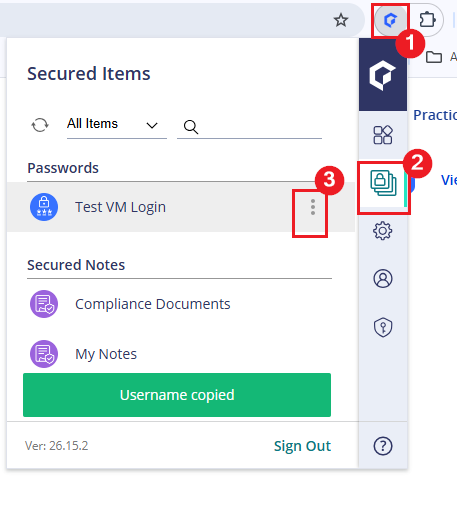
- Click Copy Username or Copy Password to copy the respective credentials to the clipboard.
- A notification will appear that you copied either the username or password.
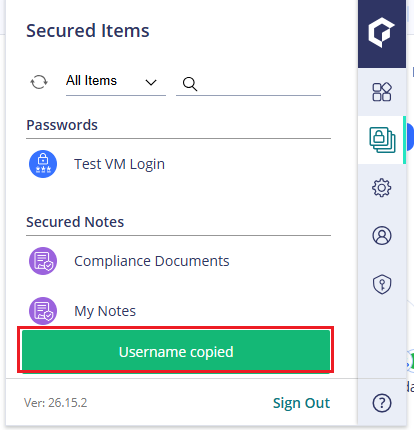
- The value of username/password is now copied to your clipboard and can be pasted where required.