
Purpose
This guide explains how administrators can grant the Shared Credentials Administrative Right, which allows internal users to securely share Secured Items, such as Secured Notes and Secured Passwords.
By default, this permission is granted in the Everybody role. If users are unable to share Secured Items, administrators should verify that they have been granted the required permission.
Prerequisites
- Administrator access to Practice Protect.
Instructions
- Sign in to your Practice Protect.
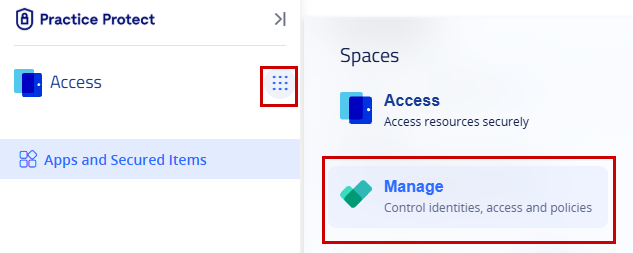
- From the Access space, click the navigation menu on the left-hand side of the screen, then select Manage.
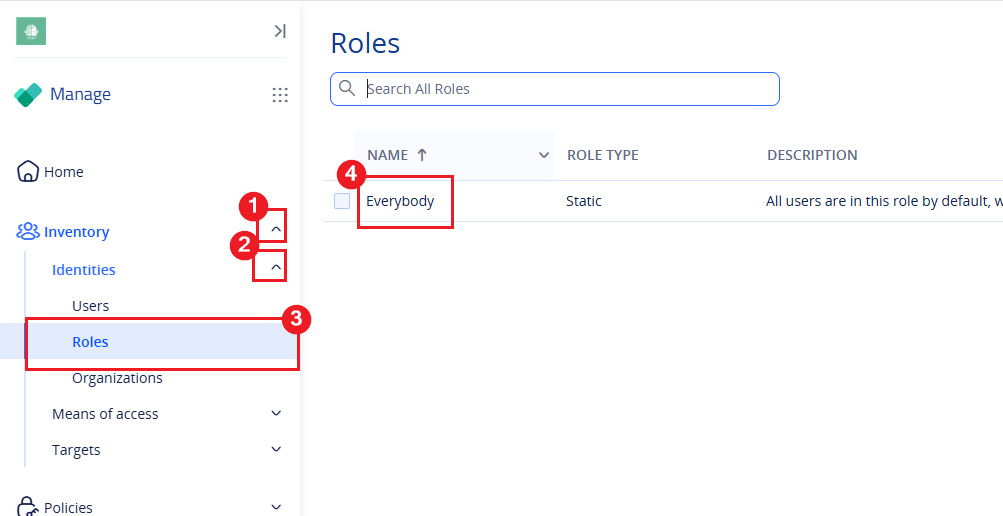
- In the left-hand navigation menu, click Inventory to expand the available options, then select Identities > Roles.
- Select the role you want to grant the permission to, or select the Everybody role to apply it to all accounts.
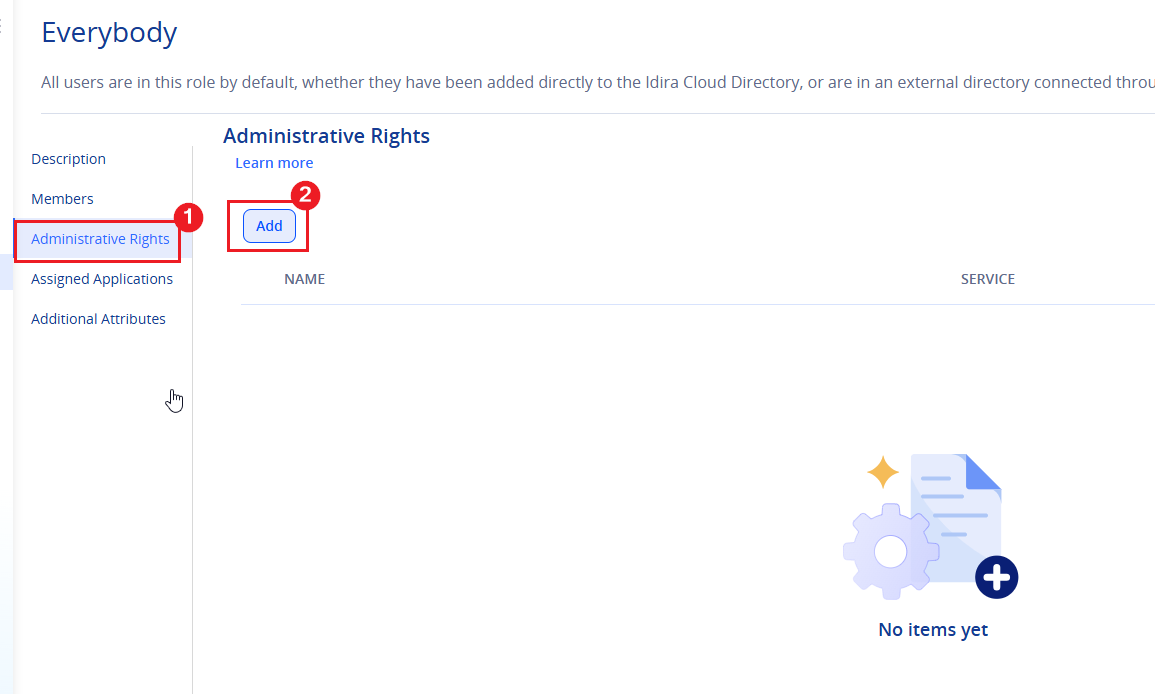
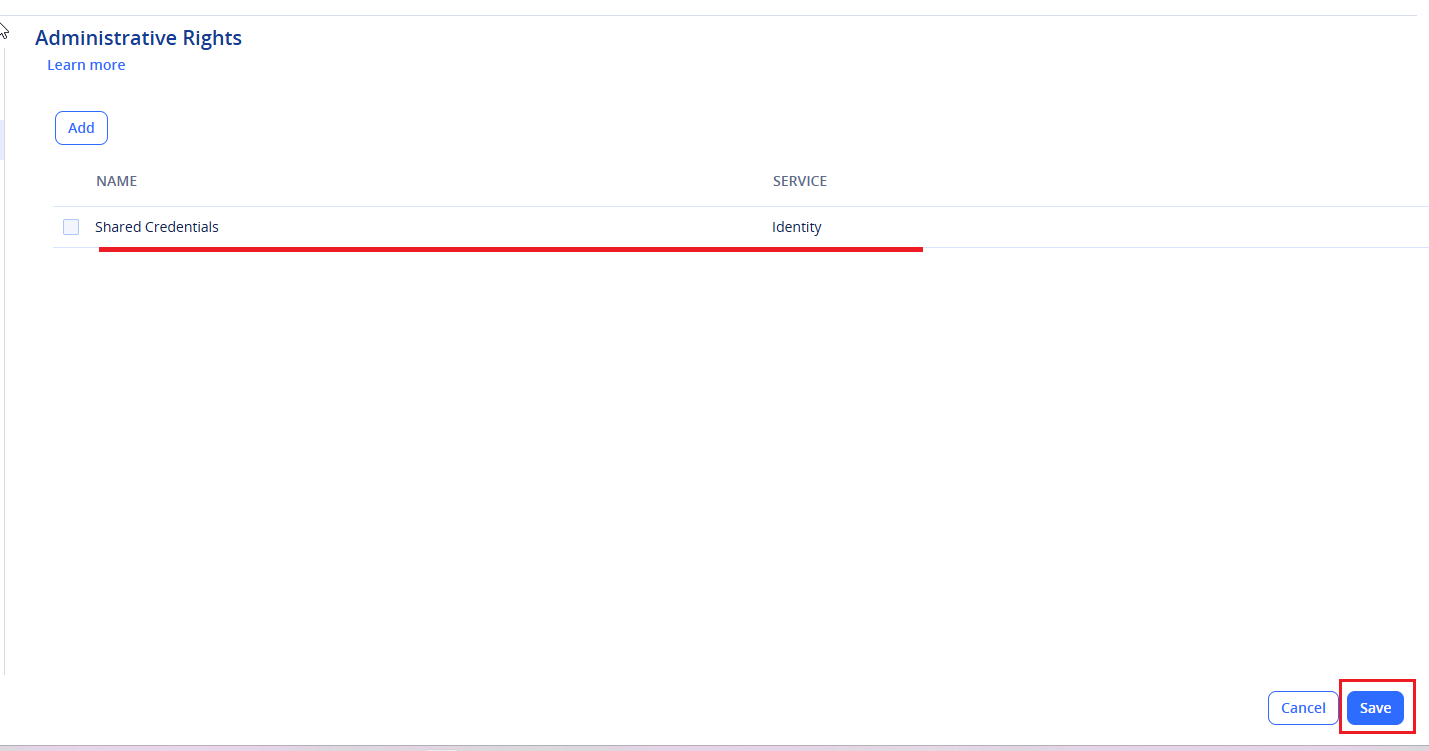
- Click Administrative Rights.
- Confirm that Shared Credentials is listed. If it is not, click Add to include the permission.
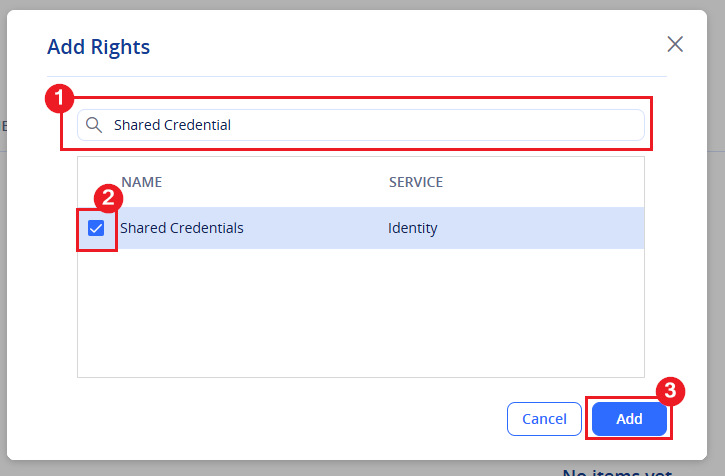
- Search for Shared Credentials and select it, then clickAdd.
- Click Save.
- Users will be able to share Secured Items (notes and password) after their next login.
Note: Secured Notes & Passwords are stored in the account they are created in. In the event the user account hosting the items is deleted all items are deleted, even if items are shared with other accounts.