Purpose
This guide explains how to set up and use Passkey authentication to sign in to Practice Protect.
A passkey provides a secure, passwordless way to sign in using a trusted device, such as a mobile phone, computer, or security key. Depending on your device, you can authenticate using Face ID, fingerprint, a PIN, Windows Hello, Touch ID, or another supported screen-lock method.
Passkeys are designed to be phishing-resistant, and the biometric information used to unlock your passkey remains securely on your device.
For the best experience, we generally recommend using a mobile phone if your device supports passkeys.
To use this feature, your Password Admin must first enable Passkey authentication in the Admin Portal. Password Admins can follow the Configure Passkeys Authentication article to enable the feature.
Compatibility
Passkeys are supported on modern devices running iOS, Android, Windows, and macOS.
- iOS / iPadOS: Face ID, Touch ID, or device passcode
- Android: Fingerprint, face unlock, or device screen lock
- Windows: Windows Hello PIN, fingerprint, facial recognition, or security key
- macOS: Touch ID, device password, or security key
- Security keys: FIDO2-compatible security keys
Passkey support may vary depending on your device, operating system version, browser, and security settings. For the best experience, ensure your device and browser are up to date.
Instructions (Setup Passkey)
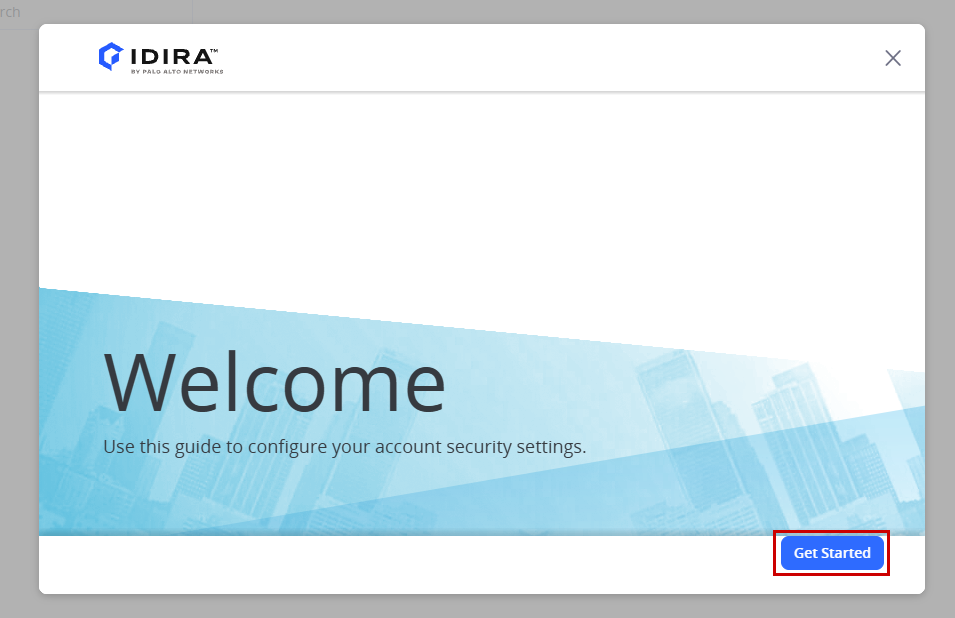
- After you sign in to Practice Protect, a wizard prompt will appear to configure Passkey. Click Get Started.
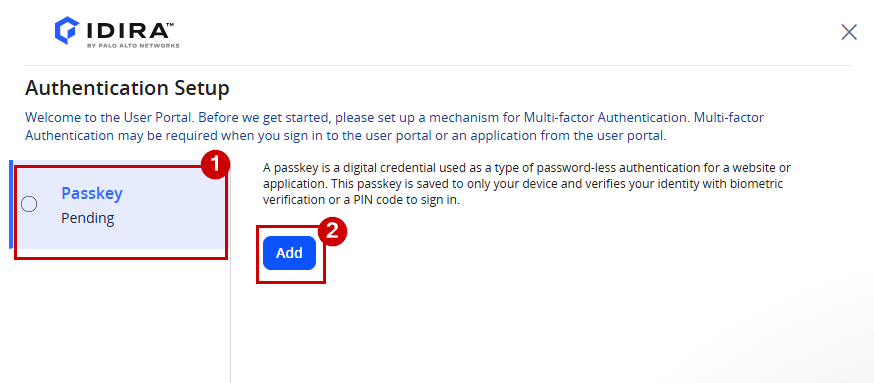
- Click Passkey, then click Add. You will be redirected to the Passkey setup page.
Note: If you skip the Passkey setup prompt, alternatively, you can set up a Passkey at any time by going to your profile in the top-right corner and selecting Manage your account > Authentication Factors > Click Add next to Passkey.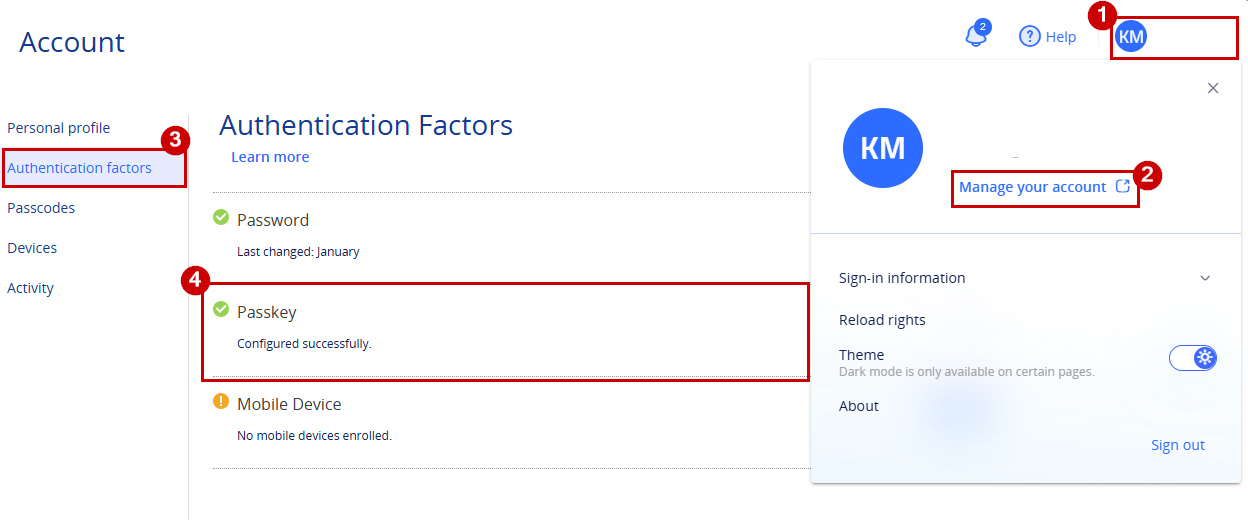
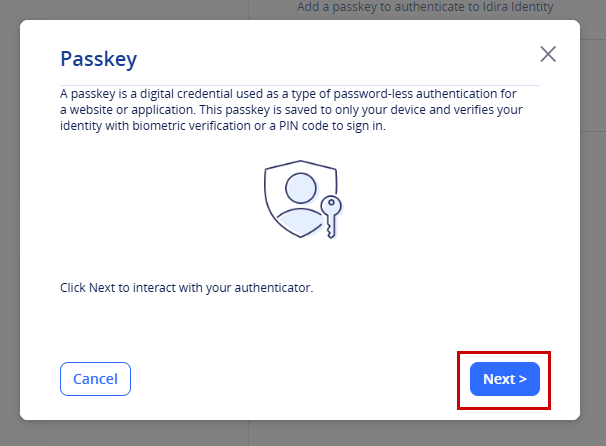
- Once redirected to the Passkey window, click Next.
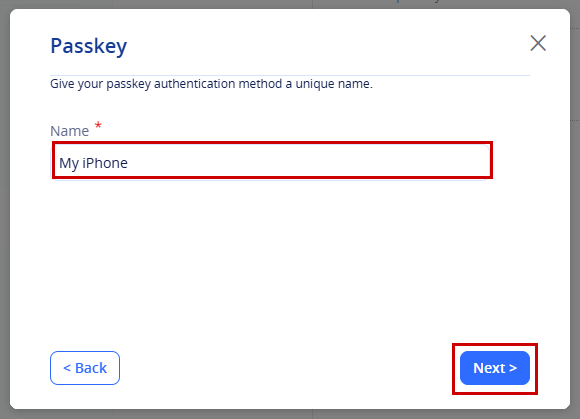
- Enter a name for the passkey. We recommend using a name that identifies the device where the passkey is stored. For example, if you are using an iPhone, enter “My iPhone”; if you are using a laptop, enter “Work Laptop”. Click Next.
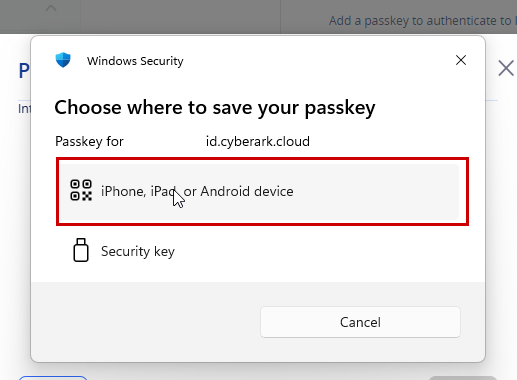
- When prompted, select the available method you want to use to save your passkey. Choose the option that matches the device or security key you are using.
- For iPhone / iPad: Select iPhone, iPad, or Android device. Scan the displayed QR code using your iPhone or iPad, then follow the prompts on your device. Once set up, the passkey can be accessed through the Passwords app on your Apple device.
- For Android: Select iPhone, iPad, or Android device. Scan the displayed QR code using your Android device. Your browser will prompt you to open the passkey link and detect the passkey. You may be prompted to turn on Bluetooth to continue. Allow Bluetooth access if prompted, then follow the instructions to save the passkey to Google Password Manager. You may then be asked to authenticate using the security method configured on your device, such as fingerprint, face unlock, PIN, or screen lock.
- For Windows Hello: If Windows Hello is set up and allowed on your PC, select the Windows Hello option. Follow the prompts and verify your identity using the Windows Hello method configured on your device, such as a PIN, fingerprint, or facial recognition.
- For macOS: If you are using a Mac that supports Touch ID, select the appropriate Mac or this device option when prompted. Follow the on-screen instructions and authenticate using Touch ID or another supported device authentication method. The passkey can be securely stored in iCloud Keychain and may be available across your Apple devices.
- For Security key: If you are using a compatible physical security key, such as a USB, NFC, or Bluetooth security key, select the Security key option and follow the on-screen instructions. You may need to insert or connect your security key and verify your identity using the key’s PIN or other required action.
-
In the example below, we selected iPhone as the method for saving the passkey.
-
In the prompt, you will see details confirming that the passkey is being created for your Practice Protect account, along with a QR code.
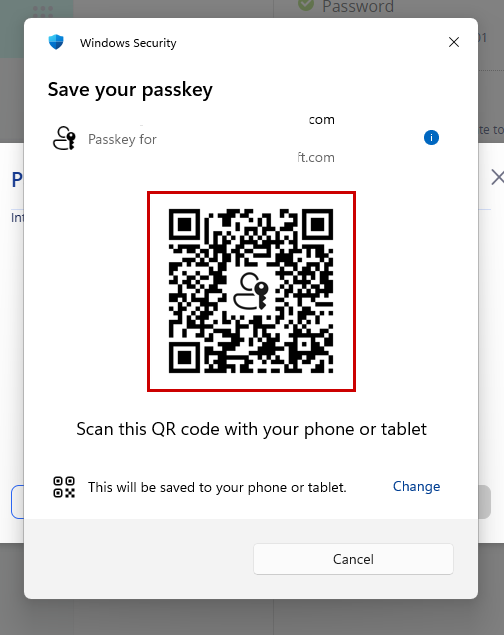
Note: If you want to change the selected passkey method, click Change and select a different option. - Open the Camera on your mobile device, scan the QR code and tap Save a passkey.
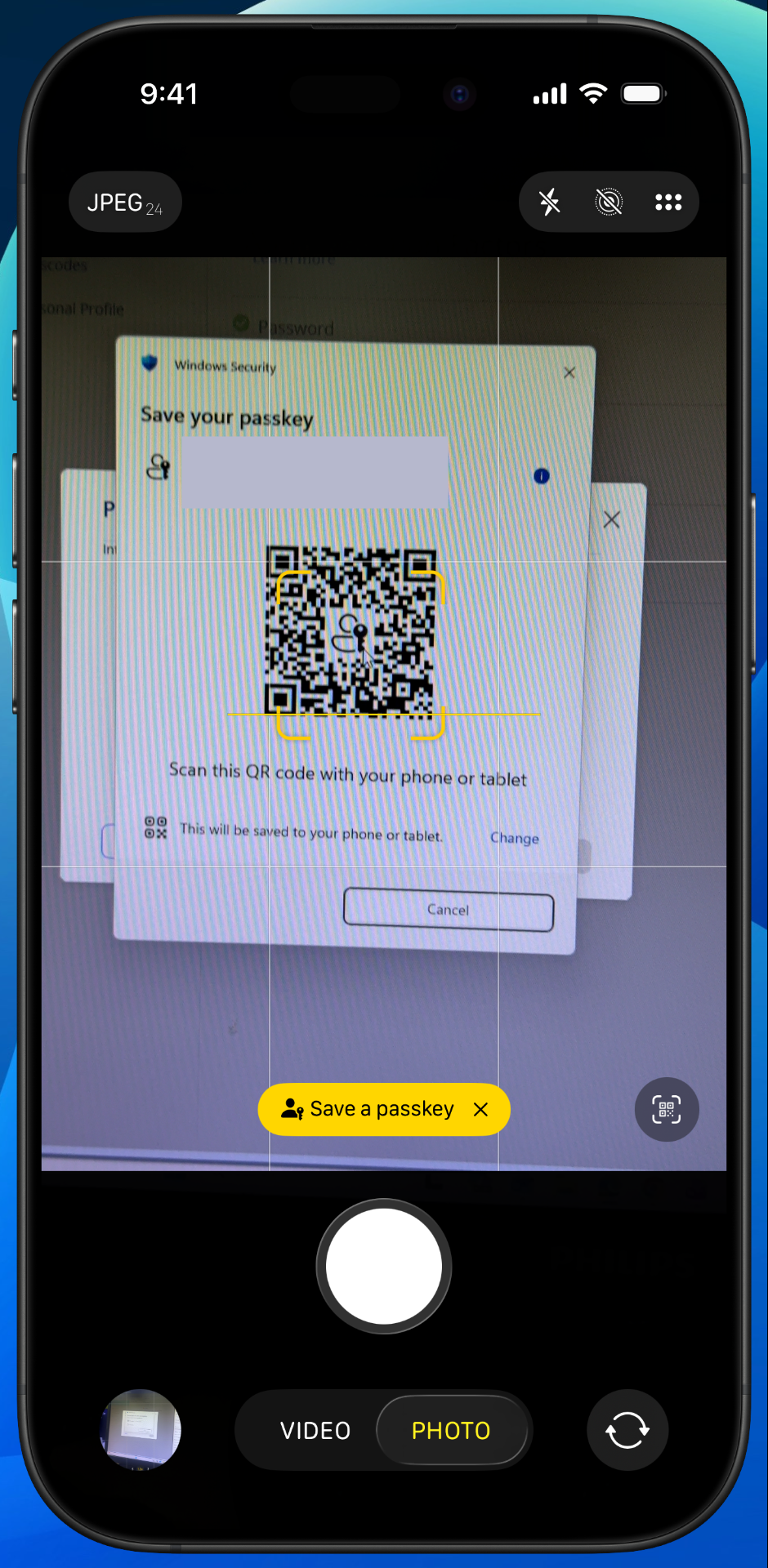
- Follow the instructions on your device to complete the passkey setup.
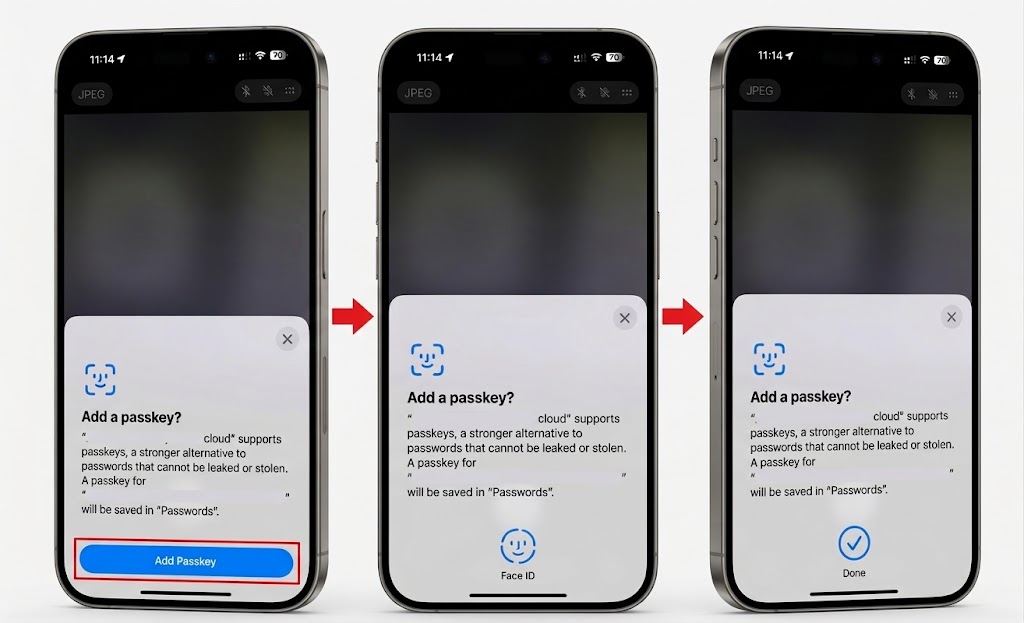
- A notification will appear in Practice Protect confirming that you have successfully set up your Passkey. Click Close.
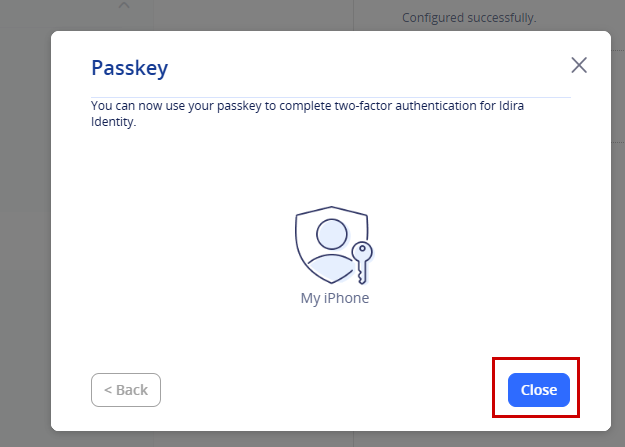
- You can now sign in to Practice Protect using your Passkey from the login page.
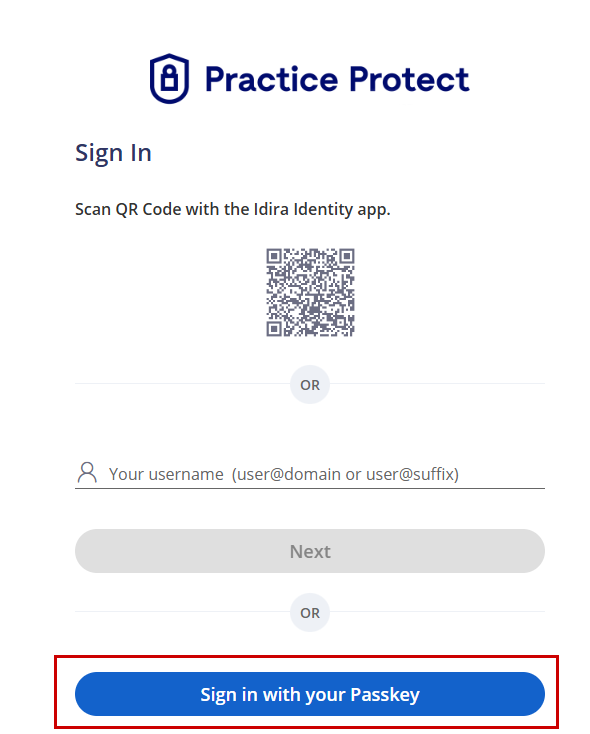
How to Add Another Passkey?
You can add up to 5 Passkeys to your Practice Protect account.
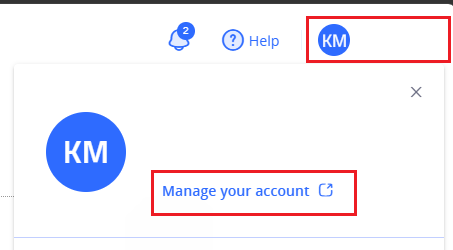
- If you want to add another Passkey, go to your Practice Protect profile in the top-right corner and select Manage your account
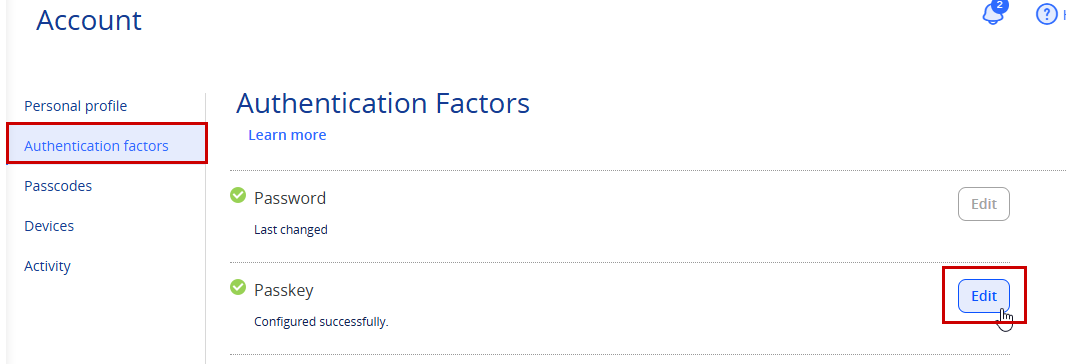
- In Authentication Factors, click Edit beside Passkey. This will take you to the Passkey page.
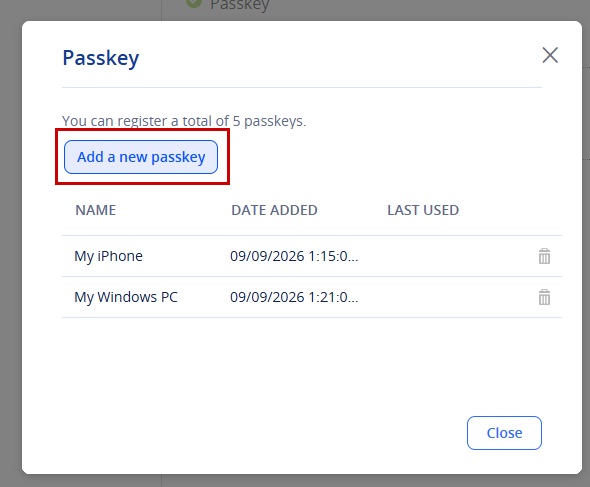
- You’ll see all your active or registered Passkeys. To add a new Passkey, click Add a new passkey and follow the instructions in the Setup Passkey section above.