
Purpose
This guide explains how to enable the autofill feature to automatically populate credentials in native apps on iOS and Android devices. The Idira Identity mobile app must be installed on the device to use this feature.
Prerequisites
- Idira Identity App: Ensure the app is installed on your mobile phone and that you are signed in. If you haven’t installed the app yet, follow the iOS installation guide or the Android installation guide.
- Practice Protect Administrator Access: Administrator access is required to enable the autofill configuration. You may also contact Practice Protect Support to enable this feature.
Instructions
- Sign in to your Practice Protect.
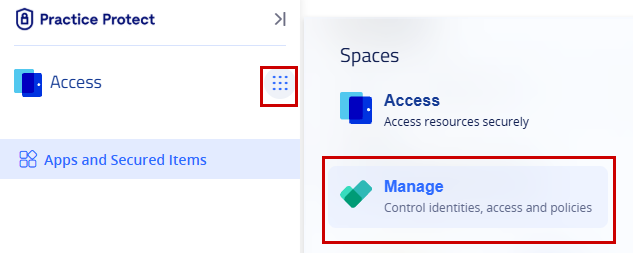
- In the Access space, click the nine-dot menu on the left-hand side of the screen, then select Manage.
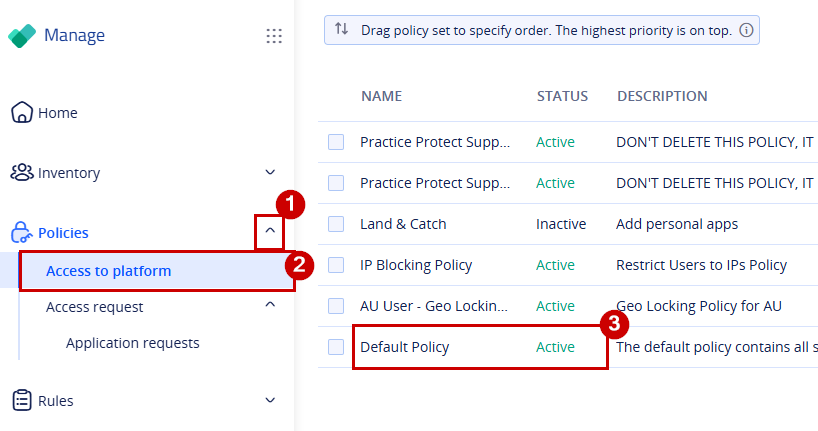
- In the left-hand navigation menu, click Policies, then select Access to Platform. This will open the page listing all available policies.
- Select the policy you want to enable autofill for (e.g., Default Policy, which applies the settings to all users).
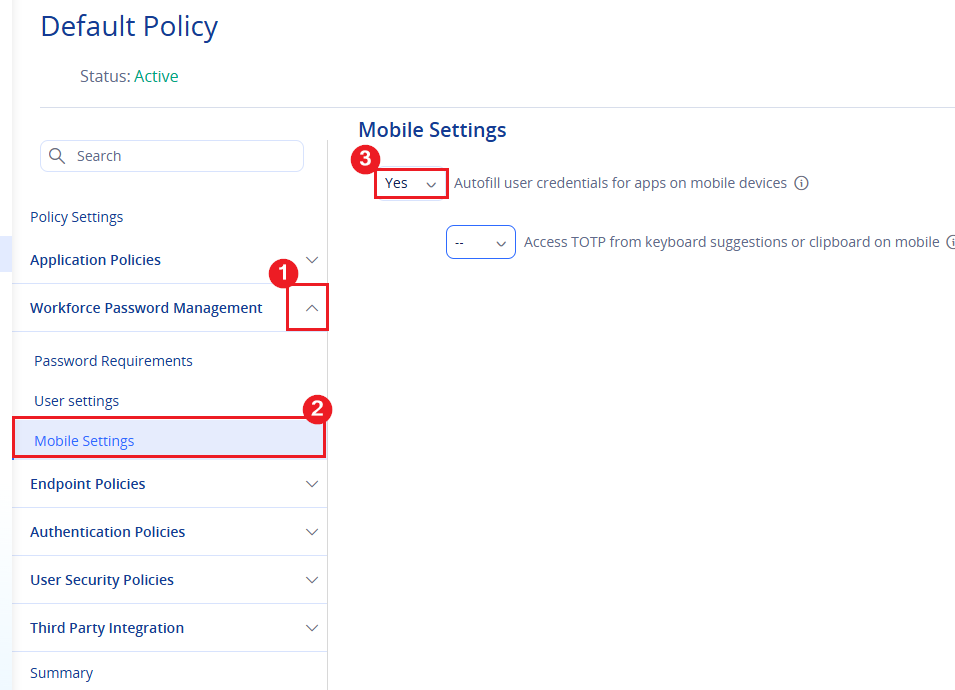
- Navigate to Workforce Password Management > Mobile Settings.
- Set Autofill user credentials for apps on mobile devices to Yes.
- Optional: Set Access TOTP from keyboard suggestions or clipboard on mobile to Yes if you want to enable this feature.
- Click Save in the bottom-right corner of the page.Once autofill is enabled, follow the setup instructions for your device type below to configure and use the autofill feature.
In Practice Protect, ensure that “Autofill user credentials for apps on mobile devices” is enabled in the policy settings. Once enabled, proceed with the steps below.
-
A notification will appear stating, “Your system administrator has enabled Autofill on your device. Go to your device settings to enable this feature.”
- Tap on Enable
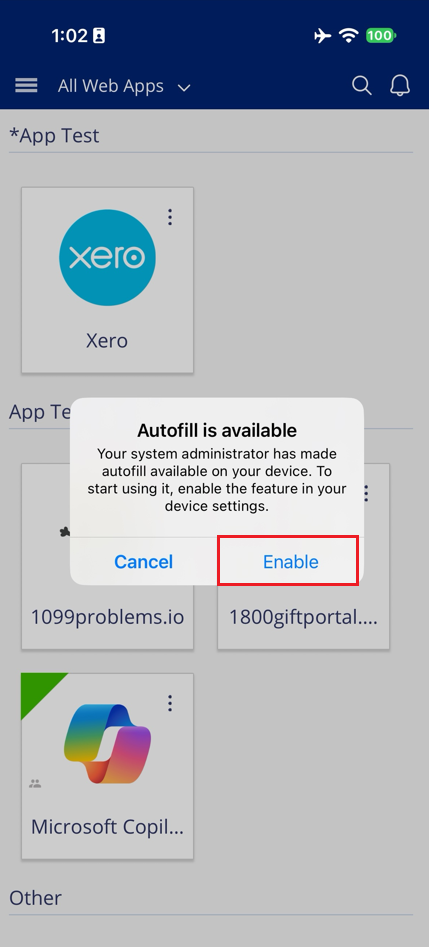
Note: If you accidentally tap Cancel, go to the app menu, open Settings, and enable Autofill manually. -
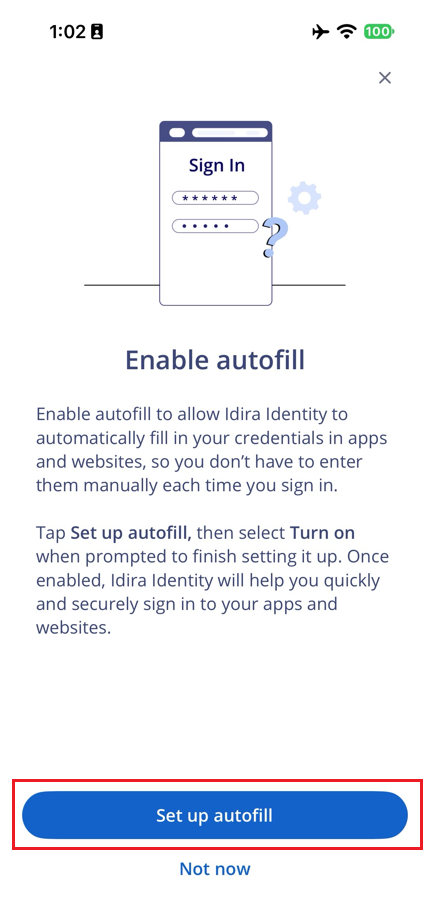
An on-screen instruction will appear. Tap Set up autofill to proceed.
-
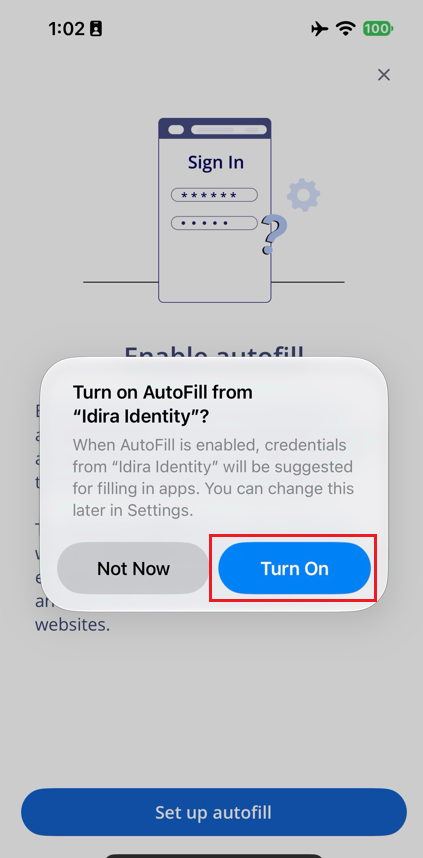
A small pop-up window will appear asking you to enable Autofill for Idira Identity. Tap Turn On to proceed.
-
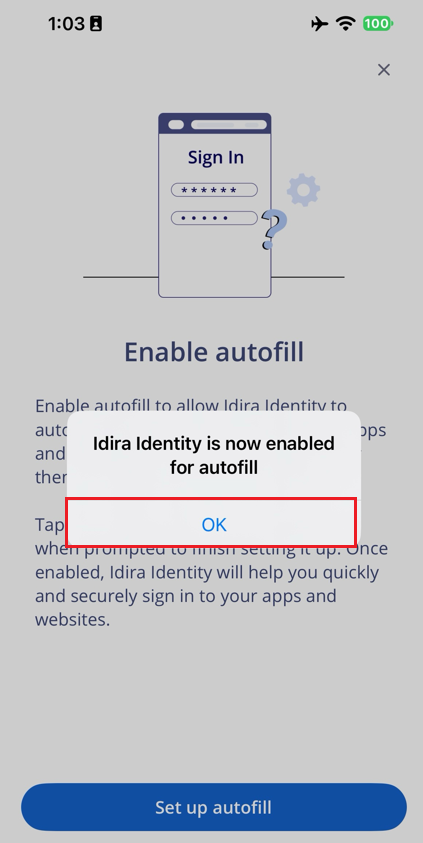
Once Autofill is enabled, you will receive a notification stating, “Idira Identity is now enabled for Autofill.” Tap OK.
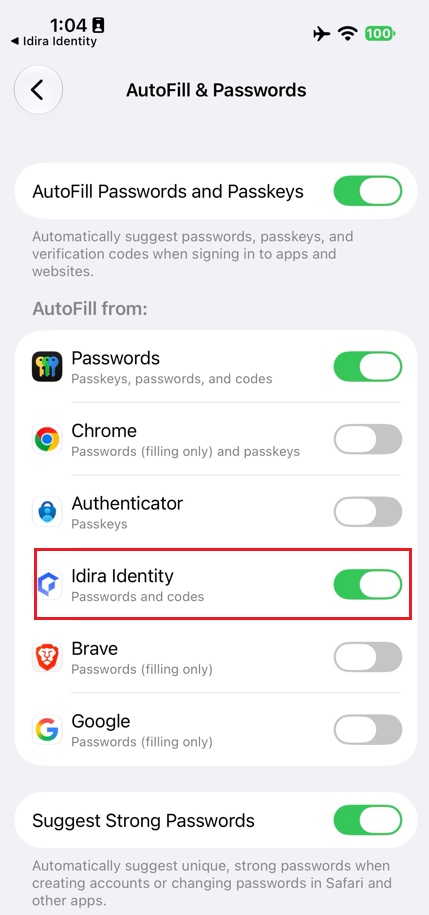
You can verify this setting in your iPhone’s Settings under General > AutoFill & Passwords.
In Practice Protect, ensure that “Autofill user credentials for apps on mobile devices” is enabled in the policy settings. Once enabled, proceed with the steps below.
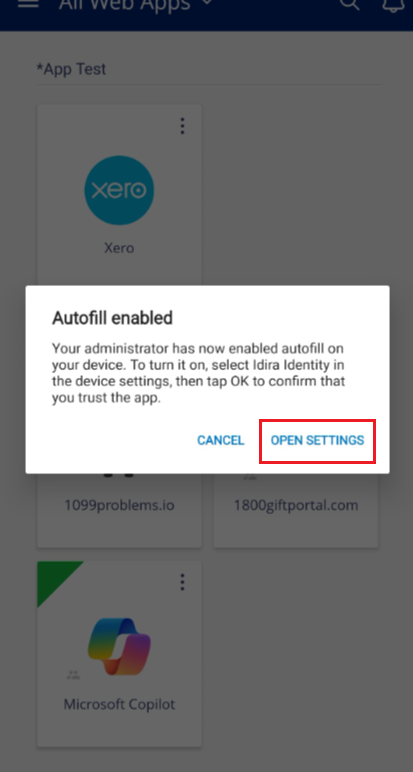
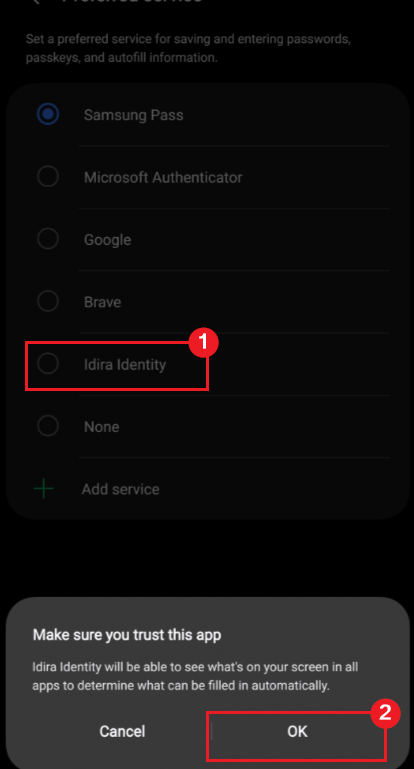
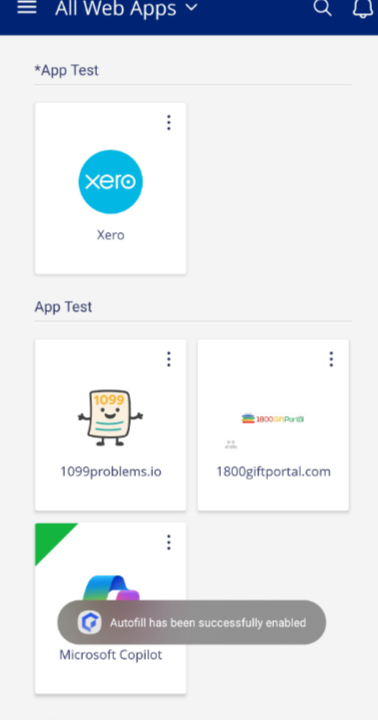
-
Open the mobile app you want to sign in to (e.g., Xero), then follow the steps below based on your scenario.
-
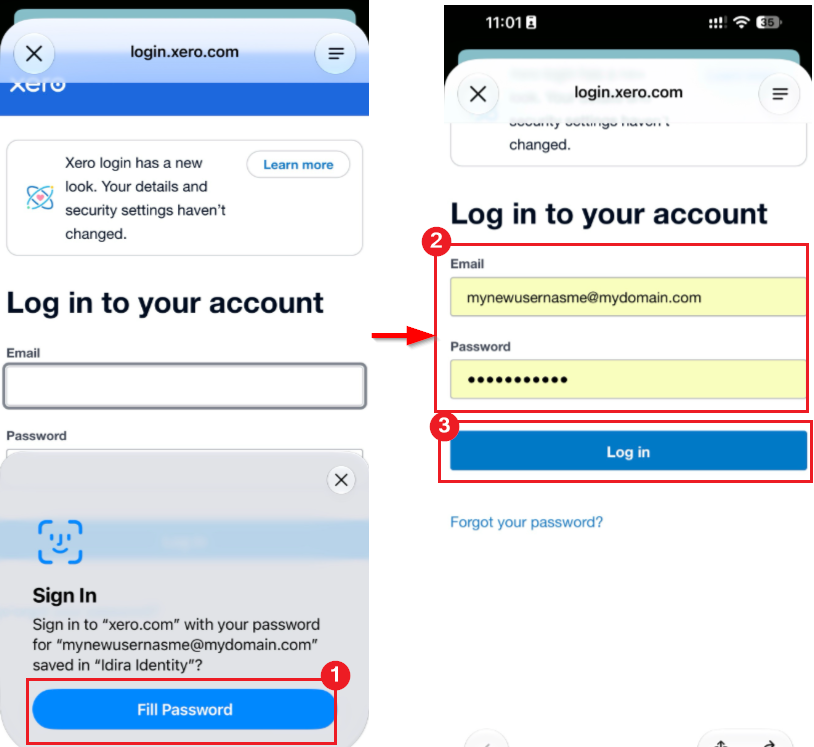
Scenario 1: Automatic Prompt
A prompt will appear with your saved Xero credentials from the Idira Identity (Practice Protect) app. Tap Fill Password and authenticate using Face ID, Touch ID, or your device passcode. Once authenticated, your credentials will be autofilled.
-
Scenario 2: Manual Password Autofill
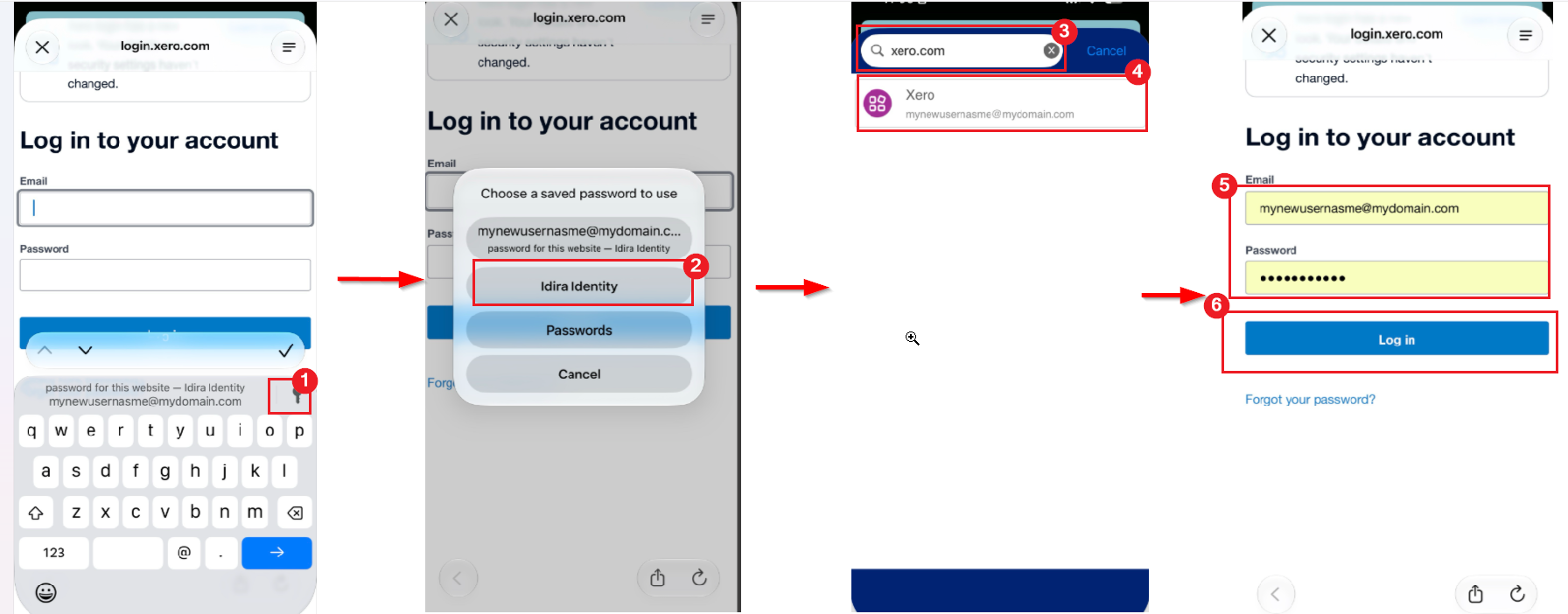
If no prompt appears, tap the username or password field, then tap the Password key icon on the keyboard. Select Idira Identity from the prompt and authenticate using Face ID, Touch ID, or your device passcode. Search for the saved app credentials in Idira Identity and select the relevant credential to autofill the login details.
-
Following these steps should autofill your saved credentials.
Note:
If you cannot find the required credentials, they may not be saved in Practice Protect for your account.
If the steps do not work, please contact Practice Protect Support for assistance.
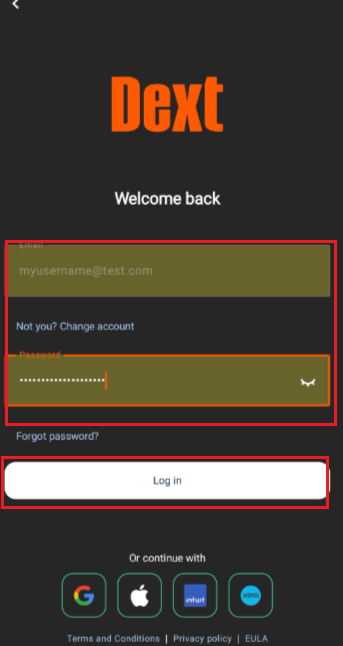
- Open the mobile app you want to sign in to (e.g., Dext ), then follow the steps below based on your scenario.
-
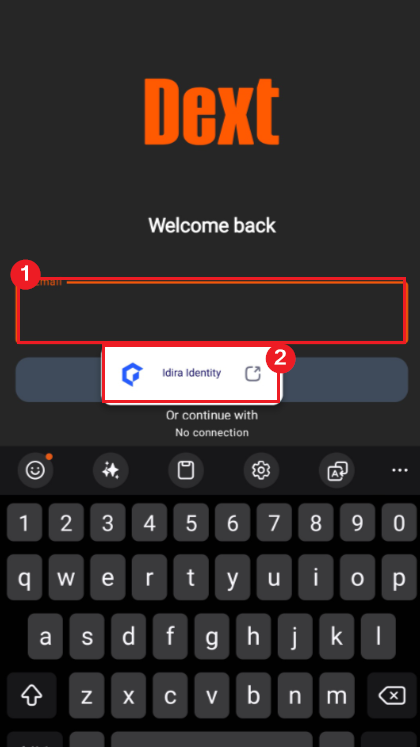
Tap the username or password field. A suggestion pop-up will appear showing Idira Identity. Tap it to access your saved credentials.
-
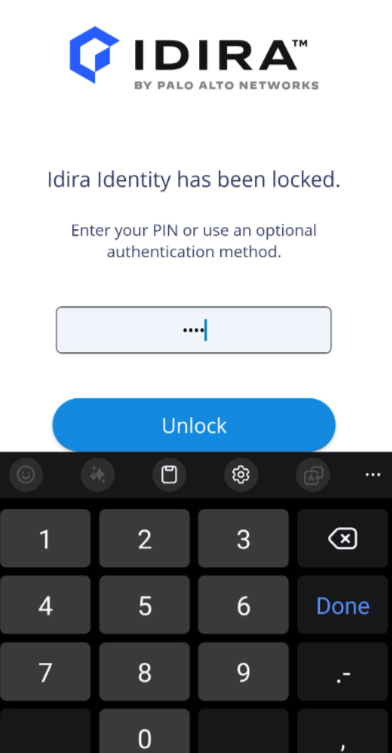
Authenticate using your device’s fingerprint, face recognition, or passcode. Alternatively, enter the PIN you set up in the Idira Identity app, then tap Unlock.
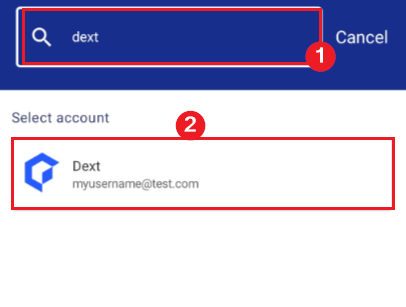
- Select the correct login account for your app (e.g., Dext). If it doesn’t appear in the list, search for the app.
-
Your login credentials (username and password) should now autofill automatically. Some apps may redirect you to a separate window to enter your password. If this happens, tap the password field and select Idira Identity again, following the steps above to autofill your password.
-
Following these steps should autofill your saved credentials.
Note:
If you cannot find the required credentials, they may not be saved in Practice Protect for your account.
If the steps do not work, please contact Practice Protect Support for assistance.