
Purpose
This guide explains how Password Admins can enable and configure Passkey authentication in Practice Protect, allowing users to register and use passkeys to securely sign in.
Passkeys provide a secure, passwordless authentication method that allows users to sign in using a trusted device, such as a mobile phone (iOS or Android), computer, or security key. Passkeys are designed to be phishing-resistant and are protected by the user’s device authentication, such as Face ID, fingerprint, or PIN.
Once Passkey authentication is enabled and configured by the Password Admin, users can register a passkey from their account and use it to sign in to Practice Protect.
Users can register up to 5 passkeys on supported devices.
This guide covers the administrator configuration required to enable Passkey authentication. For instructions on how users can register and use a passkey after it has been enabled, see the Sign In with a Passkey guide.
Prerequisites
- Admin access to Practice Protect, with access to the Manage space.
Instructions
- Sign in to your Practice Protect.
- From the Access space, click the navigation menu on the left-hand side of the screen, then select Manage.
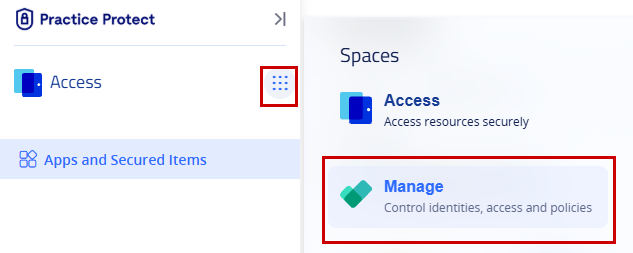
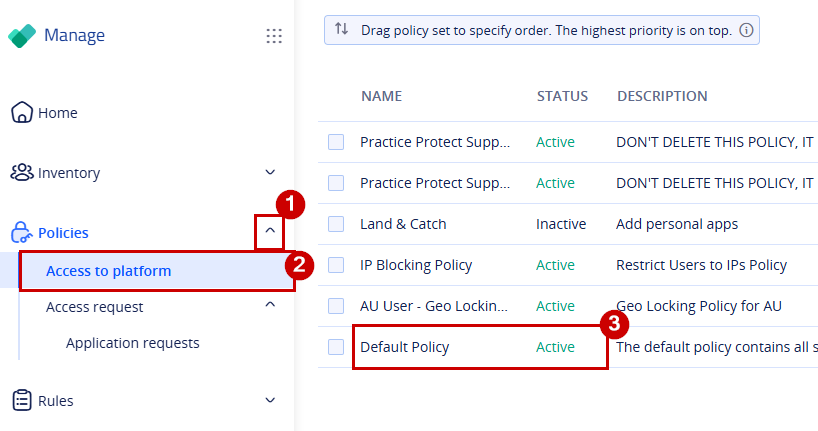
- In the Manage space, navigate to Policies > Access to platform.
-
Select the policy where you want to enable Passkey authentication. In this example, we will apply the setting to the Default Policy, which applies to all users unless the setting is overridden by a higher-priority policy.
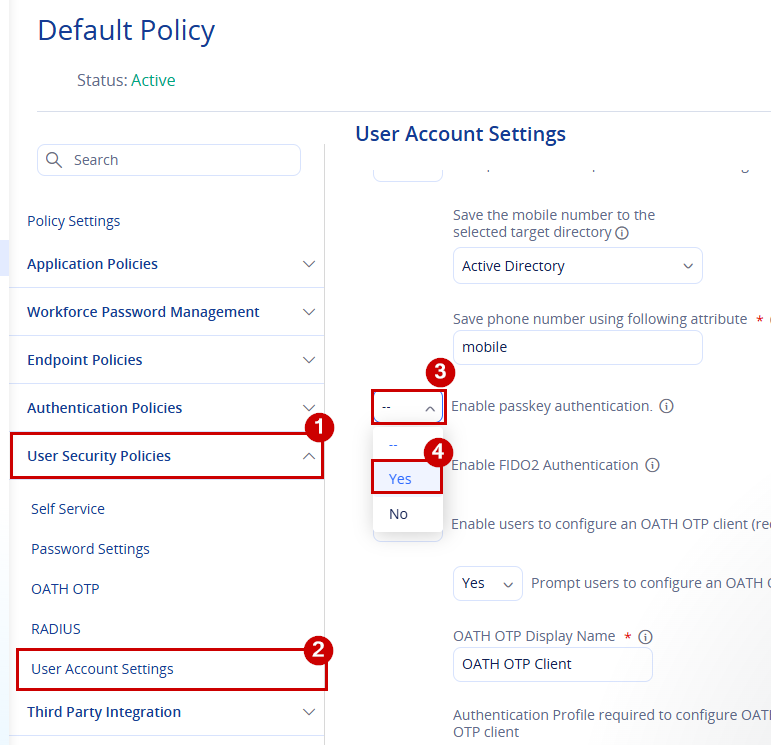
- In the policy, go to User Security Policies > User Account Settings.
- Select Yes next to Enable passkey authentication. This will display the additional Passkey authentication options.
- Select Yes to Enable passkey enrollment.
- (Optional) To enforce users to set up a passkey, select Yes for Prompt users to set up a passkey on login.
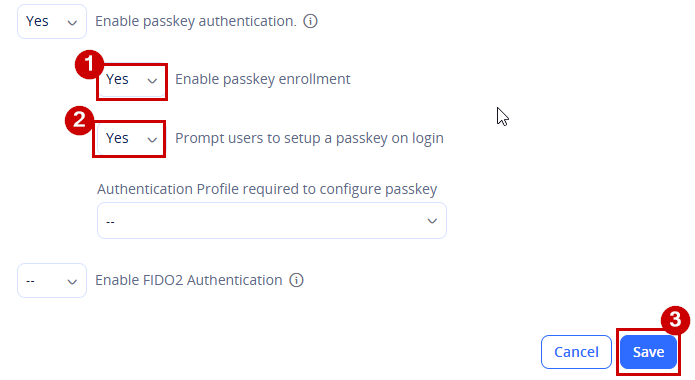
- Click Save in the bottom-right corner.
- Next, switch to the Setup space.
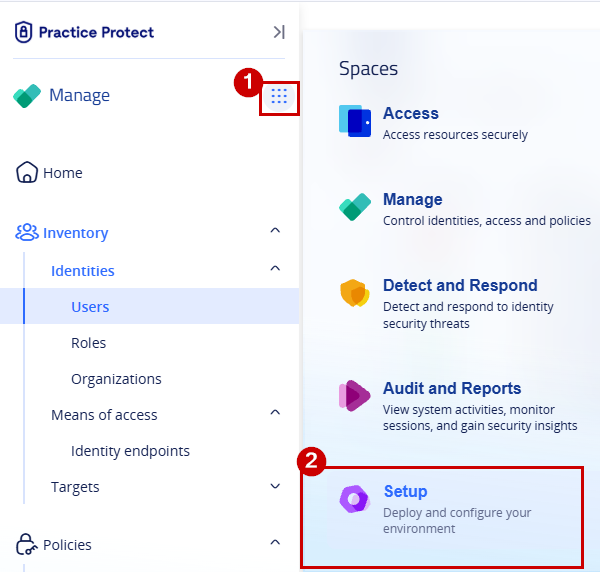
- Go to Security > Authentication and select Security Settings.
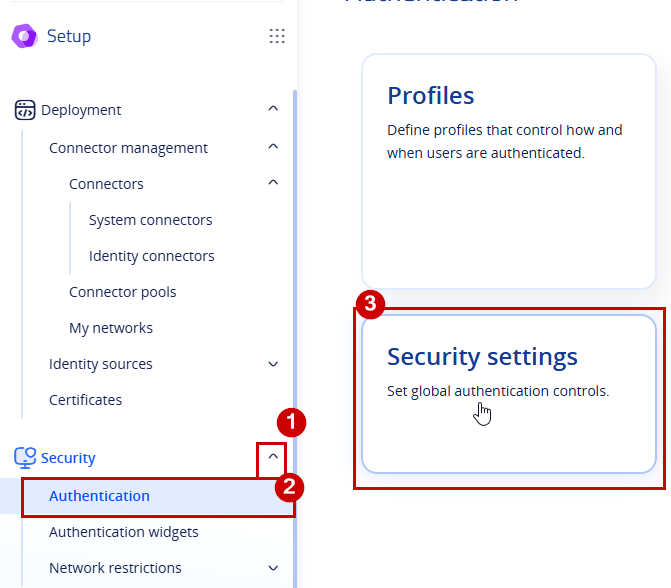
- Tick the checkbox for Enable passkey authentication on login screen.
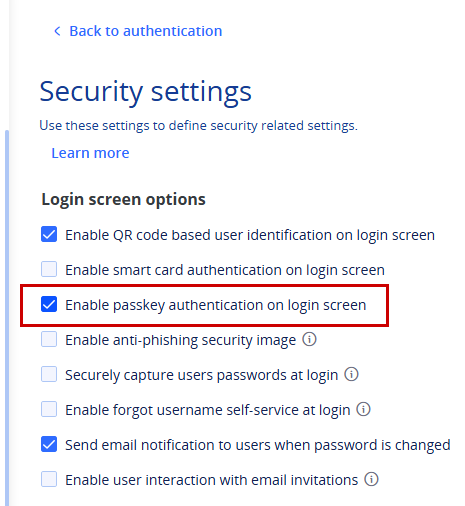
- Click Save.
- Return to Security > Authentication and select Profiles.
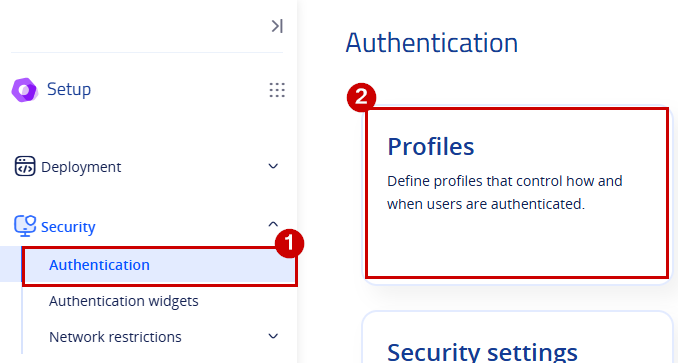
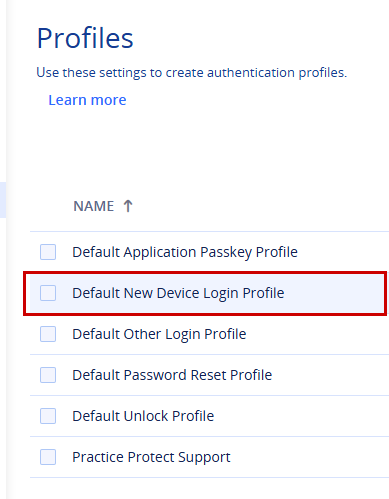
- In Authentication Profiles, select the Login Profile that is currently active and in use. In this example, we will use the Default New Device Login Profile.
- In the selected profile, scroll to the bottom, locate Single Authentication Mechanism, tick Passkey, and select OK to apply the changes.
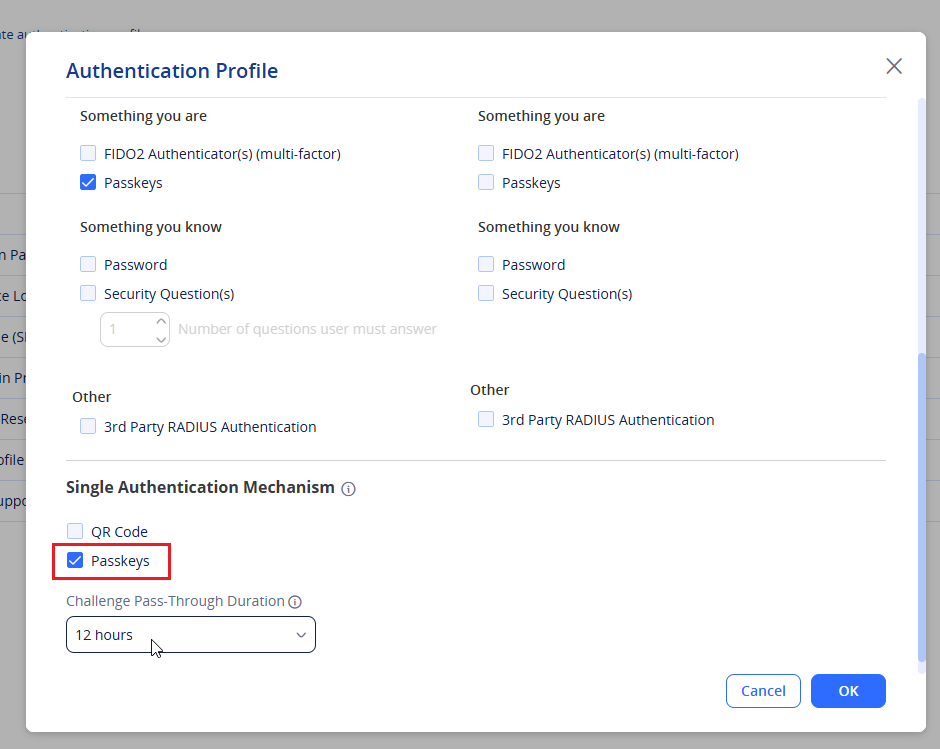
IMPORTANT! Repeat this step for each active authentication profile that is currently in use. - The Passkey authentication configuration is now complete. Users can register and use a passkey to sign in to Practice Protect.