
Purpose
This guide explains how to create a user account in Practice Protect when Microsoft 365 provisioning is enabled.
When a new user is added in Practice Protect, the account is synchronized to Microsoft 365 through outbound provisioning, automatically creating the corresponding Microsoft 365 user account. Please note that Practice Protect does not provision or assign Microsoft 365 licenses by default.
The following functions and attributes are managed and synchronized from Practice Protect to Microsoft 365:
- Microsoft 365 Account Creation – New user accounts are created in Microsoft 365 through Practice Protect. This is particularly important for federated domain only, where user accounts can no longer be created directly in the Microsoft 365 Admin Center.
- Display Name – The display name configured in Practice Protect is synchronized to and reflected in Microsoft 365.
- Primary Email Address / User Principal Name (UPN) – Changes made in Practice Protect will update both the user’s primary email address and User Principal Name in Microsoft 365.
- Immutable ID – A unique identifier generated by Practice Protect and synchronized to Microsoft 365. This attribute is used to establish and maintain the identity relationship between the user account in Practice Protect and Microsoft 365, ensuring reliable authentication and synchronization.
All other user attributes, mailbox settings, licensing, group memberships, and Microsoft 365-specific configurations are managed directly within Microsoft 365.
Prerequisites
- Microsoft 365 Federation or Email Integration is enabled
- User account with system administrator access in Practice Protect
Instructions
-
Create a Cloud Directory user account through Practice Protect by following the steps outlined in this guide. If you’d prefer, our Practice Protect Support Team can create the account on your behalf. Simply reach out to us, and we’ll be happy to assist.
-
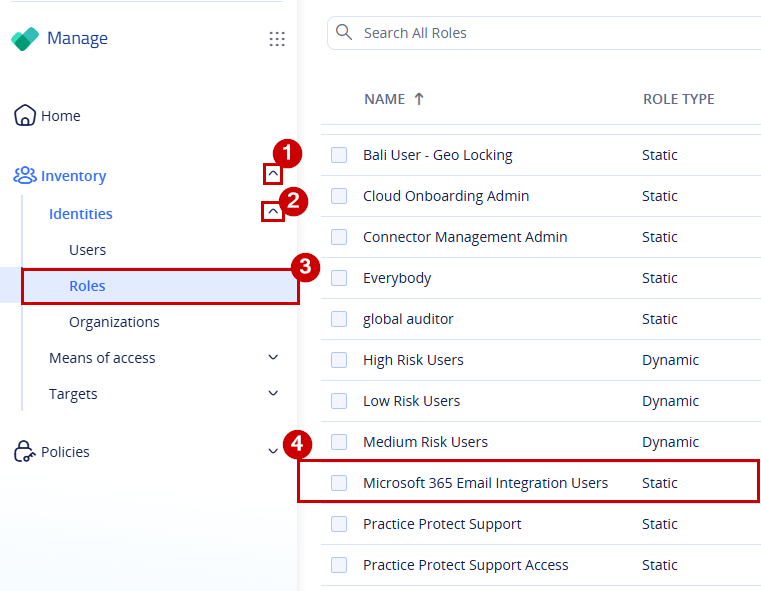
Once the user has been created, switch to Manage Space (if you are not already there), then navigate to Inventory > Identities > Roles.
-
Locate and select the role used for mapping the user to the email integration. In most environments, this role is named Microsoft 365 Email Integration Users.
-
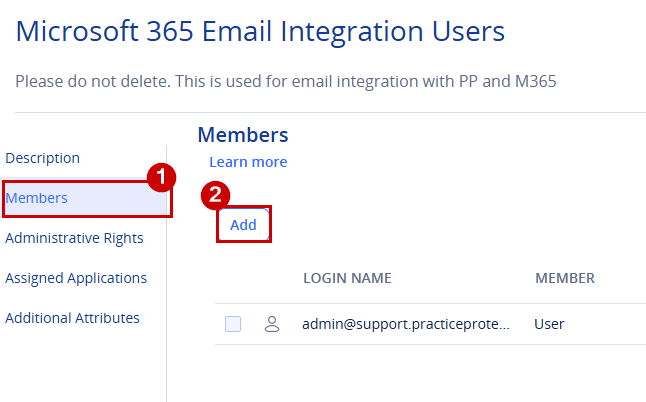
Go to Members and click Add to include the newly created user.. This is to apply the integration and syncs the user to Microsoft 365
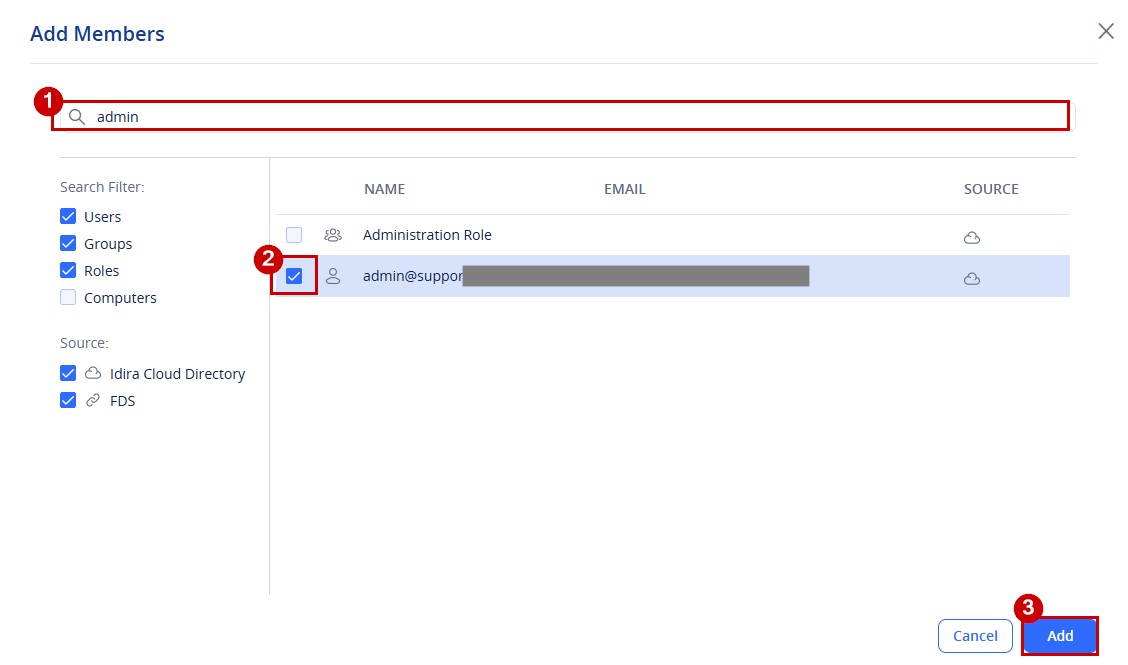
- Locate the user by searching for their account, select the user from the results, then click Add and Save to assign them to the role.
-
Next, navigate to Inventory > Identities > Users. Locate the newly created user and tick the checkbox next to their name. A menu will appear in the top-right corner of the page.
-
Click the three-dot (•••) menu, then select Sync All Apps from the available options.
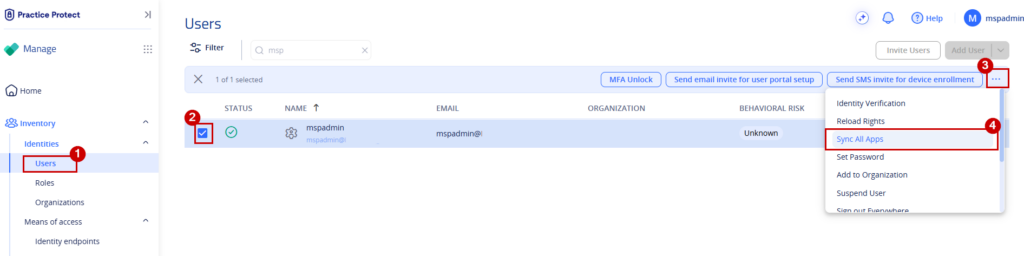
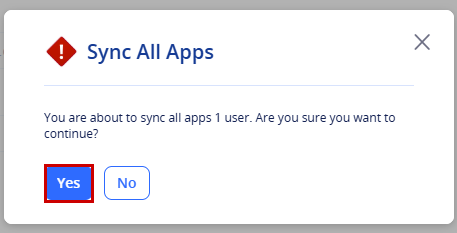
- Click Yes to confirm and start the synchronization process.
-
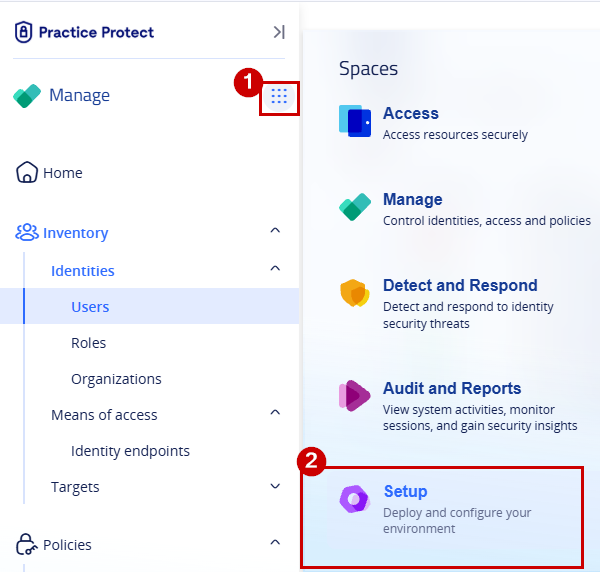
To check the synchronization status, click the menu next to Manage and select Setup.
-
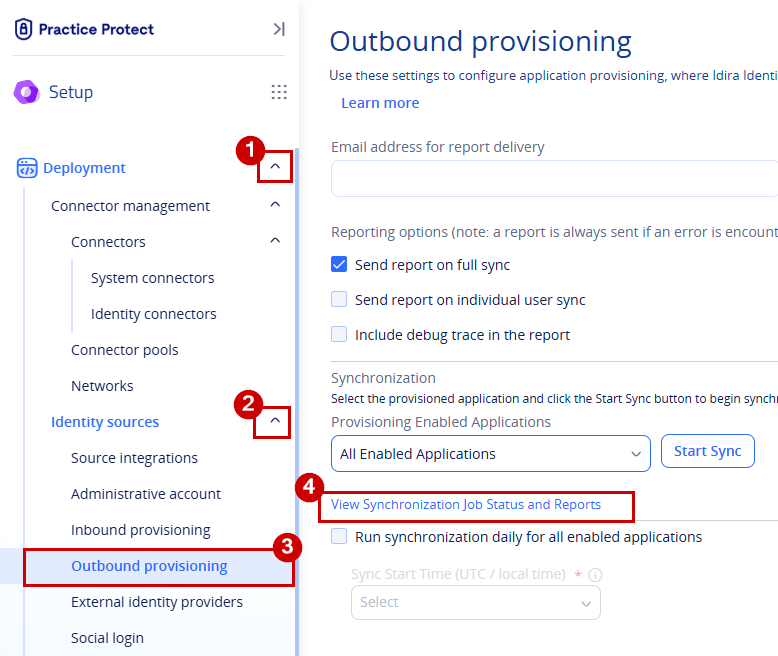
From the Setup space, expand Deployment, then open the Identity sources dropdown and select Outbound provisioning.
- Click View Synchronization Job Status and Reports.
-
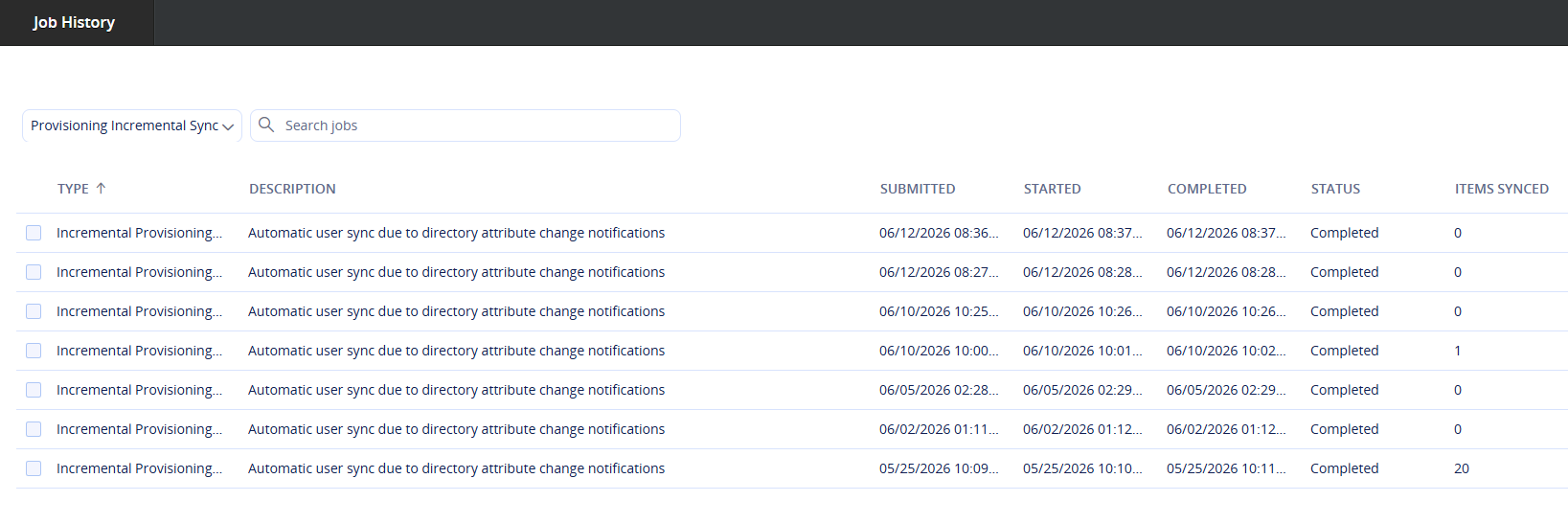
Verify that the user’s synchronization has completed successfully. If you have administrative access to Microsoft 365, confirm that the user account appears in the Microsoft 365 Admin Center. If you do not have access, your IT provider or Microsoft 365 administrator can verify that the synchronization was successful.
-
Once the user account is visible in Microsoft 365, the federated user creation process is complete. Important: Microsoft 365 licenses are assigned directly through the Microsoft 365 Admin Center and cannot be assigned through Practice Protect. This step must be completed by your IT provider or a user with administrative access to Microsoft 365.