
Purpose
This guide explains how to check whether your Windows device is joined to Microsoft Entra ID. You can check the device directly through Windows Settings or, if you have administrator access, through the Microsoft Entra admin center.
Instructions
- Open Settings on your Windows device.
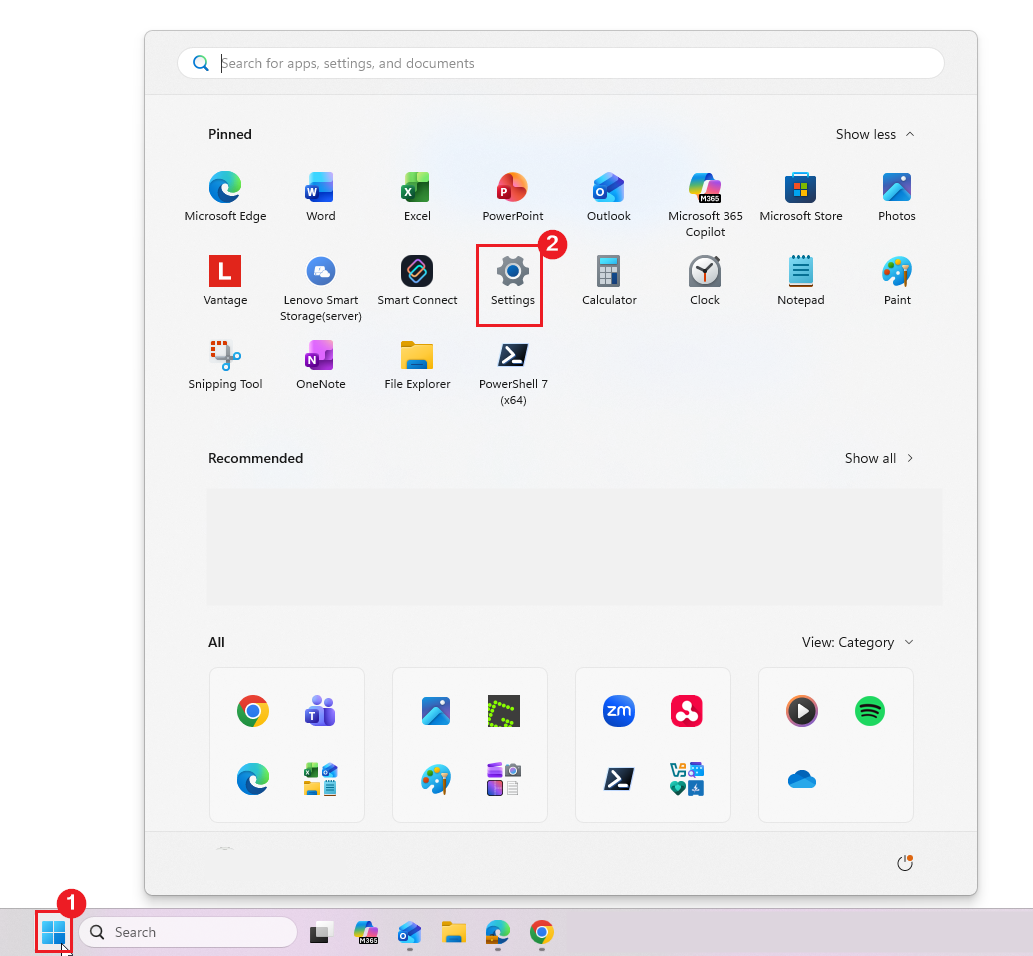
-
Go to Accounts > Access work or school.
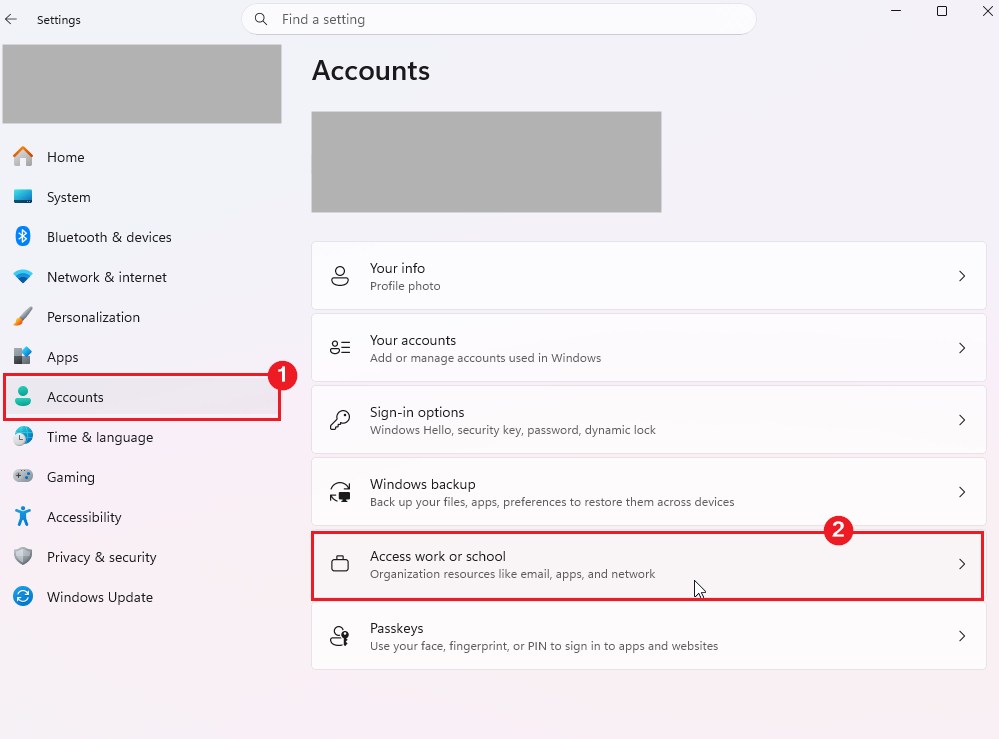
-
Find your organisation’s work account and check how it is displayed.
-
Microsoft Entra joined: If the account shows Connected to [Organisation], the device is Microsoft Entra joined.
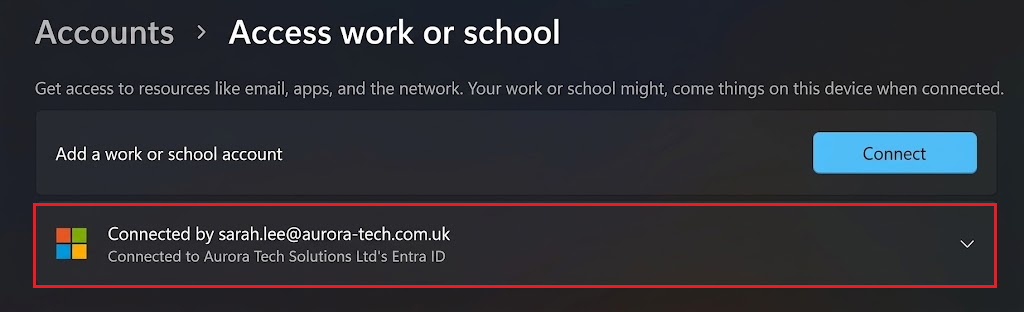
-
Microsoft Entra registered: If the account shows as a Workplace or school account, the device is Microsoft Entra registered rather than joined.
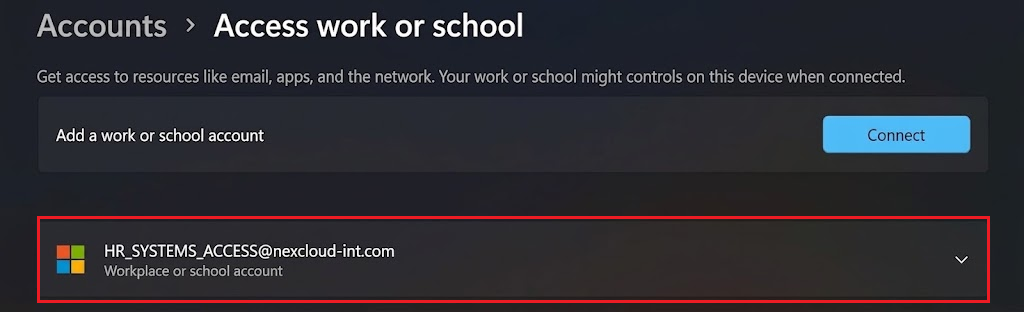
-
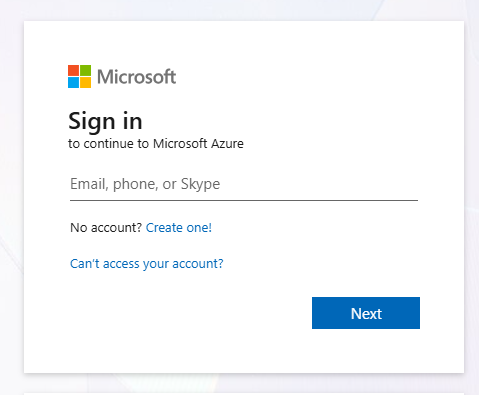
- Sign in to the Microsoft Entra admin center using an administrator account.
- Navigate to Entra ID > Devices > All devices.
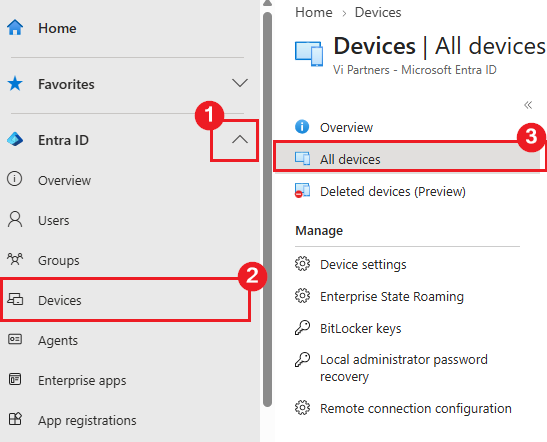
- On the All devices page, you will see a list of devices registered in your organisation’s Microsoft Entra tenant. Locate the Windows device you want to check
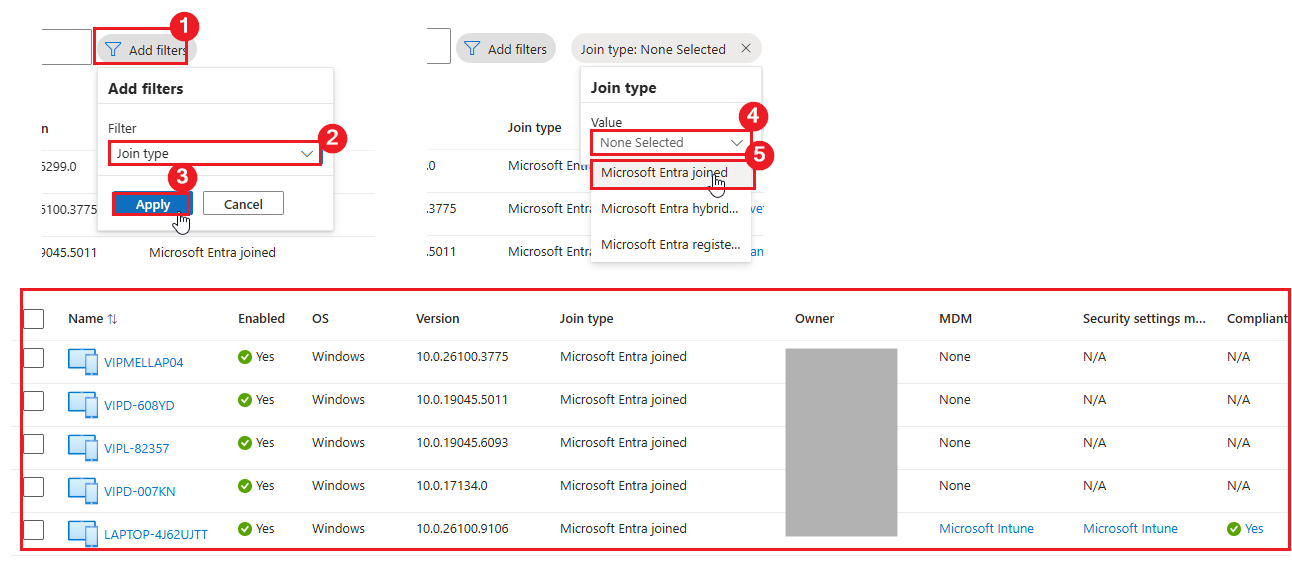
- Check the Join type field to determine the device’s join status:
- Microsoft Entra joined: The device is joined directly to Microsoft Entra ID.
- Microsoft Entra hybrid joined: The device is joined to both on-premises Active Directory and Microsoft Entra ID.
- Microsoft Entra registered: The device is registered with Microsoft Entra ID but is not joined.

- (Optional) If you need to identify multiple devices with a specific join status, select Add filters on the All devices page and filter by Join type. Select the relevant join type to display matching devices.
Note: If the device does not appear in the list, verify the device name and confirm that you are viewing the correct Microsoft Entra tenant. Your account must also have sufficient permissions to view the device.
Need Help?
If you are unsure how to interpret the results, provide a screenshot of the relevant information to your IT support team or Practice Protect support