
Purpose
This guide explains how to set up the Microsoft Entra ID SAML integration with provisioning. With this configuration, user accounts will be provisioned from Entra ID and users will sign in to the Practice Protect portal using their Microsoft 365 account. As Microsoft Entra will control the authentication, it’s recommended to have MFA and Conditional Access policies in-place. Optionally, MFA can still be enforced on the Practice Protect platform for additional security.
Take note, if your tenant was created before 2nd May 2025, our team needs to make a configuration change on the Practice Protect tenant in order new user accounts to successfully provision to the portal. Please reach out to our support team to have this completed. While this is occurring, you can continue with the following article.
Pre-requisites
-
Microsoft Entra ID P1 is an optional pre-requisite. This license will allow groups to be assigned to the Entra Enterprise Application that controls user provisioning. Combined with dynamic security groups, this can streamline the management of user accounts across both systems. Without Entra ID P1 licensing, the integration and provisioning will continue to work however user accounts will need to be manually added and removed from the Entra ID Enterprise Application.
- Conditional Access Policies should be configured to enforce Multi-Factor Authentication (MFA) and apply country or IP based restrictions on the Microsoft 365 user accounts.
- System Administrator privileges in Practice Protect
- Enterprise Application Administrator, Groups Administrator and User Administrator privileges in Microsoft Entra ID
- Usernames in Entra ID match the usernames in Practice Protect
Instructions
- Sign in to your Practice Protect.
- From the Access space, click the navigation menu on the left-hand side of the screen, then select Setup.
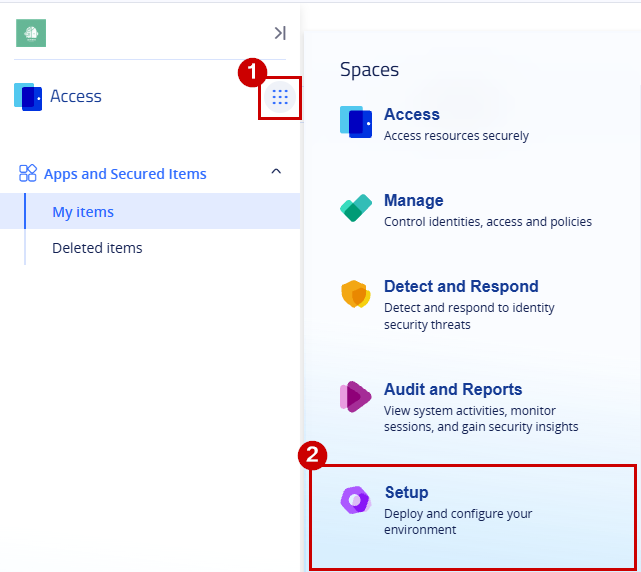
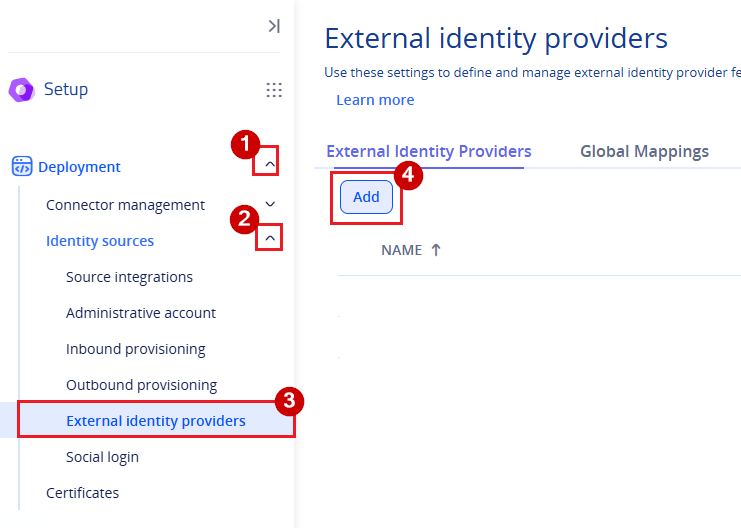
- In the Setup Space, expand Deployment, then expand Identity Sources and select External Identity Providers.
- Click Add.
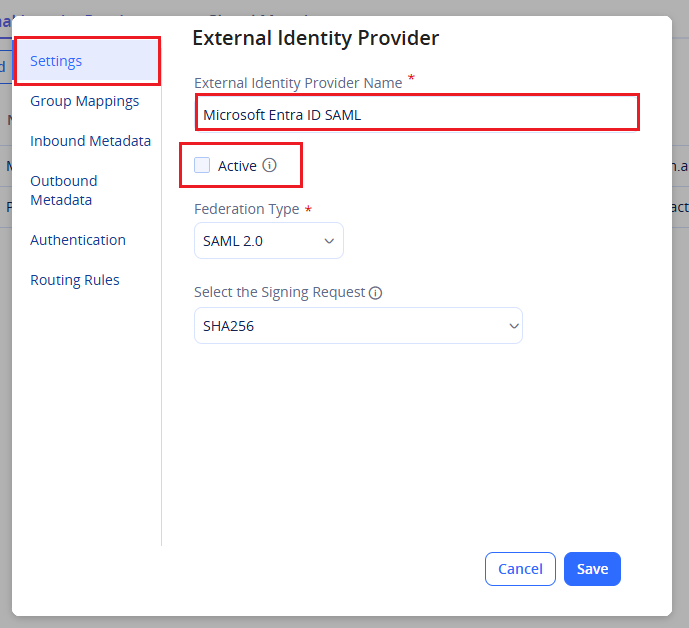
- In the Settings, enter Microsoft Entra ID SAML as the External Identity Provider name.
- Untick the Active tick box. This ensures that logins to Practice Protect are not redirected to Microsoft until the configuration is complete.
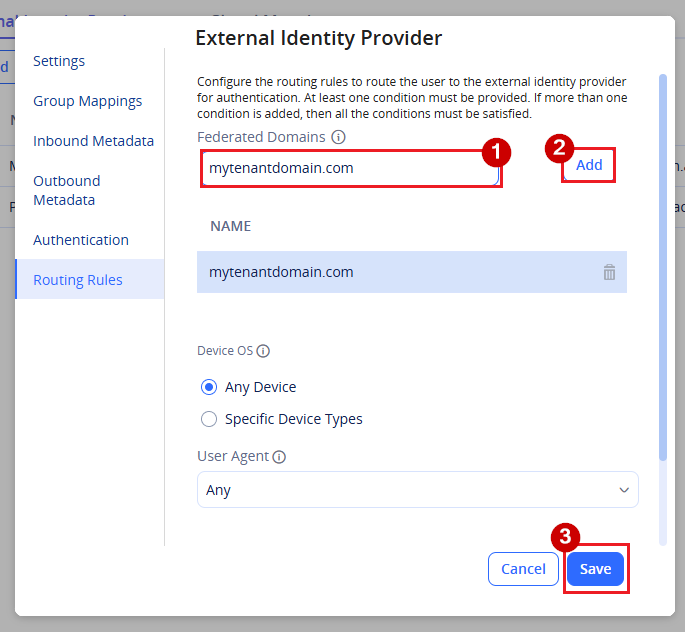
- Go to Routing Rules under the Authentication section, click on Add.
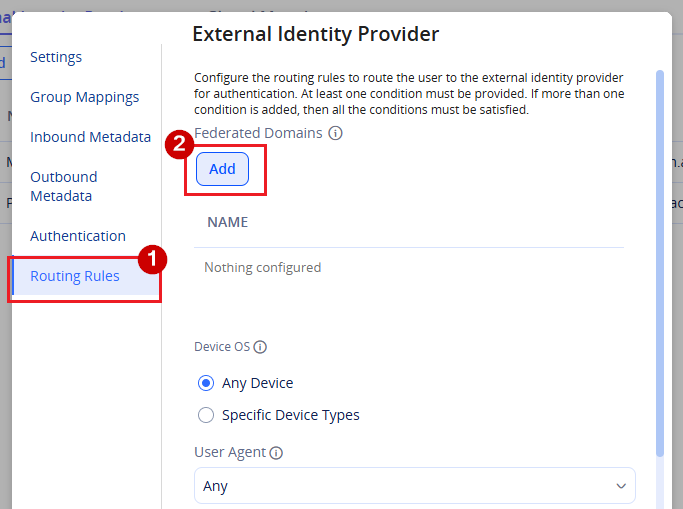
- Enter the domain names that should be included in this integration in the Federated Domains list. Any domains listed here will redirect to Microsoft for authentication when accessing Practice Protect.
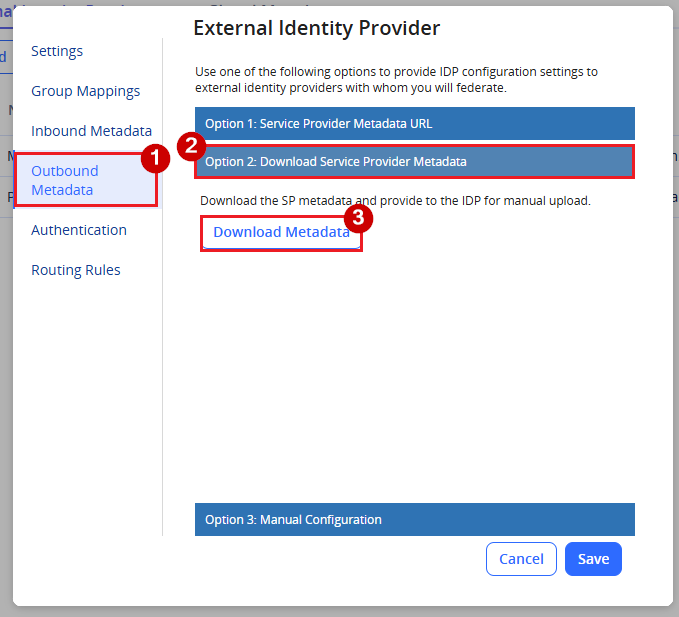
- Go to Outbound Metadata, select Option 2: Download Service Provider Metadata, then click Download Metadata. Do not save the configuration yet.
- Open another tab in the browser and sign in to Microsoft Entra Admin Center
-
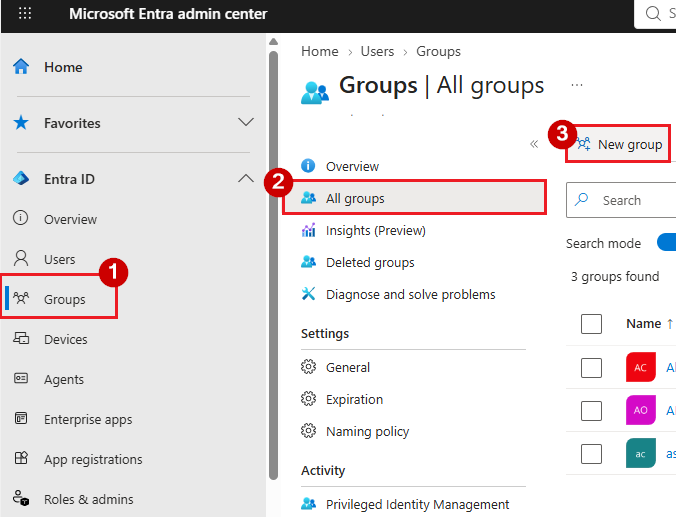
On the left menu, go to Groups > All groups and click New group to create a new security group for the SAML application.
Note: Skip this step if you are using the Microsoft Entra ID Free license. Security groups can only be assigned to Entra applications with a Microsoft Entra ID P1 license or higher. Instead, you will need to assign users directly to the application.
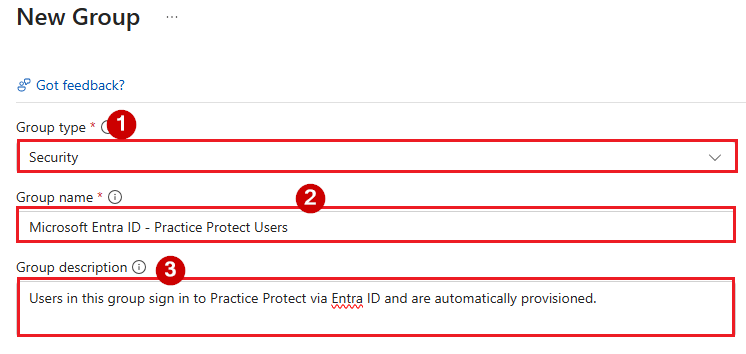
- Configure the group with the below details
-
Group Type: Security
- Group Name: Microsoft Entra ID – Practice Protect Users
- Group Description: Users in this group sign in to Practice Protect via Entra ID and are automatically provisioned.
- Membership Type: (Choose based on your organization’s requirements)
-
- Once you choose the membership type (either Assigned or Dynamic), make sure that the intended members are added to the group.
- Assigned Membership:
Suitable for smaller organizations or where manual control is preferred. If using Assigned membership, ensure that all required users are manually added as a member to the group.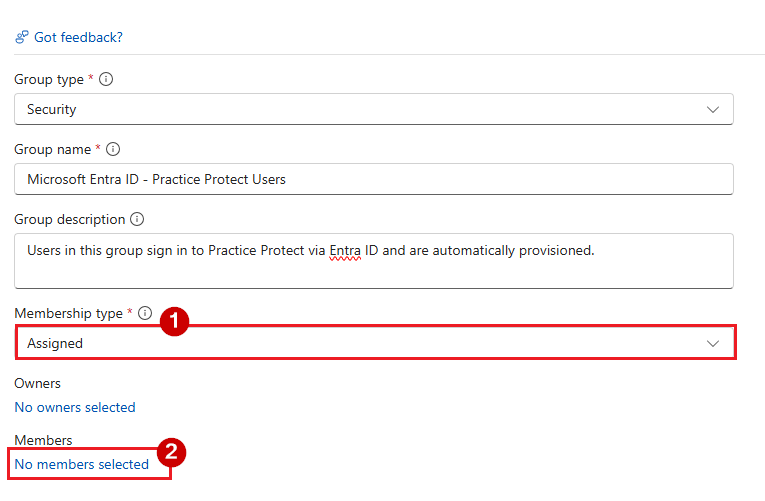
- Dynamic User Membership:
Add a dynamic query to automatically manage group membership. This is ideal for larger environments or those looking to automate user management. Users who match the defined query are automatically added to the group, while users who no longer match are removed. This is recommended for streamlined user management.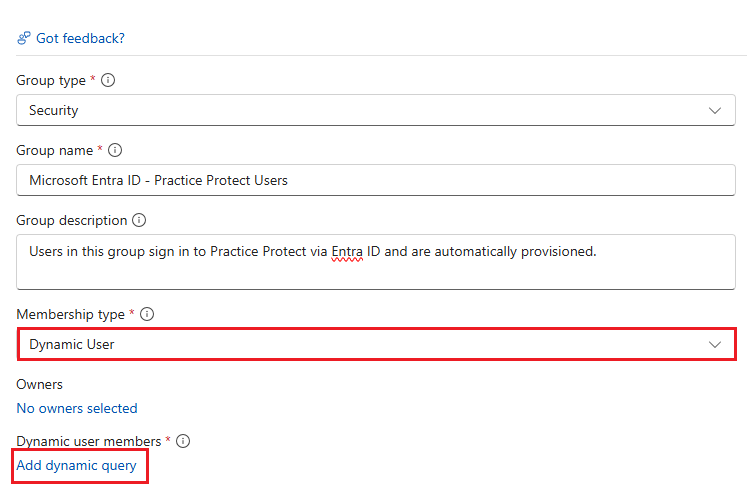
- Assigned Membership:
- Click Create to finish setting up the group.
-
On the left menu, navigate to Enterprise applications > All Applications. Click on New application at the top of the page.
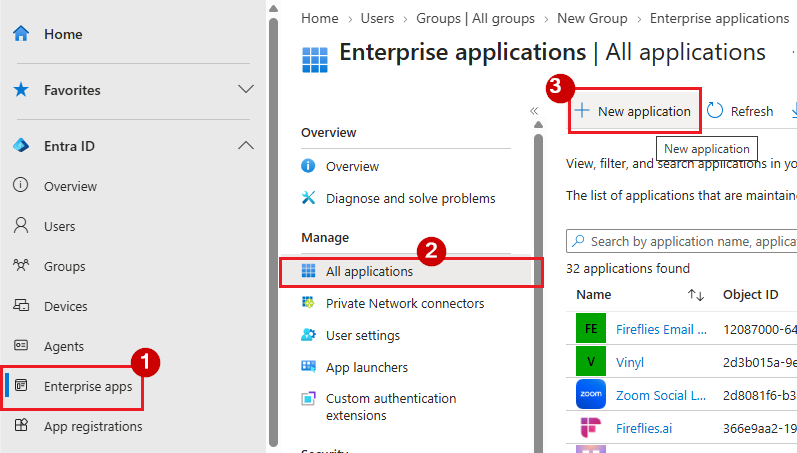
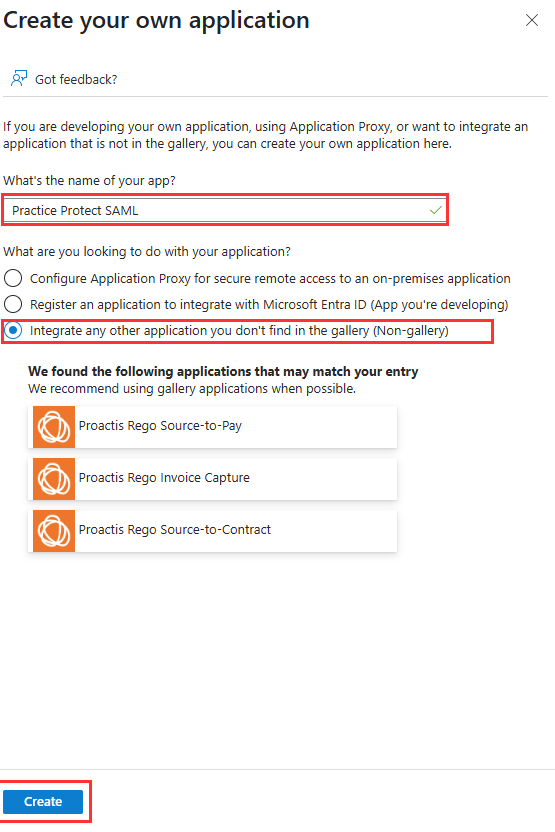
- Click Create your own application.
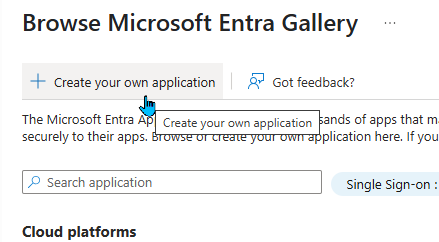
- Enter Practice Protect SAML as the Application name.
- Select Integrate any other application you don’t find in the gallery (Non-gallery).
- Click on Create.
- Navigate to the Users and groups section in the application’s sidebar. Click on Add user/group at the top.

- To add a group in Microsoft Entra, click on None Selected under Users and groups, then type the group name (e.g., Microsoft Entra ID Practice Protect) in the search bar. Once the group appears, check the box next to it, and finally, click the Select button to confirm.
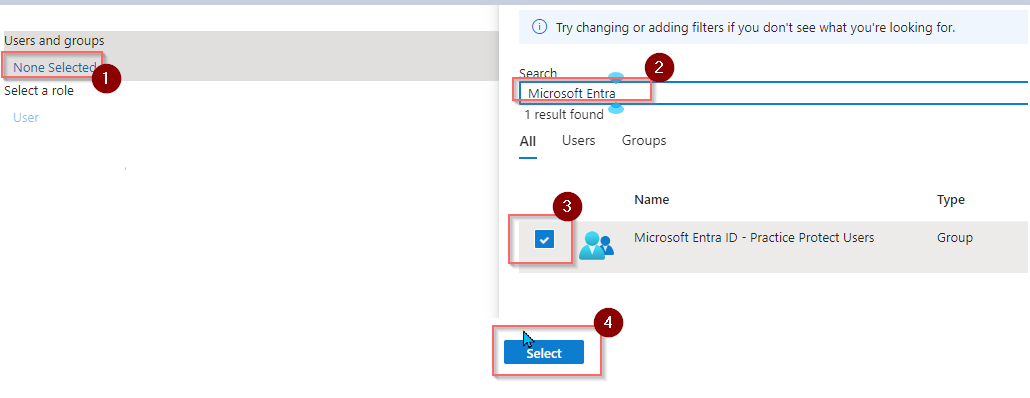
Note: If you’re using the Microsoft Entra ID Free license, you won’t be able to assign groups to the SAML application. In this case, you must manually add each user who needs access to the application.
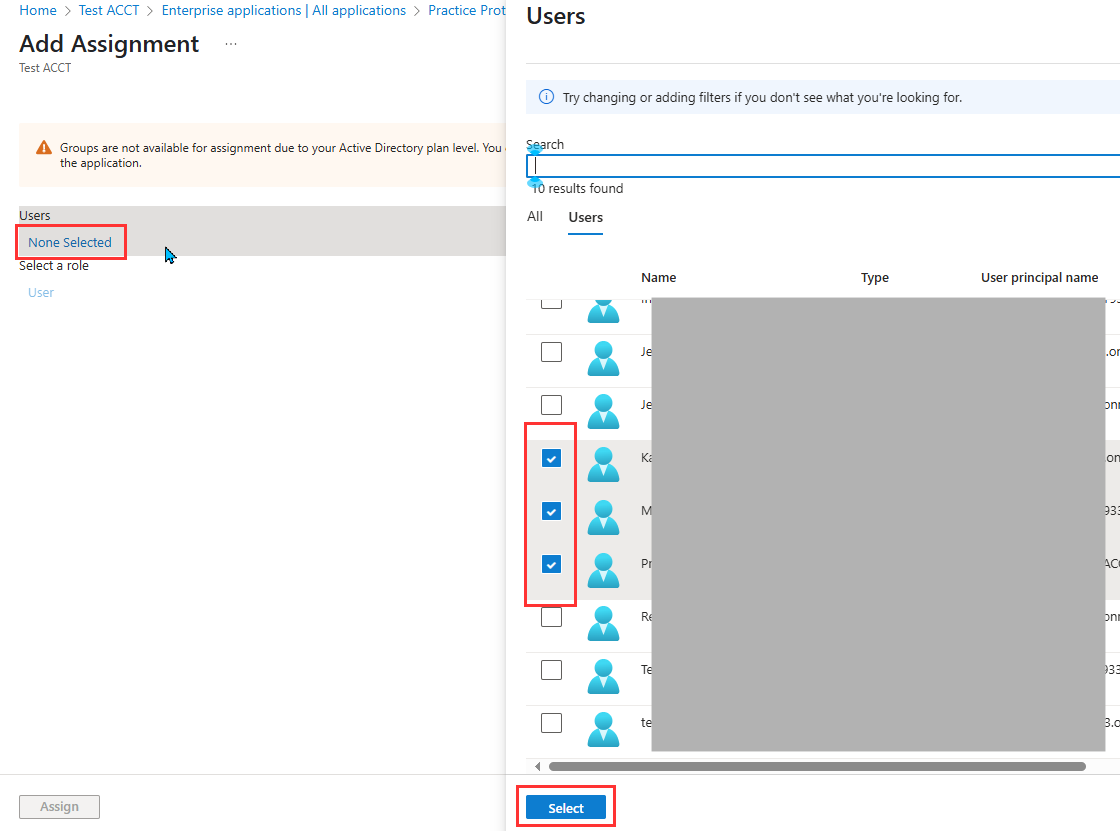
- Click Assign.
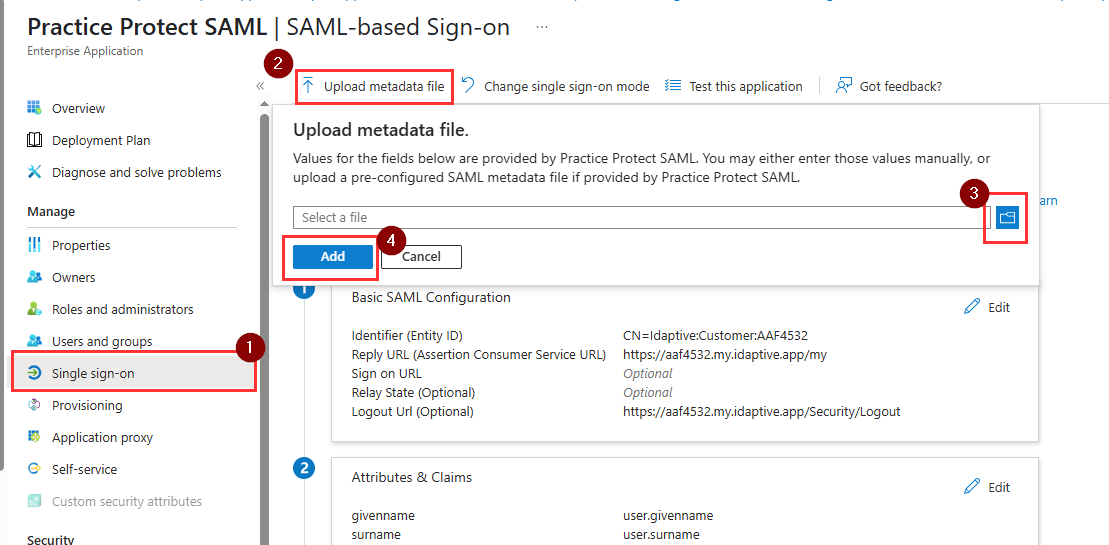
- Go to Single Sign-on. Choose SAML as the Single Sign-On method
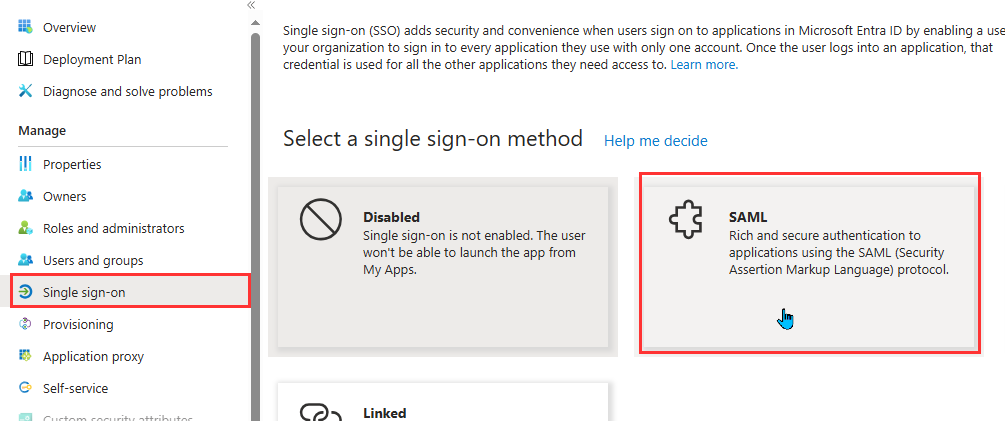
- On the SAML page, click on Upload metadata file.
- Upload the file you downloaded from the step earlier then click Add.
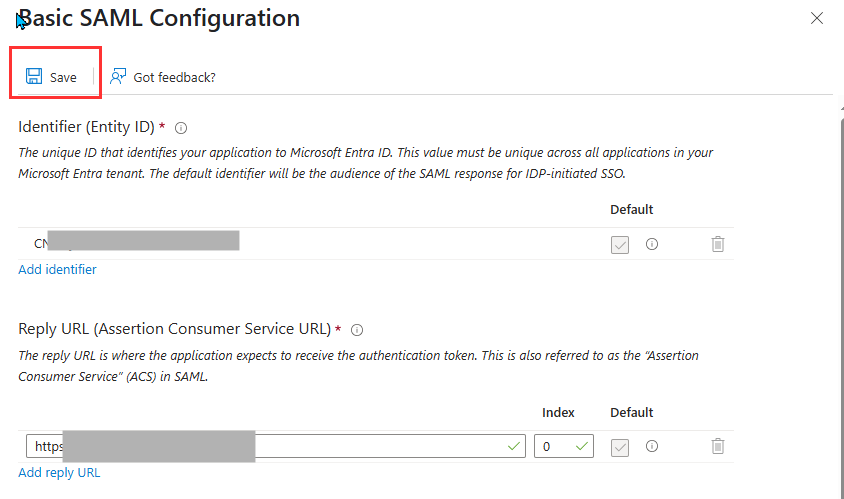
- From the Basic SAML configuration window, click Save.
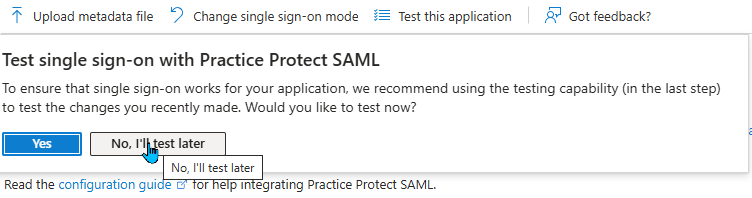
- When prompted to test SSO, select No, I’ll test later.
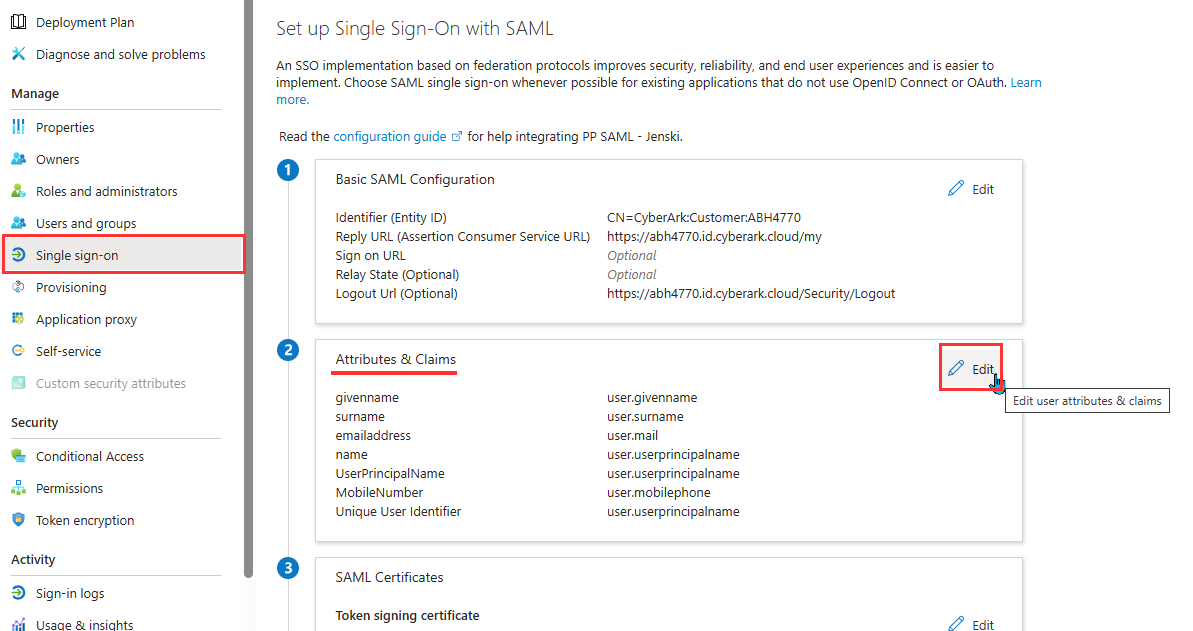
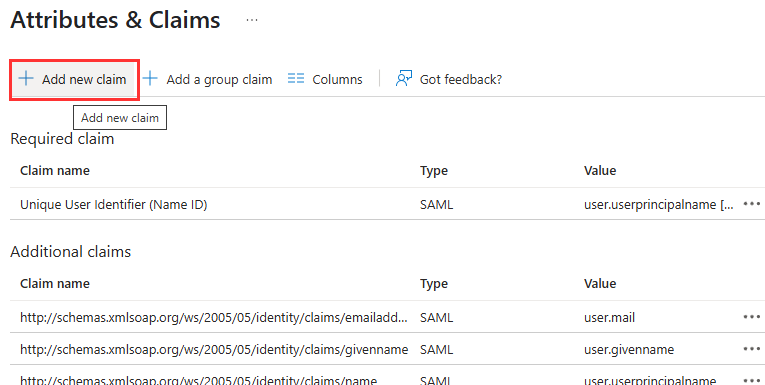
- On the SAML configuration, go to the Attributes & Claims section and click Edit.
- Click on Add new claim
- Configure claims using the following values:
- Name: UserPrincipalName
- Source: Attribute
- Source Attribute: user.userprincipalname (Ensure there’s no quotation marks around the attribute).
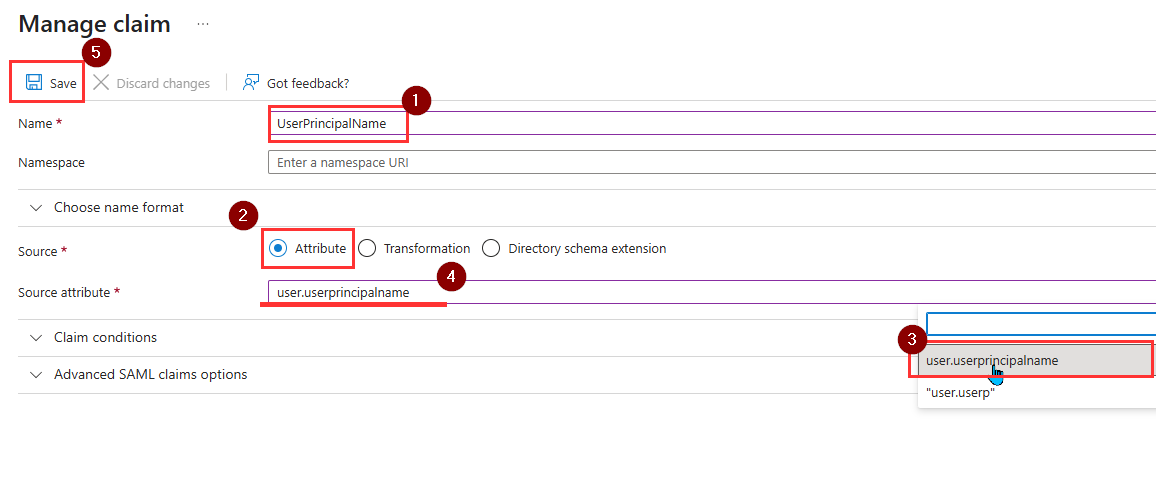
- Hit Save.
- Add another by clicking on Add new claim and set the parameters as follows:
- Name: MobileNumber
- Source: Attribute
- Source Attribute: user.mobilephone (Ensure there’s no quotation marks around the attribute).
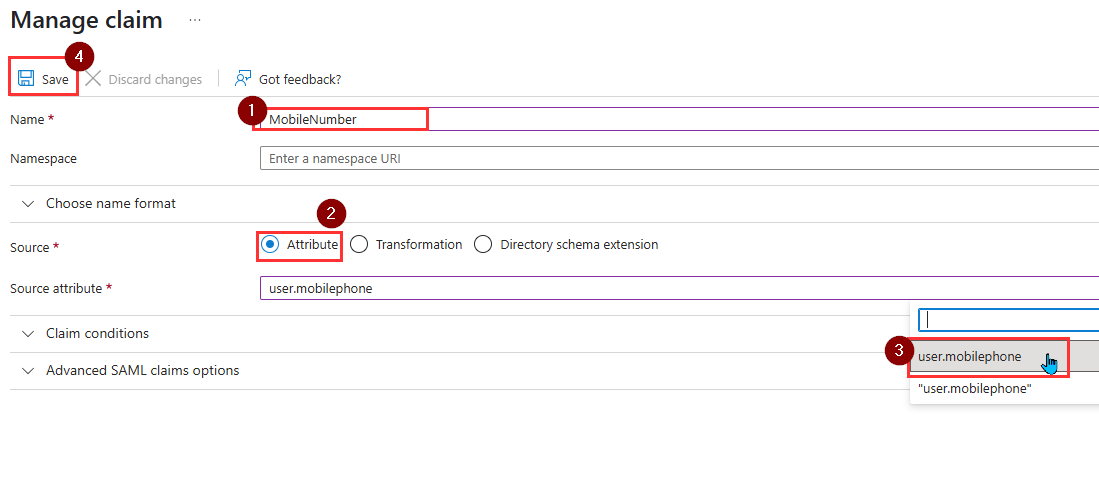
- Hit Save. You should have two new claims added.
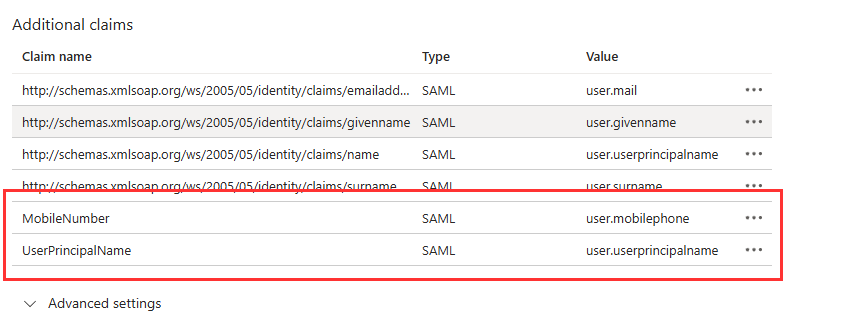
- Return to the SAML Configuration page. If you prompted to test SSO again, select No, I’ll test later.
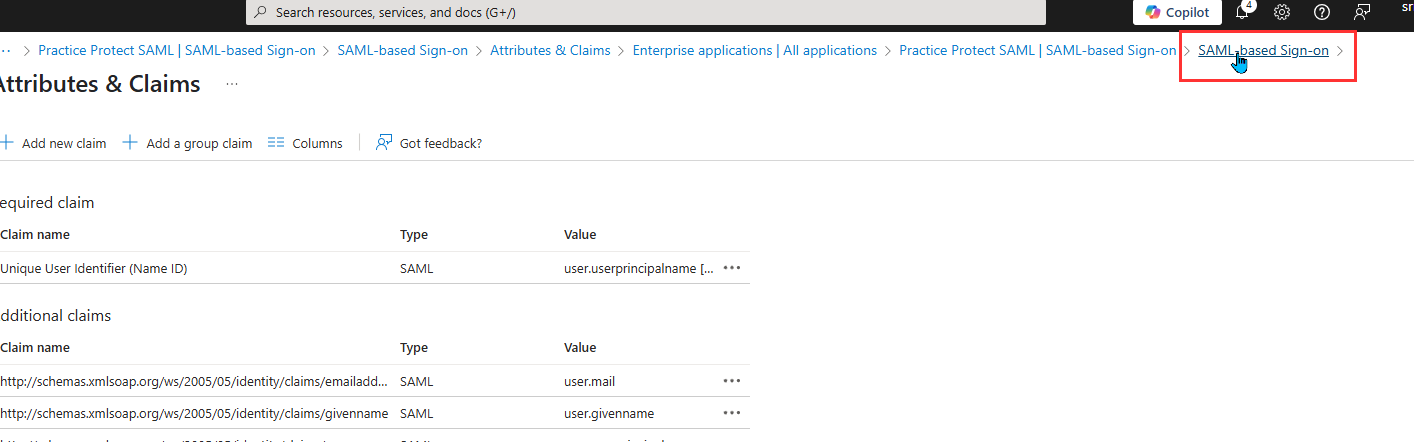
- Scroll down to the SAML Certificates section and copy the App Federation Metadata URL

- Return to the Setup Space > Deployment > Identity source > External Identity providers > Microsoft Entra ID SAML in Practice Protect and select Inbound Metadata. Under Option 1, paste the App Federation Metadata URL you copied from the previous step and click Save.
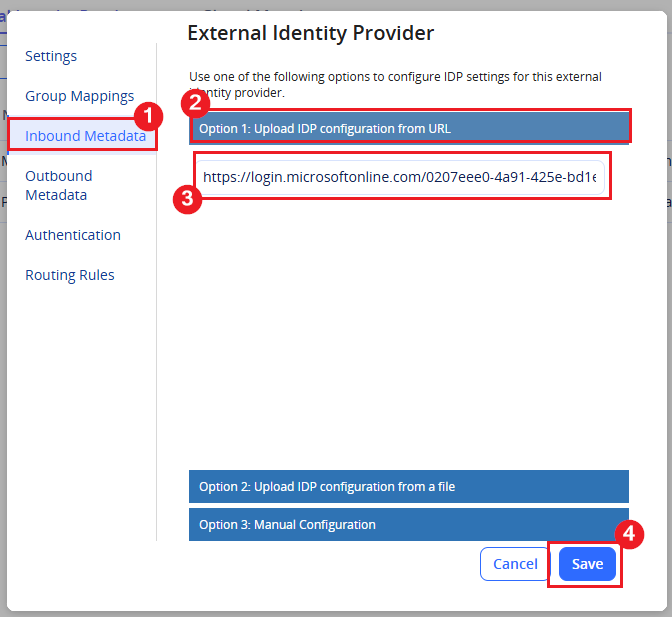
- Open the Microsoft Entra ID SAML configuration again and click Inbound Metadata.
- Under Option 3: Manual Configuration, add this string “/?login_hint=[username]” to the end of the Identity Provider Login URL.Note: This ensures that the username is automatically passed to Microsoft when the login is initiated from Practice Protect. An example of the URL format is
https://login.microsoftonline.com/12345678910-abcdefghi-987654/saml2/?login_hint=[username]
Note: Ensure there is no whitespace included at the end of the URL string.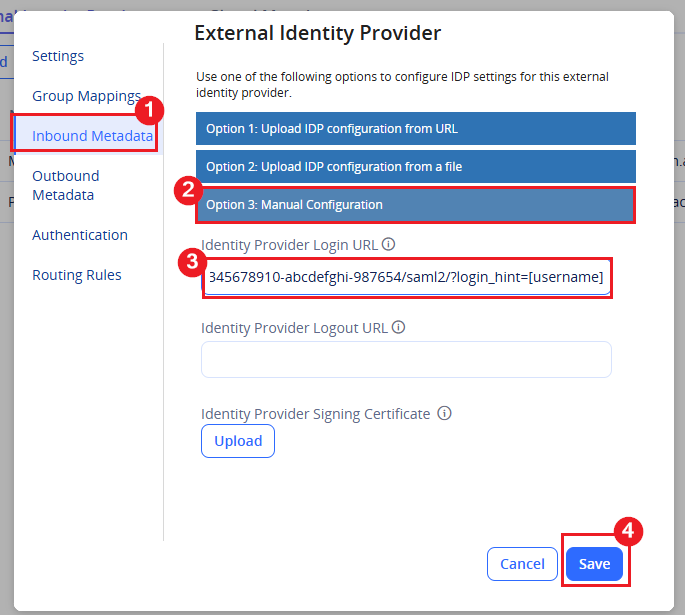
- Click Save.
- Open the Microsoft Entra ID SAML configuration in Practice Protect, then go to the Authentication section and apply the settings below.
- Enable URL Redirect: Unticked
- Map federated user to existing directory user: Required
- Federated user attribute to be mapped: UserPrincipalName
- Mapped Directory Service: selected is Any Directory Service
- Directory user attribute to be mapped: Name
- Update cloud users with federated user attributes: Ticked
- Update federated users with attributes from external IdP: Unticked
- Add mapped users to federated groups: Ticked
- Allow mapping to users in other federations: Unticked
- Create cloud user if unable to map: Unticked
- OAuth Credentials: Leave this settings Empty
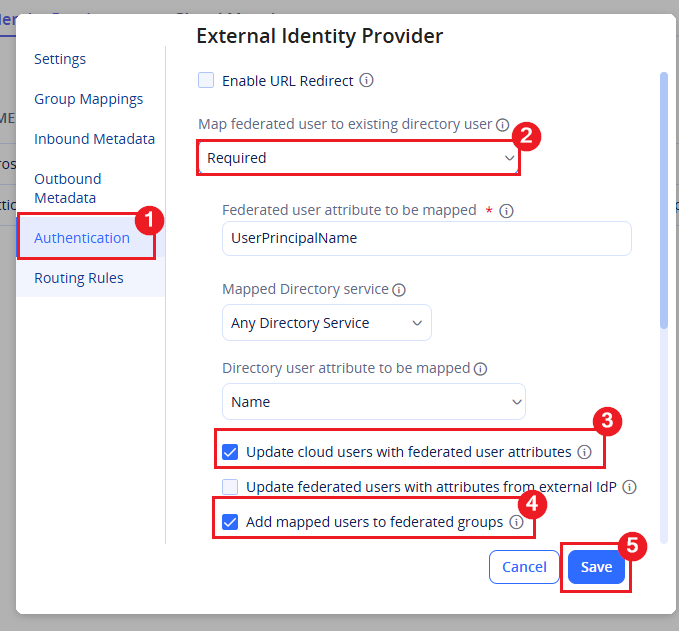
- Click Save.
- In the left menu, go to Security > Authentication and select Security Settings.
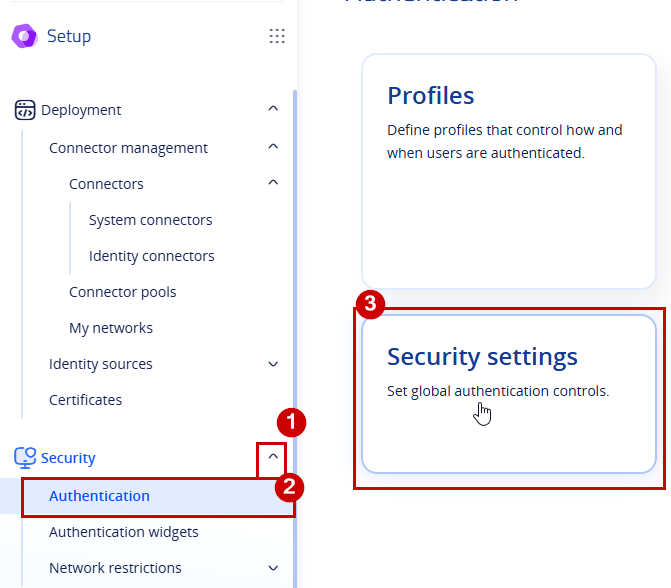
-
-
- Click Save.
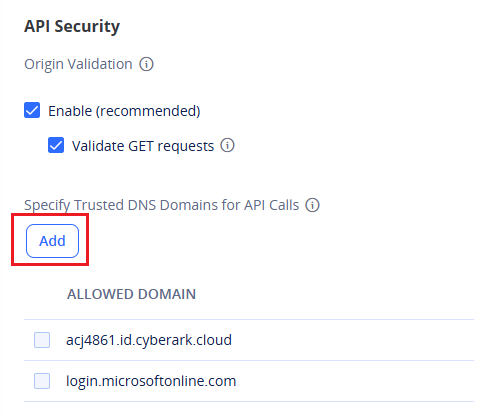
Configure SCIM Provisioning
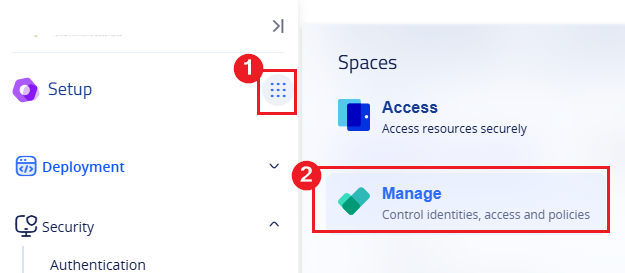
- Switch to Manage space in Practice Protect.
- In the left-hand navigation menu, click Inventory to expand the available options, then select Identity > Users. On the Users page, click Add User.
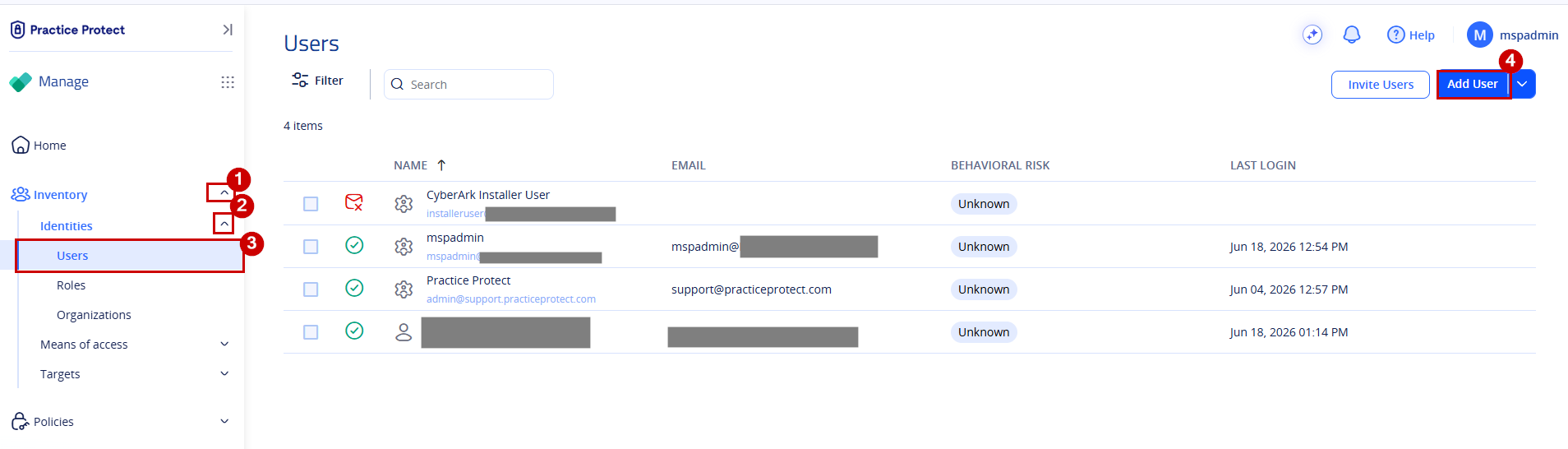
- Enter the below details:
- Login Name: entra_scim_service_user
- Suffix@: choose your domain from the dropdown
- Email address: Leave this field empty
- Display Name: Entra SCIM Service User
- Password: Select Generated
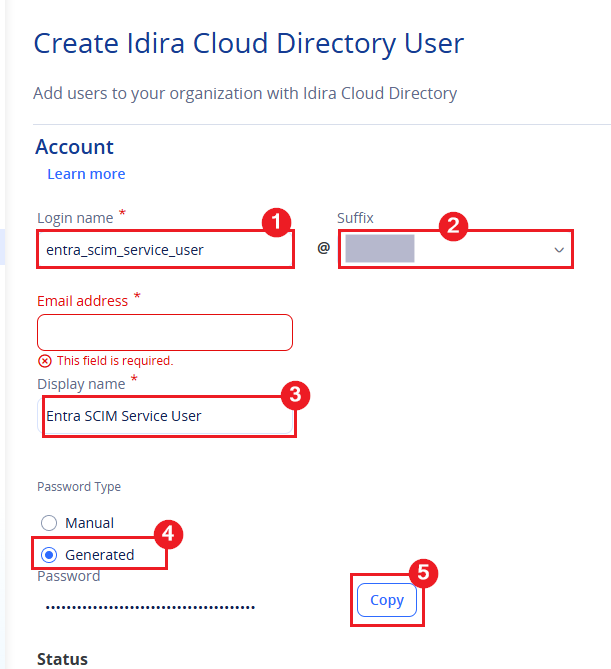
- Remember the username and copy the generated password. You will need it later.
- On the Status section: Tick the box for Is OAuth confidential client. This will automatically select Password never expires and Is service user.
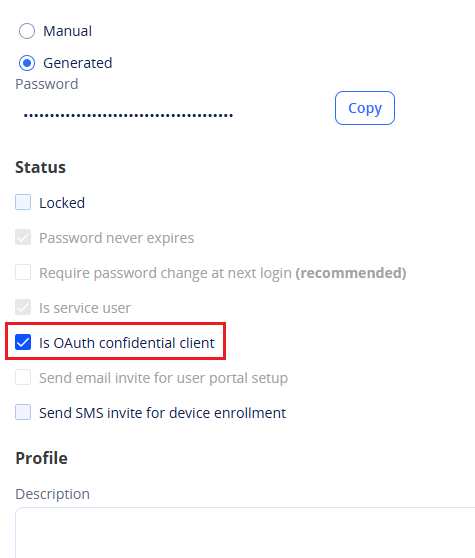
- Click Create User in the bottom right corner.
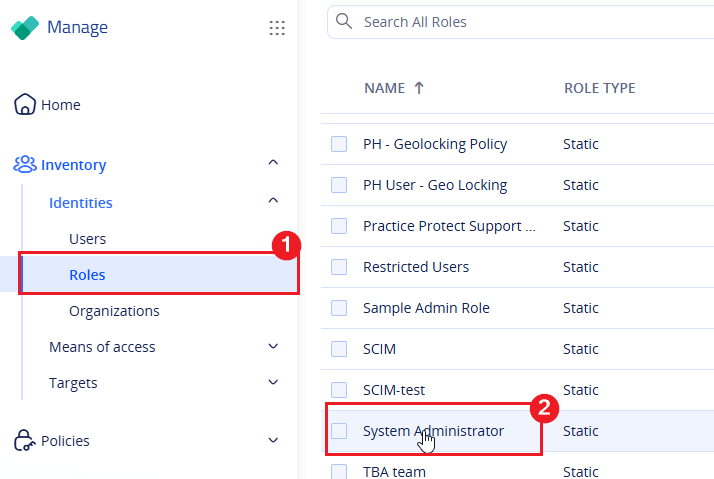
- Once the user is created, navigate to Roles, then click on System Administrator.
- In the Members tab, click Add. From the list, select the service user created in the previous step (entra_scim_service_user@…), then click Add.
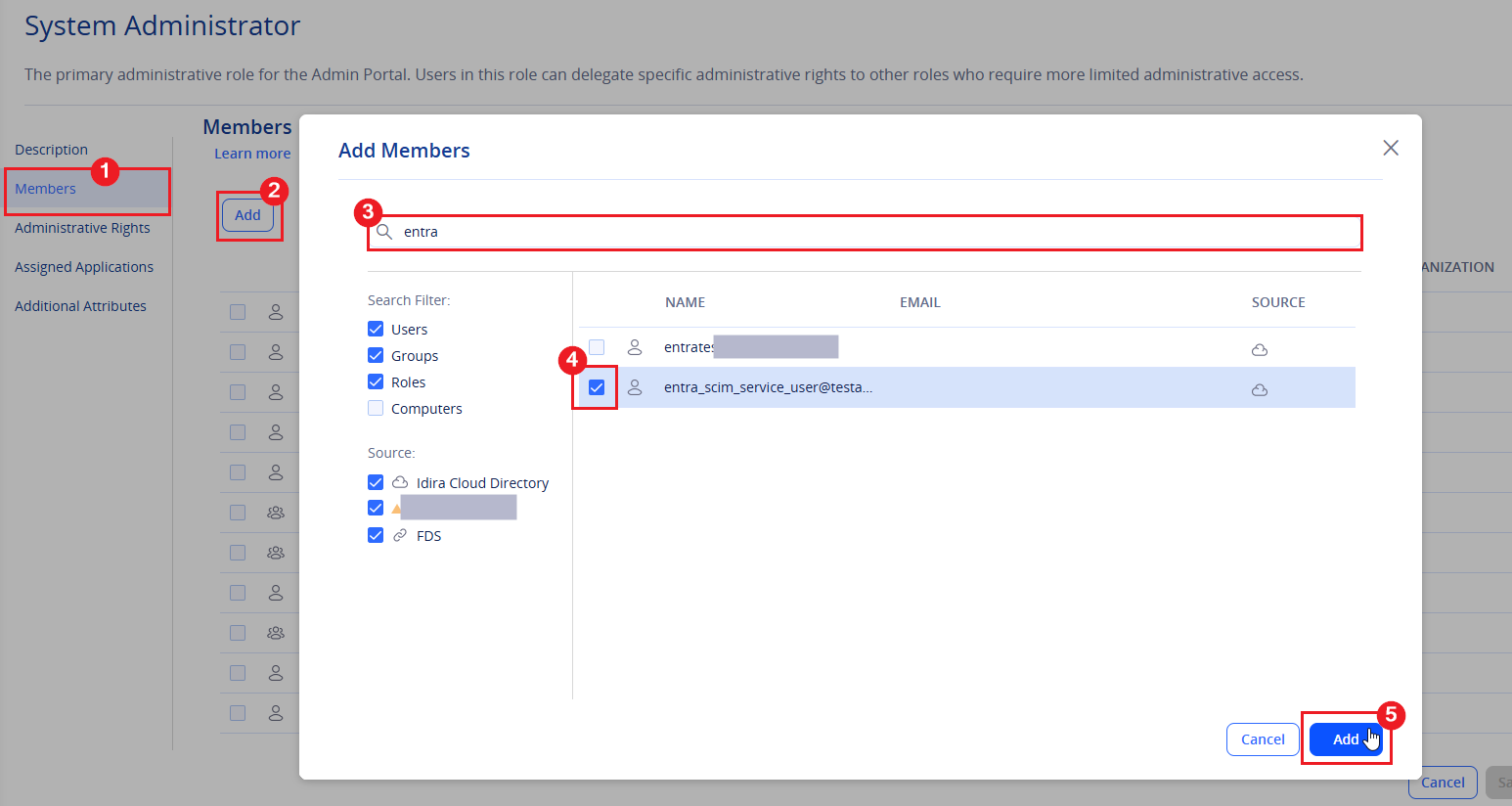
- Click Save
-
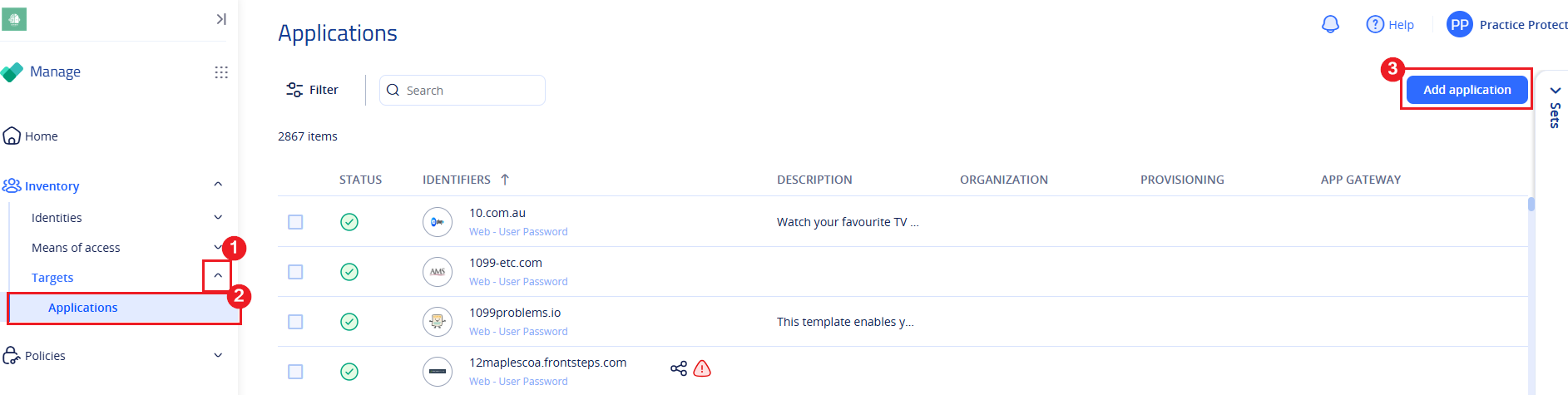
Go to Targets > Applications, then click Add Application.
-
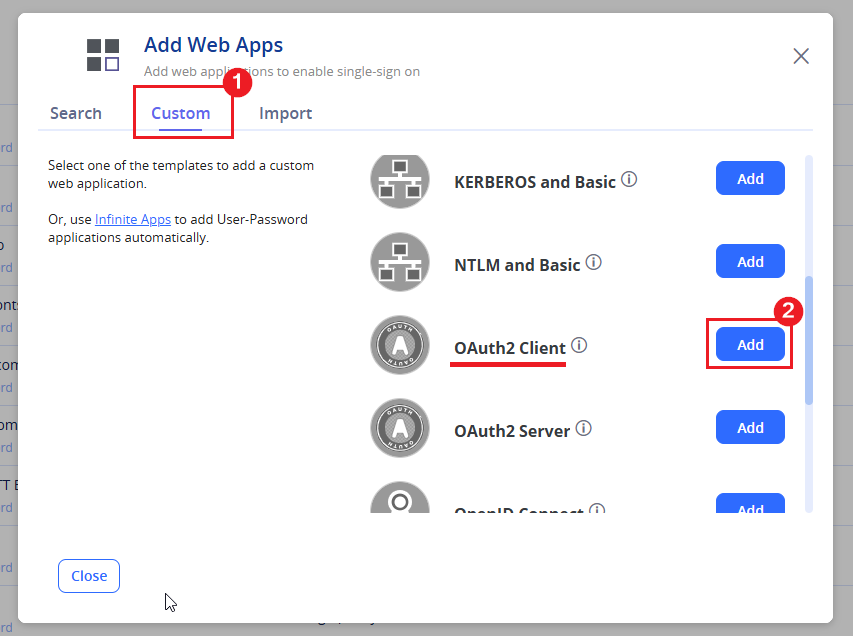
On the Custom tab, click Add next to OAuth2 Client.
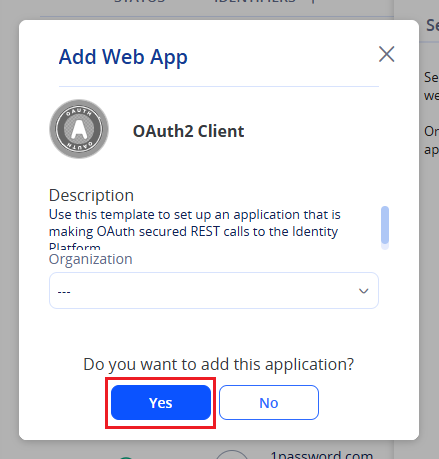
- Click Yes to add the application. Once added, close the window. The app settings page will open automatically.
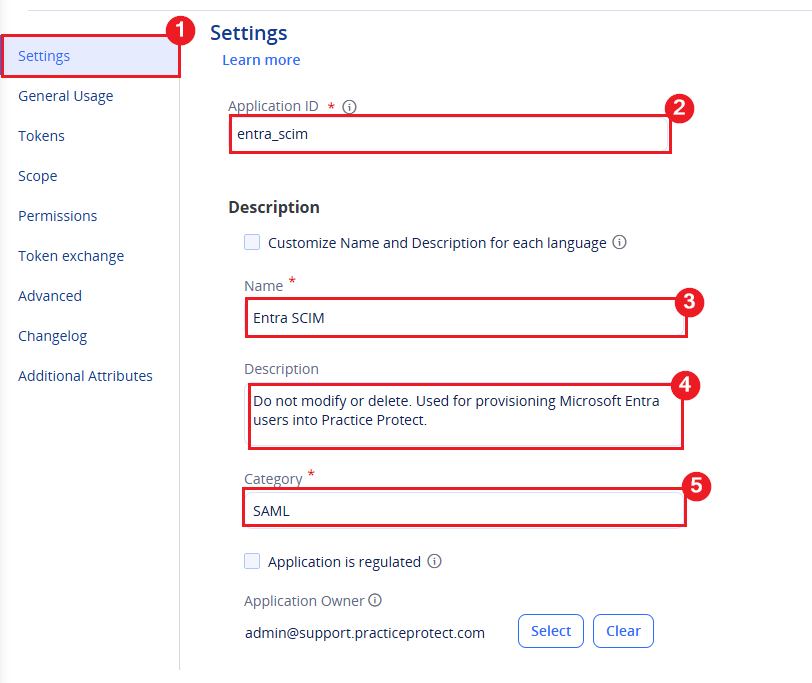
- Enter the following details:
- Application ID: entra_scim
- Name: Entra SCIM
- Description: Do not modify or delete. Used for provisioning Microsoft Entra users into Practice Protect.
- Category: SAML
-
Proceed to General Usage.
- Under Allowed Redirects, click Add.
- Copy your current Practice Protect URL and paste it into the field.
For example: https://tenantdomain.id.cyberark.cloud
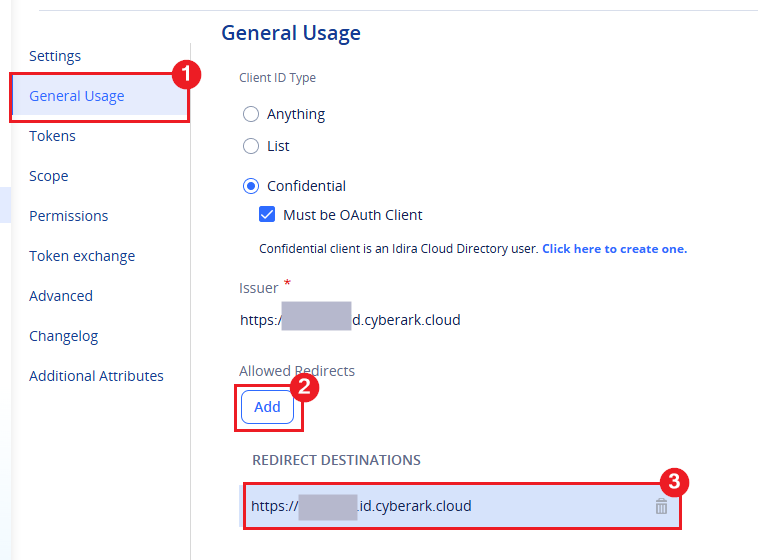
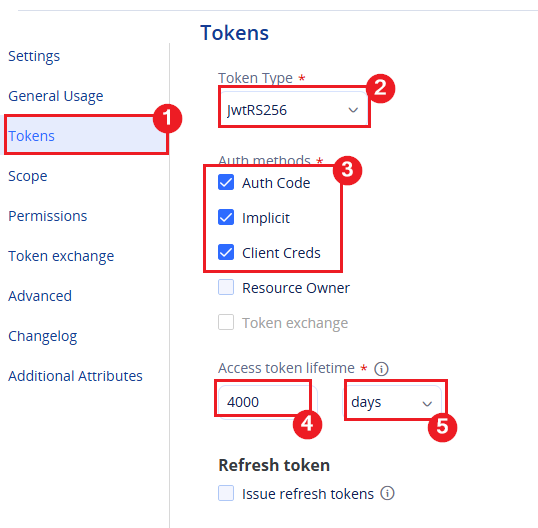
- On the Tokens tab enter the following settings:
- Token Type: JwtRS256
- Auth Methods: Tick the box for Auth Code, Implicit, and Client Creds
- Set your preferred access token lifetime. Take note, Microsoft does not support automated token refreshes in this instance. You will need to manually generate a new token before expiry.
- On the Scope tab, click Add under Authorized scopes and enter the following details:
- Name: scim
- Description: Entra SCIM
- Allowed REST API’s: Click Add and type in scim* under REST Regex
- Click Save
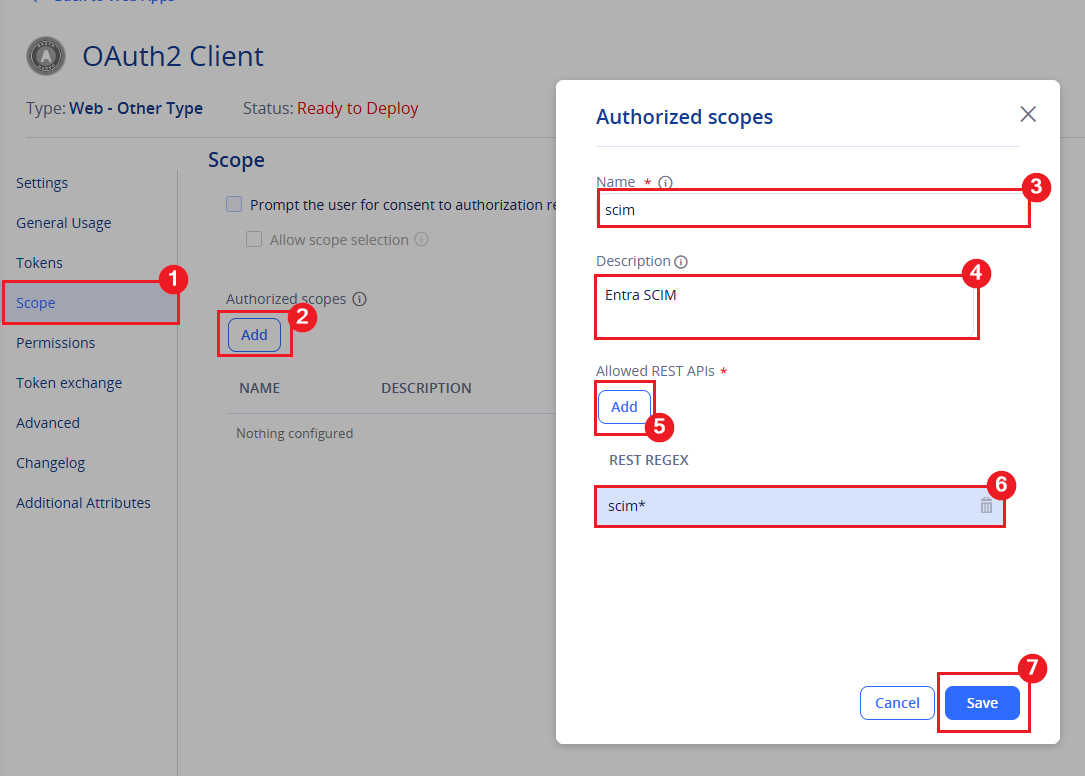
- Click Save again.
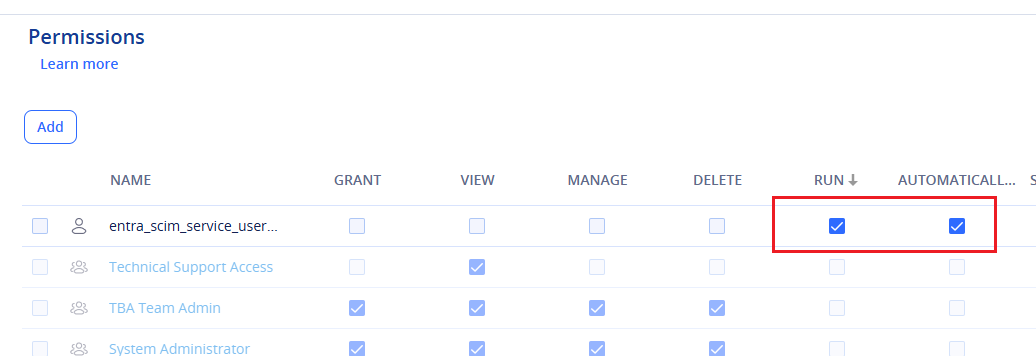
- On the Permissions tab, add the service user you created in a previous step (Entra SCIM User)
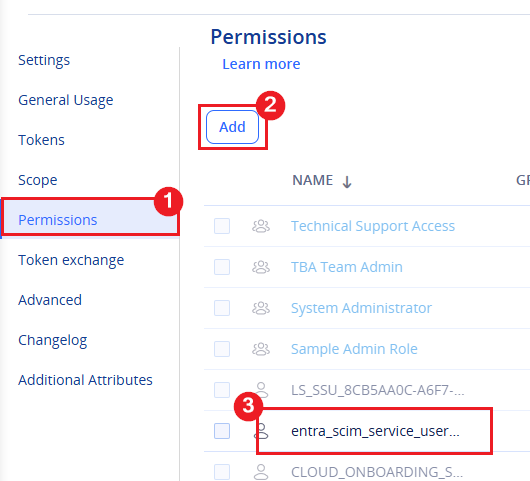
- Make sure Run and Automatically Deploy are ticked permissions.
- Click Save.
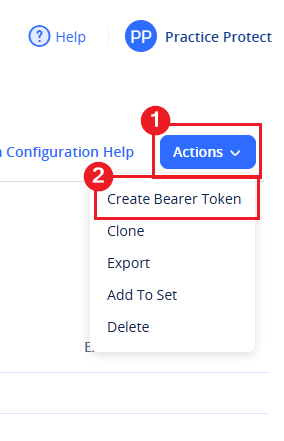
- In the OAuth2 Client app you just created, click the Actions dropdown and select Create Bearer Token
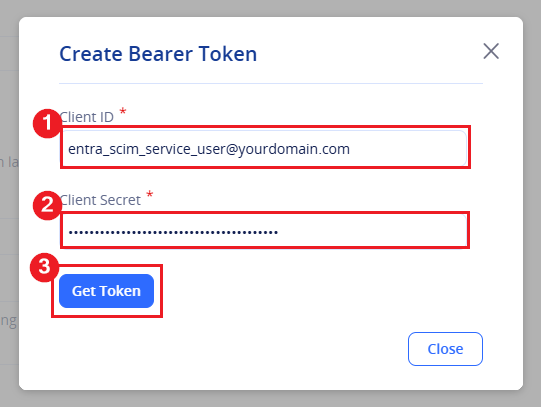
- Enter the below details:
- Client ID: Paste the service user’s login name copied from the previous step (entra_scim_service_user@yourdomain.com).
- Client Secret: Paste the service user’s generated password from the previous step
-
Click Get Token
-
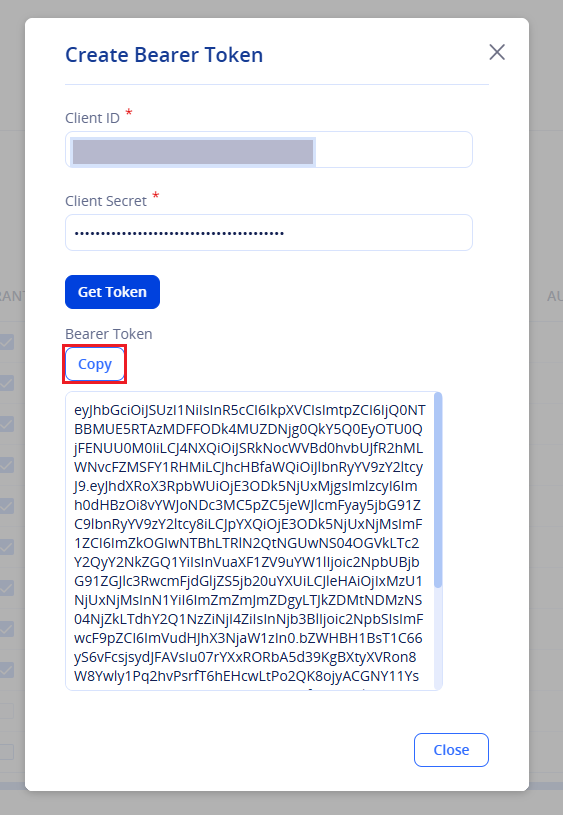
Copy and securely store the generated token. You will need it in a later step when setting up Entra Provisioning.
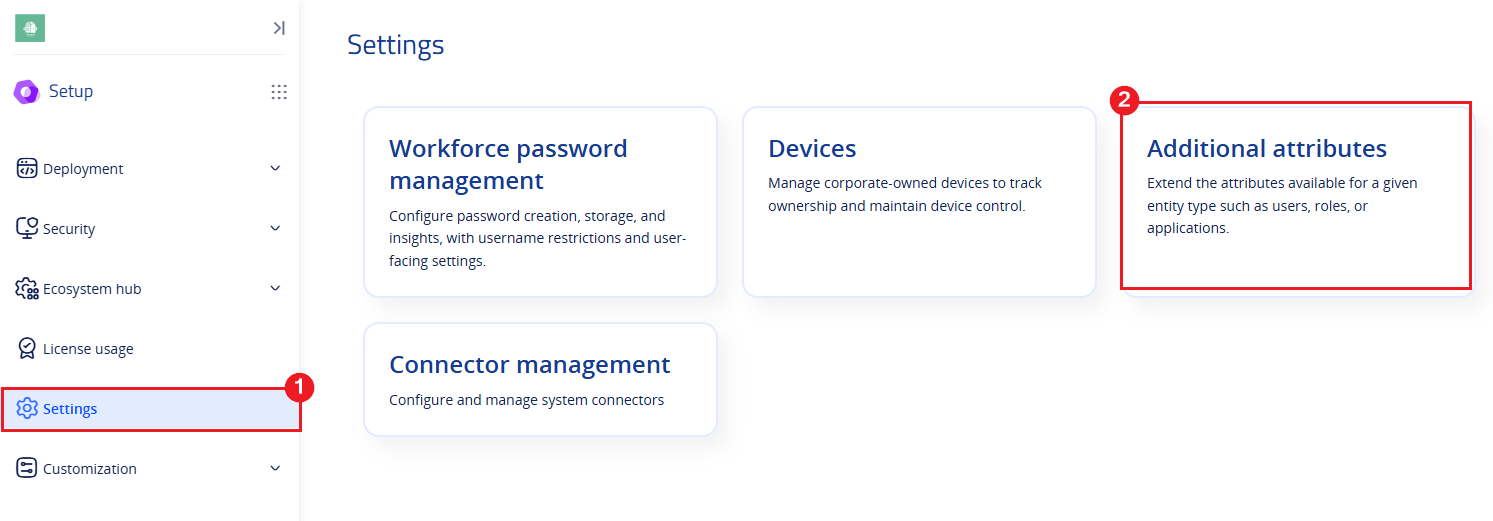
- Switch to the Setup Space and click Settings. Then, select Additional Attributes..
-
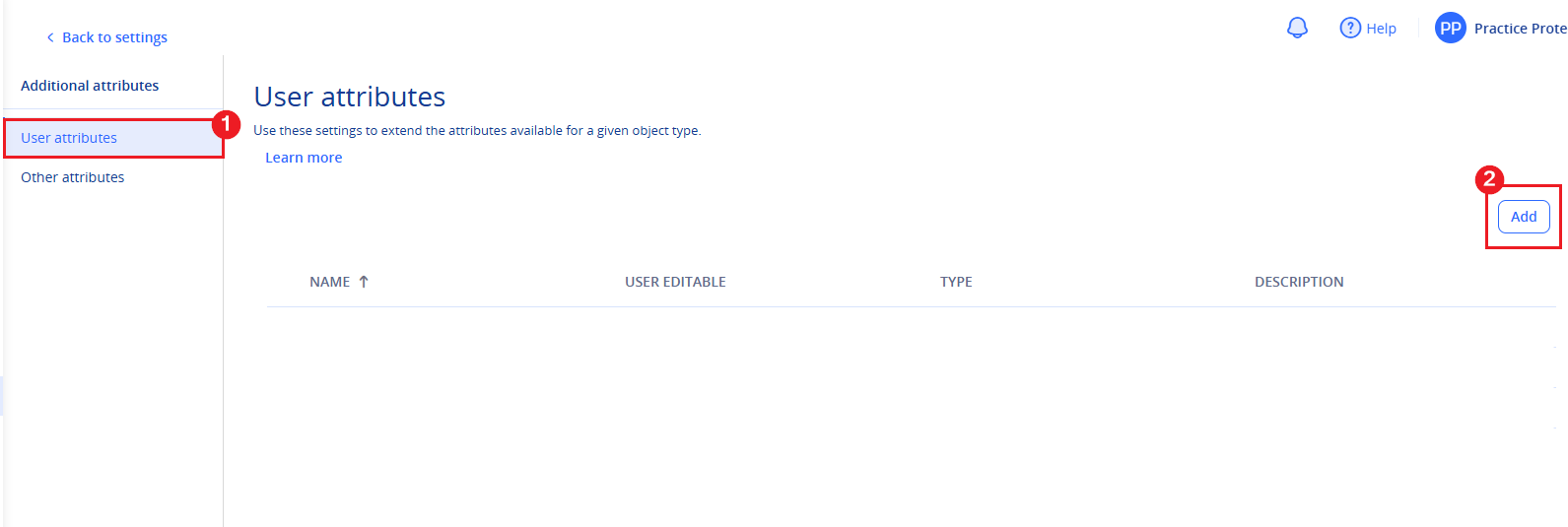
Under User Attributes, click Add.
- Enter the the attribute with the following details:
- Name: last_entra_sync
- Type: DateTime
- User Editable: Untick (deselected)
- Description: Last Entra provisioning sync timestamp (AEST)
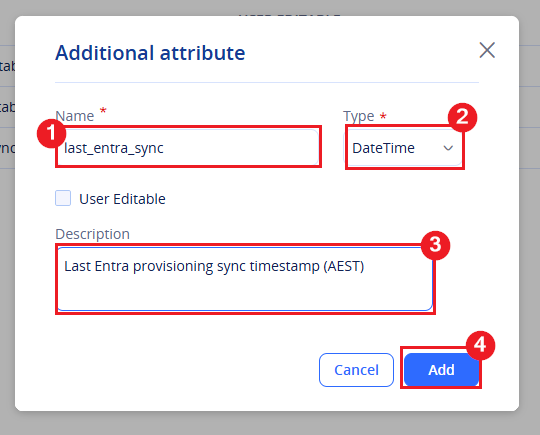
- Click Add.
- Follow the steps below to set up provisioning.
Enable SAML Provisioning in Microsoft Entra
Enable provisioning in Microsoft Entra to automatically create, update, and deactivate Practice Protect users based on changes made in Microsoft Entra ID. This helps keep user accounts in Practice Protect synchronised with your Microsoft 365 environment.
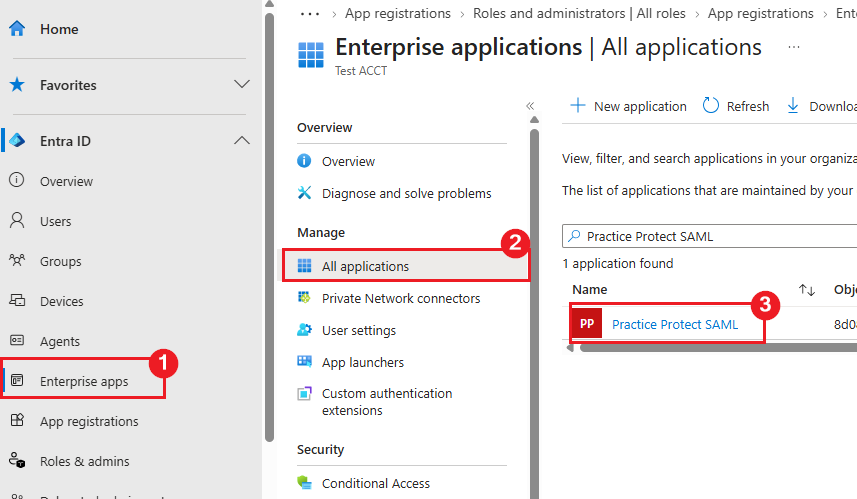
- Go to Microsoft Entra ID Admin Center , go to Enterprise Applications > All Applications > Open the application (i.e. Practice Protect) you made in the previous section.
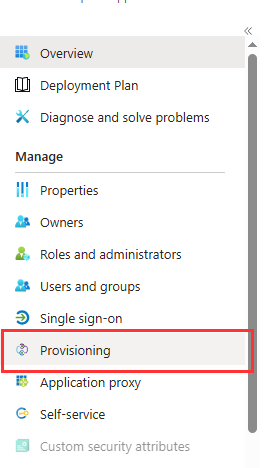
- Go to Provisioning.
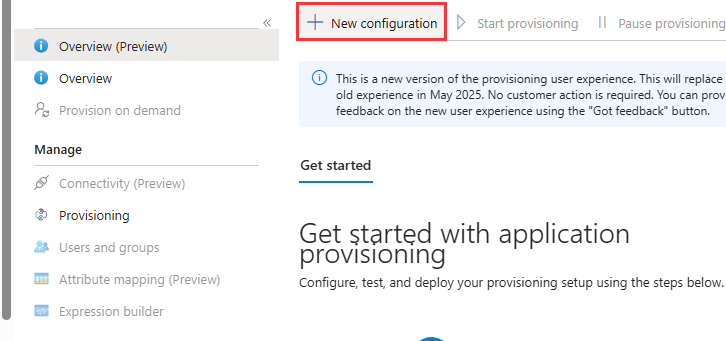
- Click on New Configuration
-
Set Provisioning Mode to Automatic. Note: In some environments, this setting may not be available. If you don’t see it, simply skip this step.
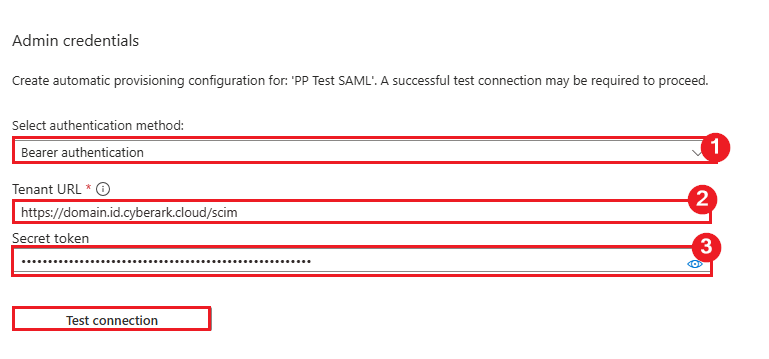
- For Authentication Method, select Bearer Authentication.
-
Supply the admin credentials with the following details:
-
Tenant URL: https://<TenantURL>/scim
Note: Replace <TenantURL> with the client’s Identity tenant URL in Practice Protect.Example: https://domain.id.cyberark.cloud/scim
Do not use: https://domain.cyberark.cloud/scim
- Secret Token: Enter the Bearer Token copied in the previous step.
-
- Click on Test Connection then once successful, click Create.
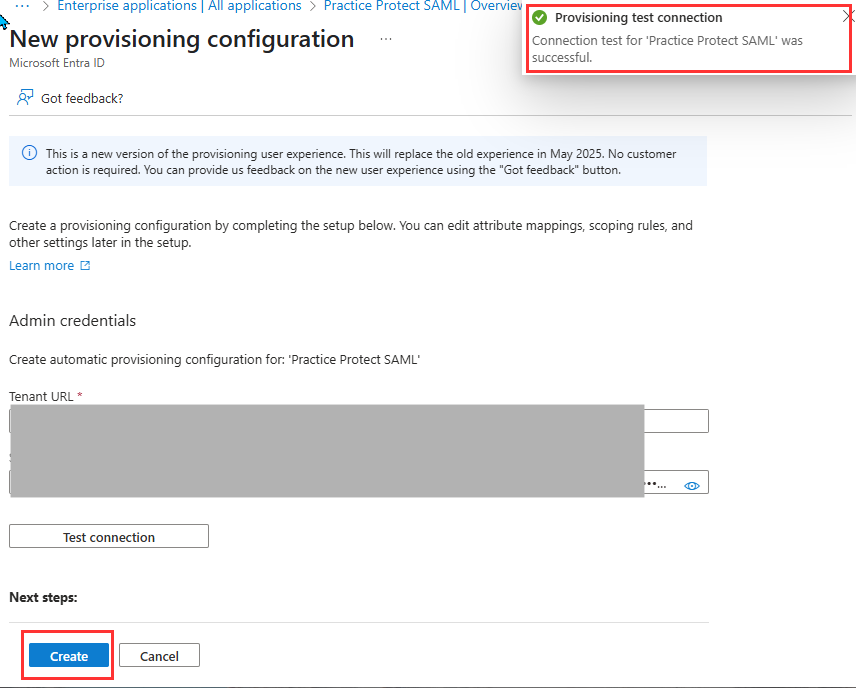
Troubleshooting: If Test connection returns an error, verify that the Tenant URL uses .id.cybeark.cloud , and that the correct Bearer Token was entered. - Go to Provisioning under Manage
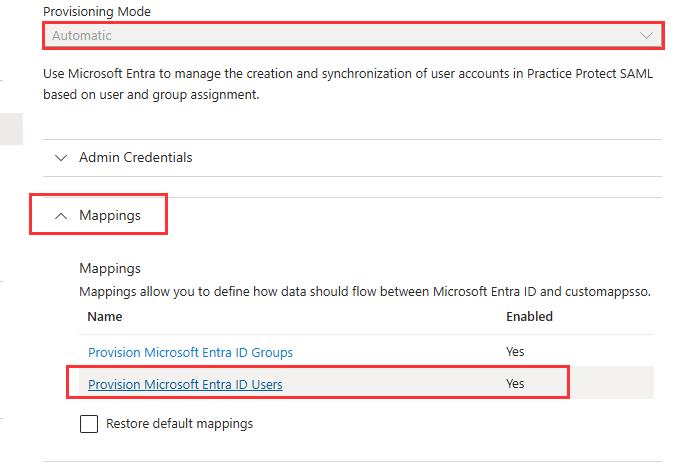
- Return to Provisioning. If prompted for Provisioning Mode choose Automatic
- Expand the Mappings section, then select Provision Microsoft Entra ID Users.
-
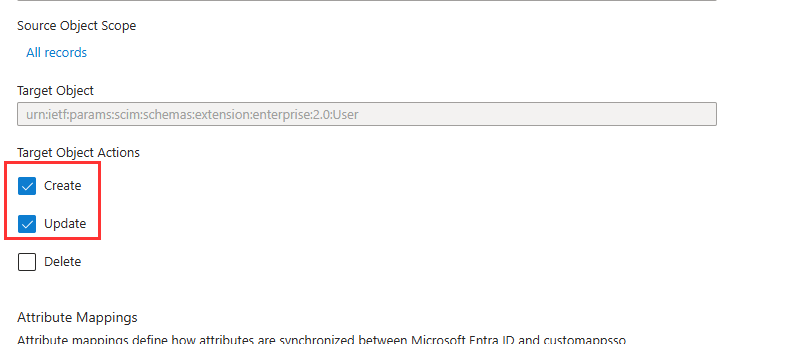
Under Target Object Actions, tick Create and Update.
Note: Leave Delete unticked unless you want users to be automatically deleted from Practice Protect when they are removed from the Enterprise Application assignment. If Delete is enabled, deleted users cannot be recovered.
- Under Attribute Mappings, we need to remove all attributes except for the below.
- userName
- Active
- displayName
- emails[type eq “work”].value
- phoneNumbers[type eq mobile”].value
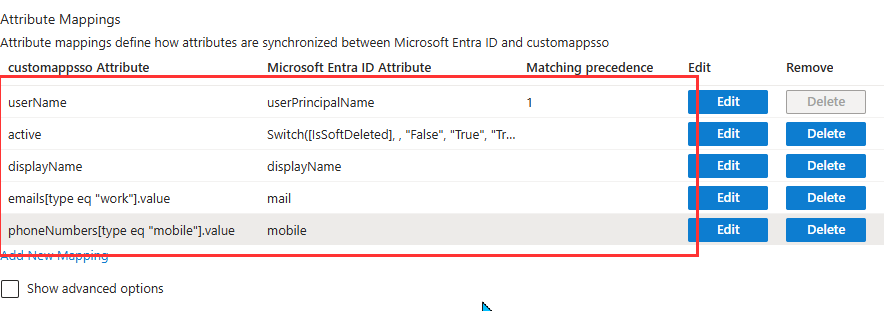
- Click Save at the top of the Attribute Mapping page, confirm by clicking Yes when prompted.
- Return to the Attribute Mappings section, then click Edit next to the userName attribute under customappsso.
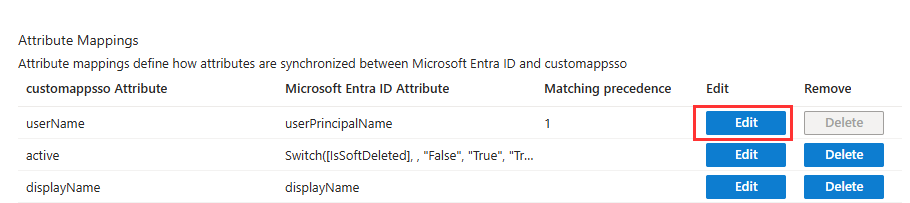
- Setup with the following settings:
- Mapping Type: Select Expression
-
Expression: ToLower([userPrincipalName])
- Default value if null: Set to 1
- Target attribute: userName
- Match objects using this attribute: Yes
- Matching precedence: 1
- Apply this mapping: Always
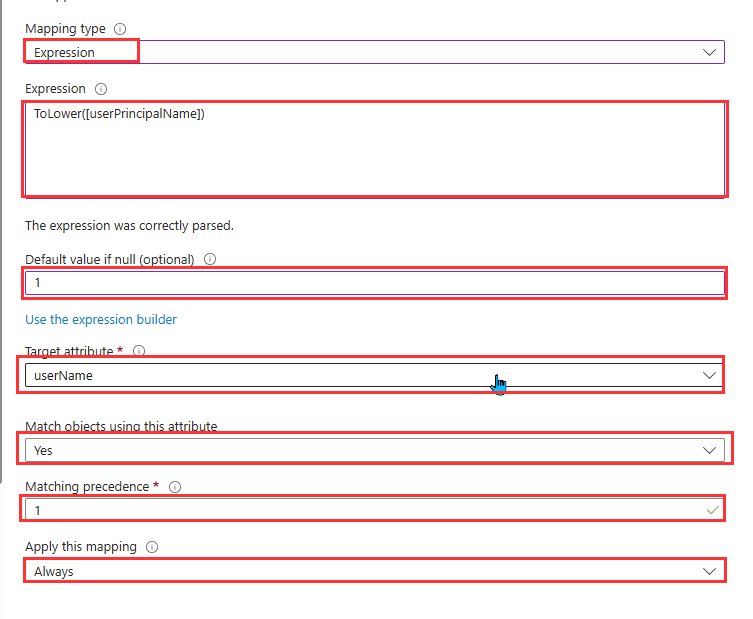
- Select OK and click Save at the top of the Attribute Mapping page, confirm by clicking Yes when prompted.
- In the same page, go to the bottom and tick Show Advanced Options box.
- Click Edit attribute list for customappsso

- At the bottom of the attribute list copy the below details to add an attribute
- Name: urn:scim:schemas:extension:custom:2.0:last_entra_sync
- Type: DateTime

- Click Save and click Yes to confirm
- On the Attribute Mapping page, click on Add New Mapping.

- For mapping the attribute last_entra_sync, enter the below details
- Mapping Type: Expression
- Expression: Now()
- Target Attribute: Select urn:scim:schemas:extension:custom:2.0:last_entra_sync

- Click OK
- Navigate back to the Practice Protect SAML application in Microsoft Entra. Then, under the Manage section, select Provisioning.
- Set the Provisioning Status to On to enable provisioning.
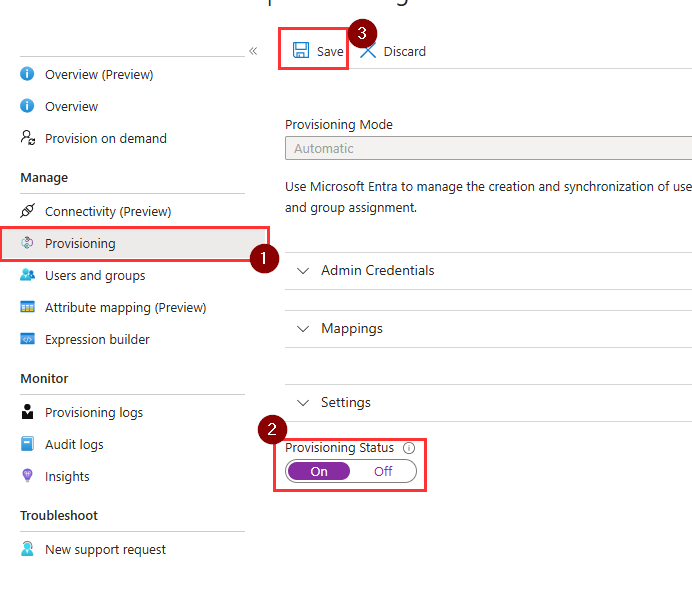
- Click Save.
- Once provisioning is enabled, the initial provisioning cycle will start automatically. To verify the results, go to the Practice Protect SAML app and review the Overview section. You can click the Refresh button to update the provisioning status. Microsoft will automatically run provisioning syncs at 40 minute intervals.
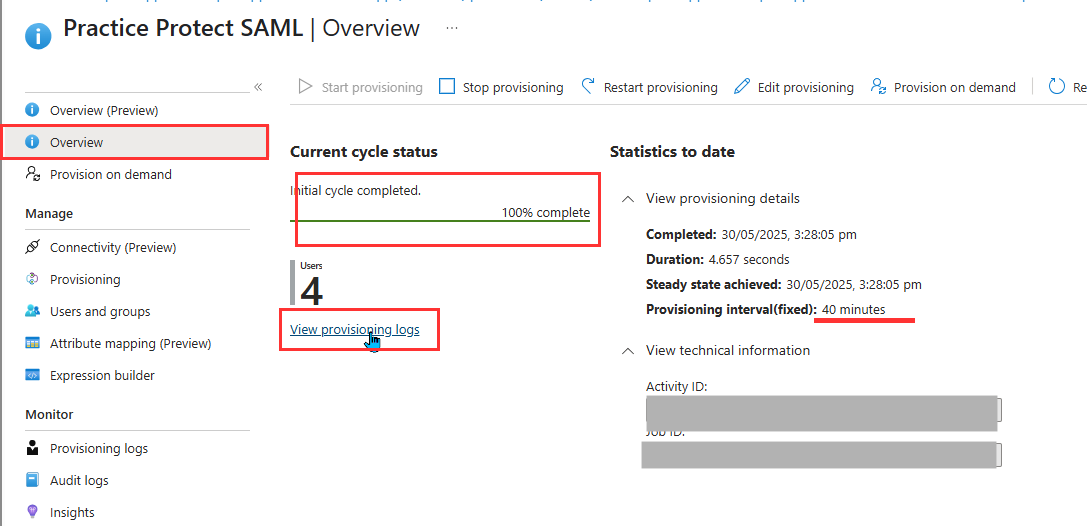
- (Optional) You can also manually trigger provisioning by clicking Provision on demand. Then select the specific user or group to initiate a forced provisioning sync.

- Once the provisioning sync is complete, click on Provisioning Logs under the Manage section and verify that there are no provisioning failures
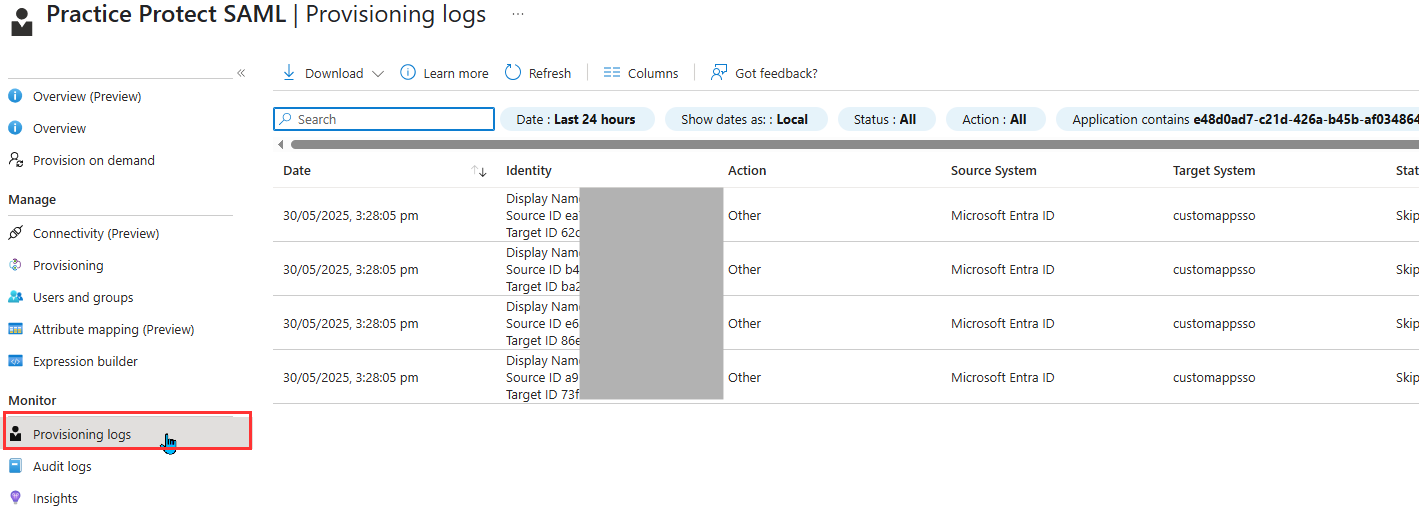
- (Optional) Under the Manage section, click Provisioning and go to the Settings section.
- Check the box for Send an email notification when a failure occurs. In the Notification Email field, enter a valid email address (e.g., admin@yourdomain.com). Note: Enabling email notifications for provisioning failures helps administrators stay informed in real time when user synchronization issues occur. This allows for faster troubleshooting and ensures that access issues are addressed promptly
- Check the box for prevent accidental deletion and put the preferred number, this is to prevent accidental mass deprovisioning, if the ‘delete’ is ticked in the provisioning action options.
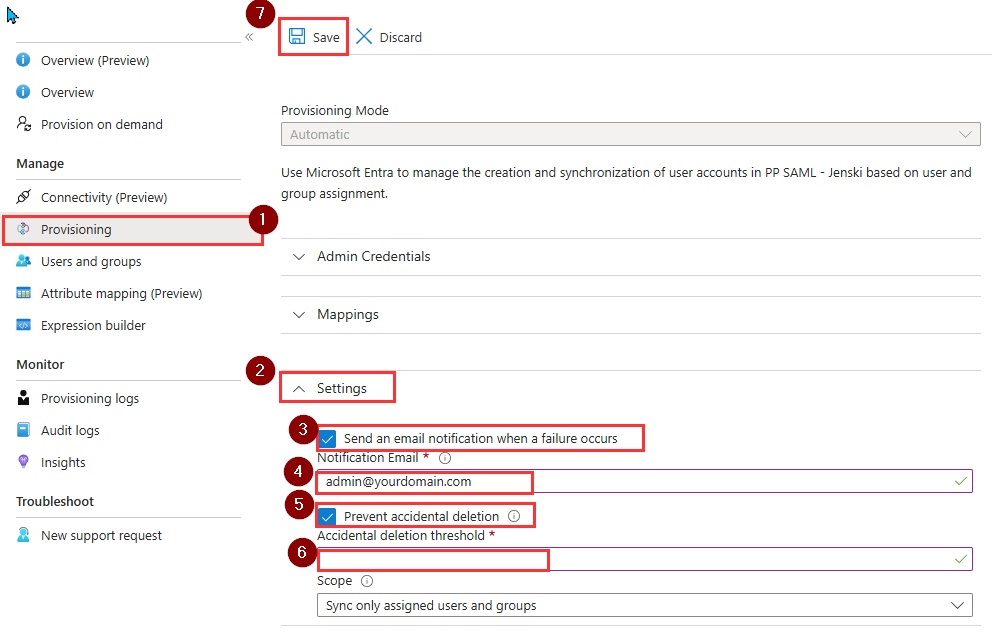
- Hit Save.
Update Authentication Policies in Practice Protect
It is recommended to keep country or IP-based restrictions enabled in Practice Protect. Combined with Conditional Access Policies in Microsoft Entra, this provides a layered security approach across both platforms. To ensure users signing in through Entra SAML continue to have the Practice Protect authentication policies applied, complete the steps below for all authentication policies.
- In Practice Protect, navigate to Manage Space > Policies > Access to platform.
- Select the relevant Country/IP-Based Restriction Policy (for example, AU User – Geo Locking Policy).
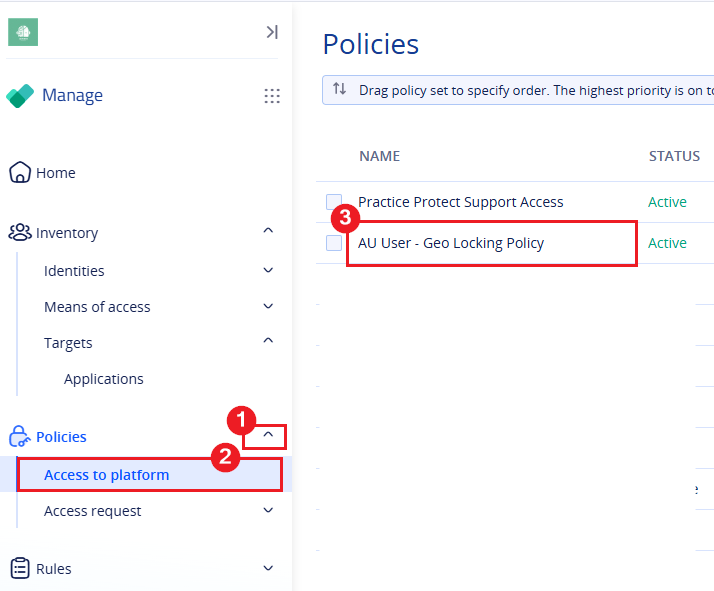
- Under Authentication Policies, select Idira Identity Security Platform.
- Scroll down and tick Apply additional authentication rules to federated users.
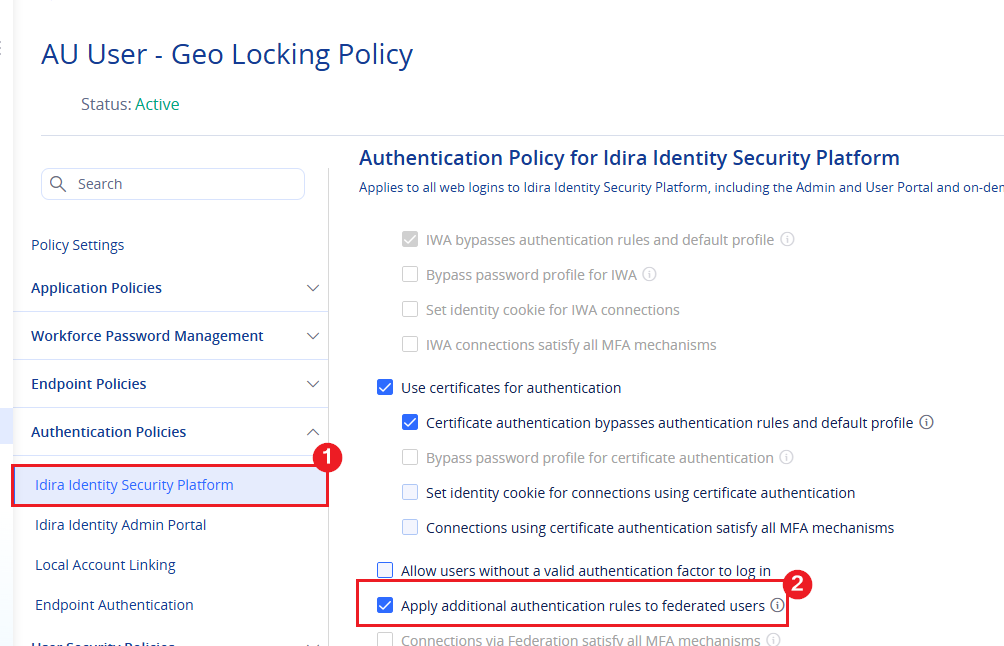
- Click Save.
Note: You can provision Groups from Microsoft Entra ID into Practice Protect, where they will appear as Roles. The group must first be assigned to the Practice Protect SAML Enterprise Application to be provisioned. For streamlined management, align your Entra ID Group assignments, Conditional Access Policies, and Practice Protect Authentication Policies. For example, assign an Australia Country Restriction group to the Practice Protect SAML application, provision it as a Role, and assign it to the AU Geo-Locking policy.
Activate External IdP (Microsoft Entra ID SAML) in Practice Protect
- Return to the Setup Space > Deployment > Identity source > External Identity providers > Microsoft Entra ID SAML in Practice Protect
- Tick the Active checkbox, then click Save.
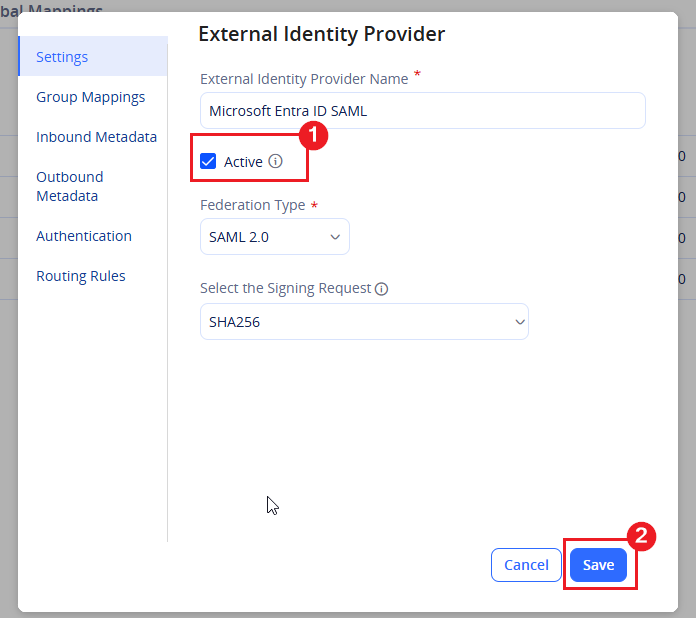
-
SAML is now active, and login authentication will redirect users to Microsoft 365 for domains configured under Routing Rules > Federated Domains in the External Identity Provider configuration (Microsoft Entra ID SAML).
-
Test with a user by going to the Practice Protect sign-in page and entering their username. Confirm that they are redirected to Microsoft 365 and can successfully sign in using their Microsoft 365 credentials and access Practice Protect.
(Optional) Configure MFA in Practice Protect
By default after enabling Entra SAML, users will continue to be prompt to enter their Practice Protect MFA mechanism. You can optionally disable this behavior by following the steps below. It’s important that if the below steps are completed & Practice Protect MFA is disabled, that the MFA is instead enforced by Microsoft 365.
- In Practice Protect, navigate to Manage Space > Policies > Access to platform.
- Select the relevant Country/IP-Based Restriction Policy (for example, AU User – Geo Locking Policy).
- Under Authentication Policies, select Idira Identity Security Platform.
- On the Authentication Rule, click on the existing rule added and it will open a pop-up form.
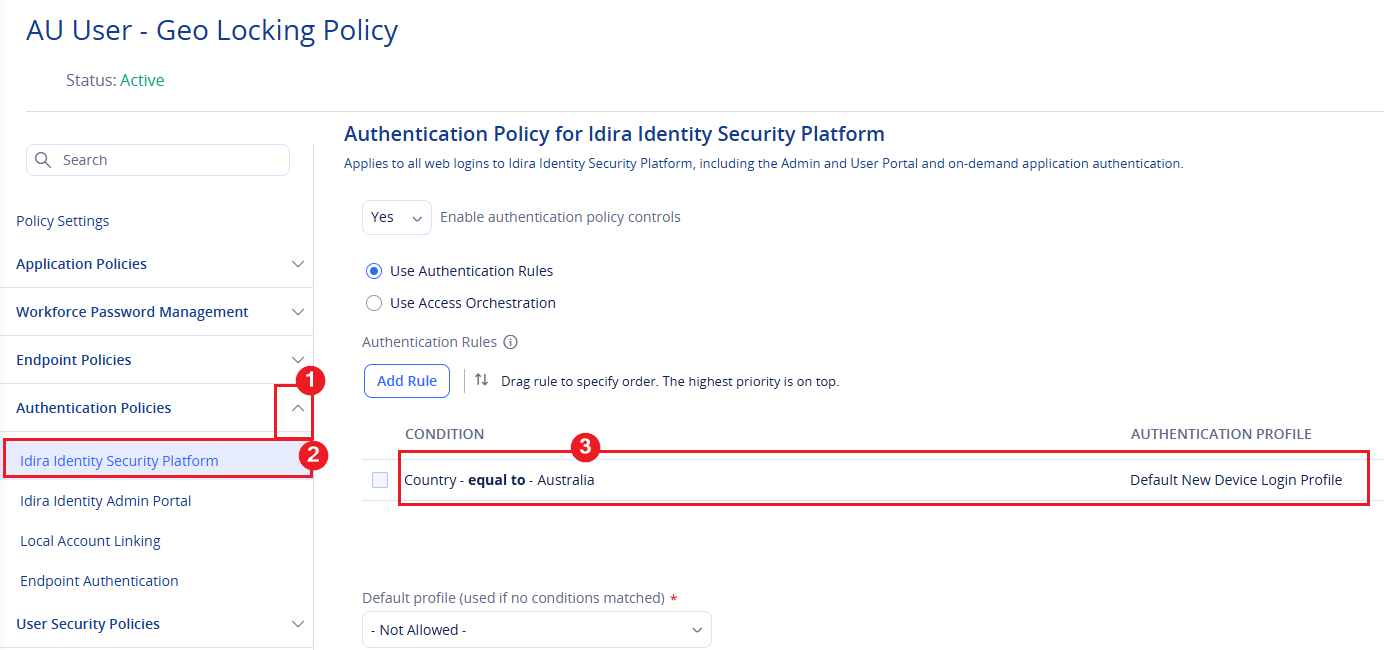
- Change the Authentication Profile from Default New Device Login Profile to Default Other Login Profile and click Ok
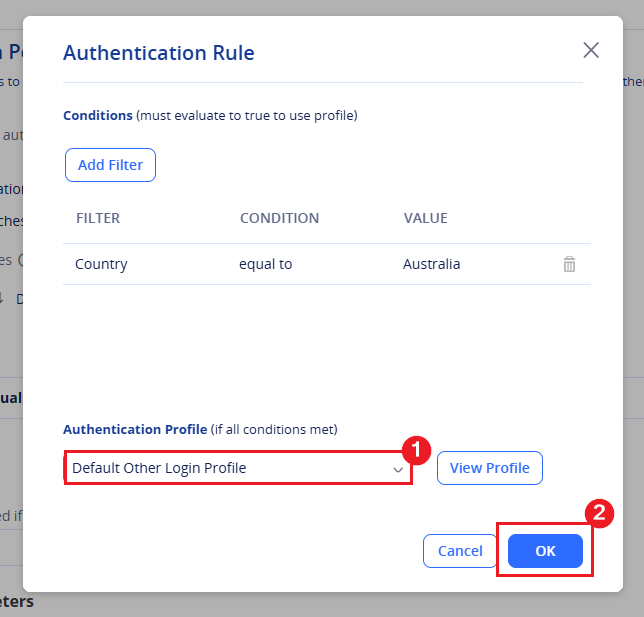
This configuration makes Microsoft 365 the sole MFA method for Practice Protect and bypasses the Practice Protect username and password prompt. Important: Ensure MFA is enforced in Microsoft 365 before applying this configuration.
- Click Save. Repeat the steps above for any other active Country/IP-Based Restriction Policies currently assigned to users.
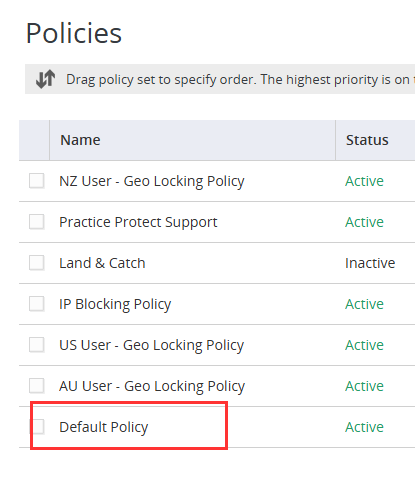
- Next. open the Default Policy, can be found at the bottom of the list.
- In the User Security Policies section, click on User Account Settings.
- Apply the following configuration settings:
- Number of authentication factors user is required to configure upon login – Set to (—)
- Prompt users to set up mobile number on login – No
- Enable passkey authentication – No
- Enable users to configure an OATH OTP client – No
- Enable users to configure Security Questions – No
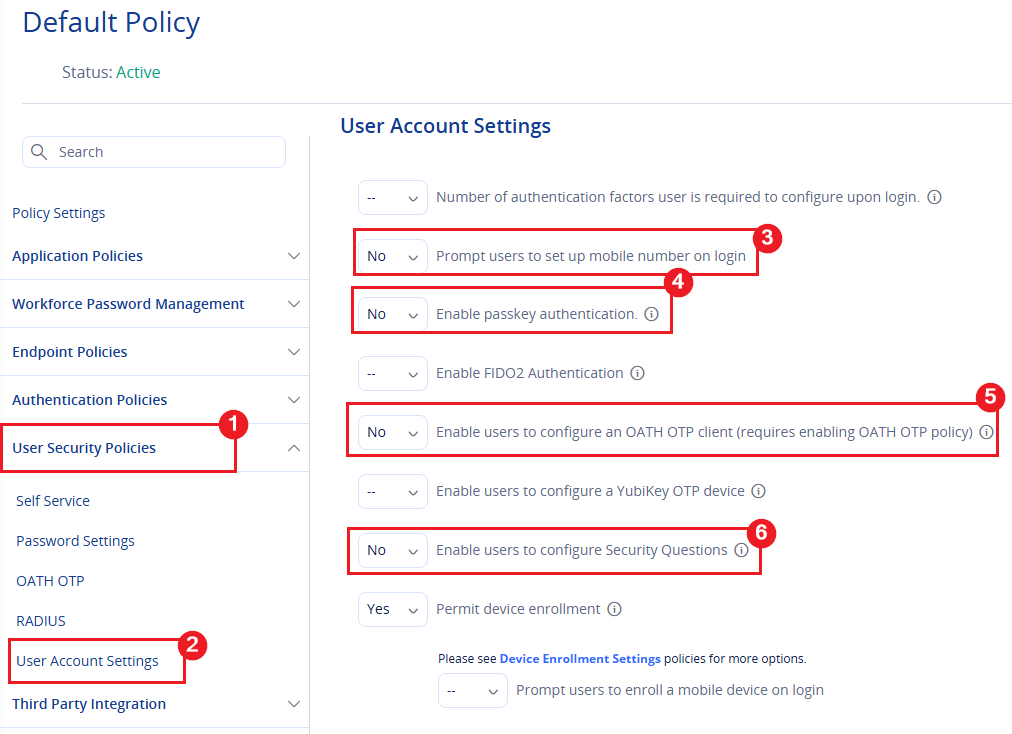 Note: If you choose to use Microsoft 365 as the sole authentication method, these settings prevent users from being prompted to configure MFA in Practice Protect.
- Click Save.
If you encounter any issues, please contact Practice Protect Support for assistance.