This guide explains how to securely store a username and password for a specific application on behalf of an end user.
This feature is commonly used after resetting a user’s application password. By storing the new credentials in the platform, the user can continue to access the application without needing to know or manually enter the password.
Before you begin: Ensure the application has already been deployed to the user before following the steps below.
Prerequisites
Requires a Practice Protect with Admin Access (Platform Spaces)
User’s Individual Application Account
For applications where each user has their own unique username and password, follow the steps below. If the application uses a shared username and password for multiple users, skip to Shared Application Account
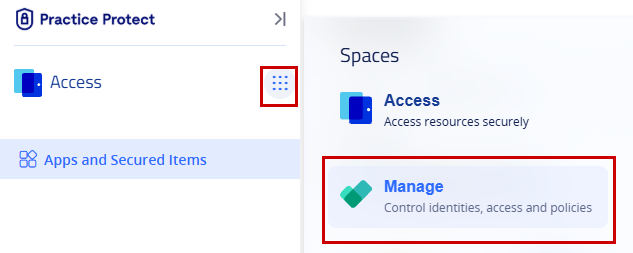
Sign in to your Practice Protect account. From the 9-dot menu (App Launcher) in the top-left corner, select Manage to switch to the Manage platform space.
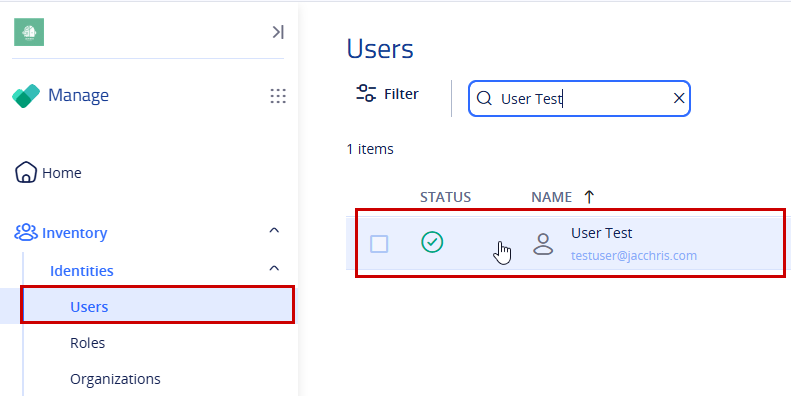
In the left-hand navigation pane, expand Inventory, then select Identities > Users.
Select the user you want to add the application’s credentials for.
Note: Do not select the checkbox. Instead, click the user’s name or anywhere on the row to open their profile.
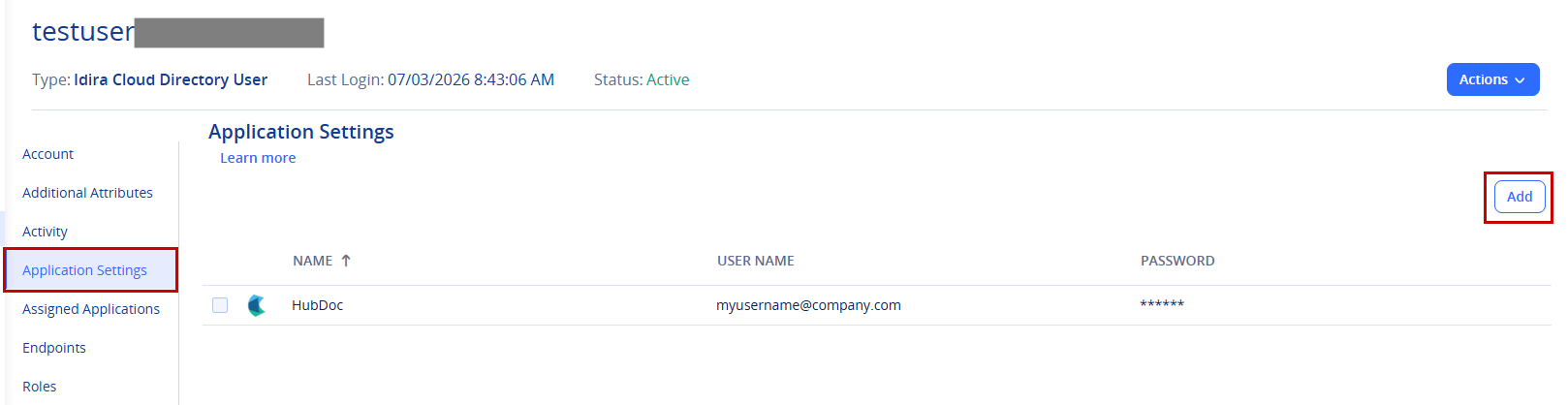
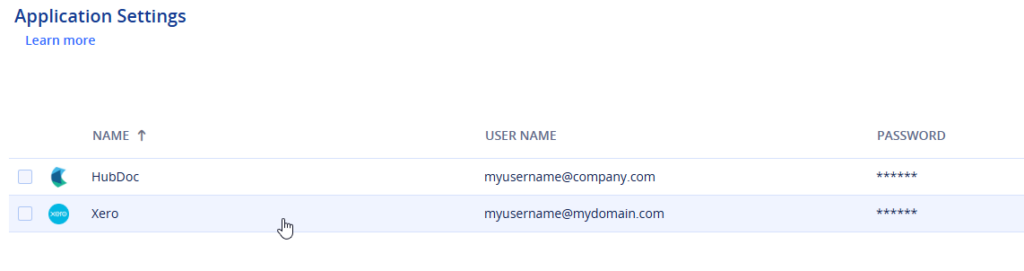
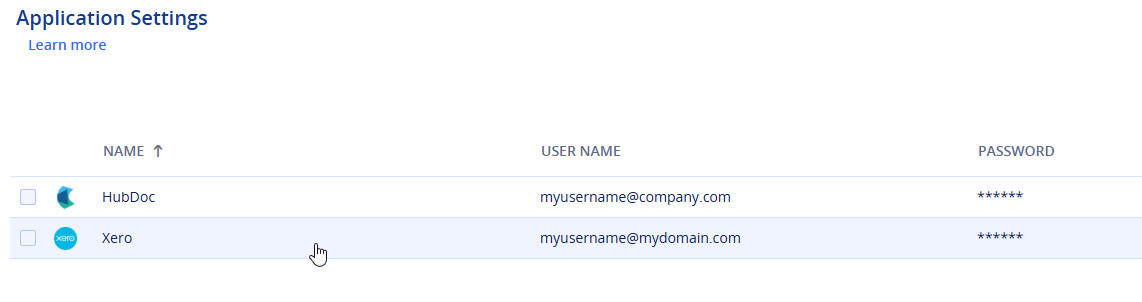
In the user’s profile, click Application Settings. A list of applications with stored credentials for the user will be displayed.
Click Add in the top-right corner.
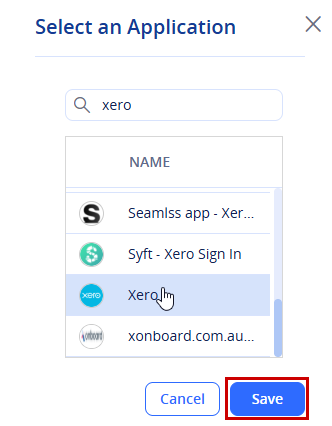
In the pop-up window, select the application you want to store credentials for (for example, Xero), then click Save.
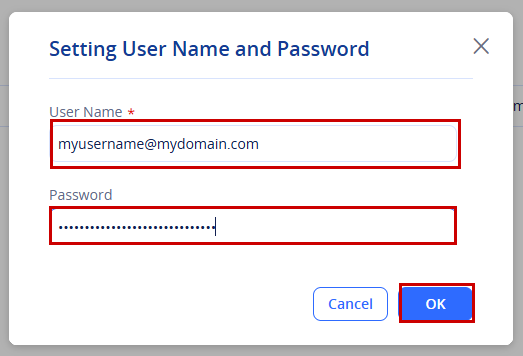
In the Seting User Name and Password window, enter the user’s current username and password for the application, then click OK.
The credentials are now securely stored. If the user has previously saved their own credentials from their Access Space, the delegated credentials will overwrite them.
Shared Application Account
For applications where multiple users share the same username and password, follow the steps below.
Sign in to your Practice Protect account. From the 9-dot menu (App Launcher) in the top-left corner, select Manage to switch to the Manage platform space.
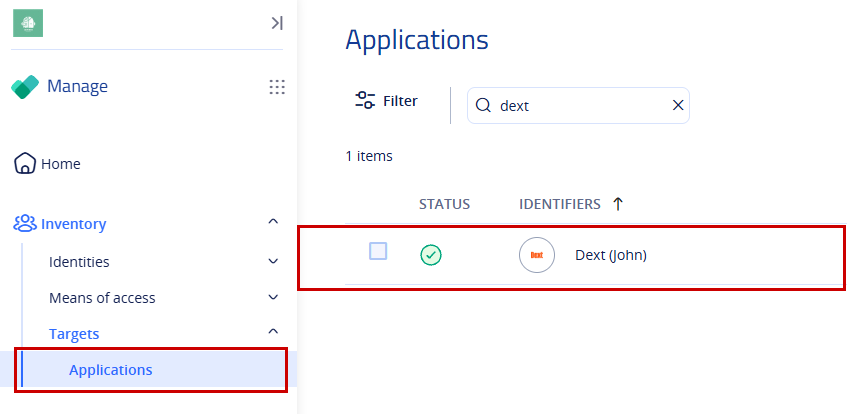
In the left-hand navigation pane, expand Inventory, then select Targets > Applications.
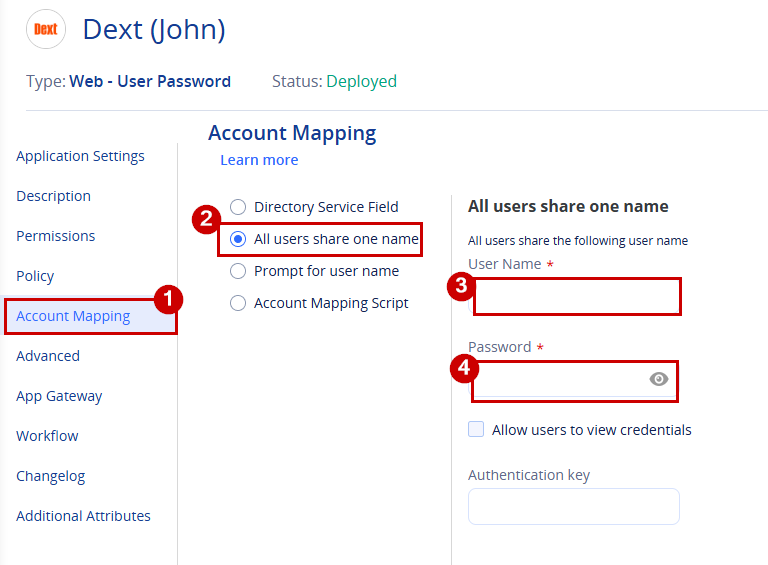
Search for and select the application you want to store shared credentials for. For example, Dext (John). The credentials for John’s account will be stored and made available to any users who have access to that shared application.
Note: Do not click the checkbox beside the application name. Instead, click the application name itself to open the application settings.
In the menu, click Account Mapping.
Select All users share one name.
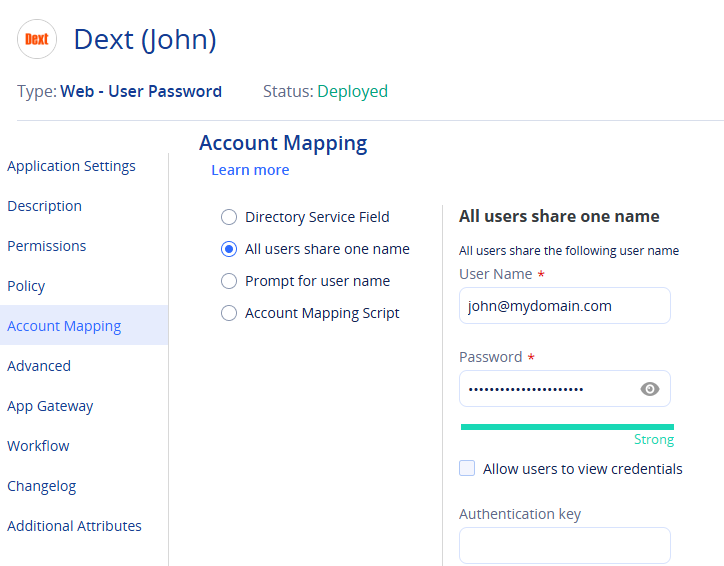
Enter the shared username and password in the required fields.
Click Save in the bottom-right corner of the page.
The shared application username and password are now configured and will be used by all users who have access to the shared application.
Important! If your organization has both a shared Dext account and users with their own individual Dext accounts, there should be two separate Dext application tiles in Applications to Manage.
Dext (John) = Shared account used by multiple users.
Dext = Standard individual Dext application where each user stores their own credentials.
This setup allows shared and individual credentials to be managed independently.