
Purpose
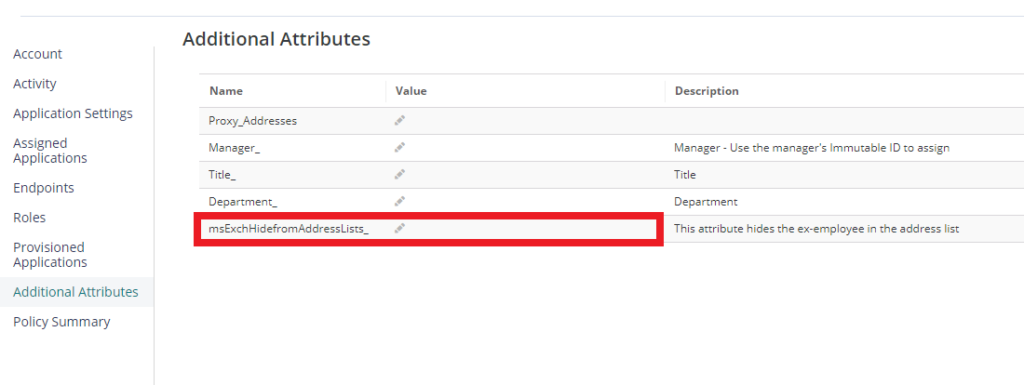
When Microsoft 365 is email integrated with Practice Protect, the management of attributes is controlled from the Practice Protect user. One key attribute affected by this is msExchHideFromAddressLists. A primary reason for using this attribute is to retain ex-employee email data while preventing other employees from seeing the account in the company’s address list.
Instructions
- Login Practice Protect and switch to Admin Portal.

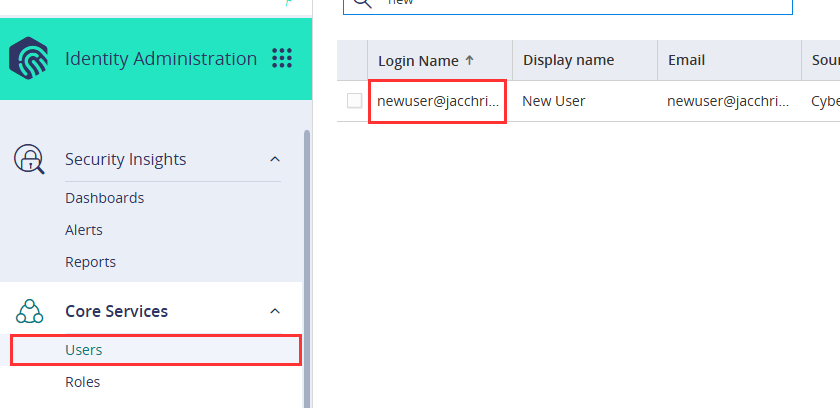
- Navigate to Core Services > Users and select the user.
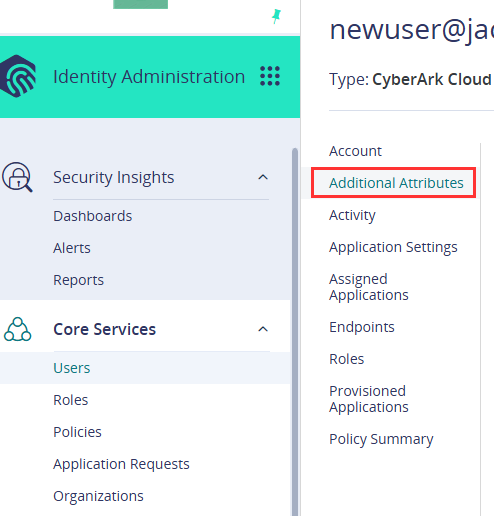
- Go to Additional Attributes.
-
Update msExchHidefromAddressLists_ to True. If this attribute doesn’t exist, Please contact the support to have it added. support@practiceprotect.com
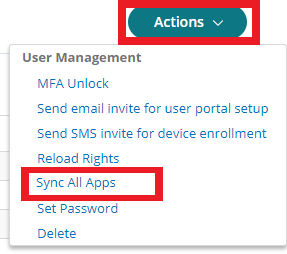
- Click Actions > Click Sync All Apps.
- Log in to Microsoft 365 Exchange Admin and confirm that Hide From Address Book is checked.
- If you are removing a user account, you may now proceed with the removal in Practice Protect.