
Purpose
This guide explains how new users can set up their Practice Protect account for the first time. The setup is typically completed as part of the onboarding process and takes approximately 5 minutes to complete.
Login to your Account
- An email invitation from Practice Protect will be sent to your active email address. Check your inbox for the invitation. If you do not see it, check your Junk or Spam folder.
- In the invitation email, click Login Now.
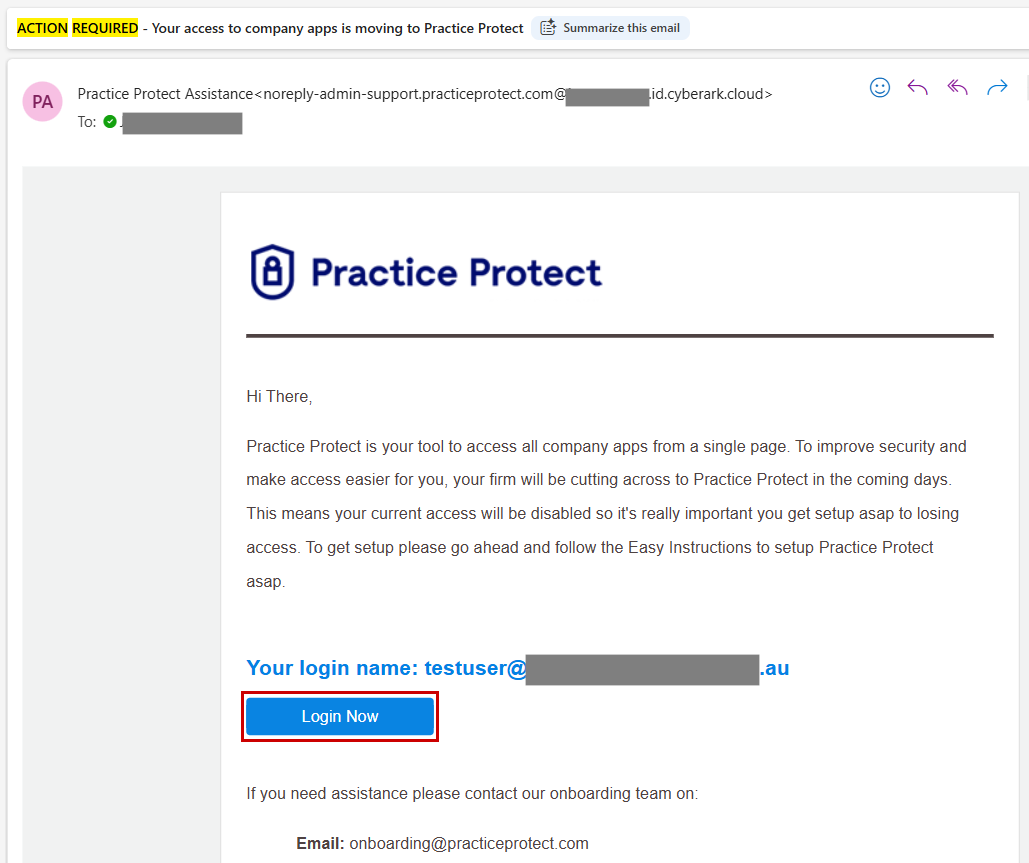
Note: The invitation contains a one-time-use login link that may expire if scanned by your email security solution. If Login Now does not open the welcome screen, contact your IT administrator to whitelist the Practice Protect invitation link, then request a new invitation from your Practice Protect administrator or Practice Protect Support.
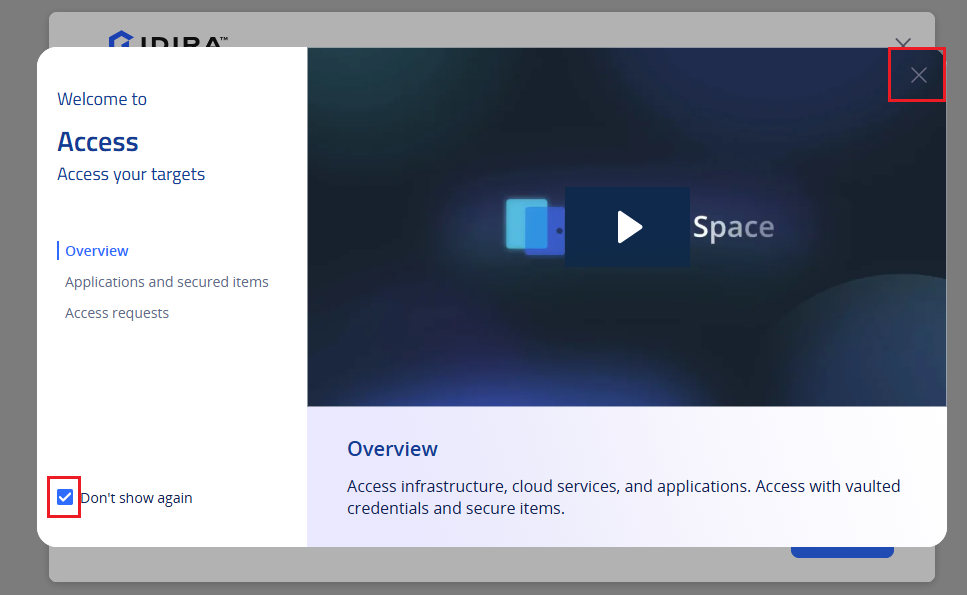
- You will be taken to the Access Space Welcome overview screen. If you do not need to review the guide, select Don’t show again, then click the X in the top-right corner to close the guide and continue.
Configure Two-factor Authentication and Password
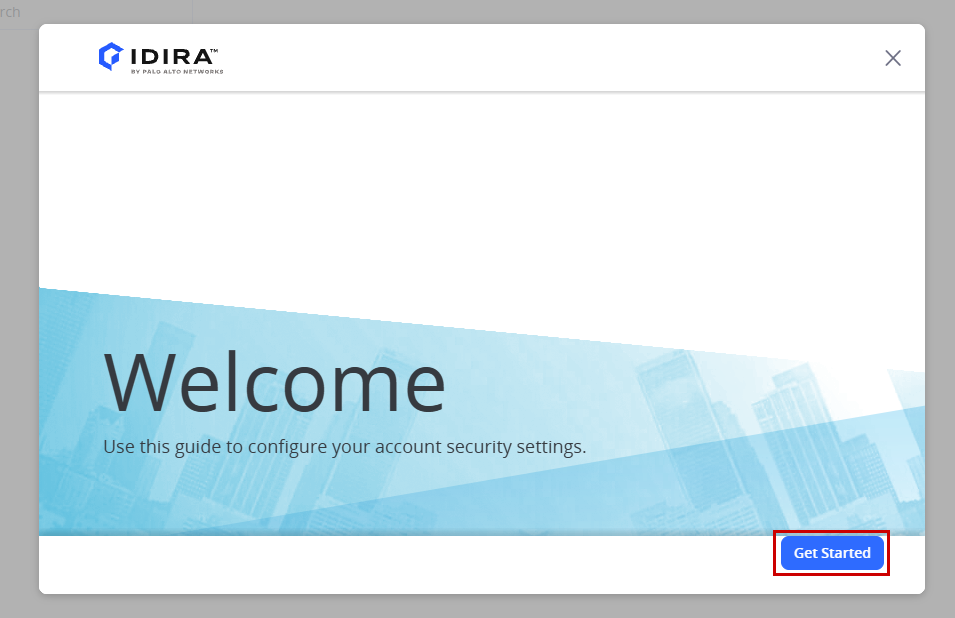
- On the next Welcome screen, click Get Started.
-
You will be prompted to set up your Multi-Factor Authentication (MFA). The MFA method available to you depends on your Practice Protect configuration. Select the instructions below that match the MFA method displayed on your screen.
Set Up Passkey as MFA-
Setup your mobile phone number, then click Save.
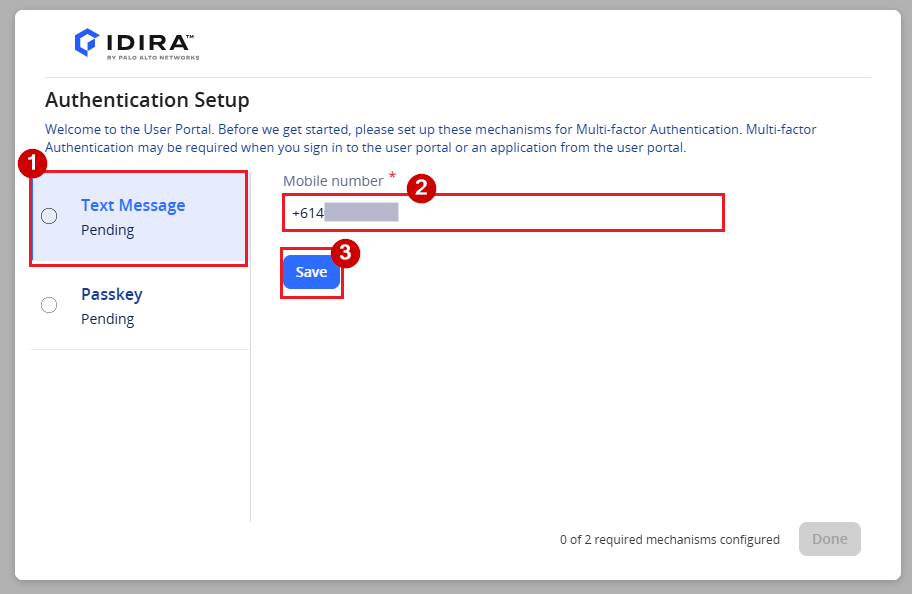
Important: Enter your phone number in full international format (for example, +614XXXXXXXX). This number will be saved to your account and can be used to receive SMS verification codes when signing in to Practice Protect Access Space.
- Click Passkey, then click Add. You will be redirected to the Passkey setup page.
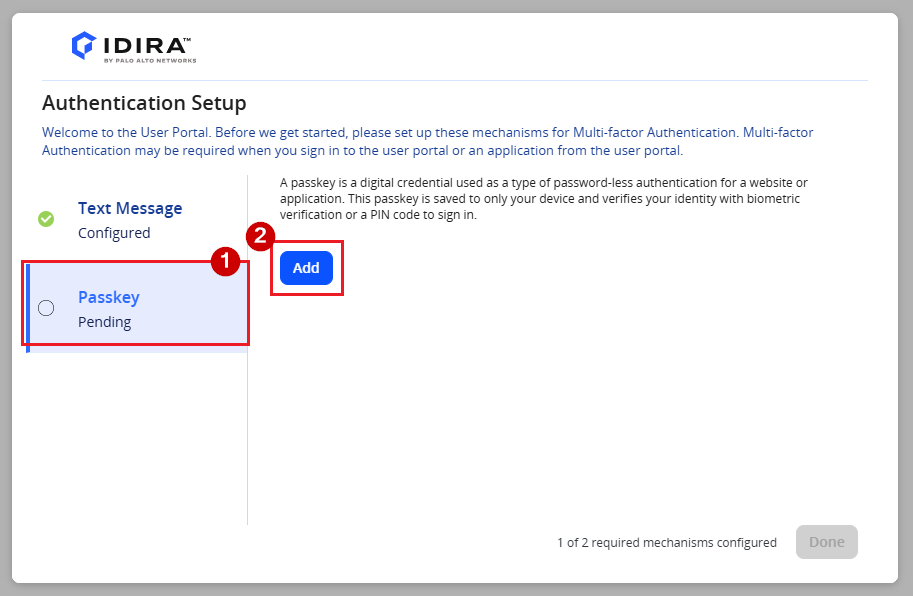
- Follow the on-screen instructions to set up your Passkey.
For more information about Passkeys, see the Sign In with a Passkey guide.
Set Up SMS / OTP as MFA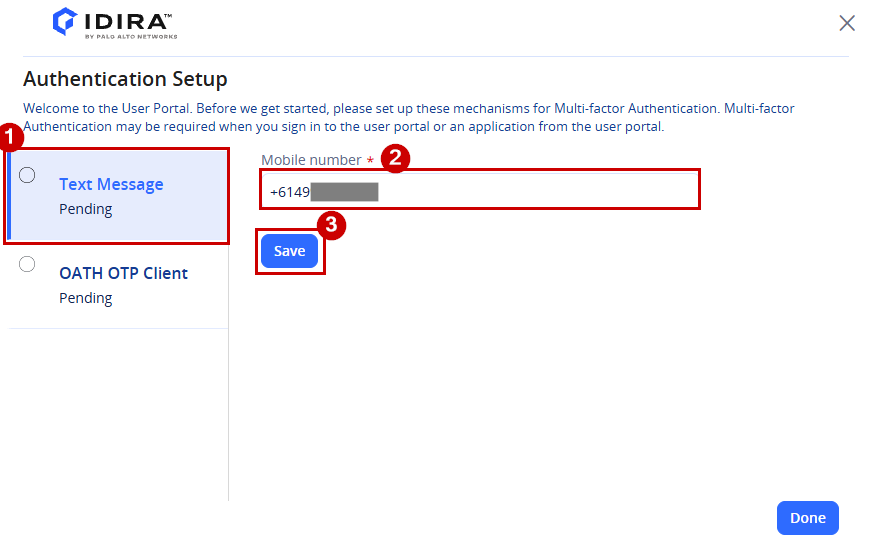
Follow the on-screen instructions to configure your existing SMS or OTP authentication method.
For SMS, enter your mobile number using the international format, including the country code. For example, an Australian mobile number should be entered as +61 4XXXXXXXX. Follow the prompts to verify your phone.
For OTP, scan the displayed QR code using an authenticator app such as Google Authenticator. Enter the verification code generated by the app when prompted.
-
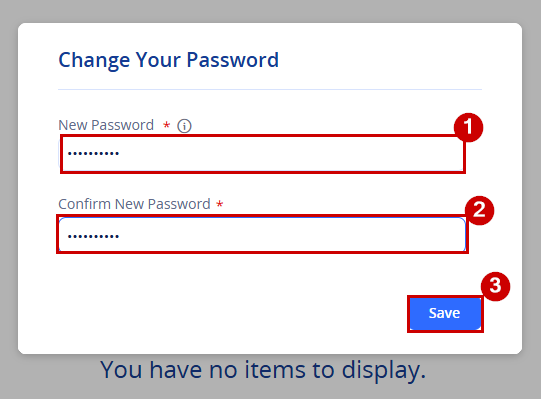
- Next, you will be prompted to create a new password. Enter your new password and click Save.
Install the Browser Extension
Accessing applications through Practice Protect requires the Practice Protect browser extension.
Install the browser extension for the browser you use by selecting the appropriate link below:
For step by step assistance on installing the browser extension click here.
(For IT Admins) If you want to deploy the browser extension via Group Policy or Intune, you can follow this
Practice Protect Platform
You’re now ready to use Practice Protect Access Space.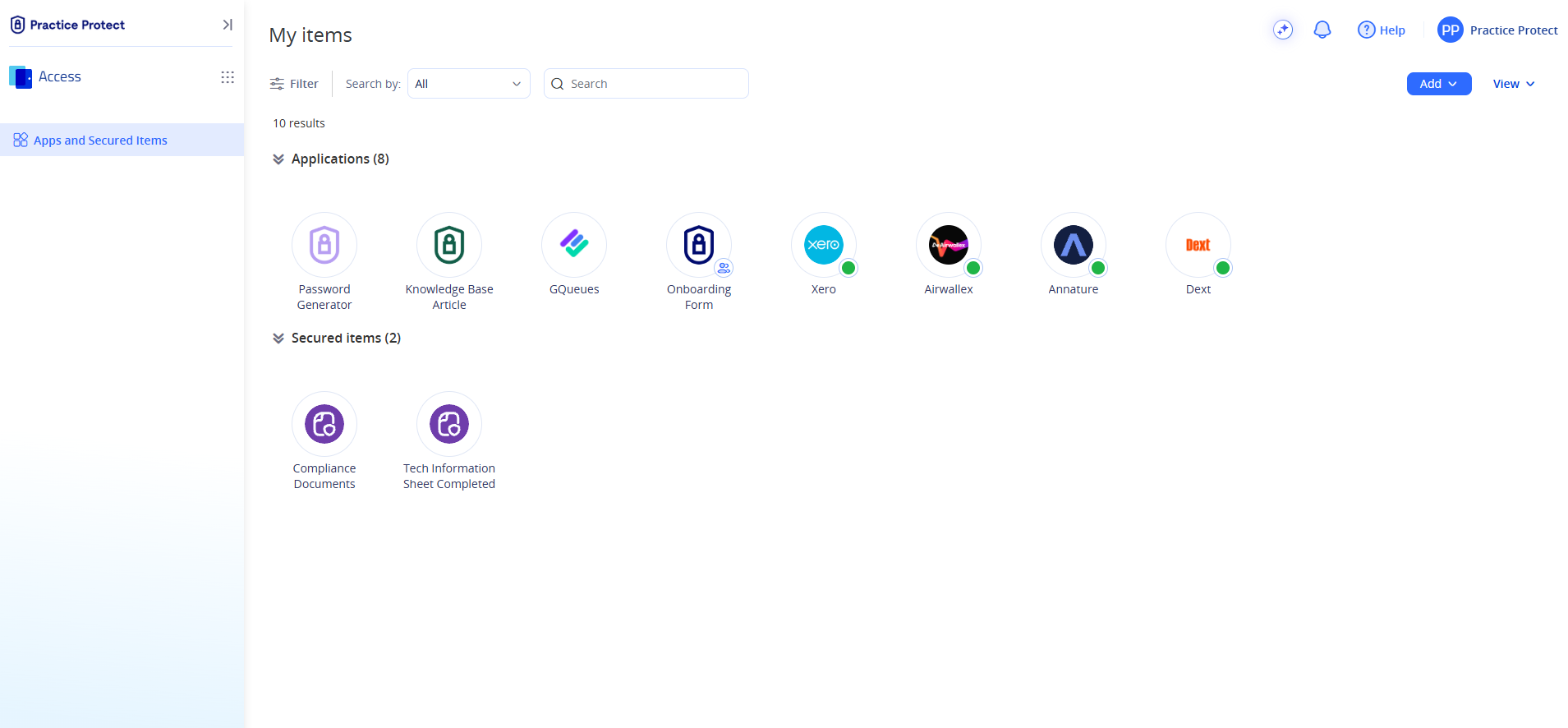
To test your setup, click an application tile to launch it. To test your setup, click an application tile to launch it. If credentials have already been configured, Practice Protect will automatically populates your username and password and sign you in. If no credentials have been saved for the application, you’ll be prompted to set them up before launching it.
Bookmark the Practice Protect Access Space page in your browser so you can easily access it the next time you need to sign in.
Need help?
For Onboarding assistance email onboarding@practiceprotect.com or call:
Phone: 1300 010 114
AU: +61 (2) 9191 9389
US: +1 (415) 992 8245
HK: +852 5808 7483
PH: +63 (2) 218 3614
Congratulations! You’re now onboarded to Practice Protect.