Purpose
This guide explains how to sign in to your Practice Protect User Portal for the first time using your Microsoft 365 account.
This guide applies only to firms using Microsoft Entra ID/SAML as the source identity in Practice Protect. If this is not your deployment type, please refer to this guide.
Also Password Administrators can use the Send Email for Portal Setup Guide to invite users to Practice Protect
Before you begin, make sure you have an active Microsoft 365 account in your firm’s Microsoft tenant. This account will be used to sign in to Practice Protect.
Instructions
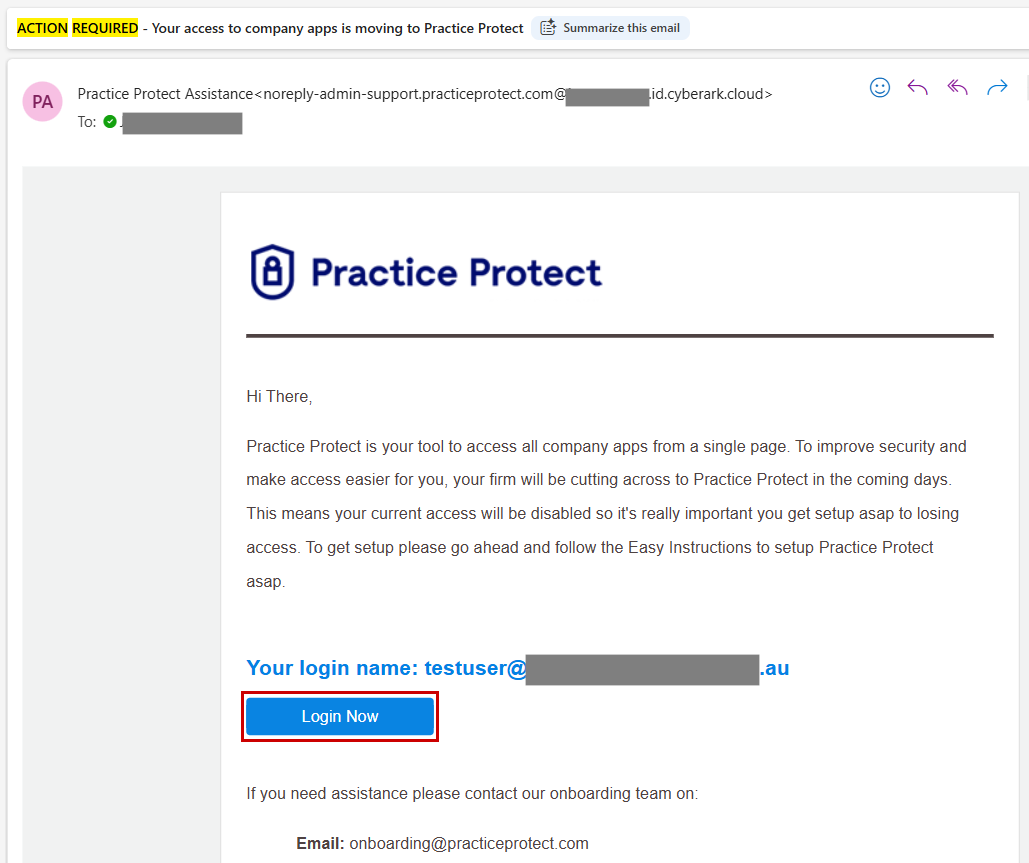
- An email invitation from Practice Protect will be sent to your active email address. Check your inbox for the invitation. If you don’t see it, please check your Junk or Spam folder.
- Click on the Login Now button.
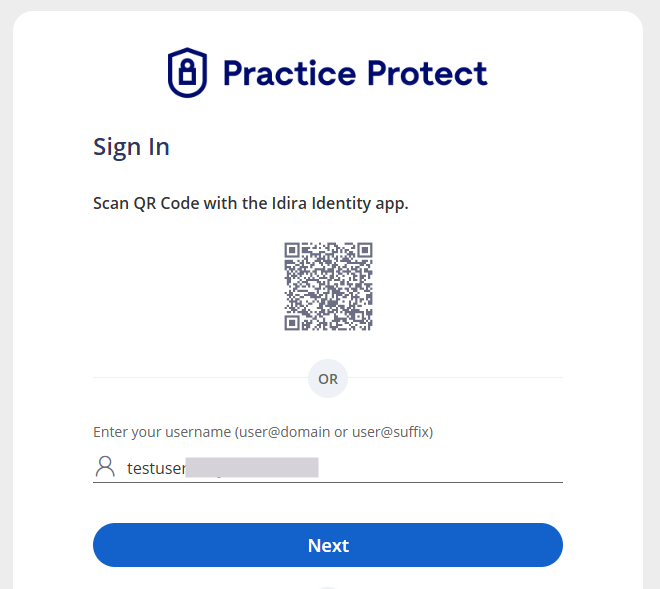
- Enter your Microsoft 365 email address in the Username field on the Practice Protect Sign In page and click Next.
-
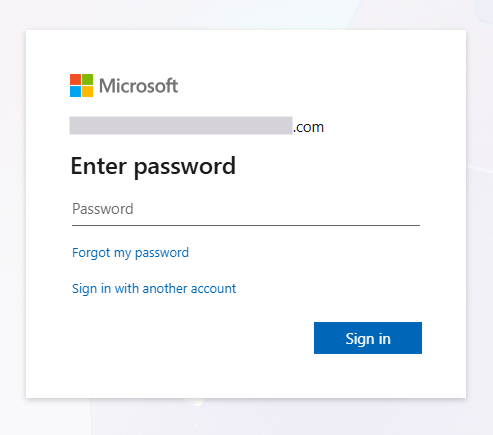
You will be redirected to the Microsoft 365 Sign-in page. Enter your Microsoft 365 password, then click Sign In. If you are already signed in to Microsoft 365, proceed to Step 6.
- Complete your Microsoft 365 MFA requirements, then continue to the next step.
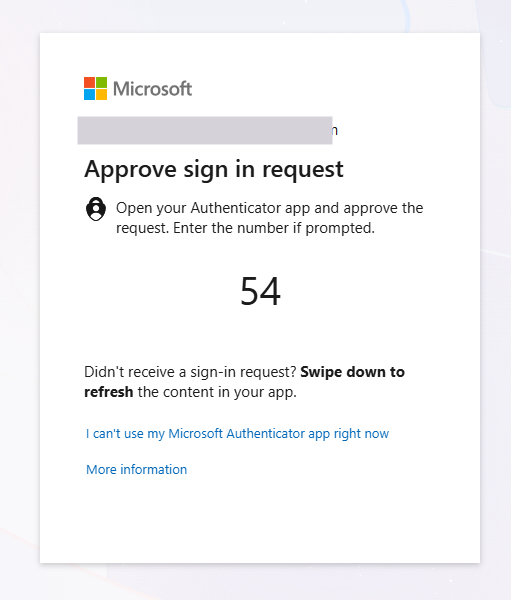
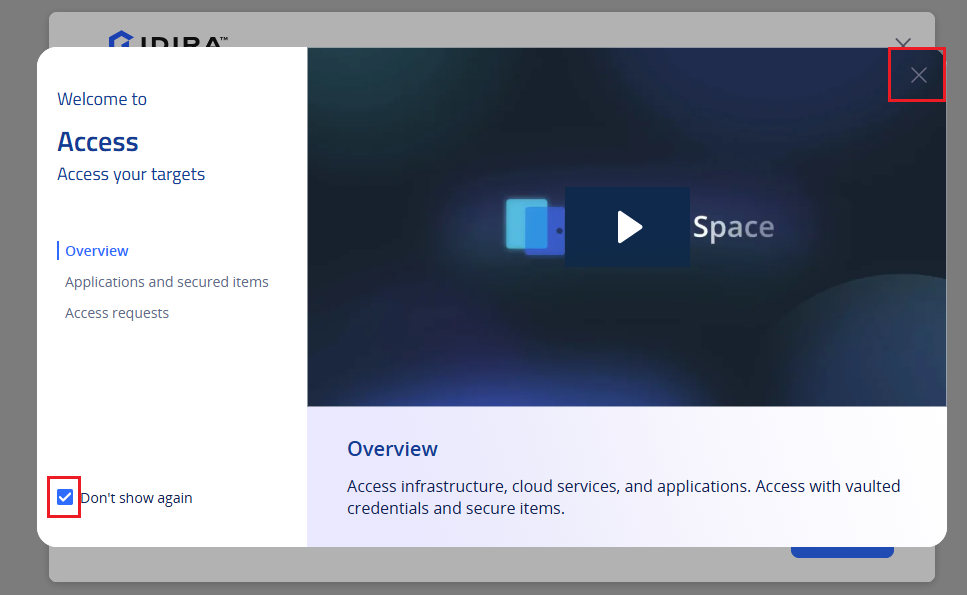
- You will be taken to the Access Space Welcome overview screen. If you do not need to review the guide, select Don’t show again, then click the X in the top-right corner to close the guide and continue.
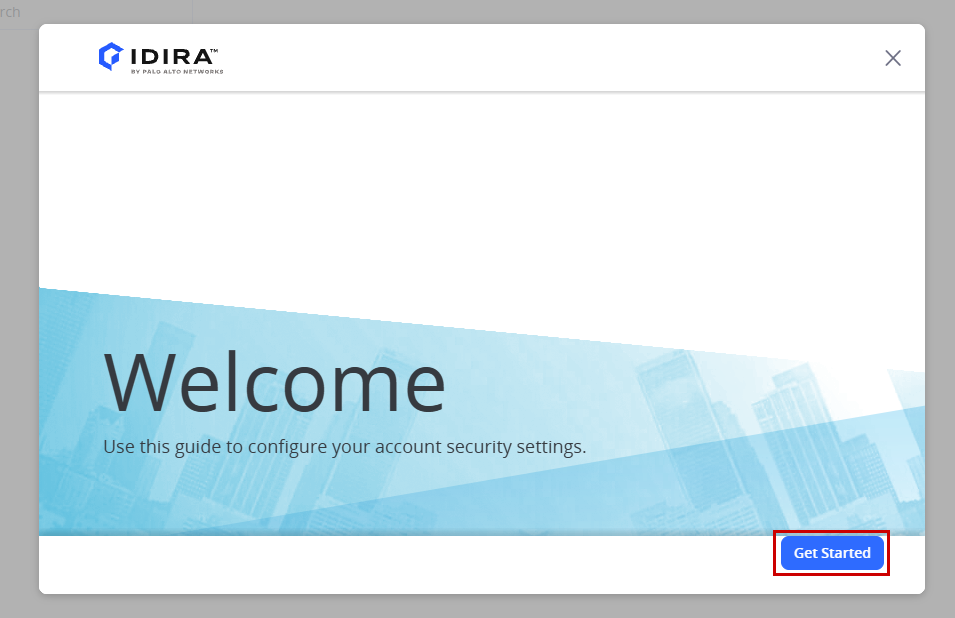
- If you are prompted to set up a Practice Protect Passkey, follow the instructions in the Setup Passkey Guide to complete the setup. Otherwise, skip this step and continue.
- The next step is to install the Practice Protect browser extension. Open the appropriate link below for your preferred browser.
- Google Chrome
- Mozilla Firefox
- Microsoft EdgeNote:
If you’re using Microsoft Intune, your IT team can also deploy the browser extension using this guide.
-
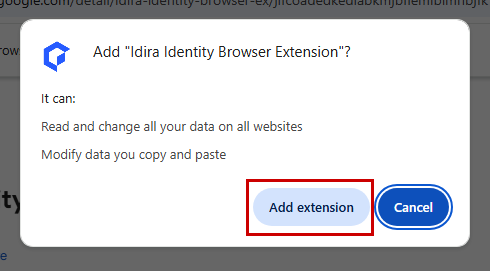
In this example, we’ll use Google Chrome. Click Add to Chrome to install the extension.
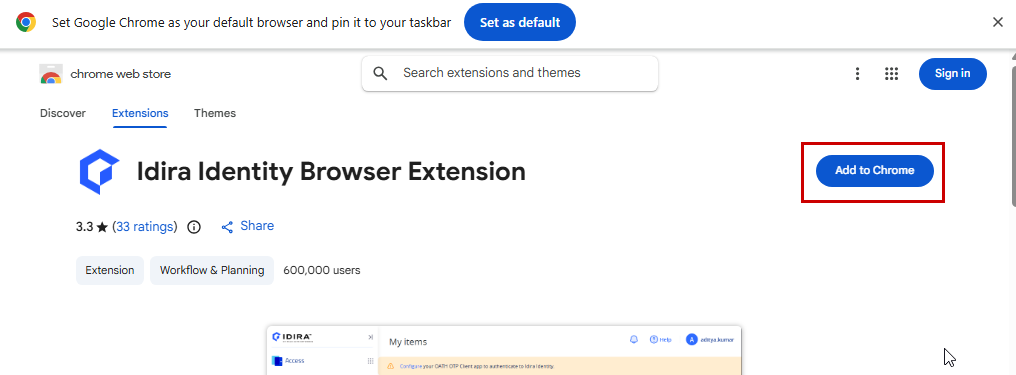
Note: If the Add to Chrome button is greyed out, your browser is managed by your organization’s IT administrator. Please contact your IT team for assistance with installing the extension.
-
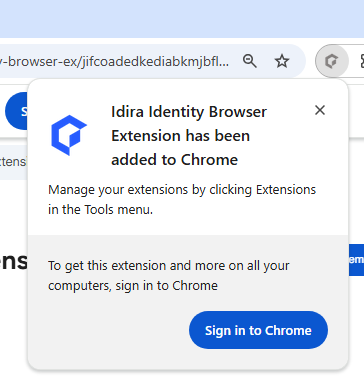
- A notification will appear confirming that the browser extension has been successfully added. You do not need to sign in to Google Chrome to complete the installation.
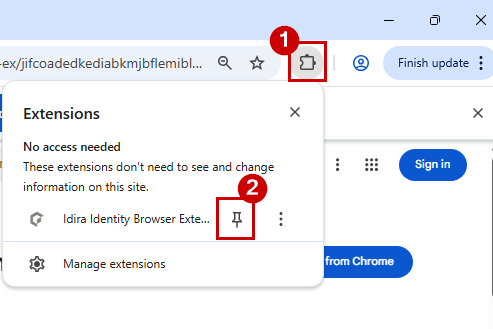
- Click the Extensions (puzzle piece) icon in the top-right corner of your browser, then click the Pin icon next to the Practice Protect extension to keep it visible in the browser toolbar.
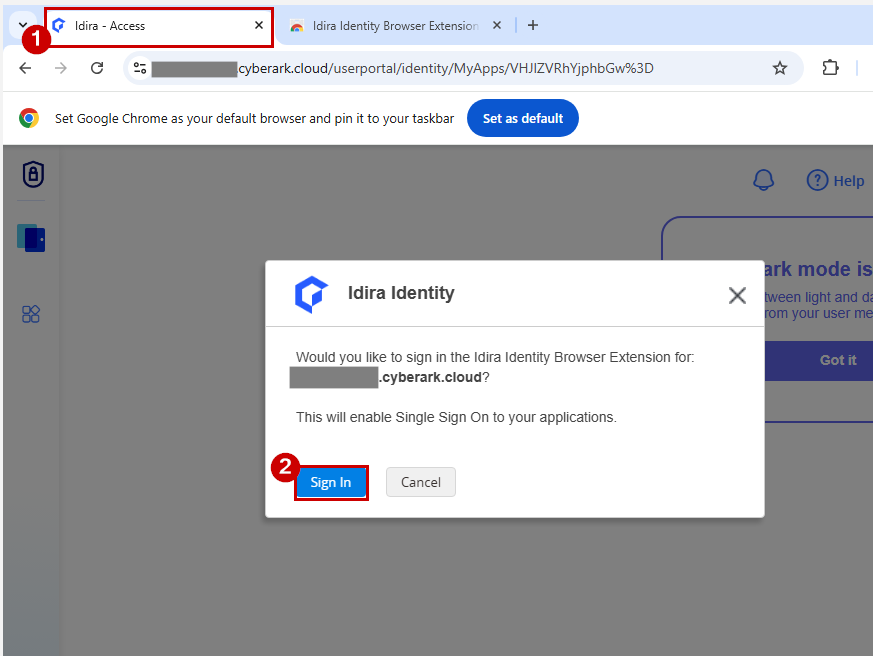
- Return to the browser tab where your Practice Protect Access Space is open and refresh the page.
- If prompted with “Would you like to sign in to the Idira Identity Extension?”, click Sign In. This will sync the browser extension with your Practice Protect account.
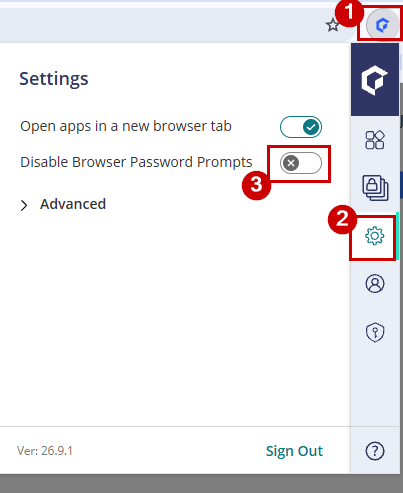
- Next, disable the browser password prompts. Click the extension icon that you pinned earlier, click the Settings (gear) icon, then turn on Disable browser password prompts.
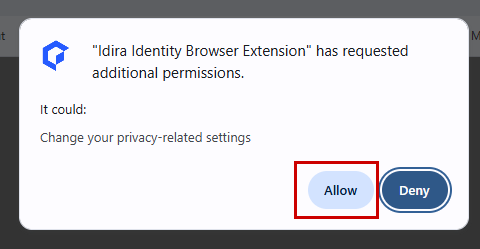
- If you are prompted to grant additional permissions to the Browser Extension, click Allow.
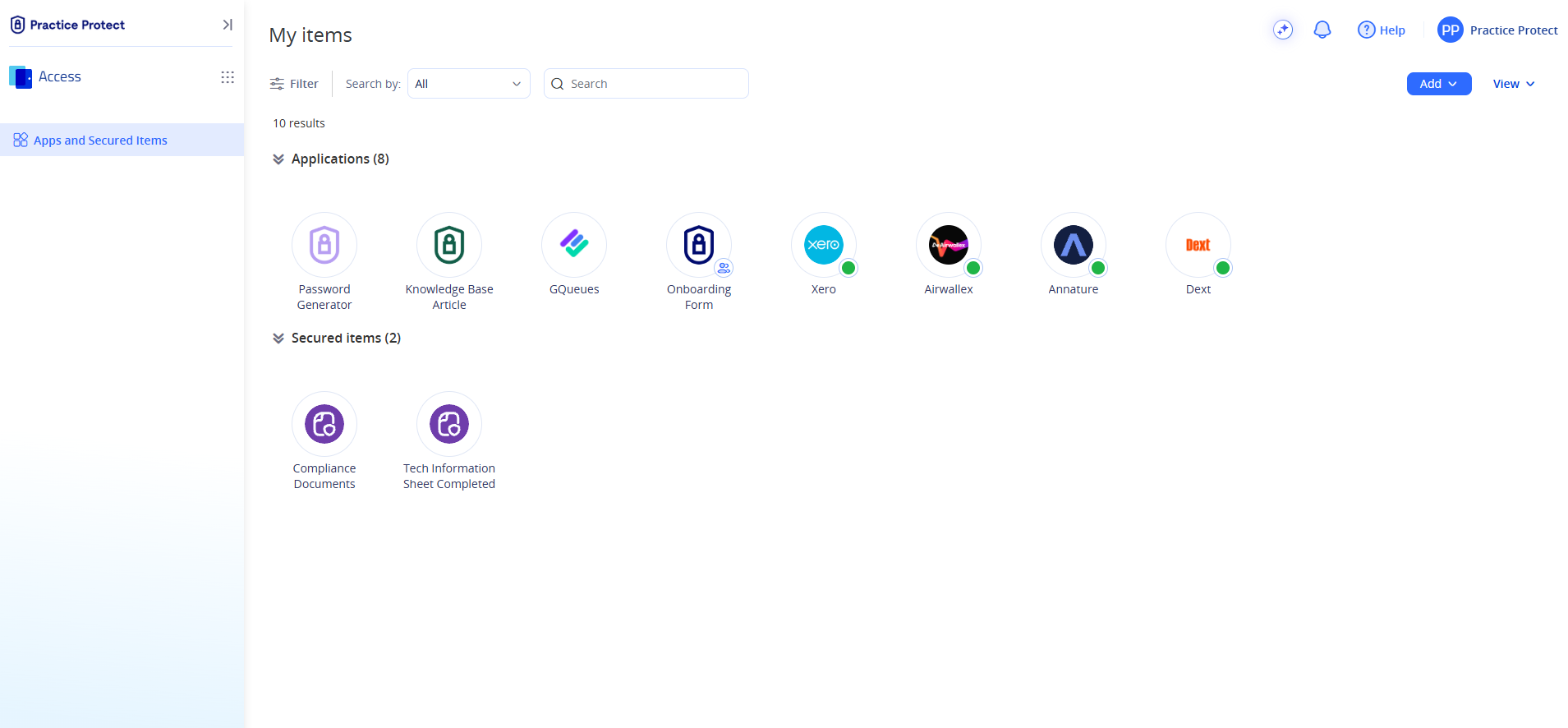
- You’re now ready to use Practice Protect Access Space. To test your setup, click an application tile to launch it. If credentials have already been configured, Practice Protect will automatically populates your username and password and sign you in. If no credentials have been saved for the application, you’ll be prompted to set them up before launching it.
- Bookmark the Practice Protect Access Space page in your browser so you can easily access it the next time you need to sign in.If you experience any issues with your applications or signing in to Access Space, please contact the Practice Protect Support team through our Support page.